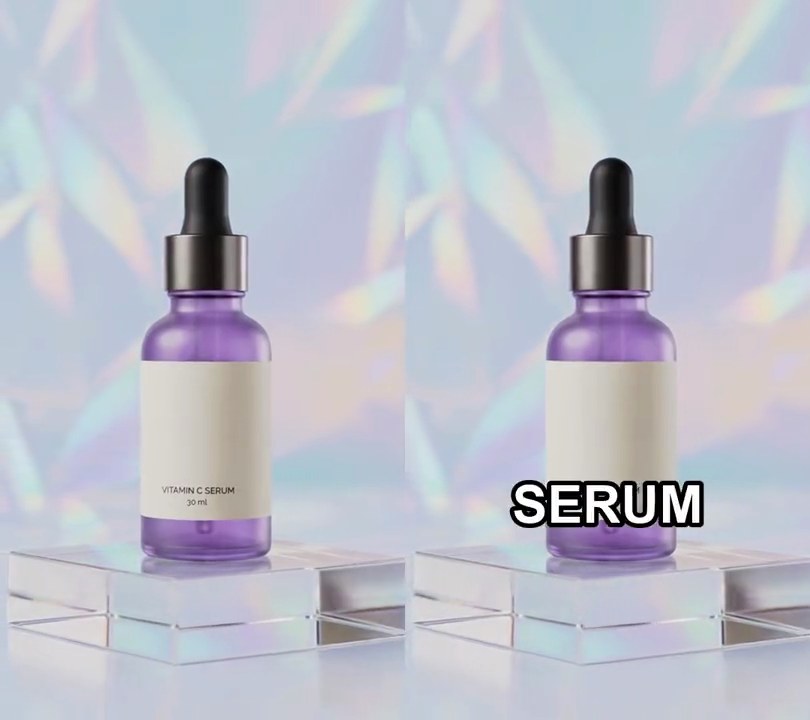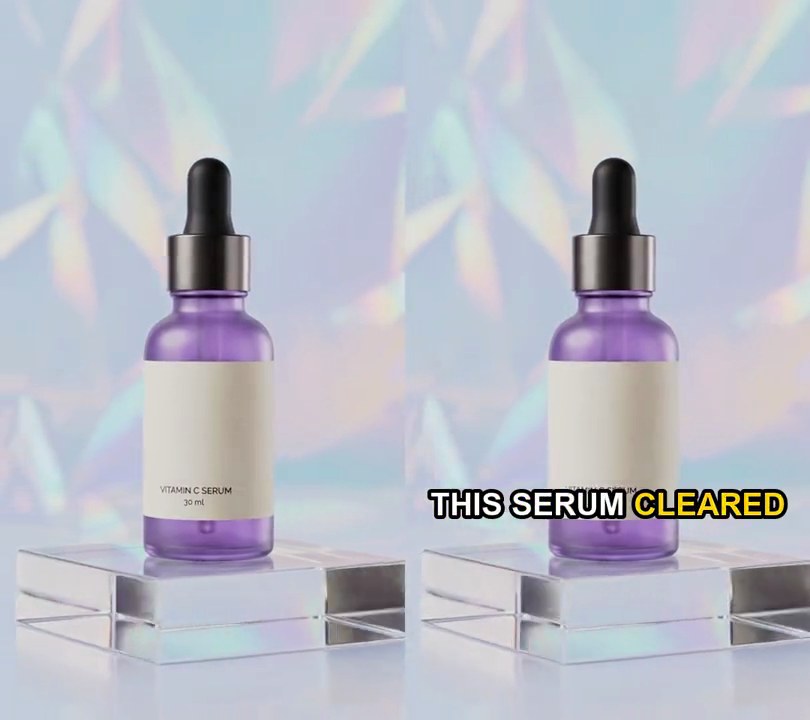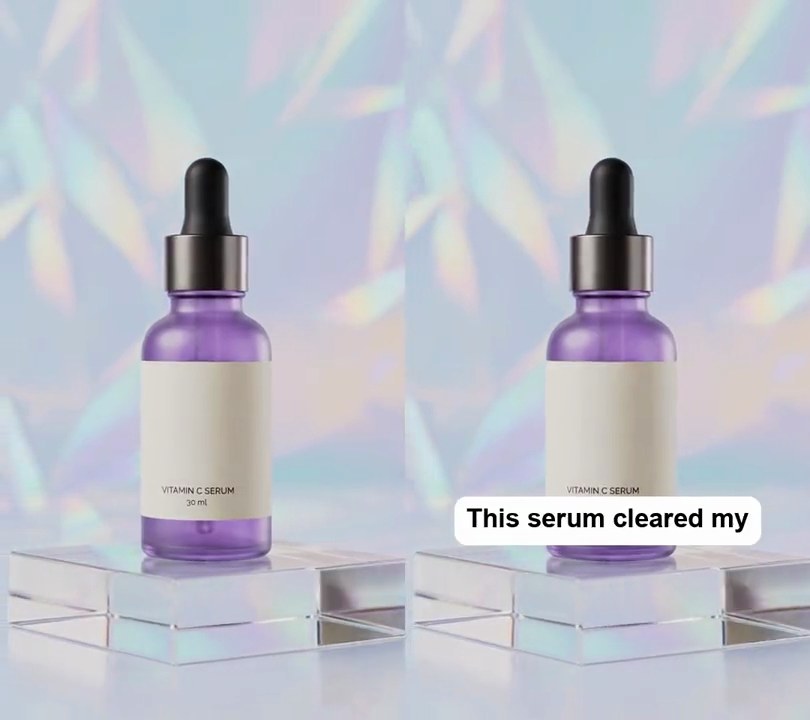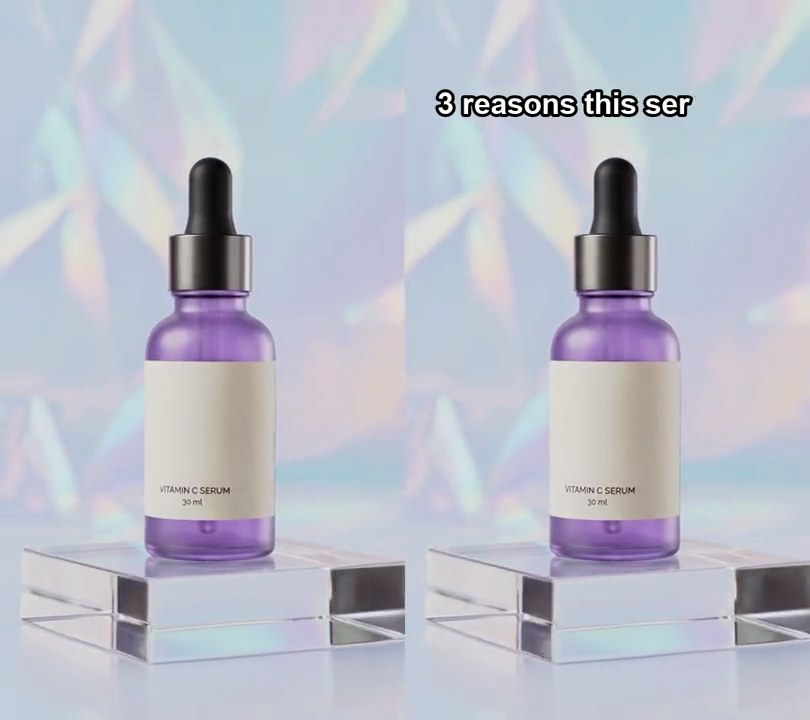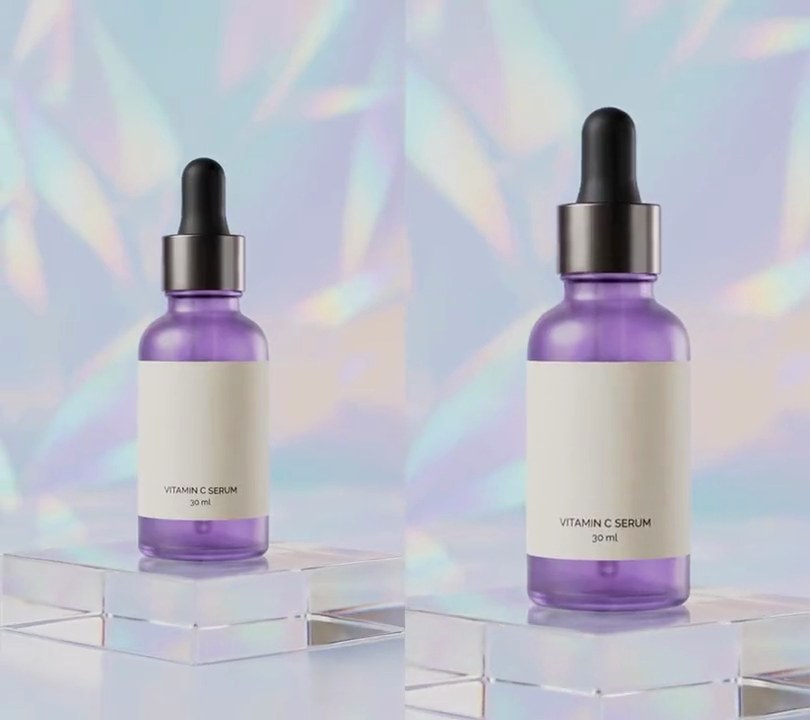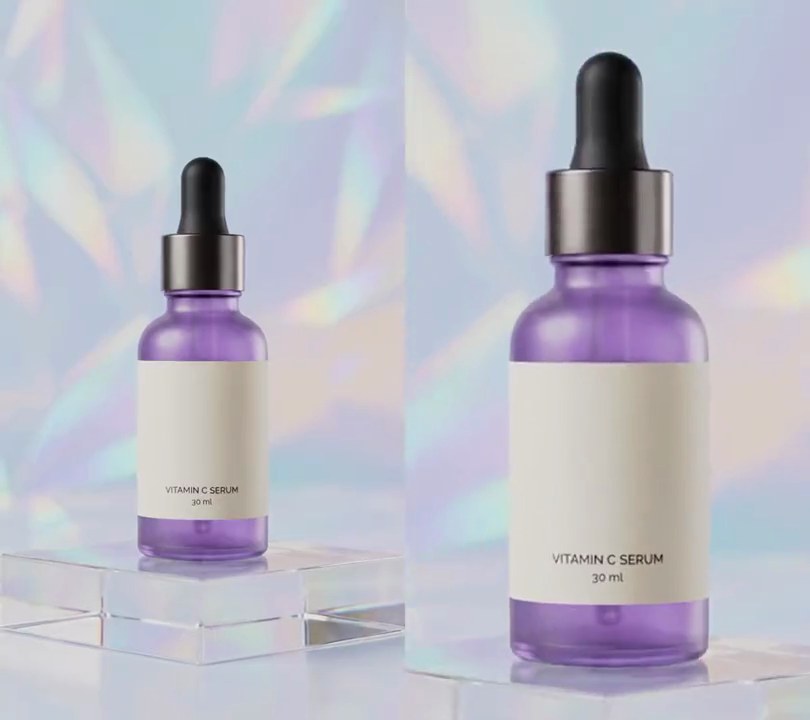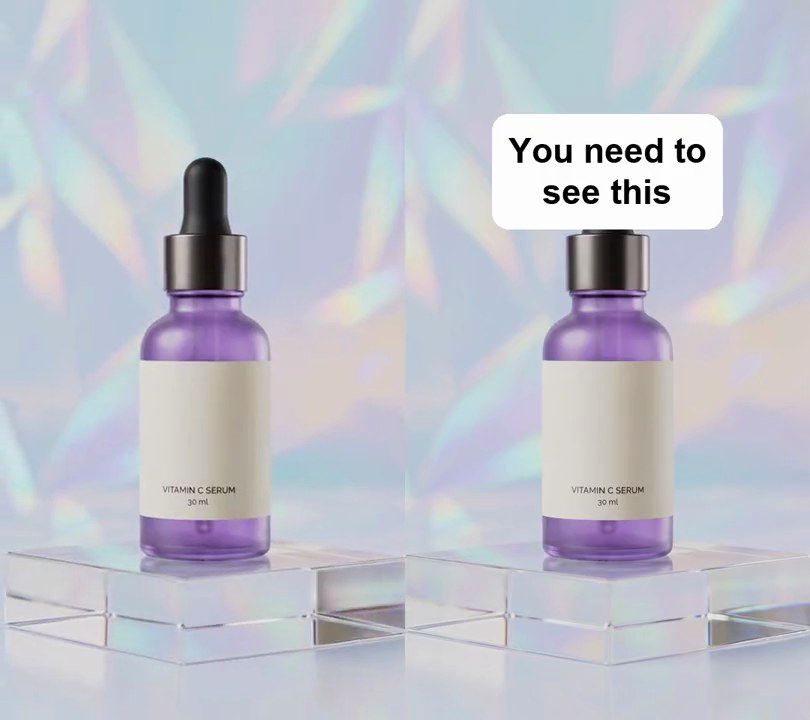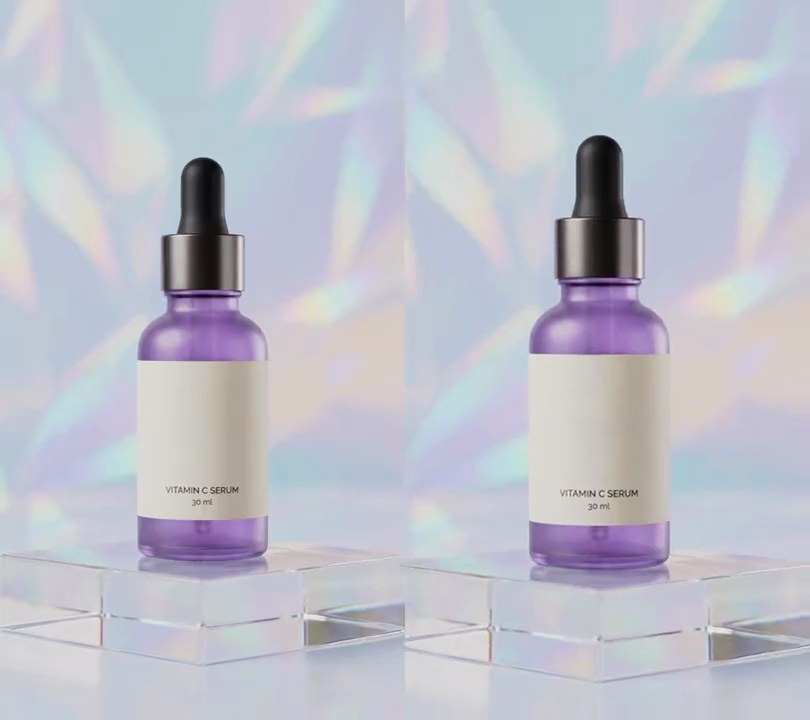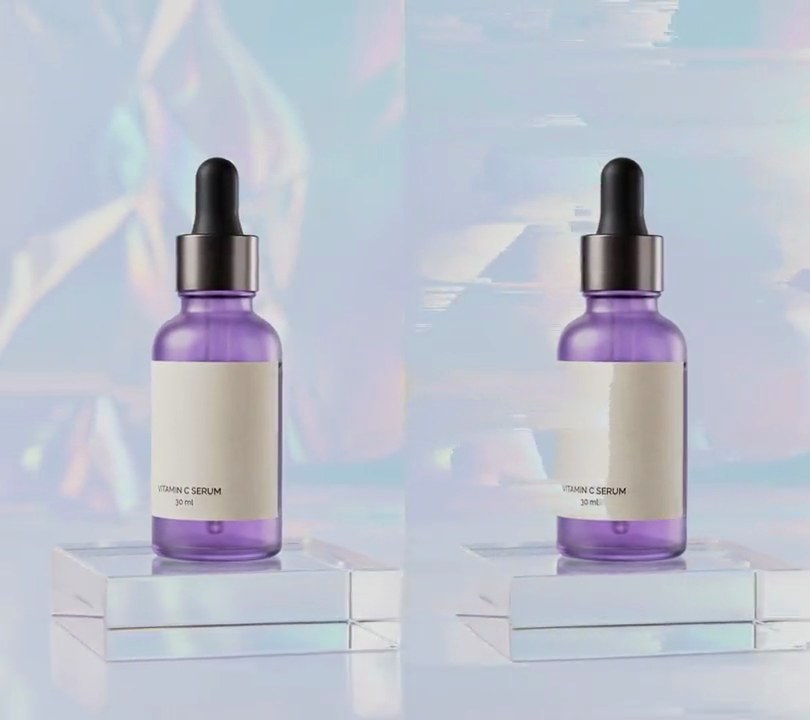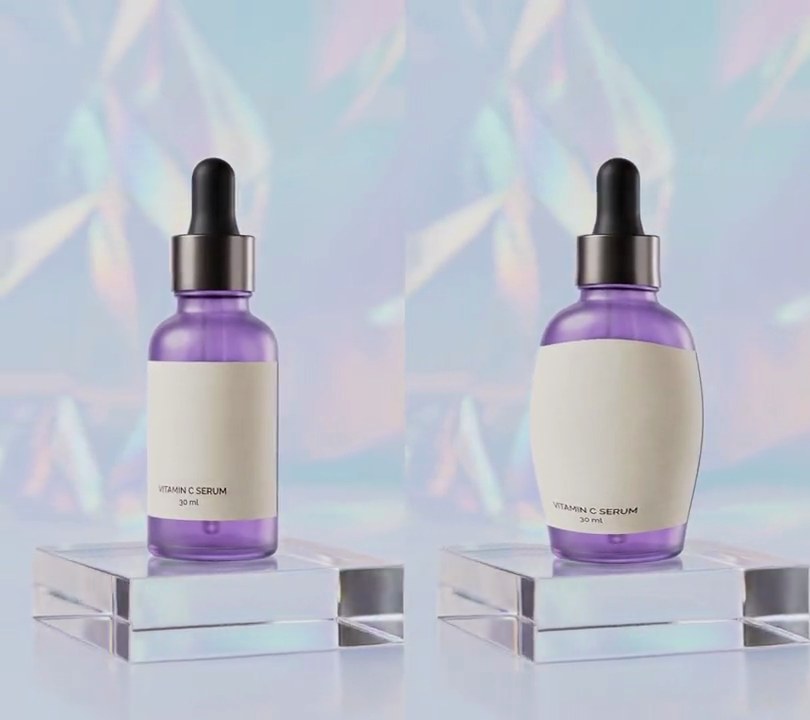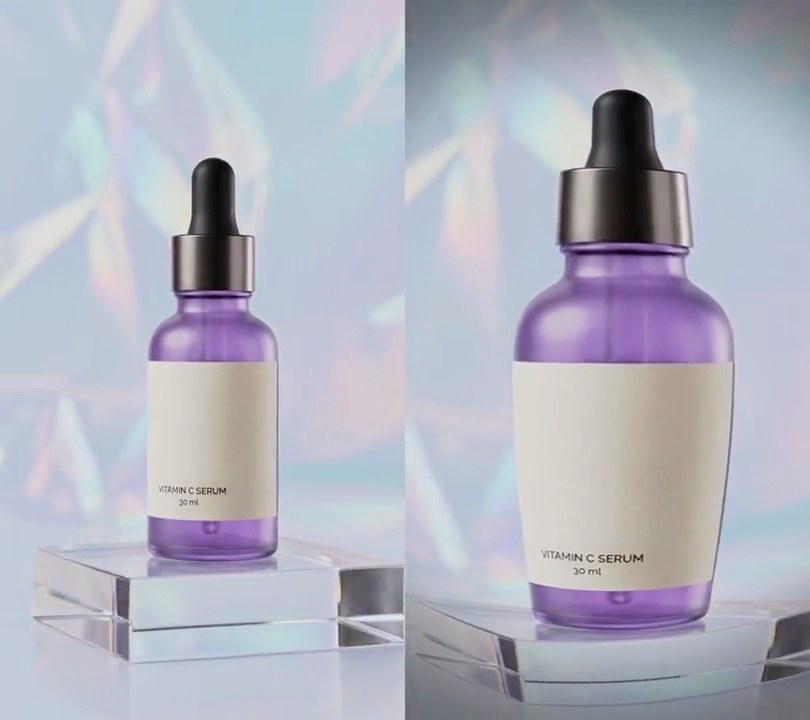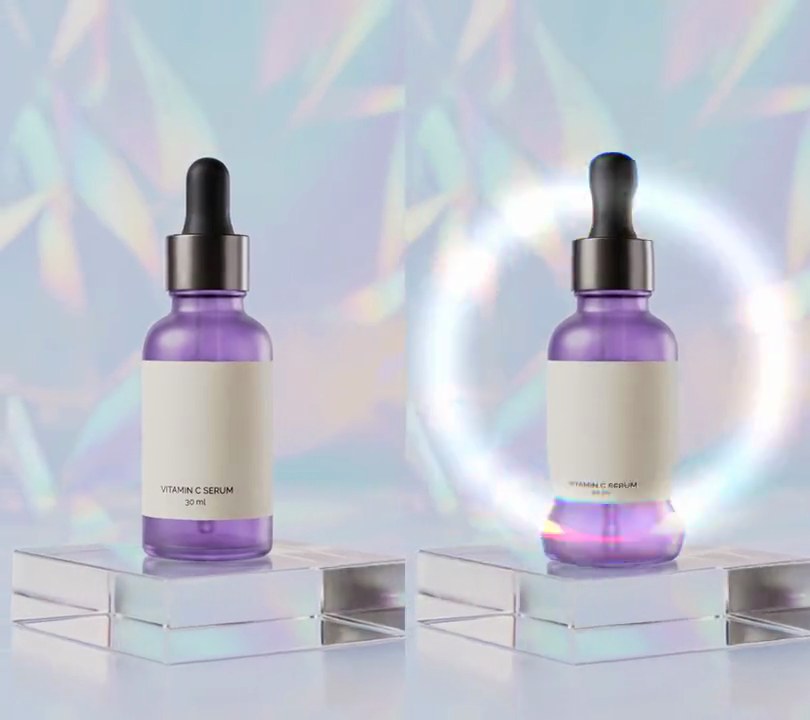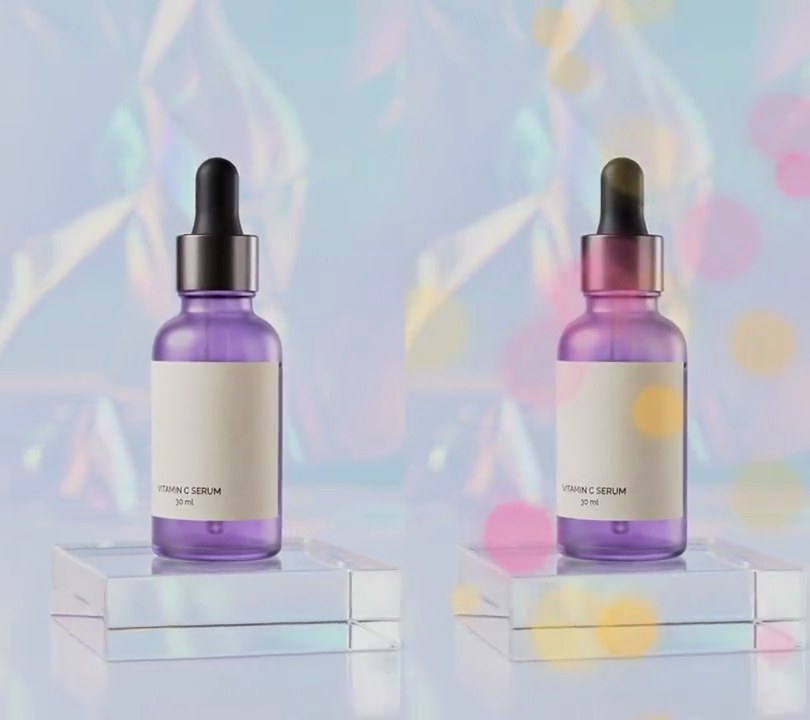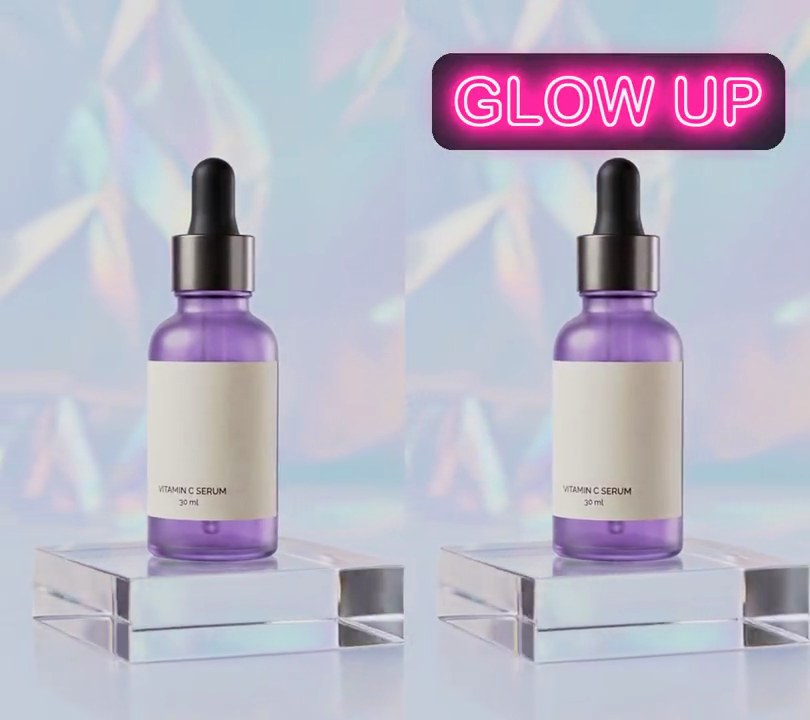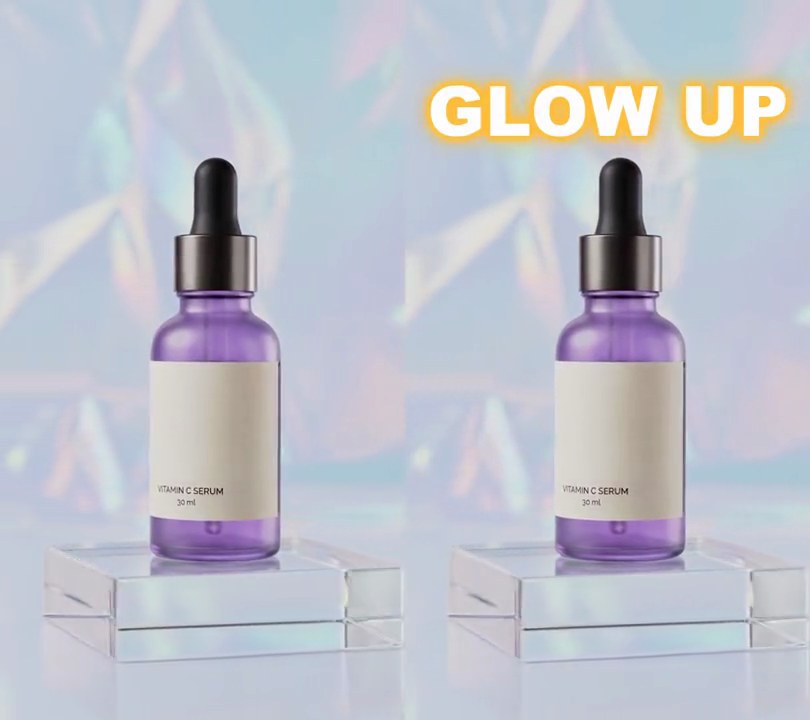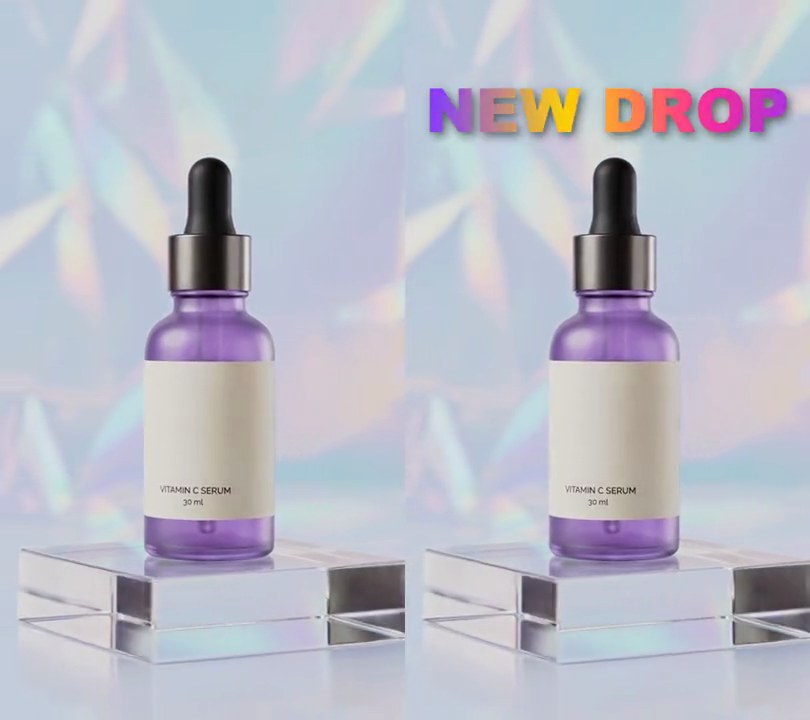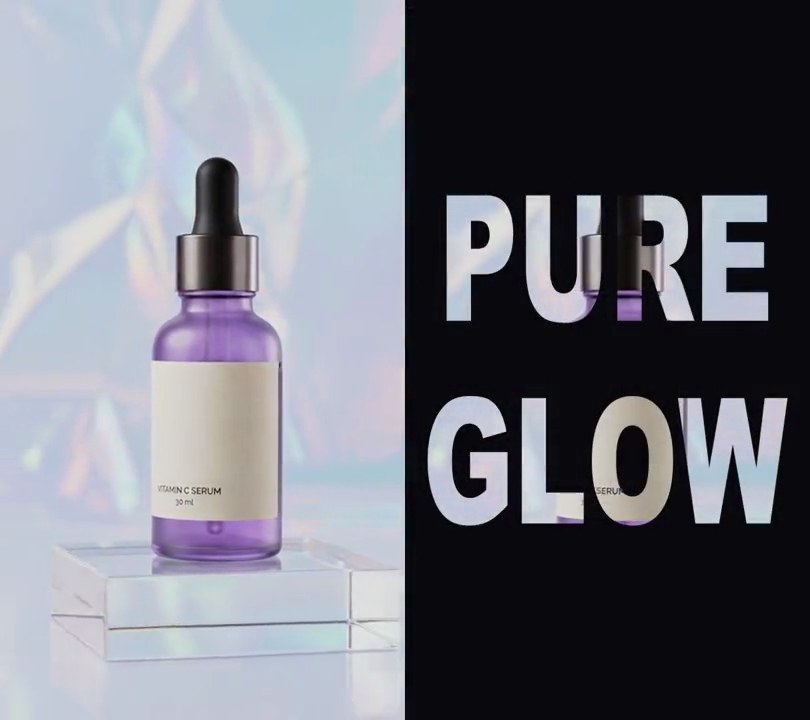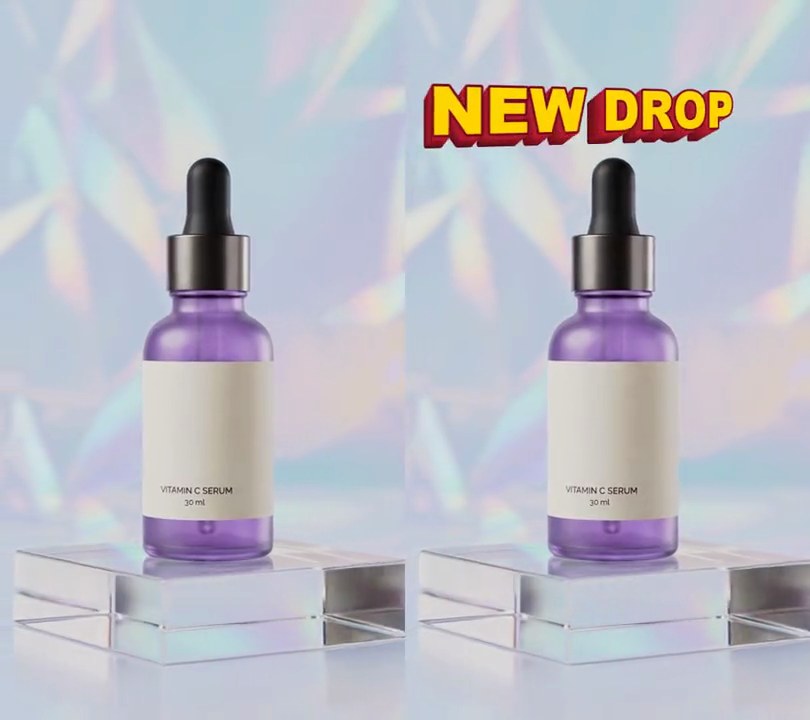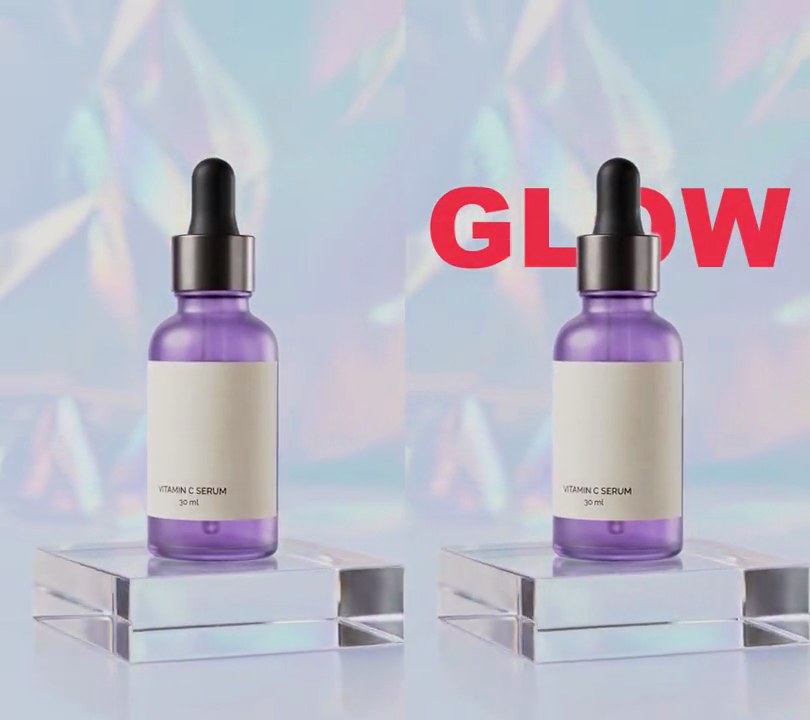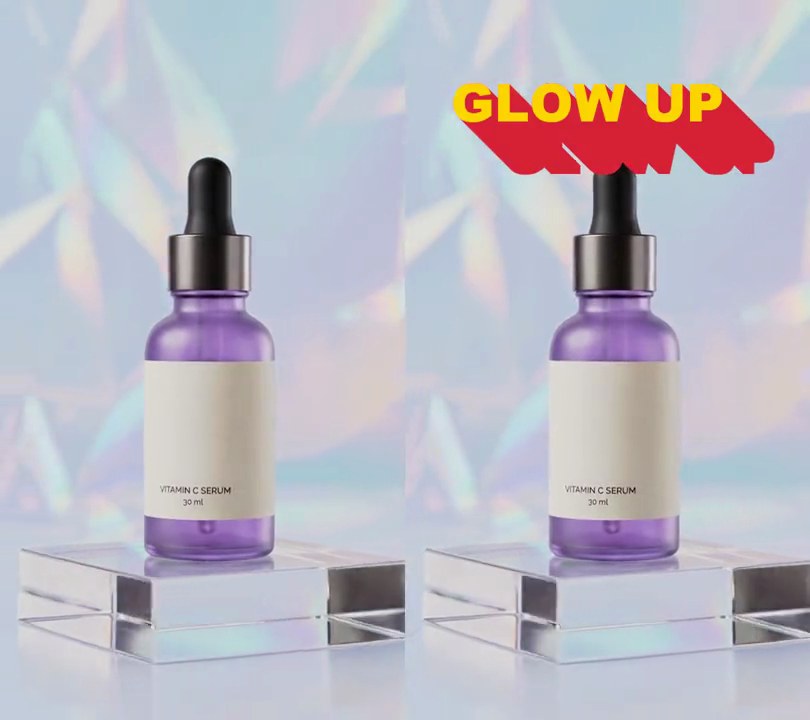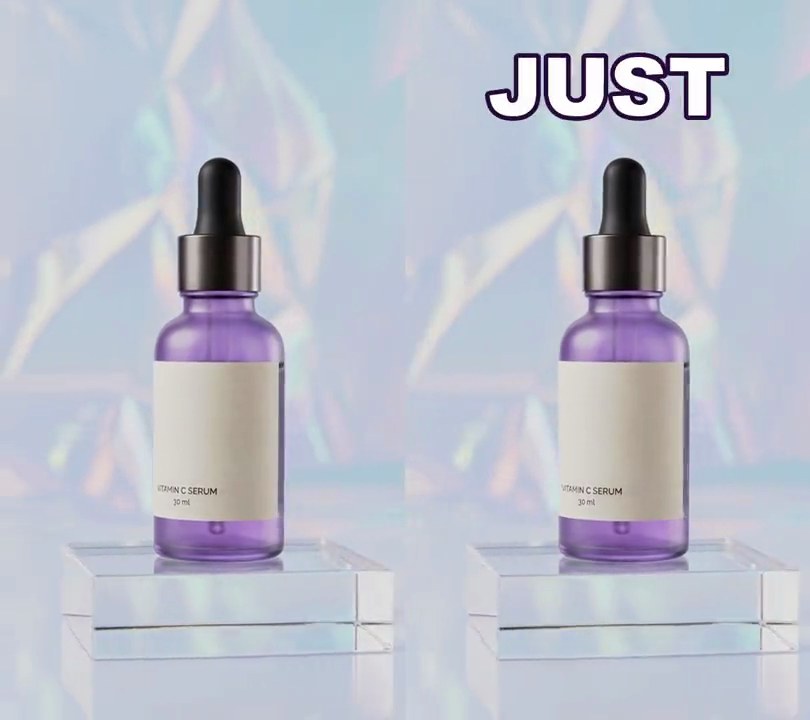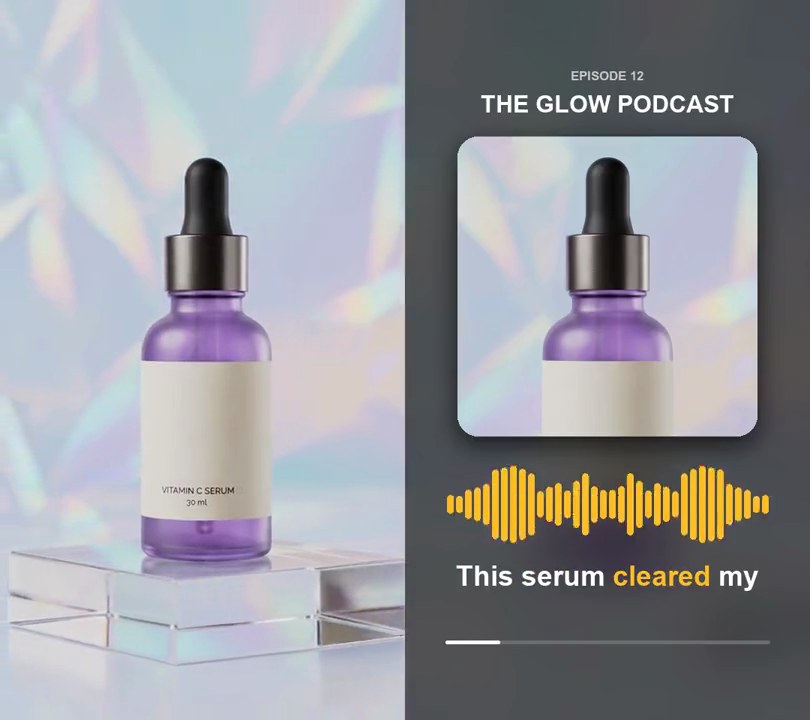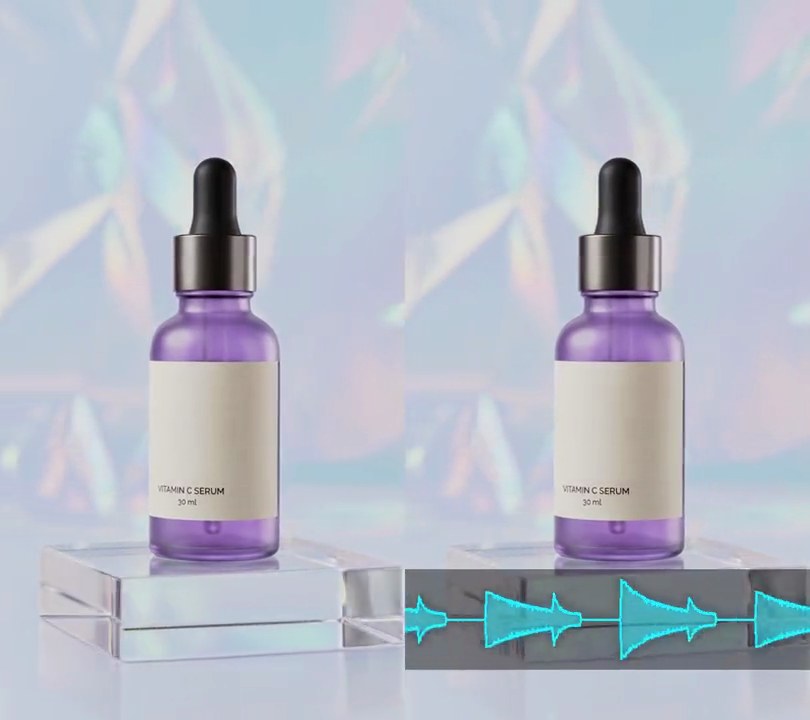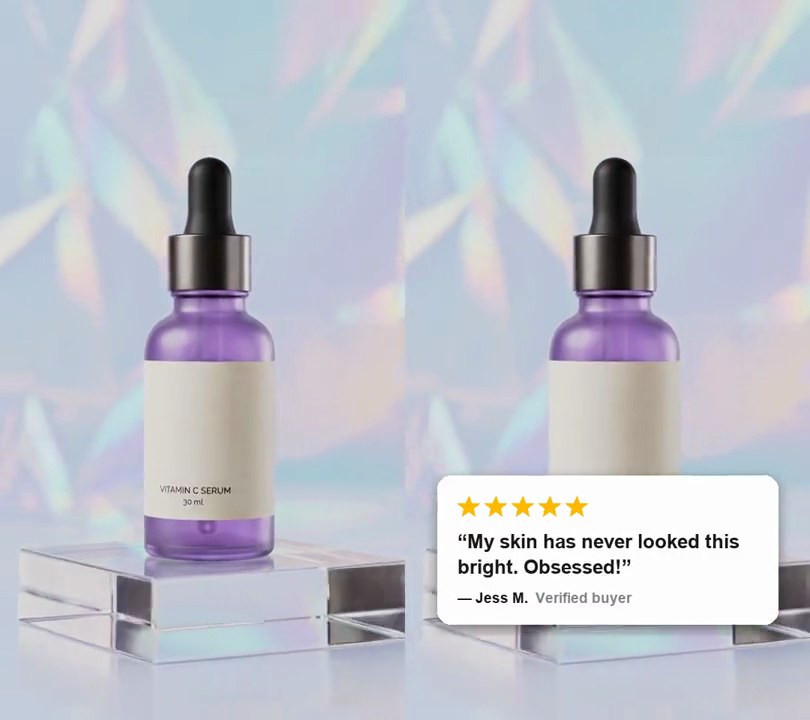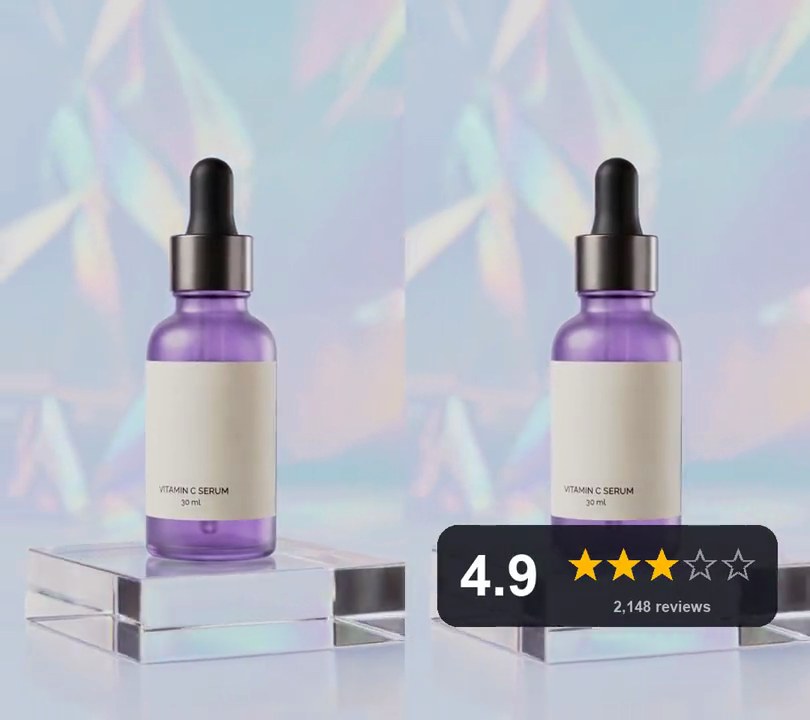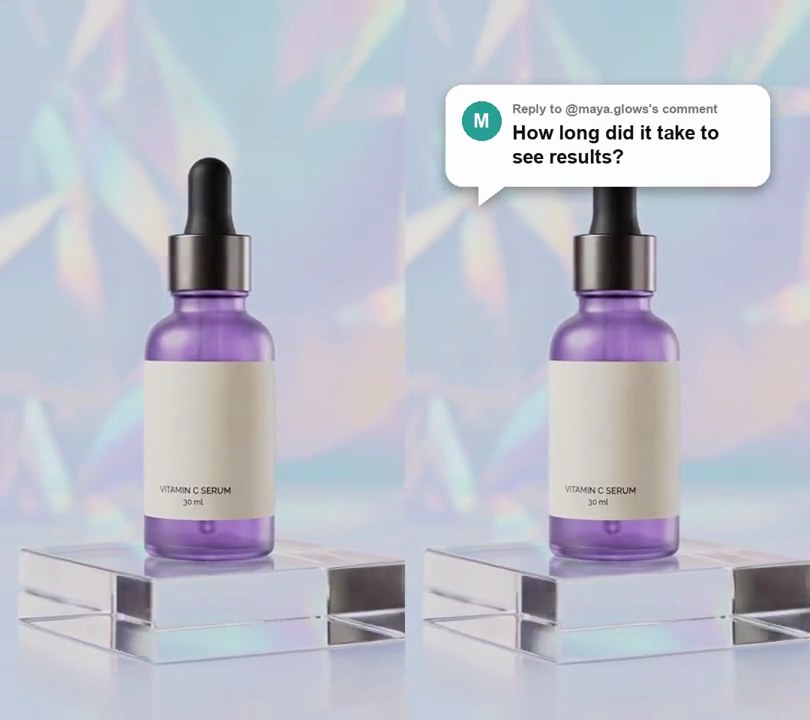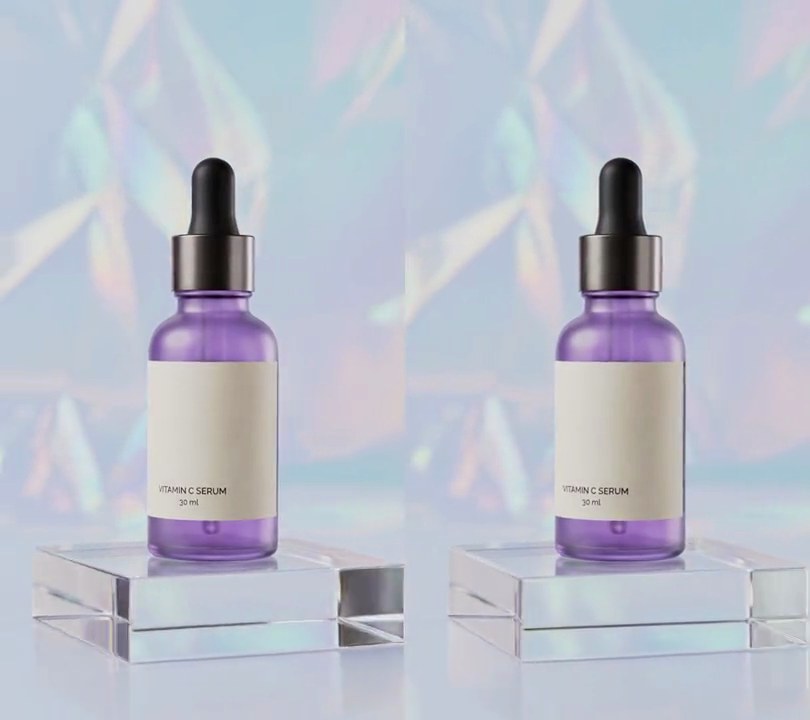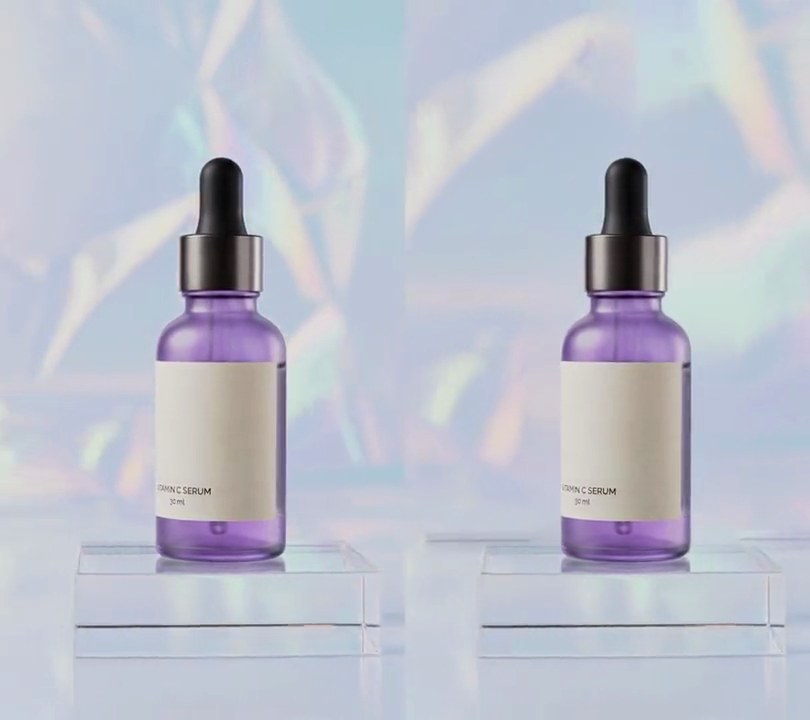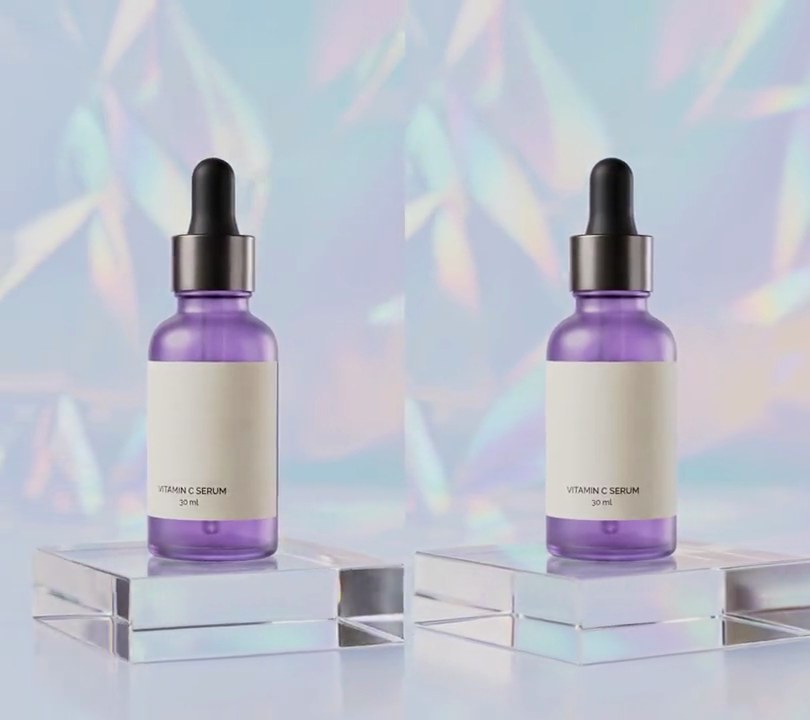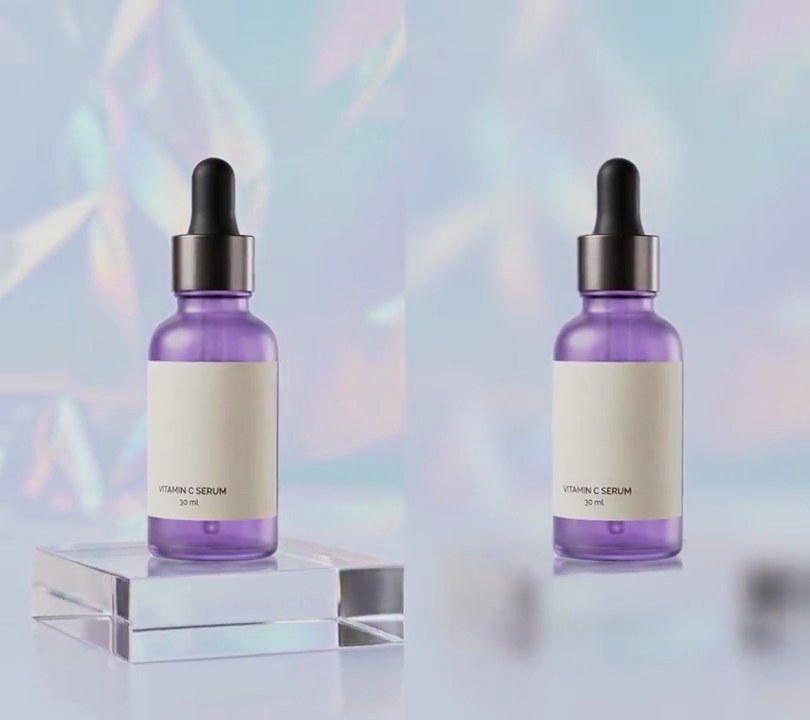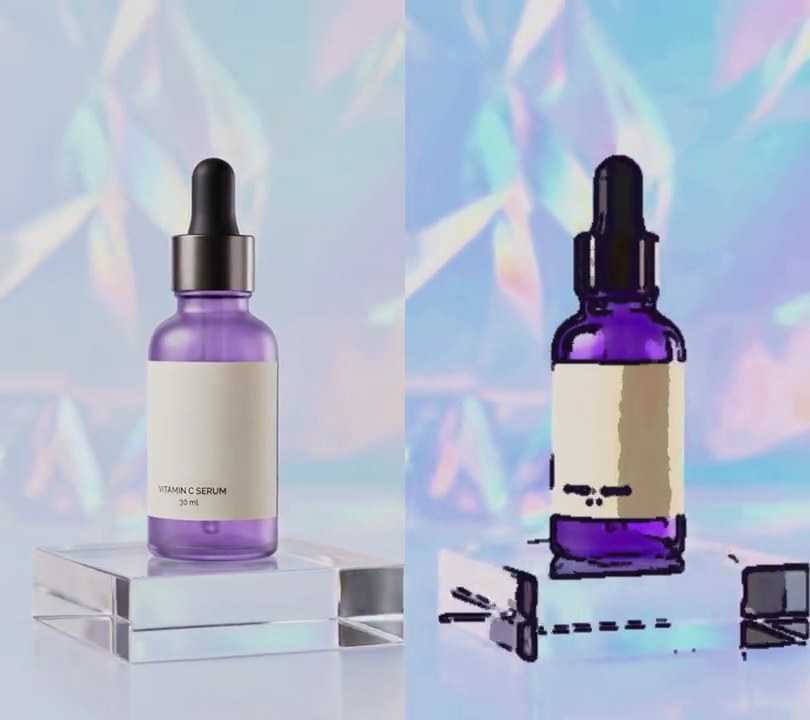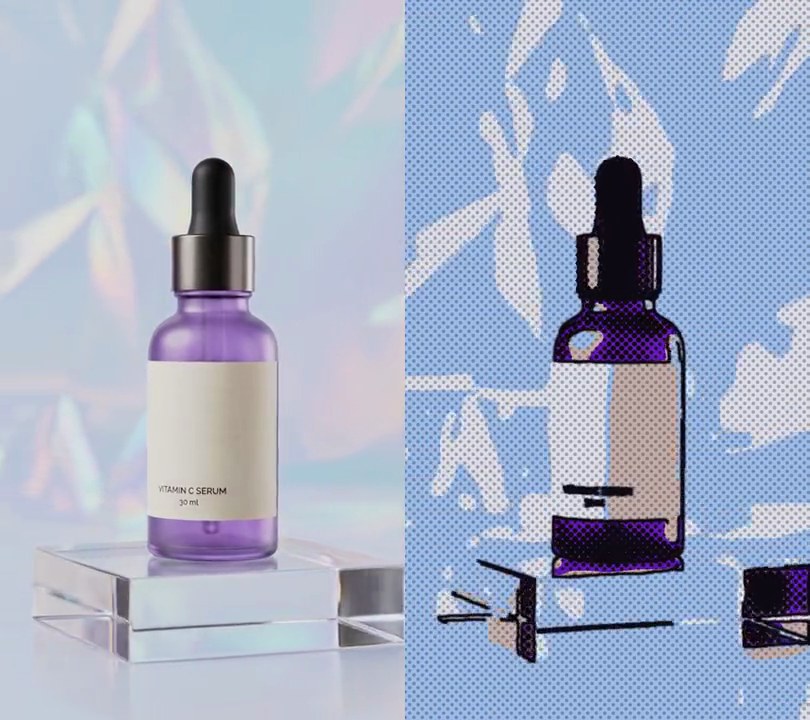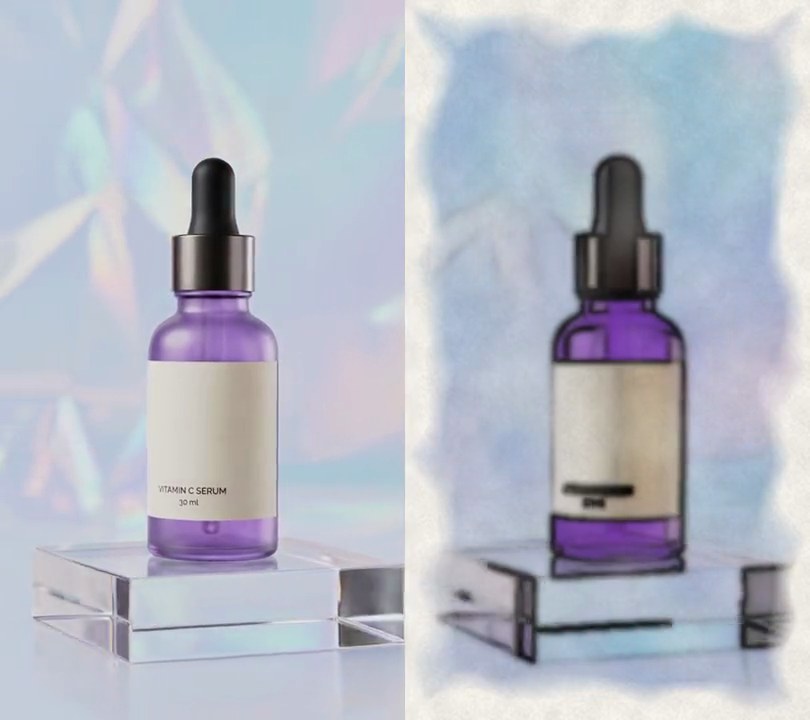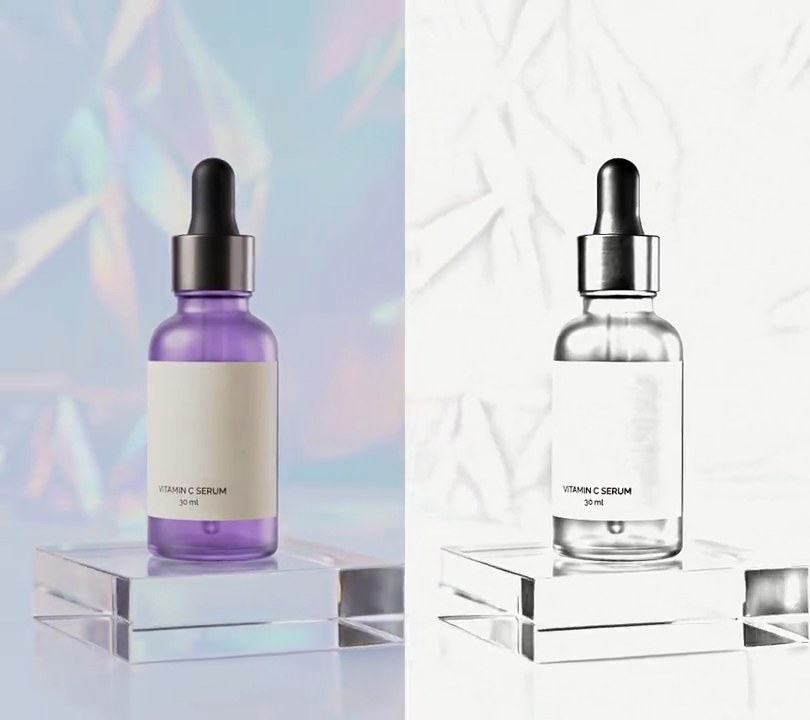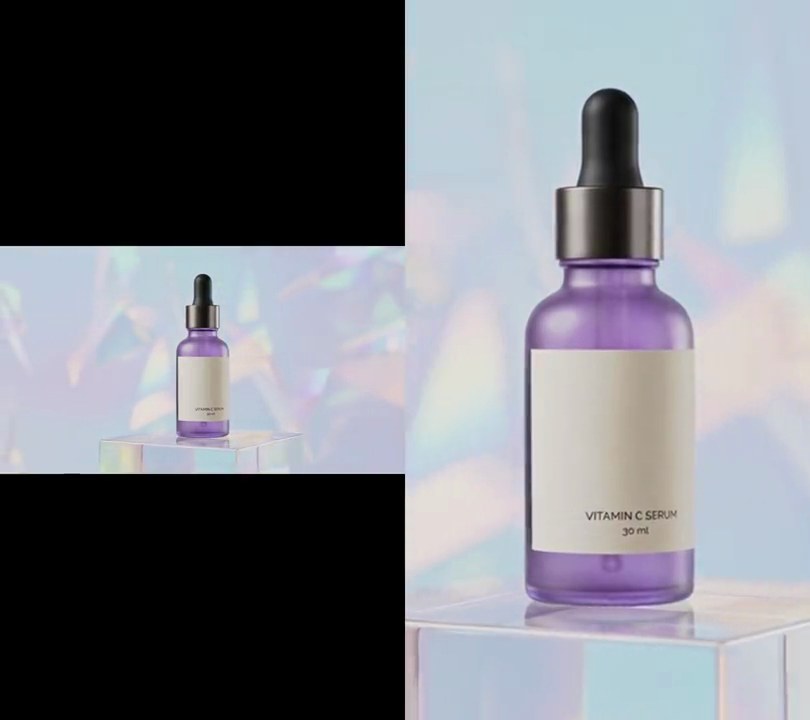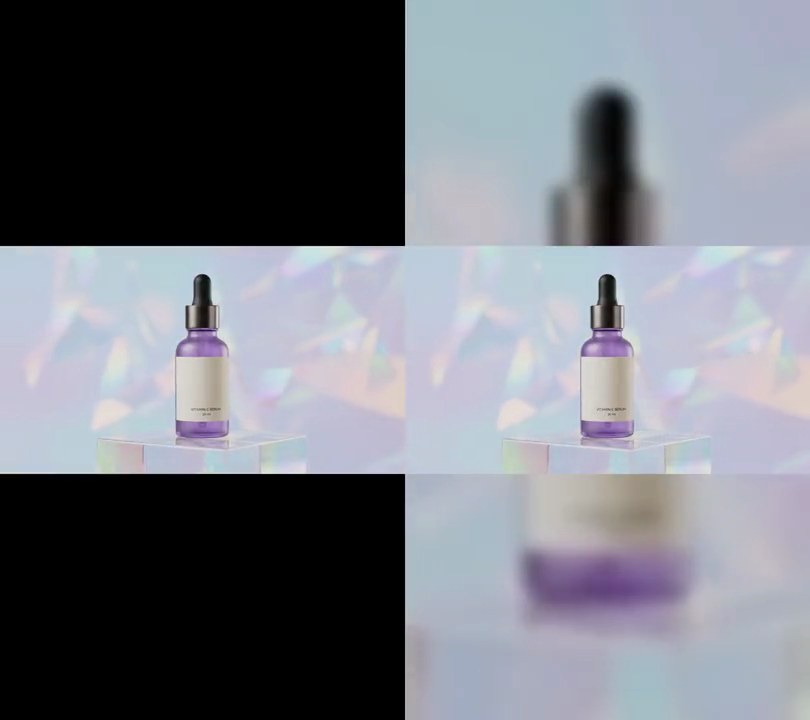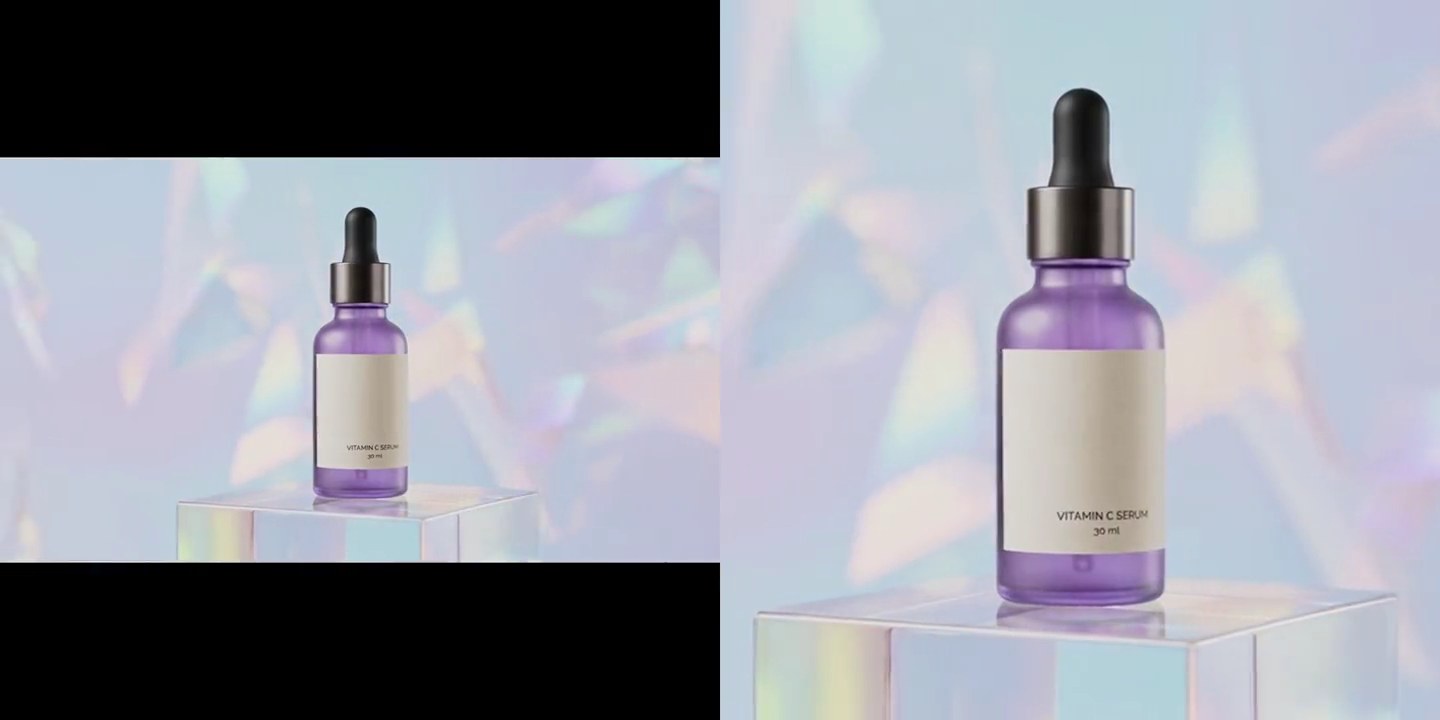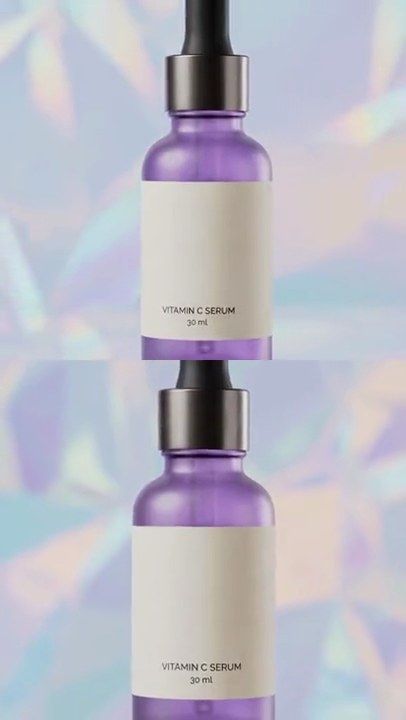
1. Cinematic color grade
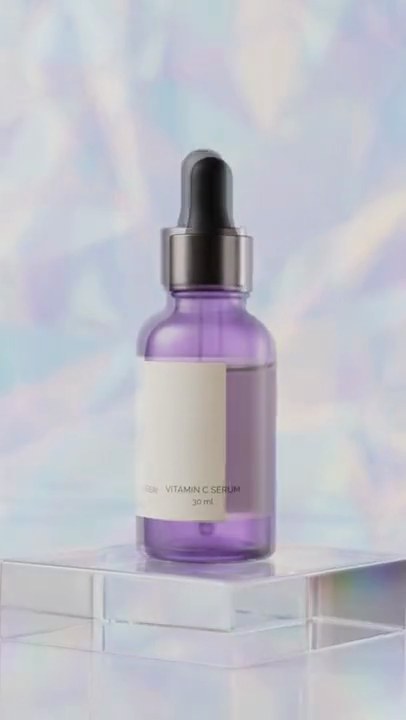
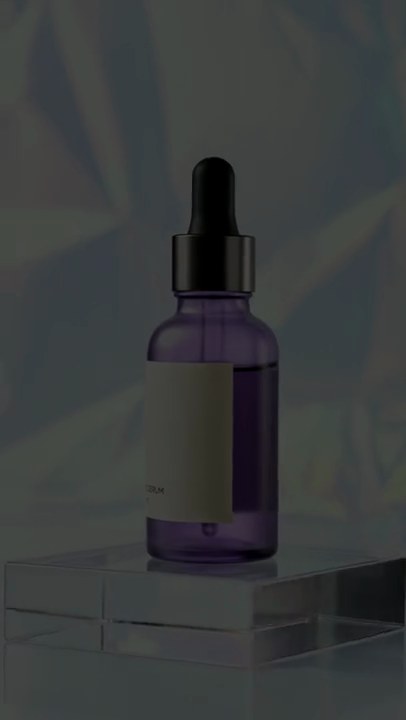
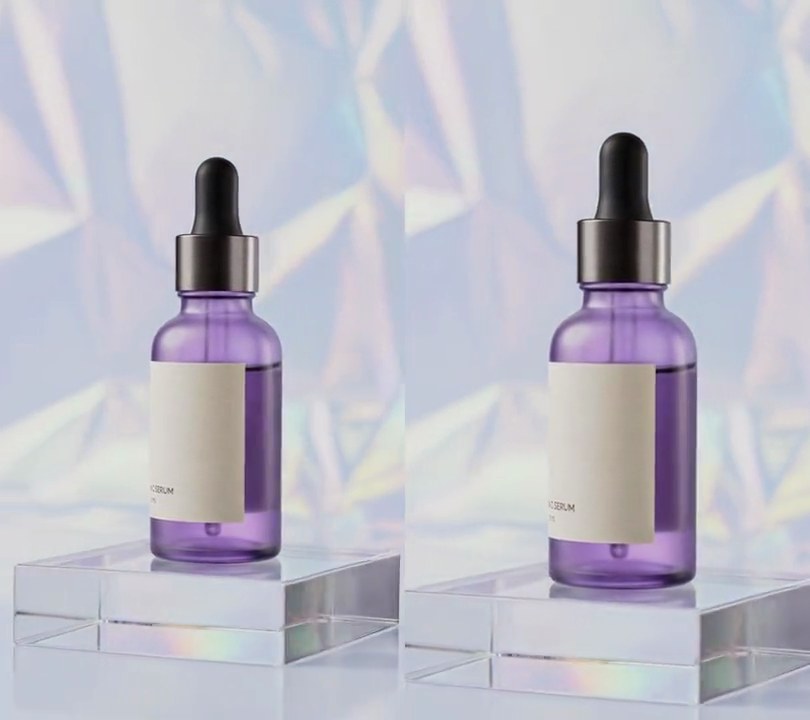
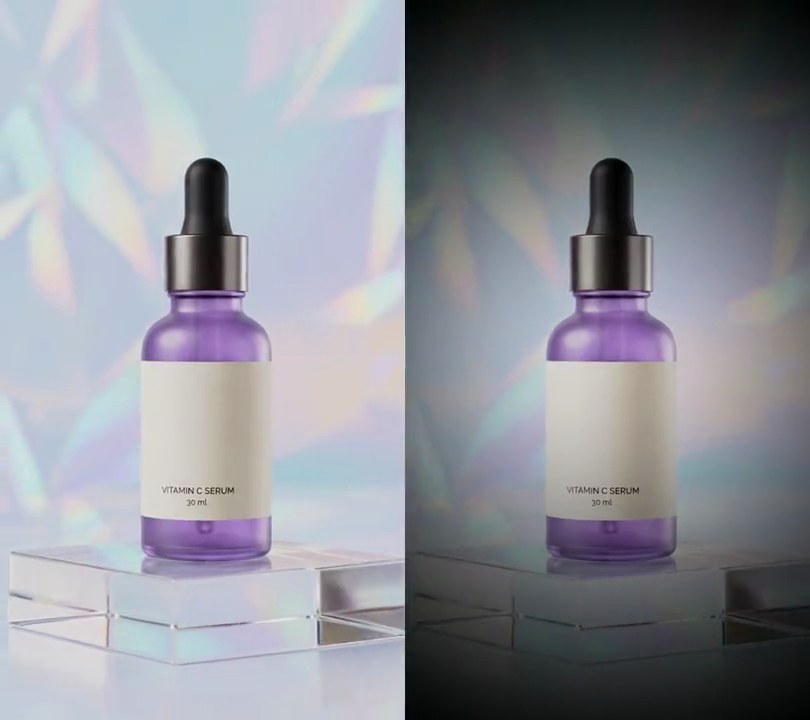
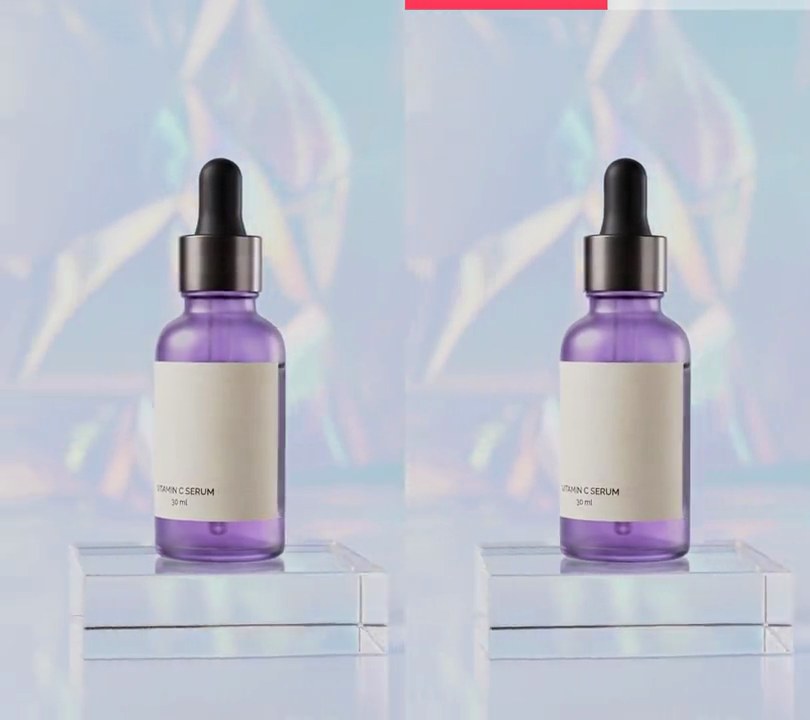
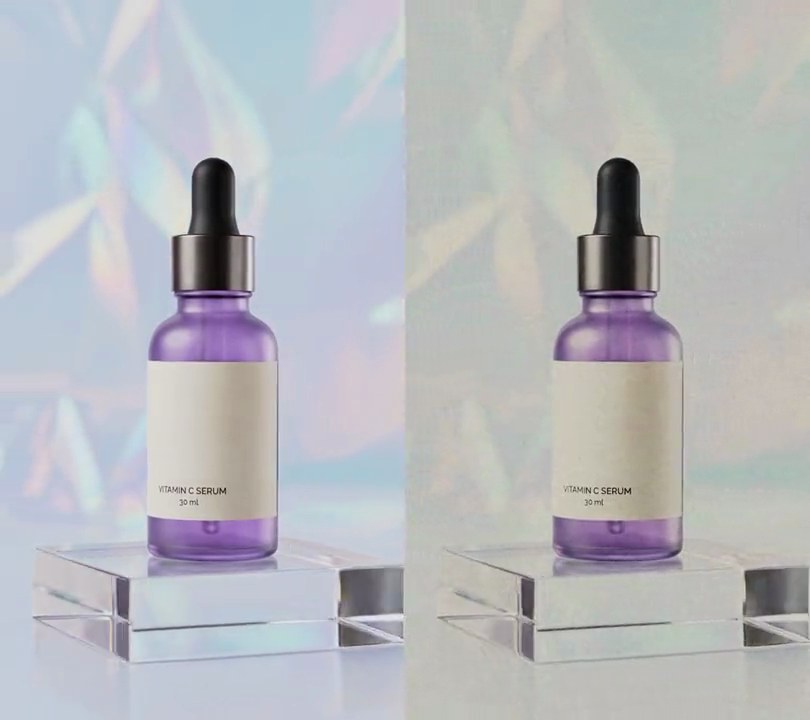
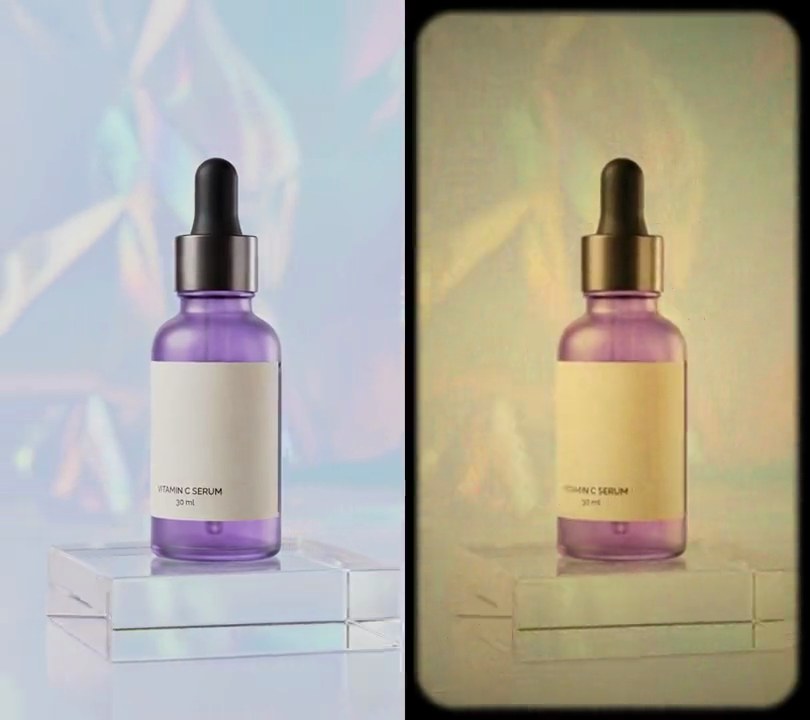
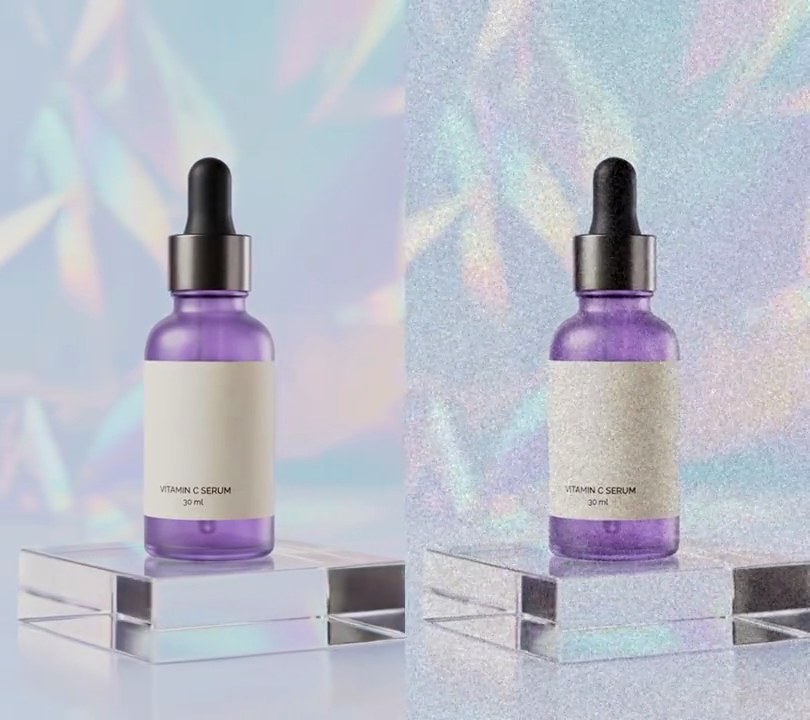
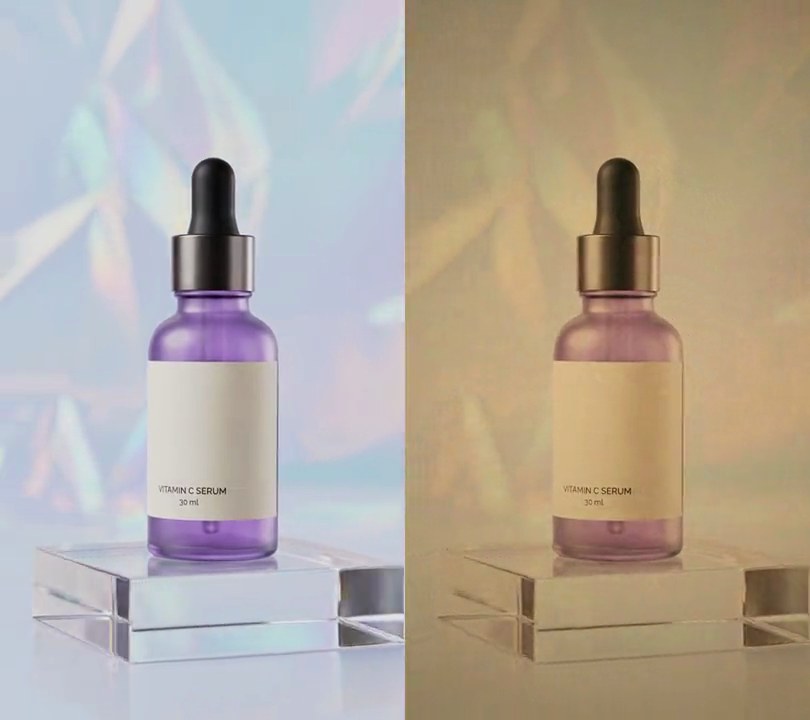
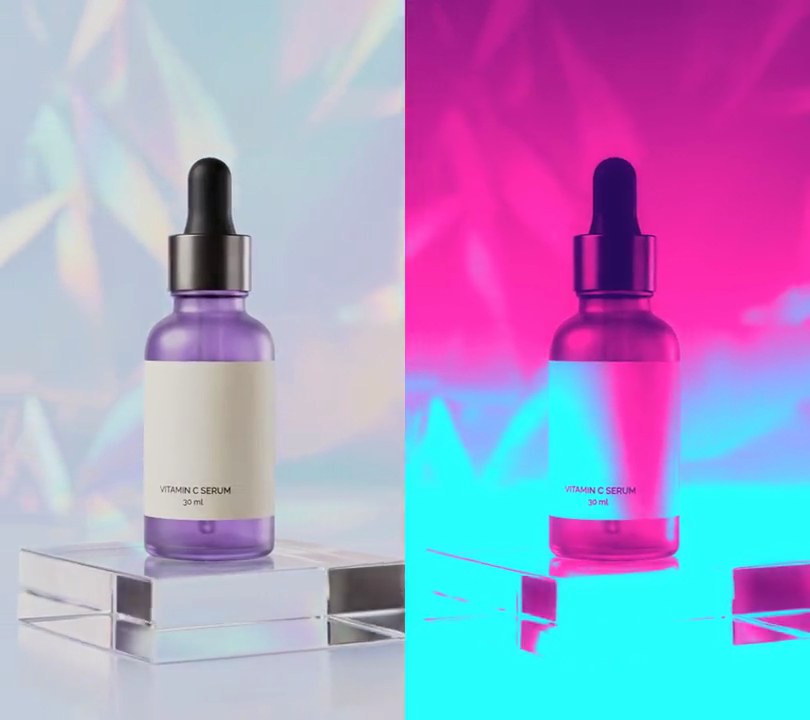
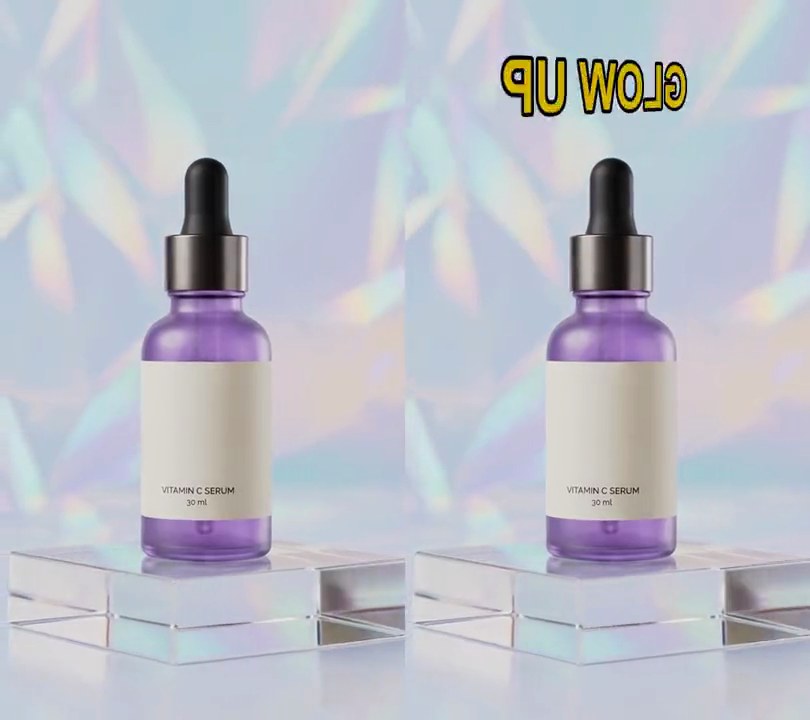
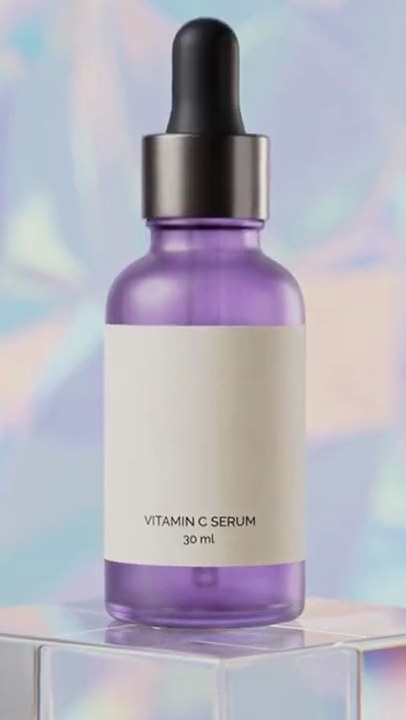
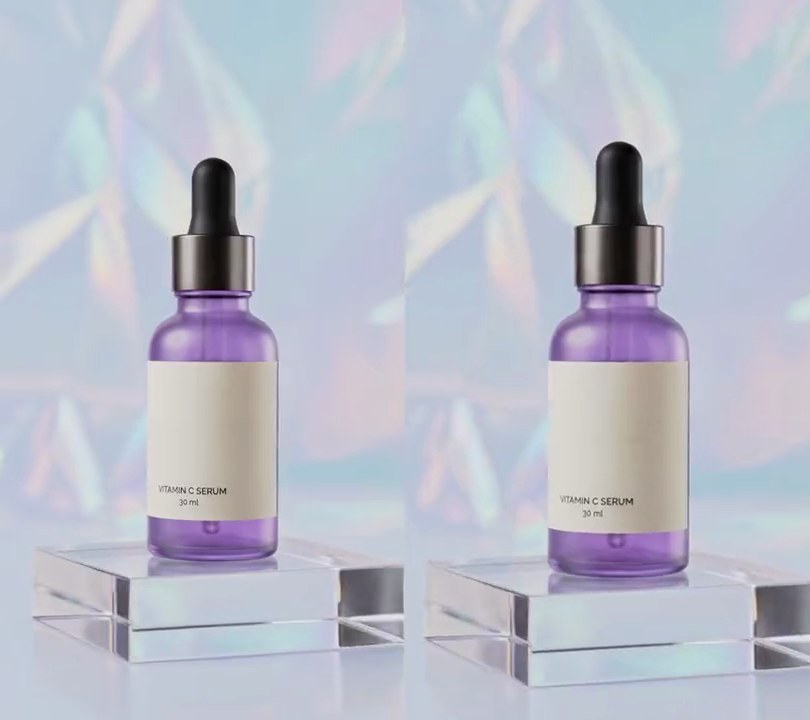
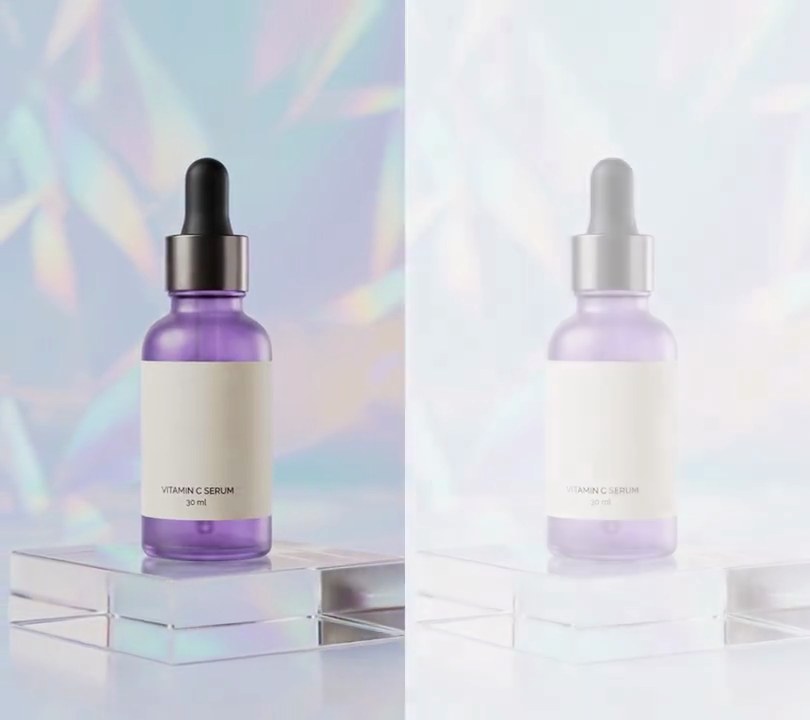
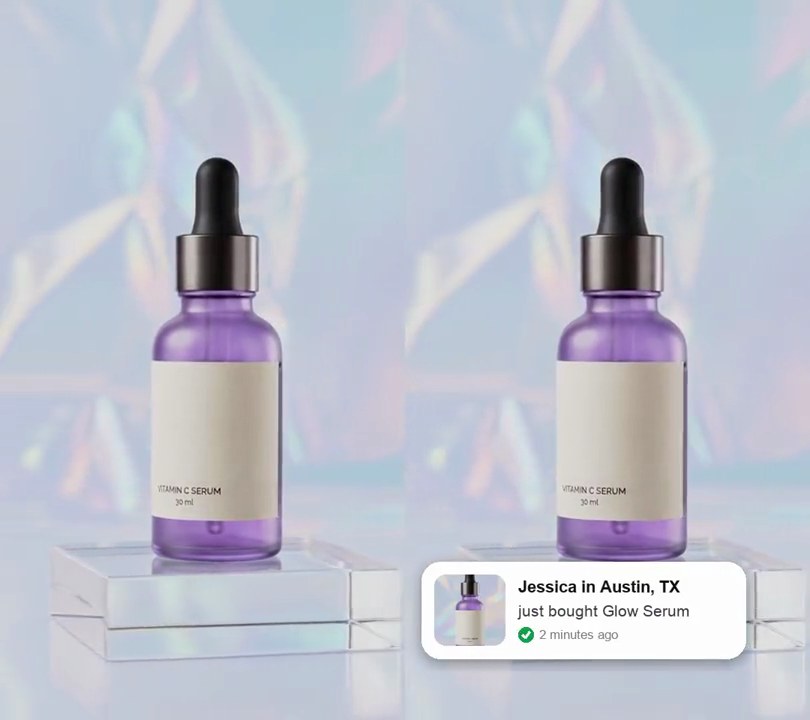
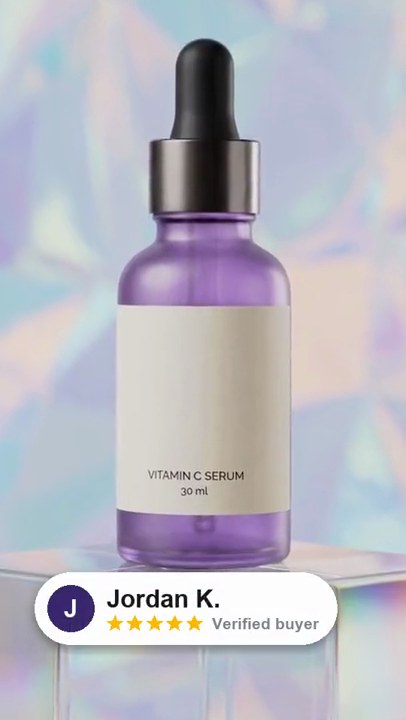
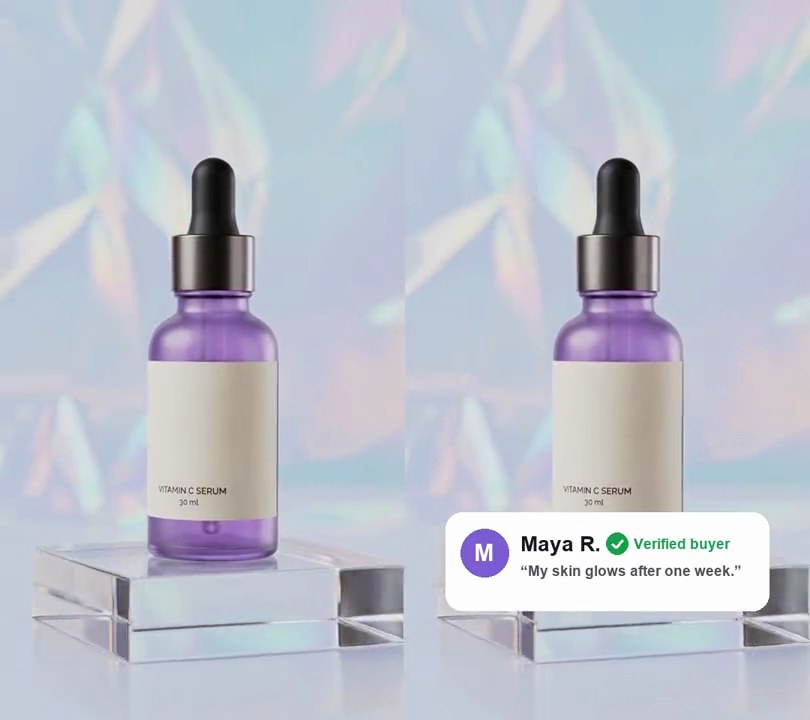
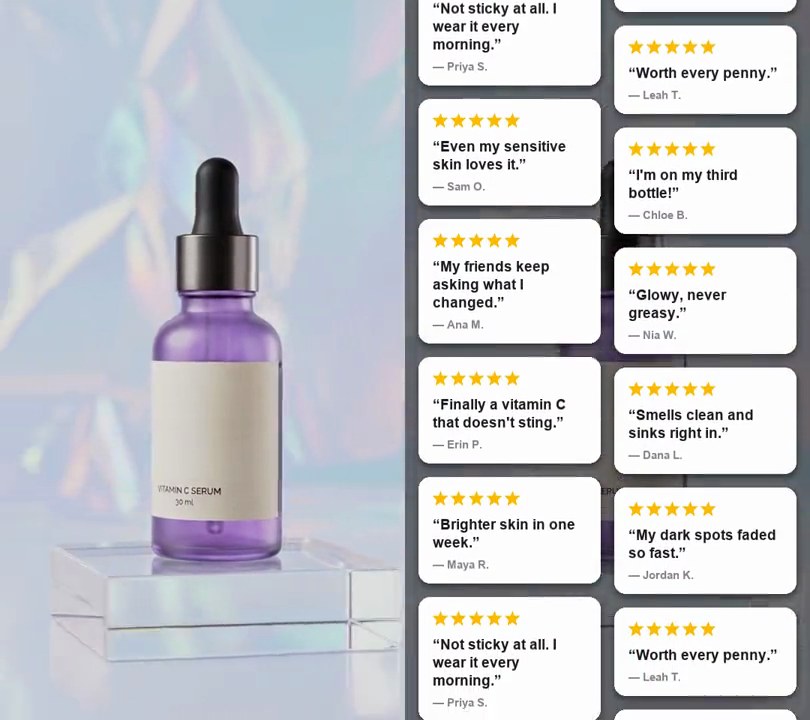
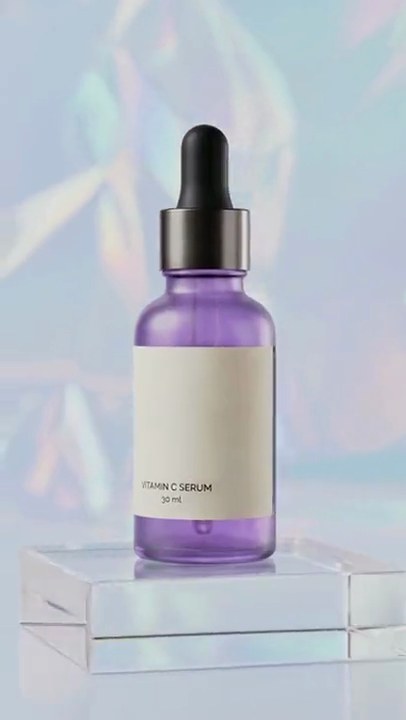
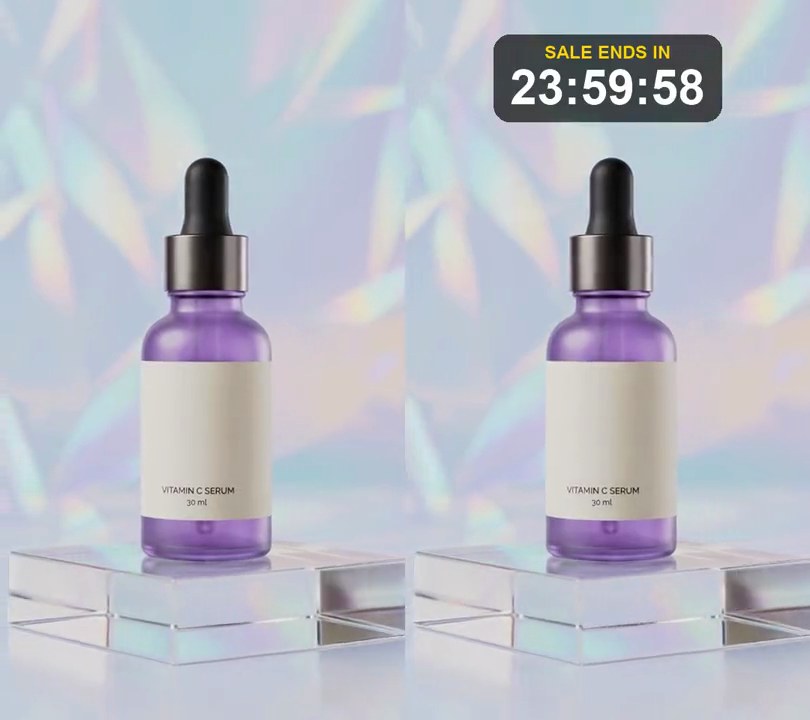
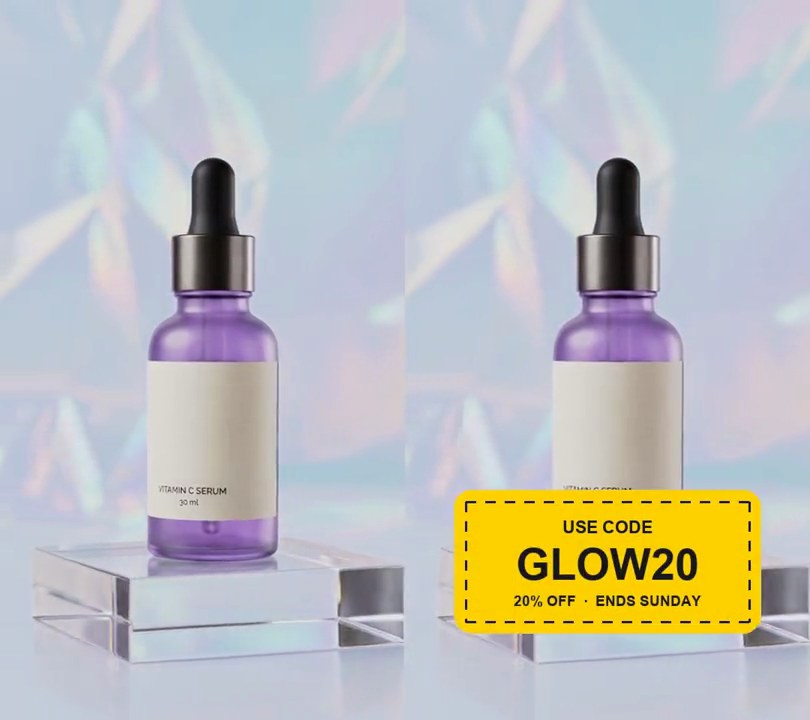
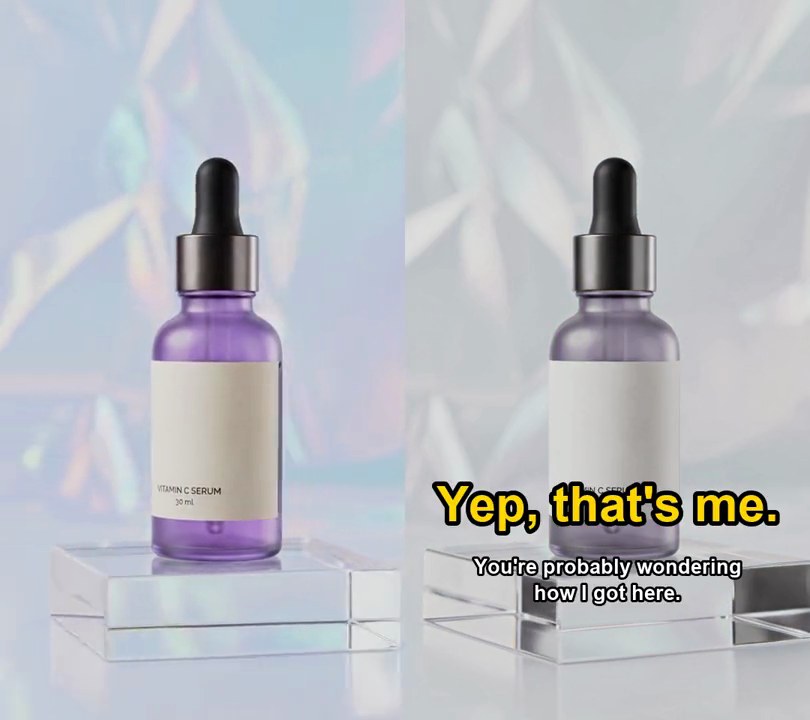
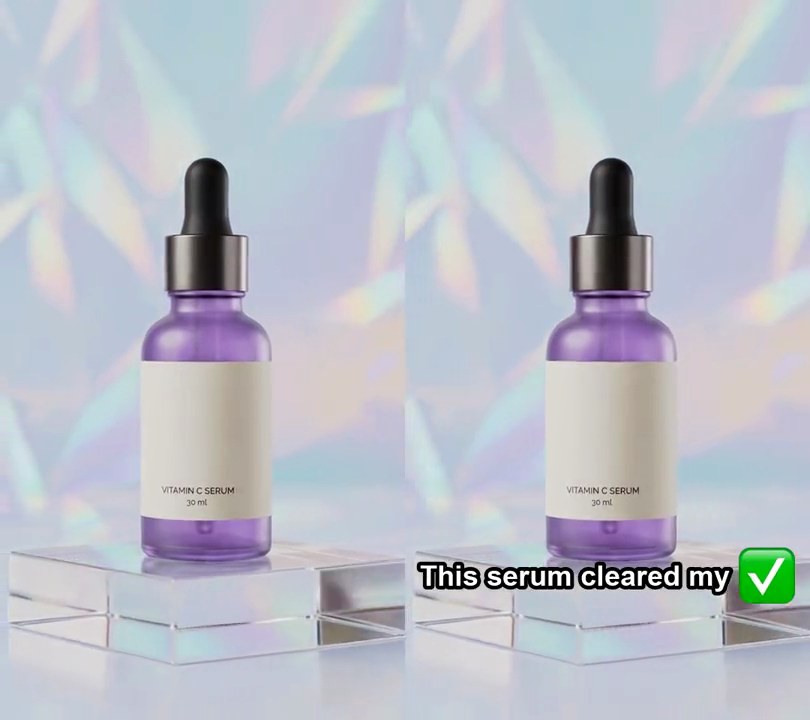
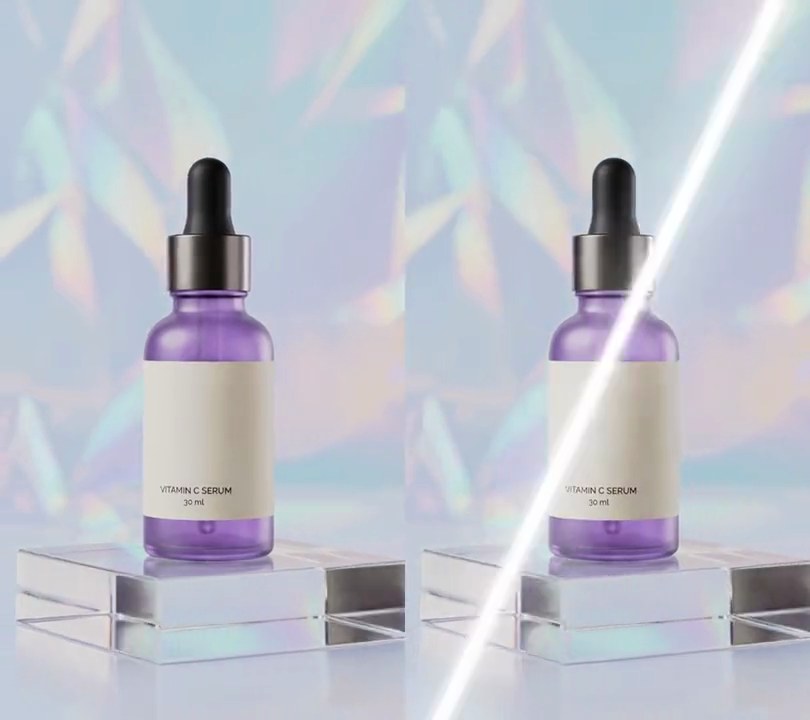
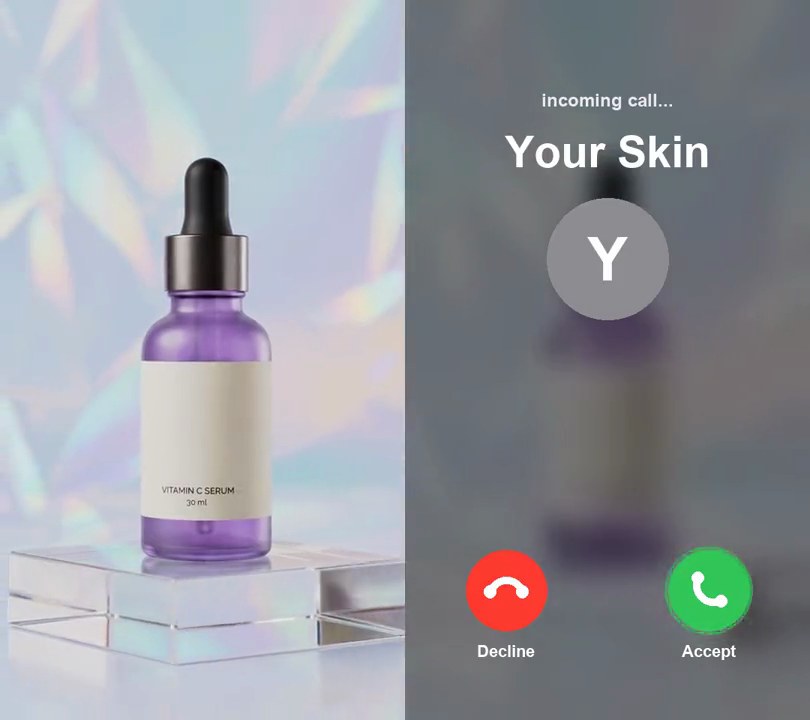
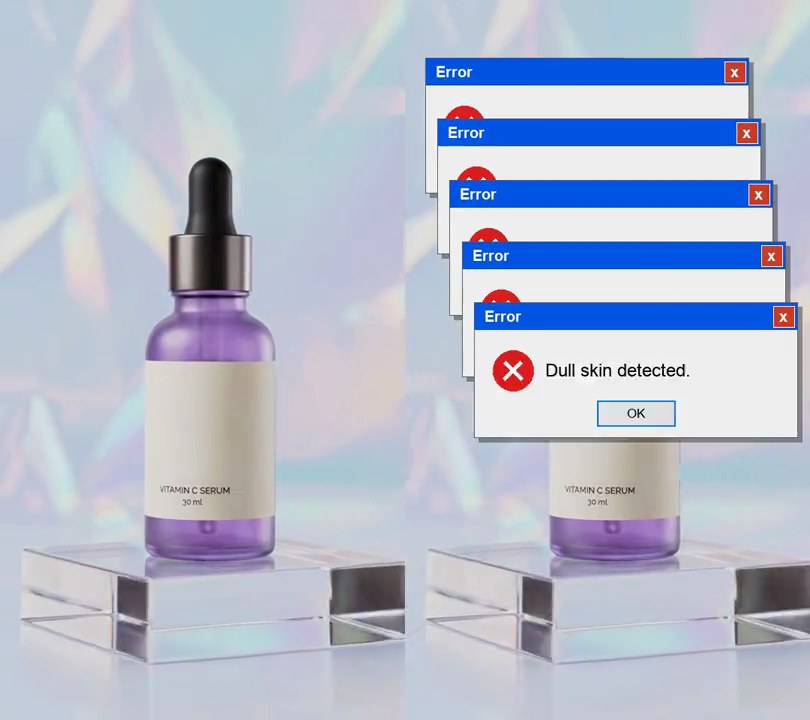
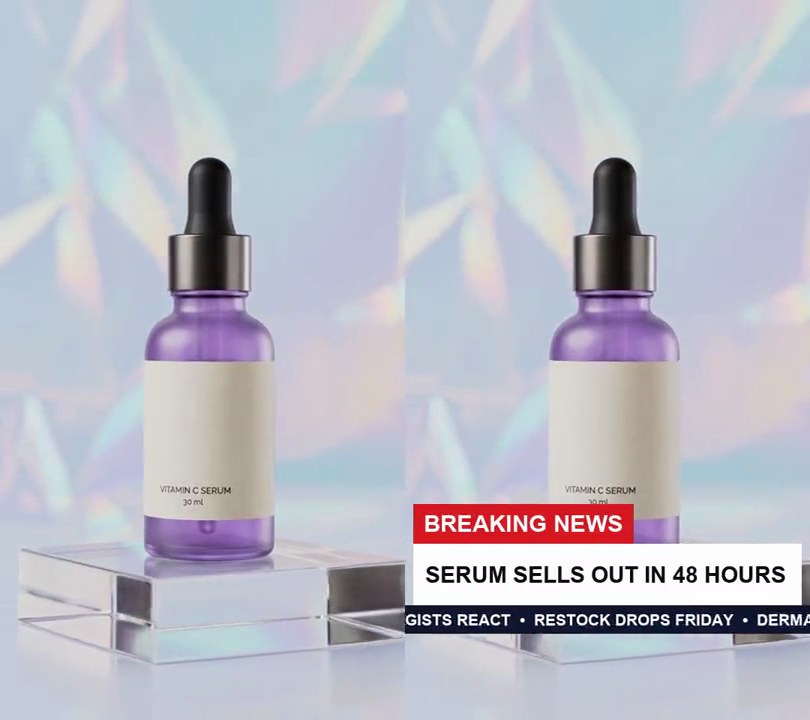
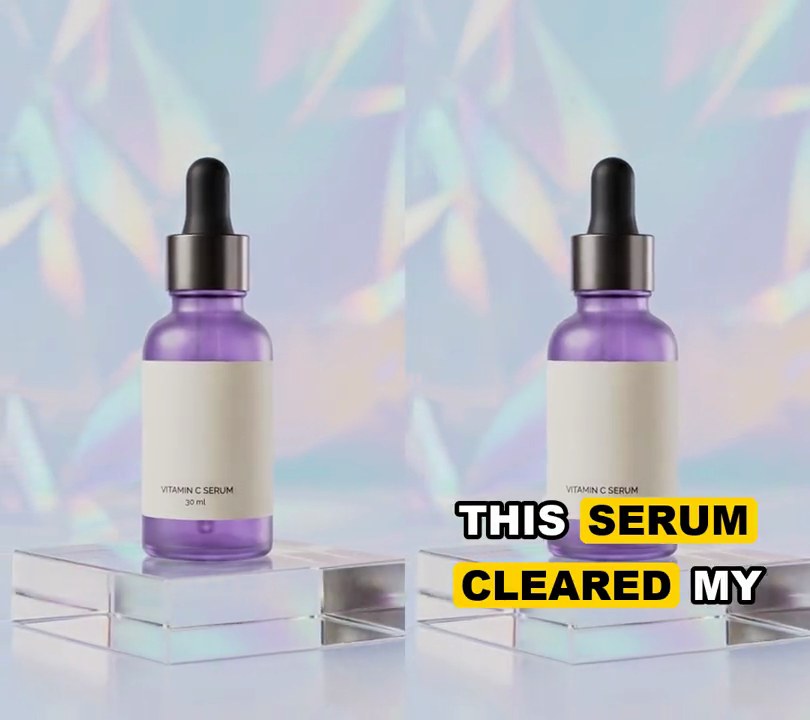
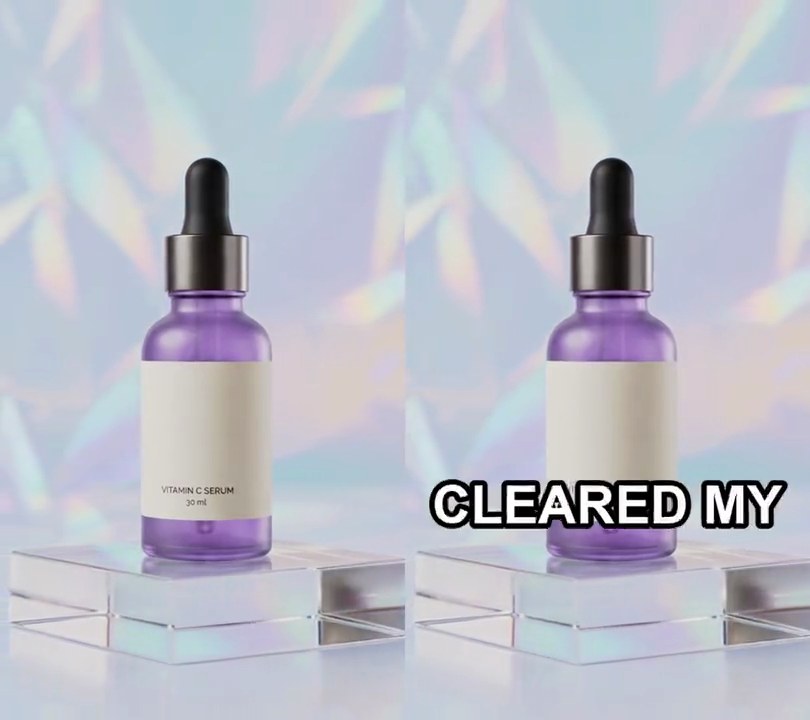
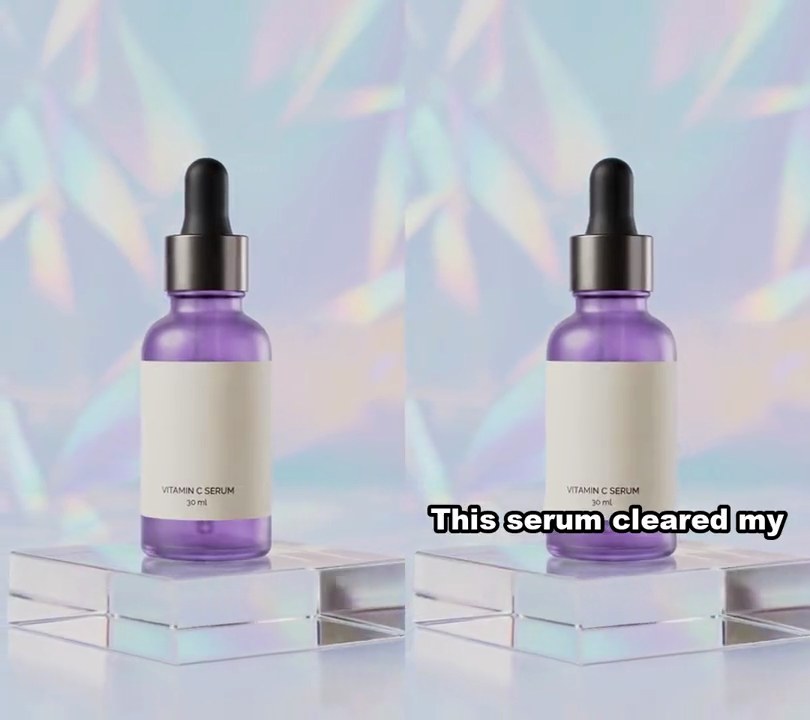
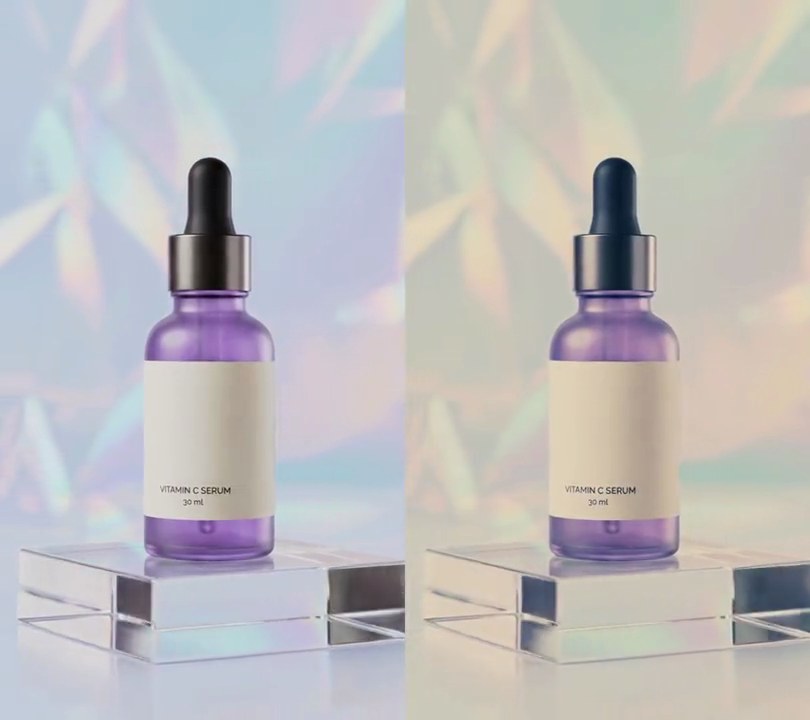
The pale blue holographic backdrop warms to a soft amber cream while the black dropper cap sinks into a cool blue-black, and the contrast eases off so the bright and dark ends sit closer together.
Show the prompt
Give all of input.mp4 a cinematic color grade from the first frame to the last: softer contrast, cool blue shadows and warm amber highlights. Use ffmpeg's curves filter with these input/output points (0-1) on each channel: red 0/0.02 0.3/0.25 0.65/0.68 0.85/0.89 1/0.96, green 0/0.07 0.3/0.32 0.65/0.64 0.85/0.82 1/0.91, blue 0/0.16 0.3/0.41 0.65/0.62 0.85/0.74 1/0.82, then eq=saturation=0.9. The pale blue backdrop (around RGB 192, 204, 215) should come out a warm cream (around RGB 203, 200, 185), the black dropper cap (around RGB 36, 36, 37) a cool blue-black (around RGB 30, 47, 65), the purple bottle should stay purple, nothing should be near pure black, and the overall brightness should stay within a few percent of the original. Don't add any text (if you ever do, draw it with Pillow, not ffmpeg's drawtext). Keep the size (540x960), 30fps, the 6 second length and the audio. Encode H.264 yuv420p and save it as output.mp4.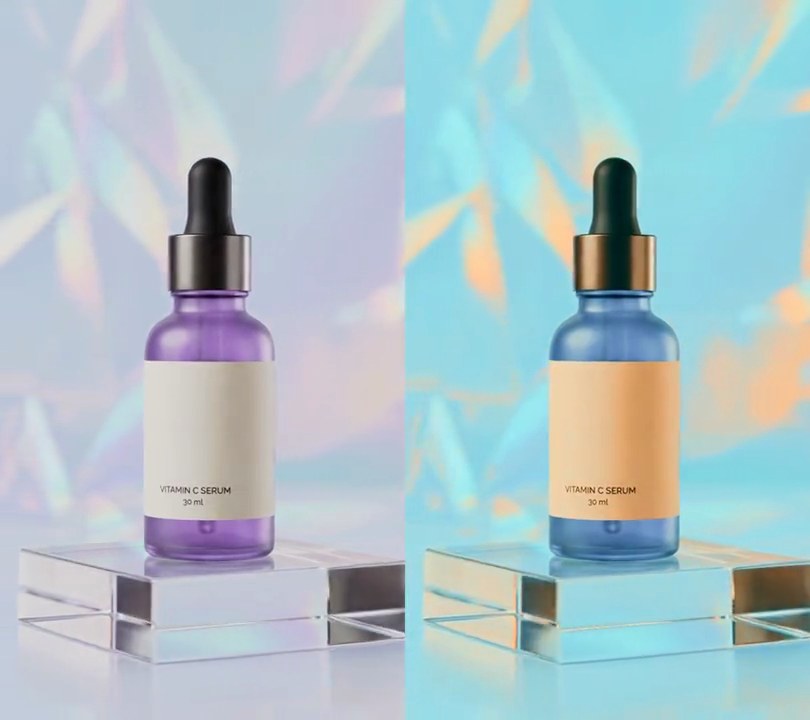
2. Teal and orange
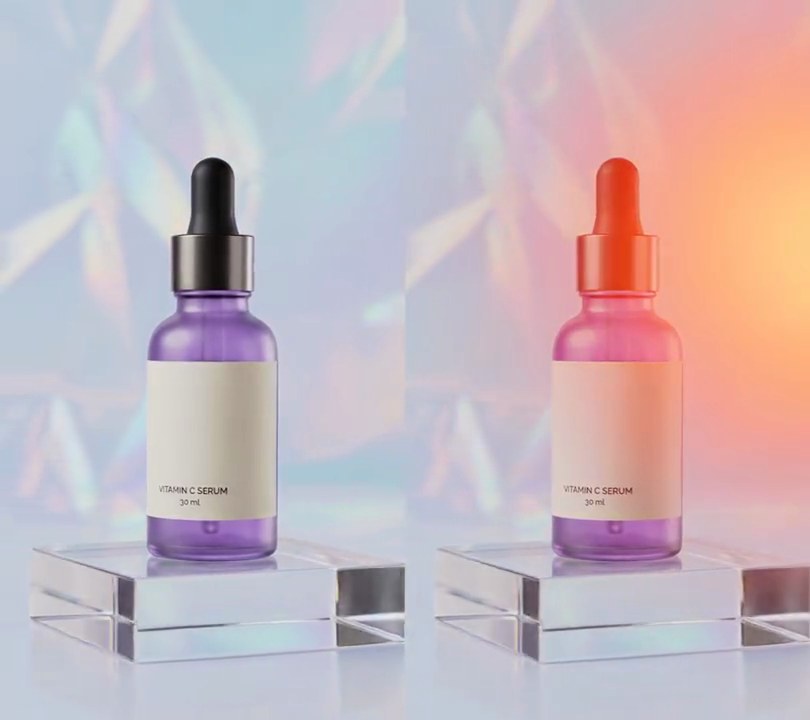
The cream label turns a warm peachy orange while the pale holographic backdrop and the purple bottle swing to cool teal, for the blockbuster two-tone grade.
Show the prompt
Give all of input.mp4 a teal and orange grade, on every frame from start to end. For each pixel (RGB, 0-255): take its brightness Y = 0.299R + 0.587G + 0.114B; work out how warm it is as w = 1 / (1 + e^(-(R - B) / 8)), then multiply w by min(Y / 80, 1) so dark pixels count as cool; build a tint by blending from the teal offset (40, 160, 170) minus its own brightness to the orange offset (255, 150, 60) minus its own brightness by w (brightness with the same 0.299/0.587/0.114 weights); then the new pixel is Y + 0.6 x (pixel - Y) + 0.55 x tint, clipped to 0-255. Warm areas like the cream label should end up peachy orange, around RGB (225, 180, 135), and cool areas like the pale backdrop around RGB (150, 215, 225); the purple bottle turns a slate teal-blue. Do it in Python with numpy, piping raw frames from and back to ffmpeg. Keep the size, 30fps frame rate, length and audio the same, encode H.264 yuv420p and save it as output.mp4.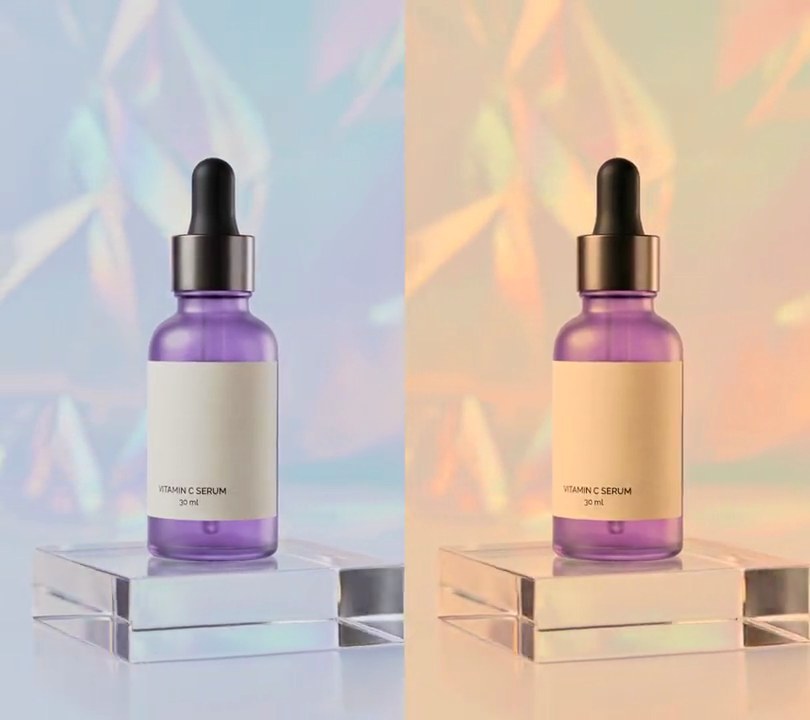
3. Warm tone filter
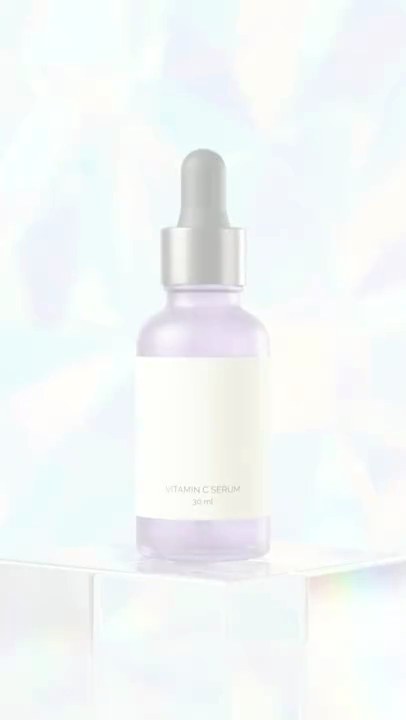
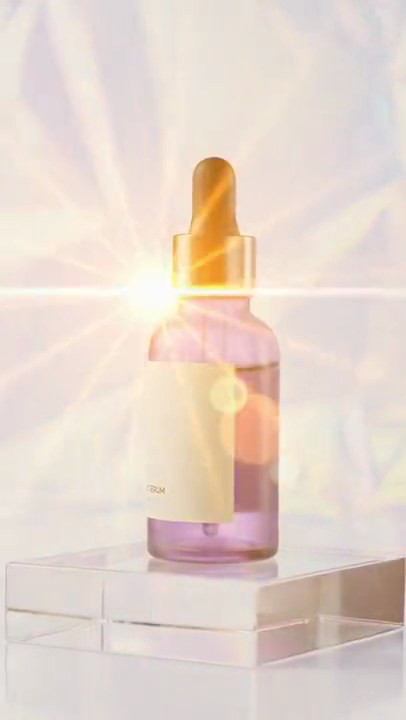
The cool blue-white backdrop turns peach and amber and the white label goes cream, as if the bottle were standing in late-afternoon sun, while the picture stays just as bright.
Show the prompt
Give input.mp4 a warm tone for the whole clip, from the first frame to the last, so it looks lit by late-afternoon sun. Re-light it at a color temperature of 4200K while keeping each pixel's brightness (ffmpeg: colortemperature=temperature=4200:pl=1), then raise the saturation to 1.15x (ffmpeg: eq=saturation=1.15). The cool blue-white backdrop (around RGB 193, 201, 214) should come out peach (around RGB 230, 197, 166) and the white label cream (around RGB 239, 192, 141), with the overall brightness unchanged. Don't add any text (if you ever do, draw it with Pillow, not ffmpeg's drawtext). Keep the size, 30fps, the 6 second length and the audio. Use ffmpeg, encode H.264 yuv420p and save it as output.mp4.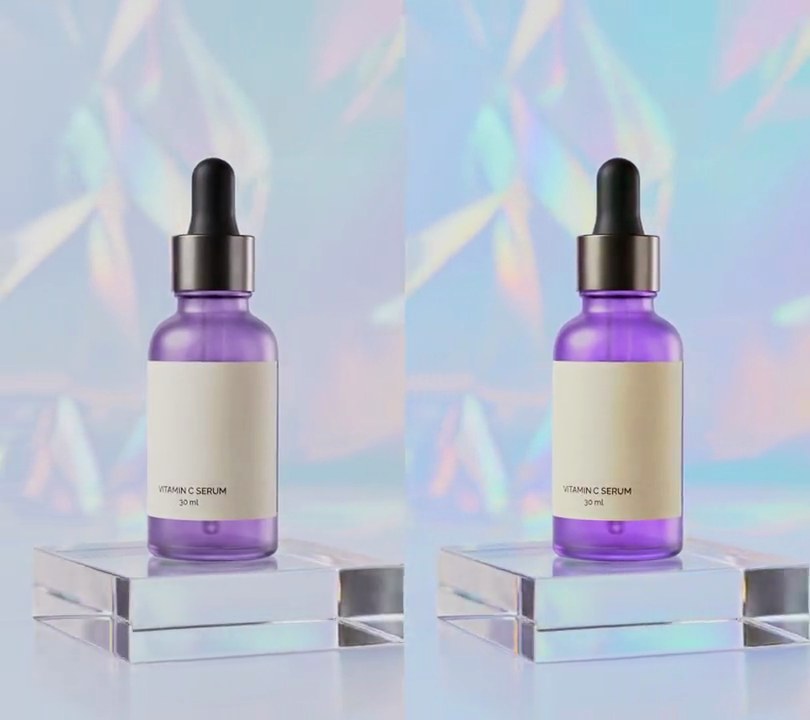
4. Saturation boost
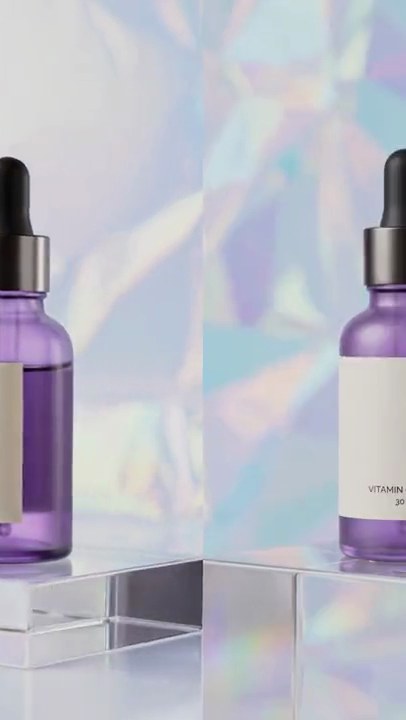
The pale pastel rainbow in the holographic backdrop deepens into vivid pink, cyan and gold and the serum turns a rich violet, while the shot stays exactly as bright.
Show the prompt
Boost the saturation of input.mp4 for the whole clip, from the first frame to the last, so every color is richer and more intense. Multiply the color strength by 1.8 while leaving each pixel's brightness unchanged (ffmpeg: eq=saturation=1.8, which scales only the U and V channels). The bottle's soft purple (around RGB 131, 96, 157) should come out a rich violet (around RGB 140, 80, 195), the pale rainbow backdrop should turn vivid, and the overall brightness should stay within 3% of the original. Don't change the hue, crop, zoom or add anything else, and don't add any text (if you ever do, draw it with Pillow, not ffmpeg's drawtext). Keep the 540x960 size, 30fps, the 6 second length and the audio. Use ffmpeg, encode H.264 yuv420p and save it as output.mp4.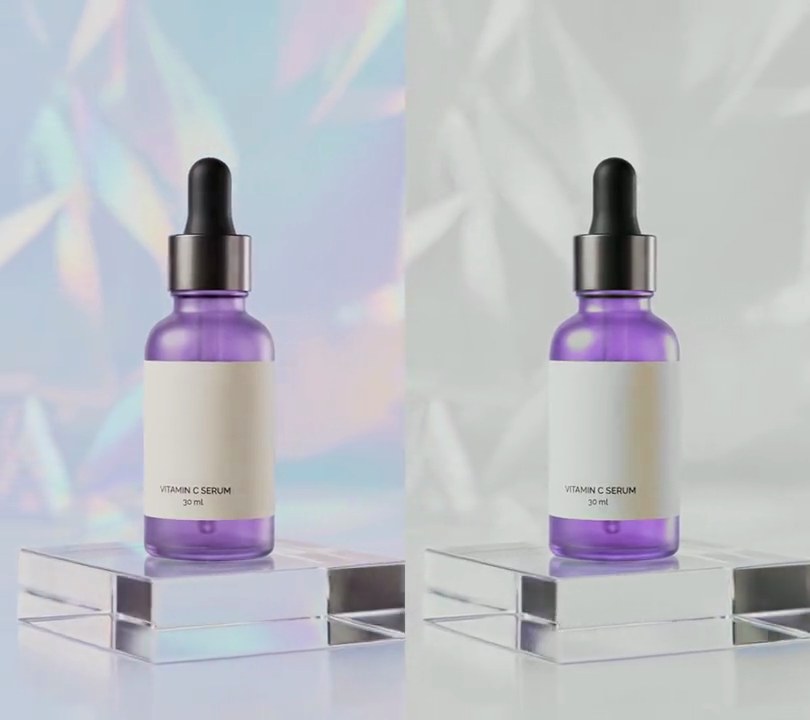
5. Color pop
The holographic backdrop and acrylic block show only in gray from start to finish while the bottle's purple stays rich and saturated, so the product is the only color on screen.
Show the prompt
Make a color pop in input.mp4: turn everything gray except the purple of the bottle, #8966A9. Use ffmpeg's colorhold filter with color=0x8966A9, similarity=0.16 and blend=0.05, then boost the saturation of what stays in color to 1.4 (eq=saturation=1.4). Apply it to every frame from start to end. Keep the size, frame rate, length and audio the same, and save it as output.mp4.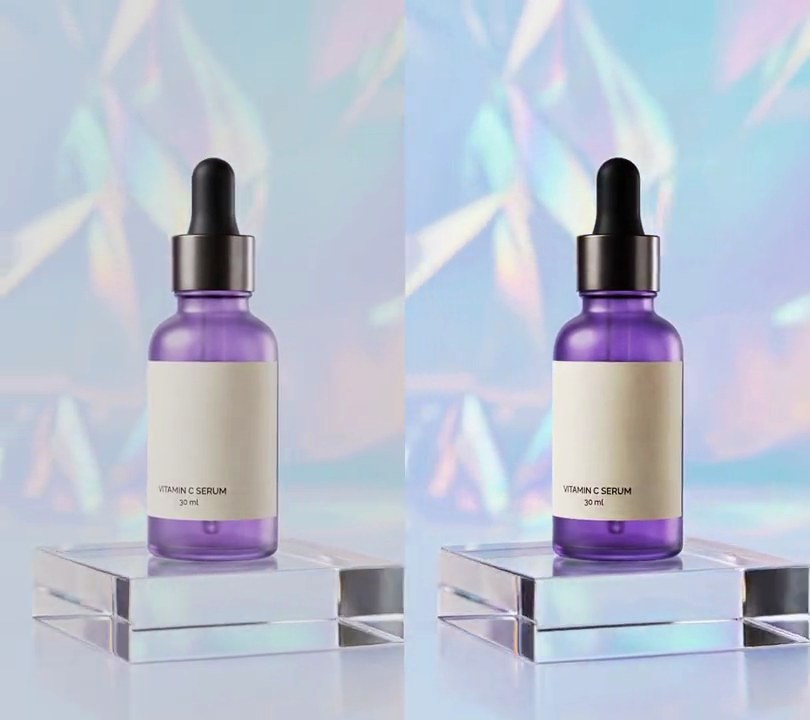
6. Contrast boost
The purple glass deepens and the dropper cap sinks toward black while the brightest streaks in the holographic backdrop flare to near white, and the cream label stays exactly as bright.
Show the prompt
Boost the contrast of input.mp4 for the whole clip, from the first frame to the last, with an S-curve on all three color channels (ffmpeg: curves=all='0/0 0.35/0.2 0.75/0.75 0.9/0.98 1/1'). Black and white stay where they are; a 0.35 gray comes out at 0.2 so the darks sink, 0.75 (about the cream label's brightness, RGB 191) stays put, and 0.9 comes out at 0.98 so the brightest backdrop streaks rise to near white (RGB 240 to 250). The purple bottle glass should come out about 20% darker and more saturated, the label and the overall brightness unchanged. Don't add any text (if you ever do, draw it with Pillow, not ffmpeg's drawtext). Keep the size, 30fps, the 6 second length and the audio. Use ffmpeg, encode H.264 yuv420p and save it as output.mp4.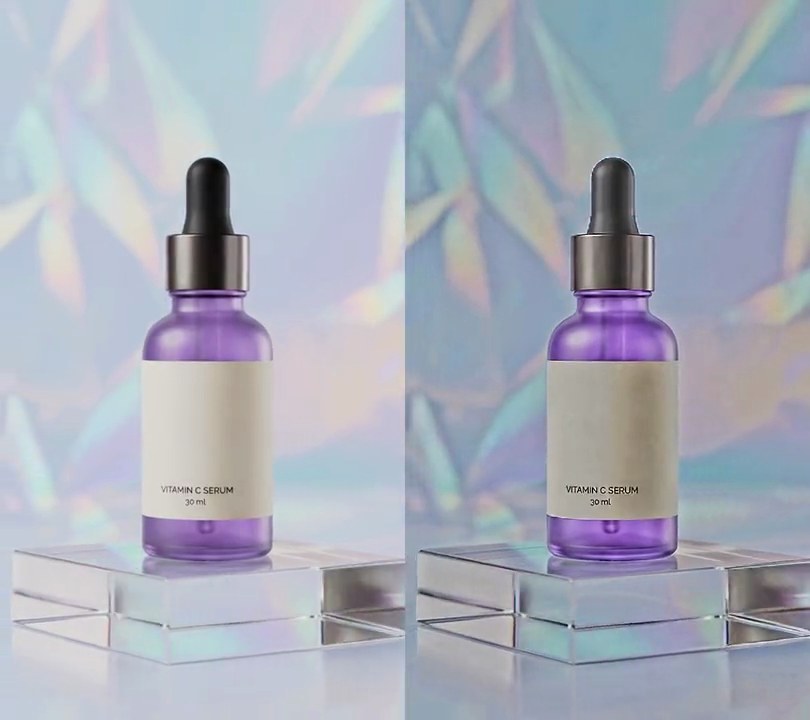
7. HDR look
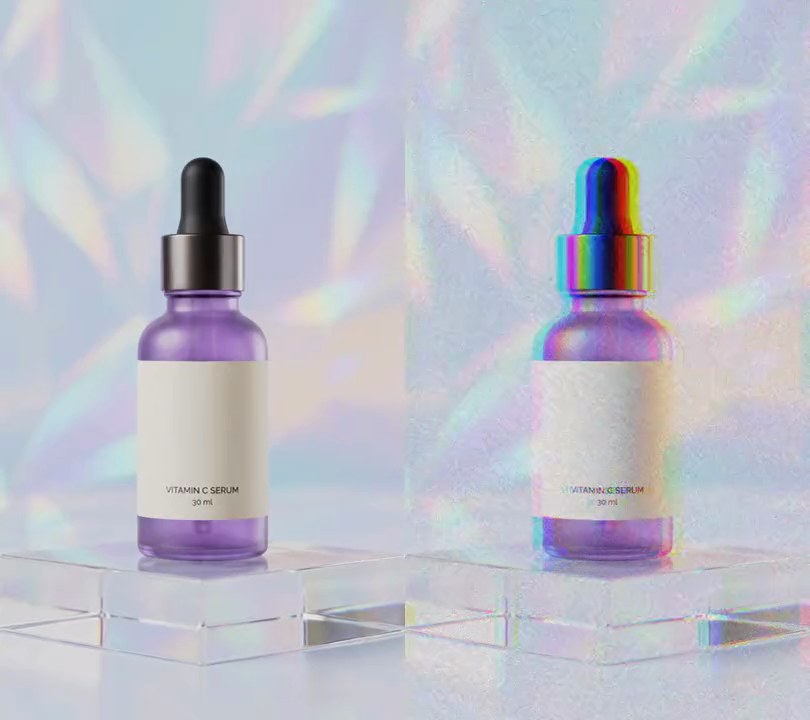
The black dropper cap opens up to charcoal gray while the pale holographic backdrop dims by a fifth into richer rainbow streaks, and every crease in the backdrop, fiber in the label and edge of the acrylic block comes out crunchy and etched.
Show the prompt
Give input.mp4 a fake HDR look for the whole clip, from the first frame to the last: lift the shadows, bring the highlights down and crunch the local contrast, like an HDR photo app. Do it per frame in Python with OpenCV and numpy: convert the frame to Lab (8-bit, cv2.COLOR_RGB2LAB) and work on L as float. Get the broad light by shrinking L to half size (INTER_AREA), running cv2.bilateralFilter(small, 0, 25, 10) on it (sigmaColor 25, sigmaSpace 10, which is 20 pixels at full size) and scaling it back up (INTER_LINEAR); the edge-preserving filter keeps halos off the bottle's outline. Then new L = 128 + (broad - 128) * 0.55 + (L - broad) * 2.5, so the broad light keeps 55% of its spread around mid gray and the detail on top of it is 2.5 times stronger. Multiply a and b's distance from 128 by 1.35 for richer color, clip to 0-255 and convert back to RGB. The black dropper cap, around brightness 38, should come out around 72 (about 1.9 times brighter); the pale backdrop, around 205, should come out around 163 (about 20% darker); the whole frame should average about 157 out of 255 instead of 193, and fine detail (Laplacian variance) should be about 3 to 4 times the input's. Don't crop, zoom or add anything else, and don't add any text (if you ever do, draw it with Pillow, not ffmpeg's drawtext). Read and write the frames through ffmpeg pipes, keep the 540x960 size, 30fps, the 6 second length and the audio, encode H.264 yuv420p and save it as output.mp4.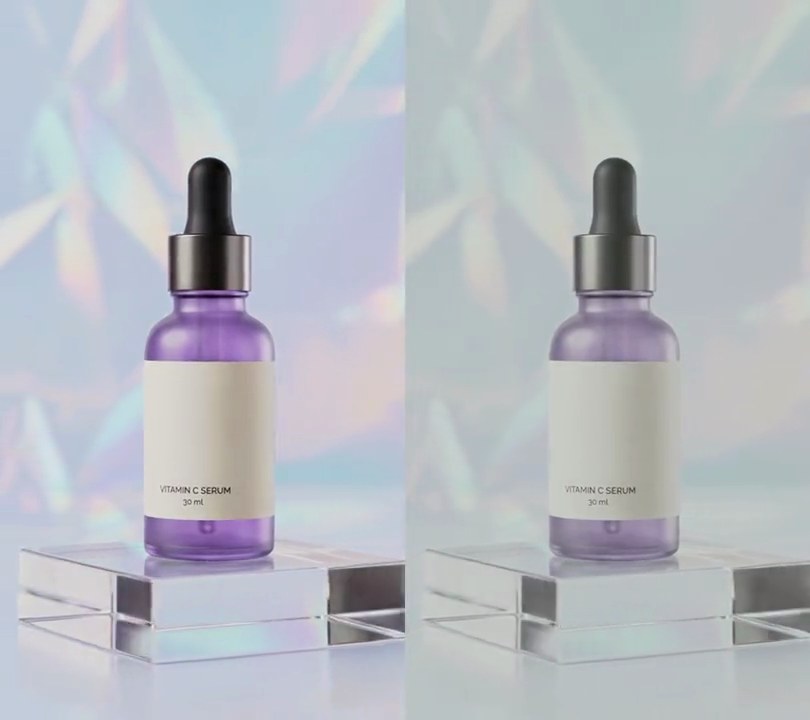
8. Faded matte look
The black dropper cap and the shadows under the bottle lift to a soft charcoal gray, the bright backdrop dulls slightly, and the holographic colors flatten into a quiet, washed-out print with no warm tint.
Show the prompt
Give input.mp4 a faded matte look for the whole clip. Using ffmpeg, apply one tone curve to all three channels that maps black (0) to 0.18, middle gray (0.5) to 0.55 and white (1) to 0.90 (curves=all='0/0.18 0.5/0.55 1/0.90'), then lower the saturation to 0.65 (eq=saturation=0.65). Nothing in the frame should be darker than a dark gray (about 45 out of 255), highlights should sit a little below the original, and the colors should be muted but not black and white, with no warm or cool tint added. Keep the size (540x960), 30fps, 6 seconds and the audio. Encode H.264 yuv420p and save it as output.mp4.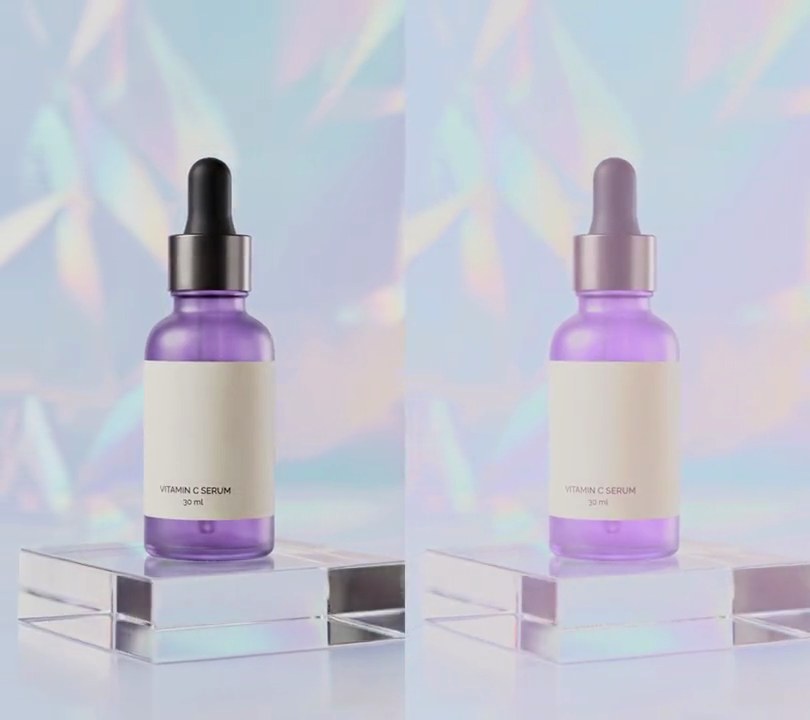
9. Pastel tone
The black dropper cap fades to soft mauve, the shadows turn milky, and the purple bottle and rainbow backdrop settle into chalky lavender and candy pastels.
Show the prompt
Give input.mp4 a pastel tone for the whole clip. Using ffmpeg, first lift the blacks with colorlevels so the darkest output value is 0.42 on green and 0.48 on red and blue (romin=0.48:gomin=0.42:bomin=0.48), which gives a milky floor with a slight pink-lilac lean. Then apply eq with contrast 0.85 and saturation 1.8 so the picture is soft and low in contrast but the colors stay candy-like rather than gray. Nothing in the frame should be darker than about 110 on any channel, the black dropper cap should turn a soft mauve, and the highlights must not blow out to white. Keep the size (540x960), 30fps, 6 seconds and the audio. Encode H.264 yuv420p and save it as output.mp4.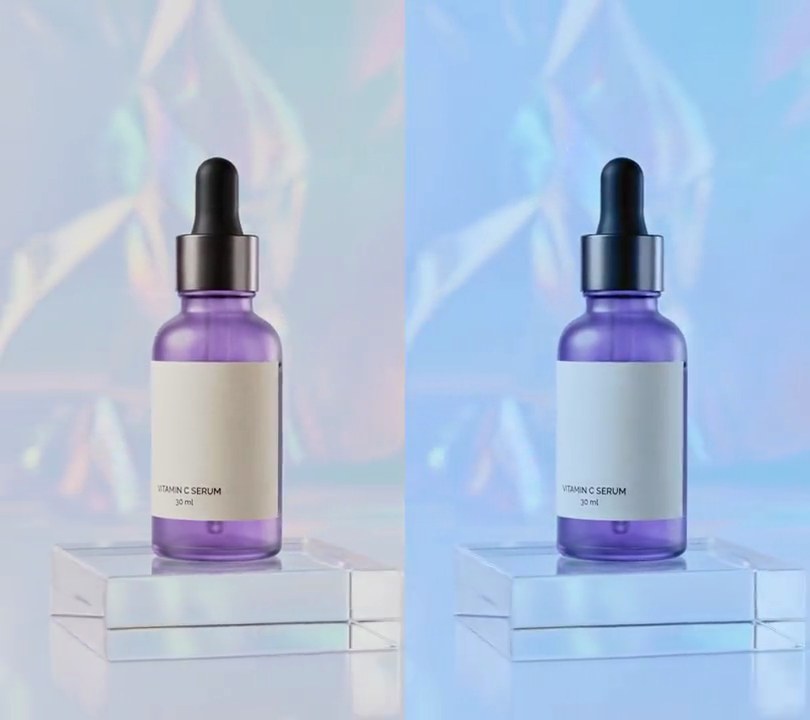
10. Cool tone filter
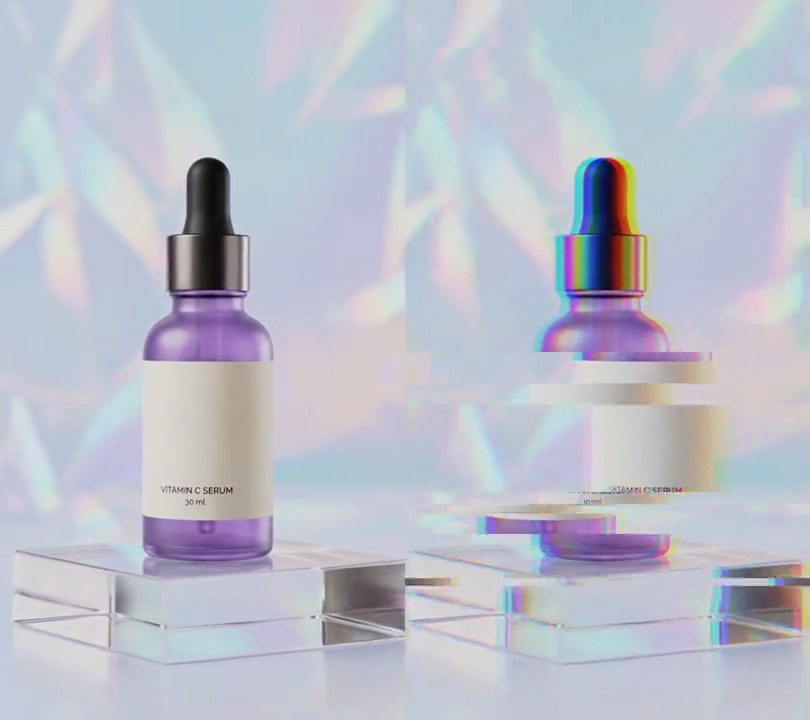
At one second the shot slides into an icy blue-cyan cast in half a second, the warm rainbow flecks in the backdrop turning cold blue while the brightness stays the same.
Show the prompt
Give input.mp4 a cool blue-cyan tone. Leave the first 1.0 second untouched, then over 1.0 to 1.5 seconds blend smoothly into the cool grade and keep it to the end. The cool grade: ffmpeg colorbalance with red -0.15 and blue +0.15 in the shadows, mid-tones and highlights (rs=-0.15:bs=0.15:rm=-0.15:bm=0.15:rh=-0.15:bh=0.15) and preserve lightness on (pl=1), so the frame keeps its brightness (within about 5% of the original) while blue becomes clearly the strongest channel and red the weakest (around RGB 160, 190, 228 on average for a bright frame). Add no text (any text you do add should be drawn with Pillow, not ffmpeg's drawtext). Keep the size, the 30fps frame rate, the 6 second length and the audio. Use ffmpeg and save it as output.mp4.