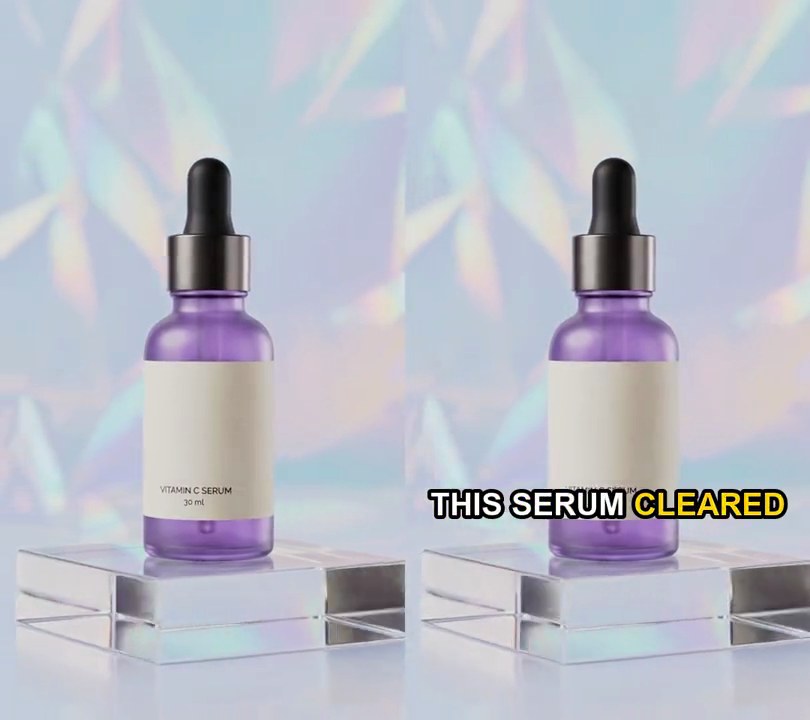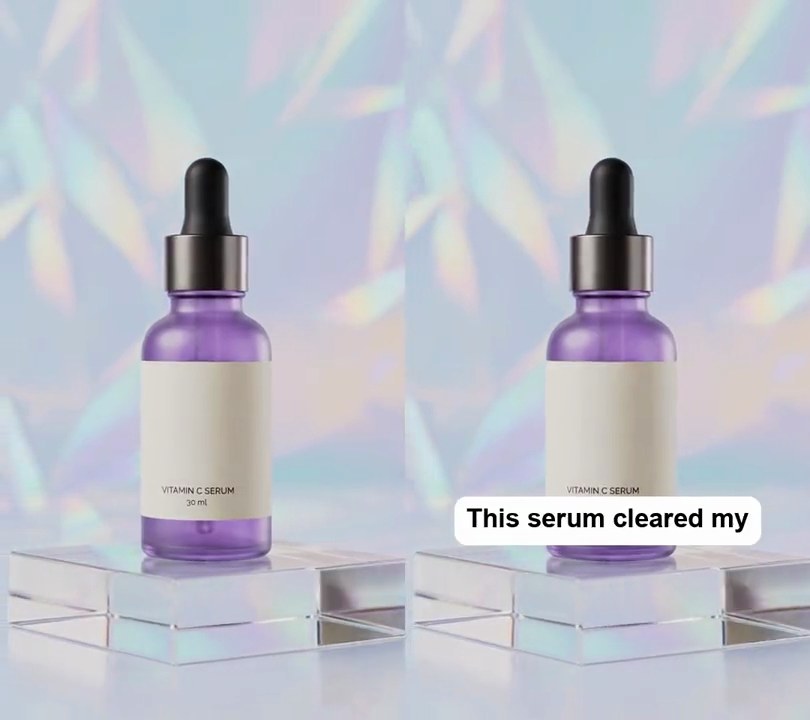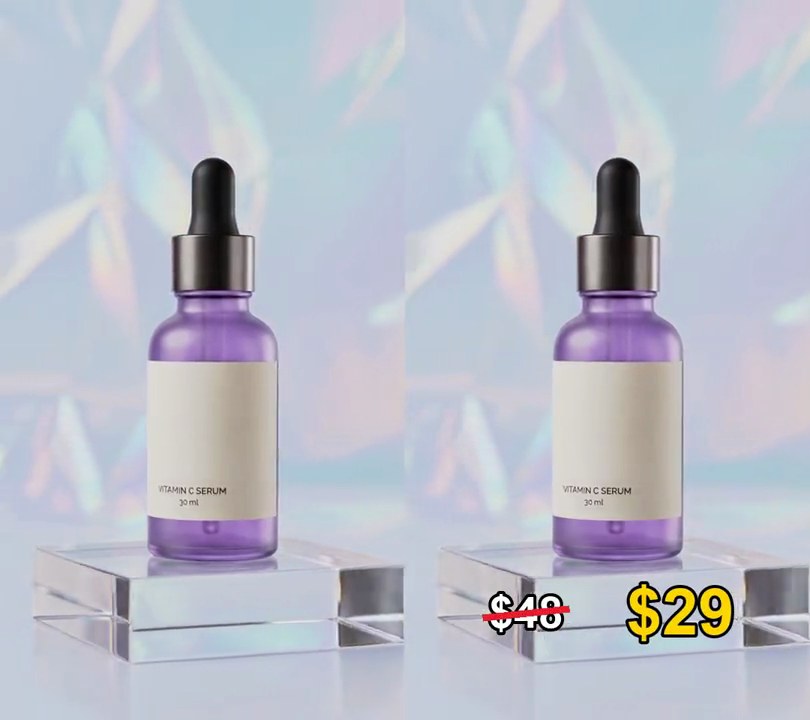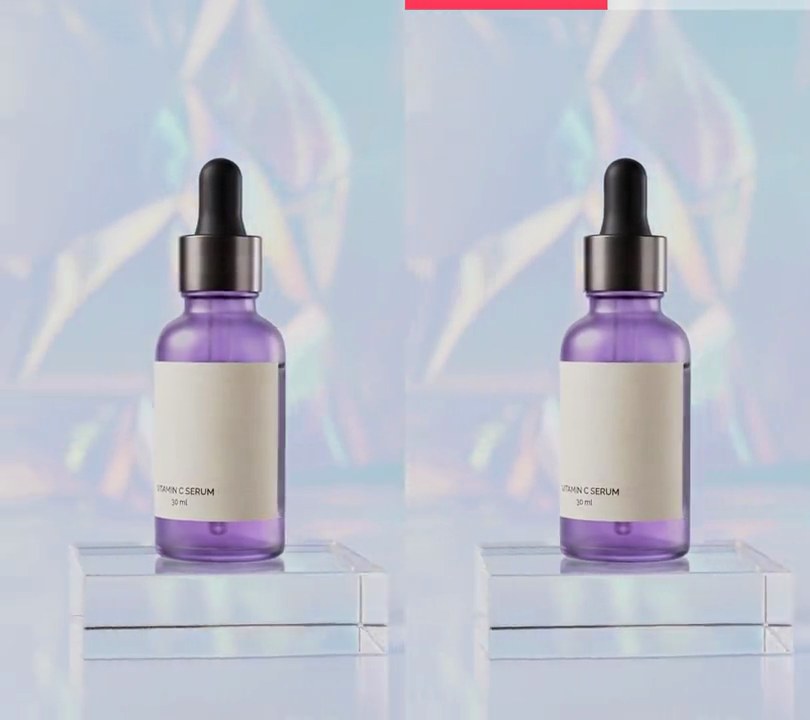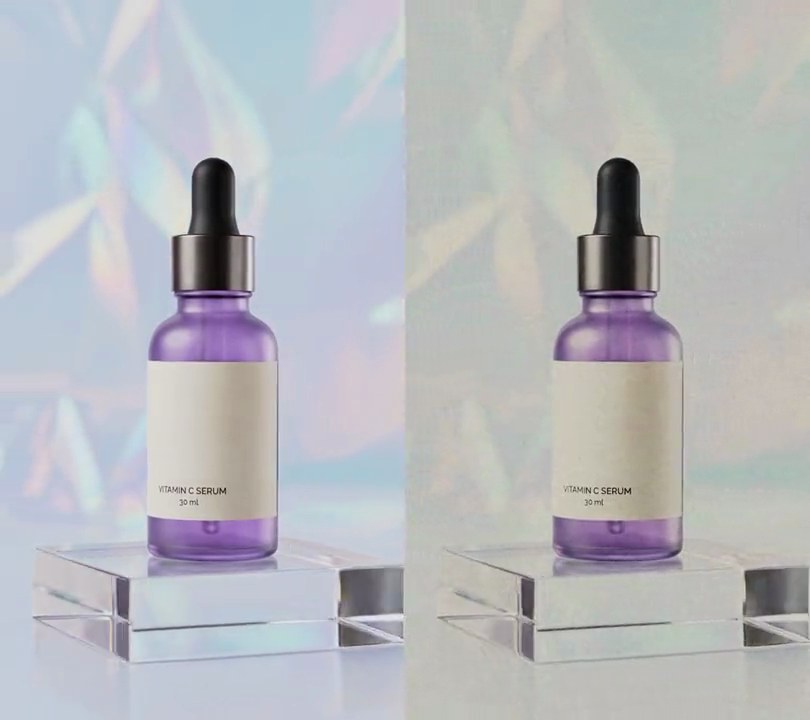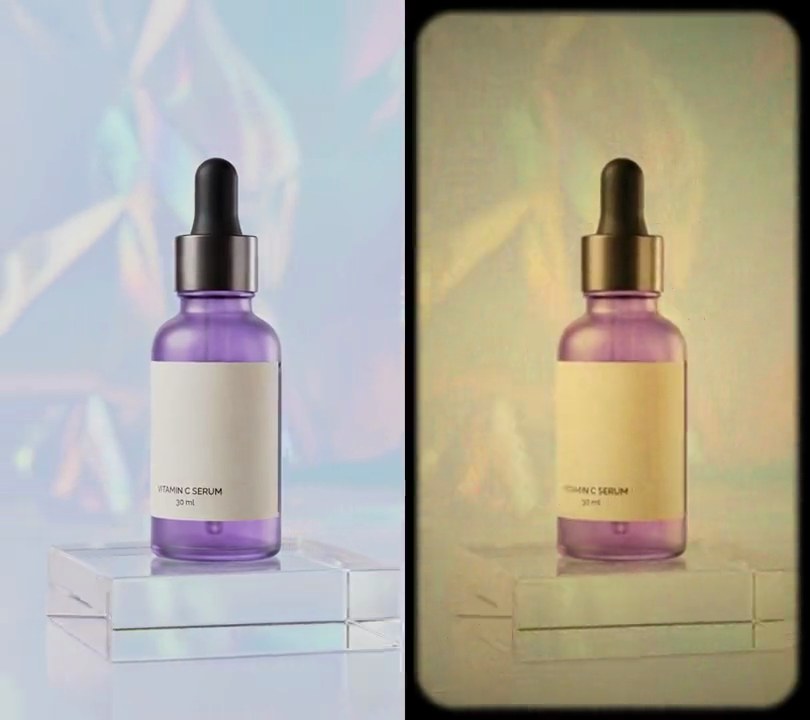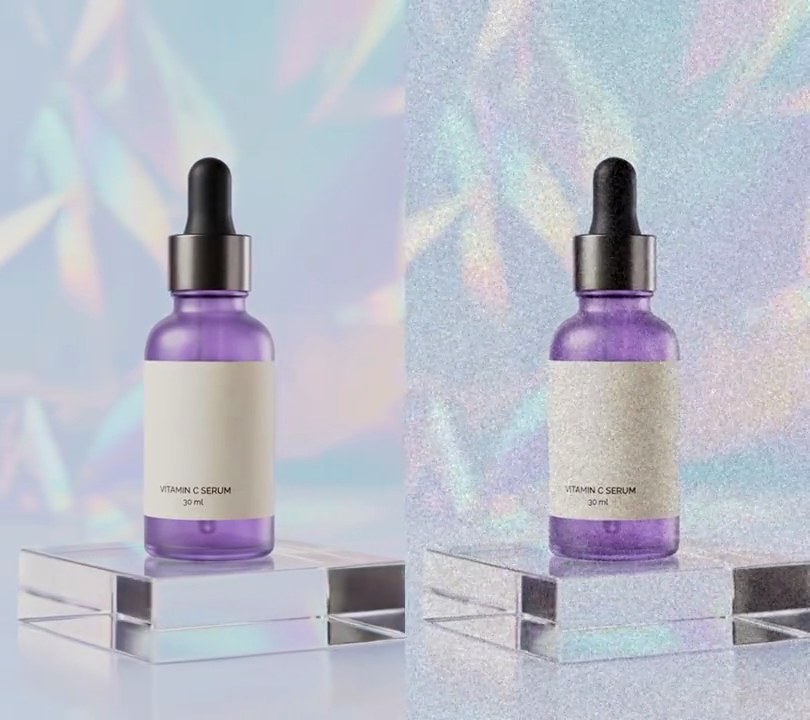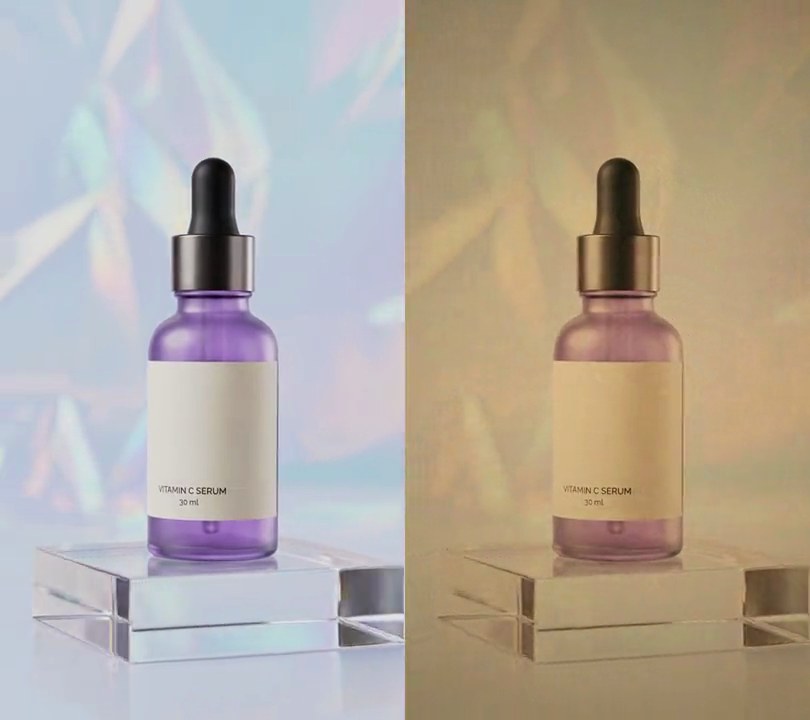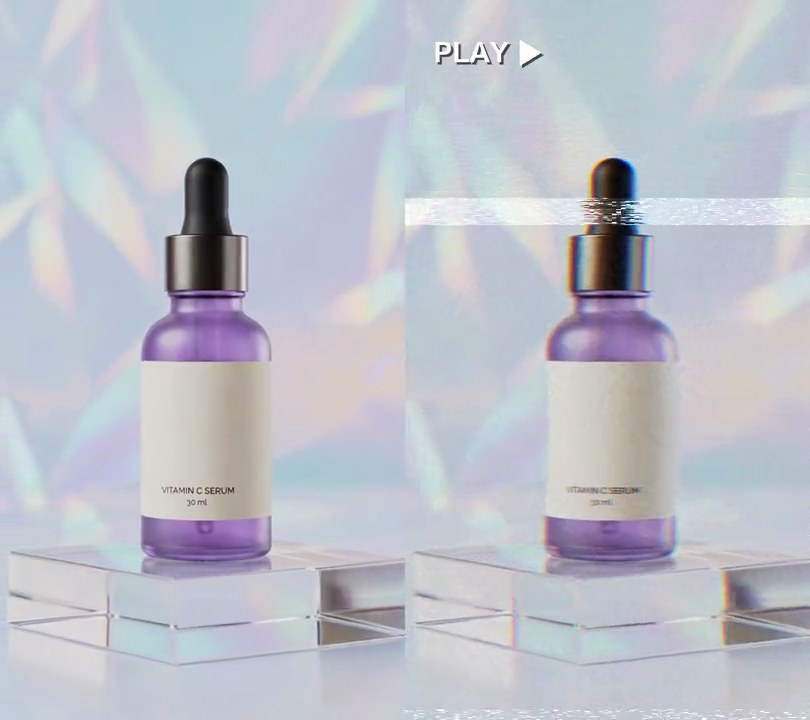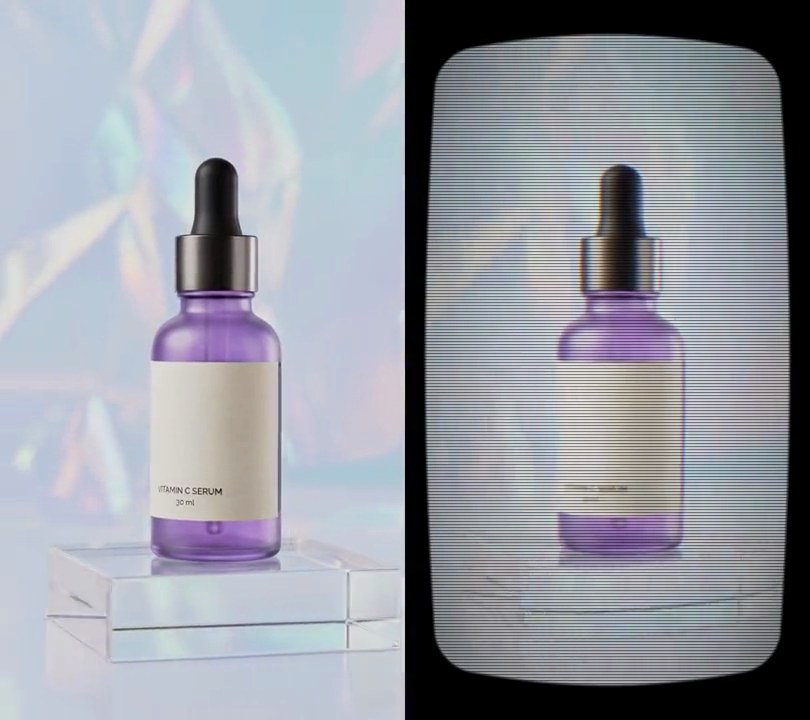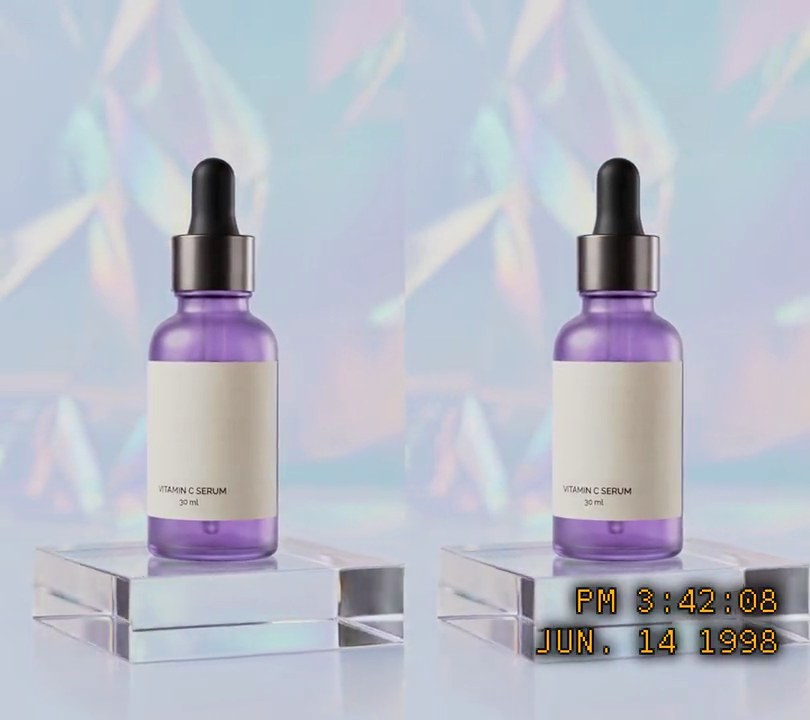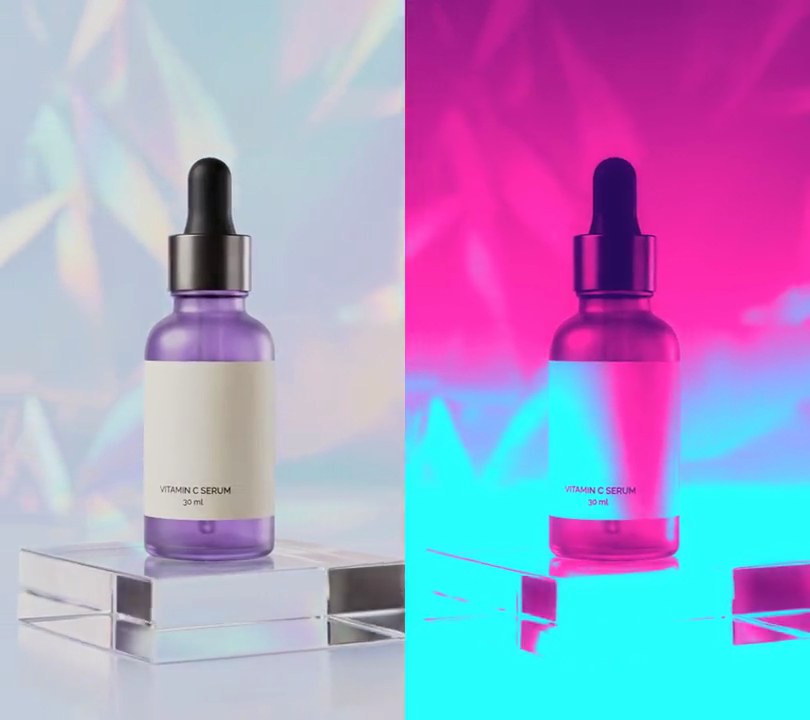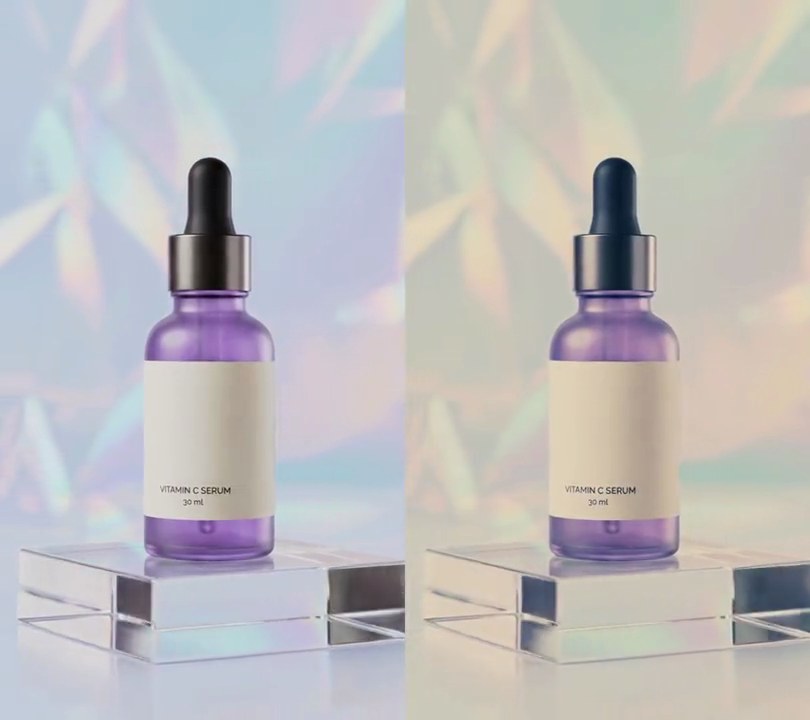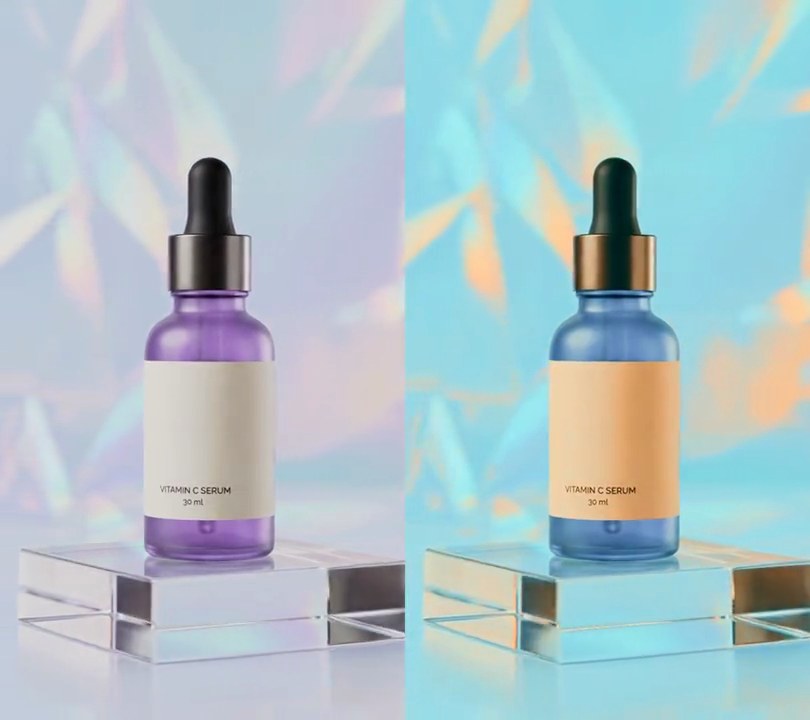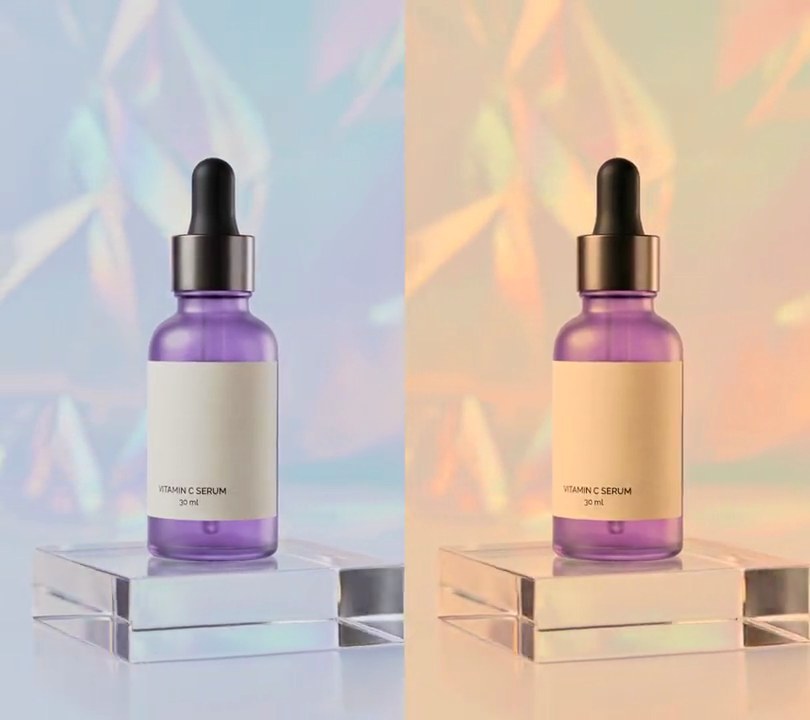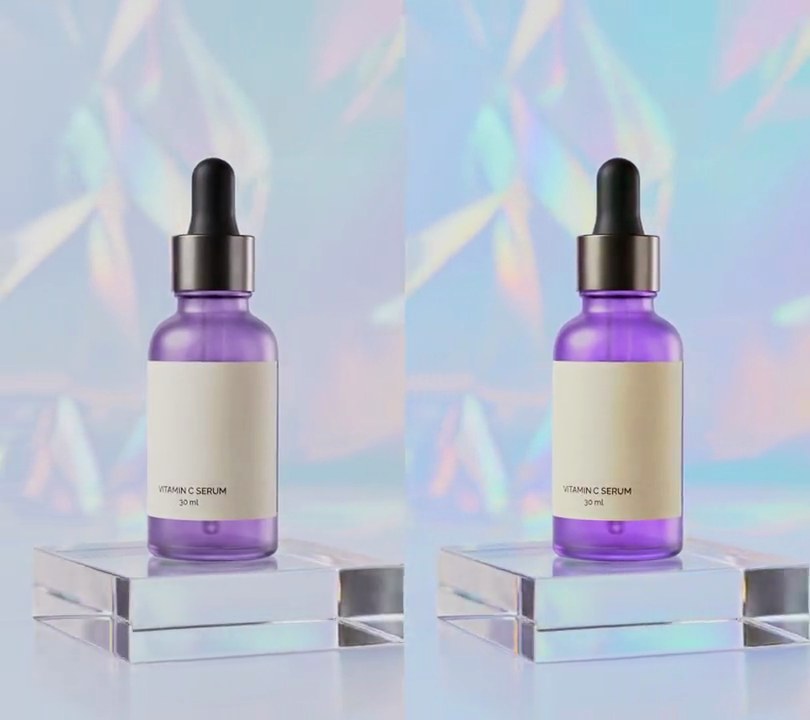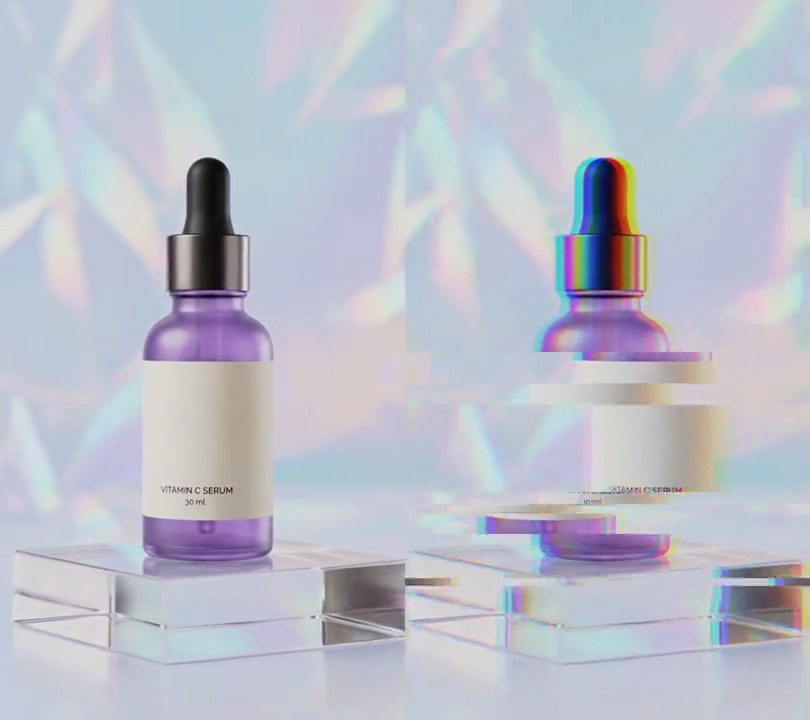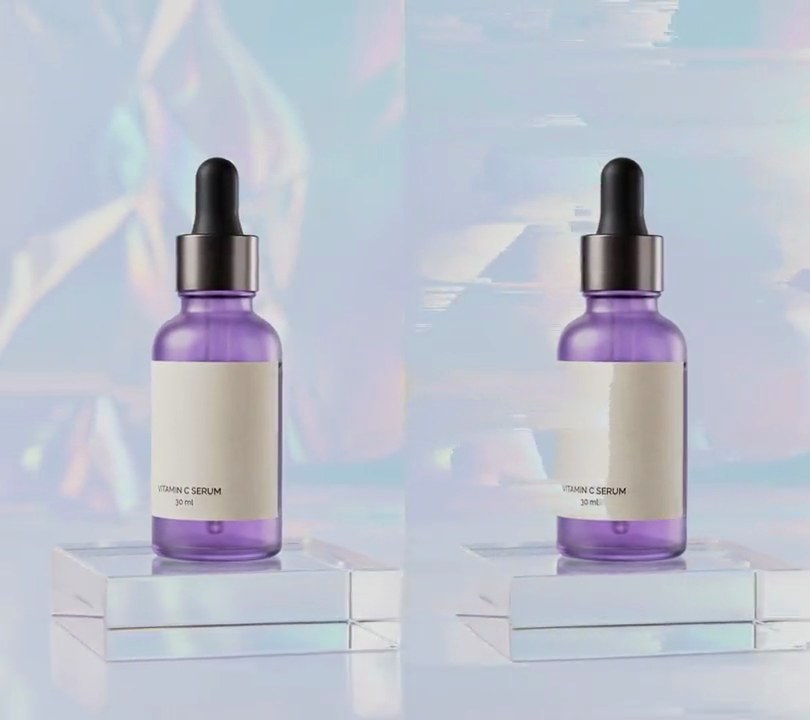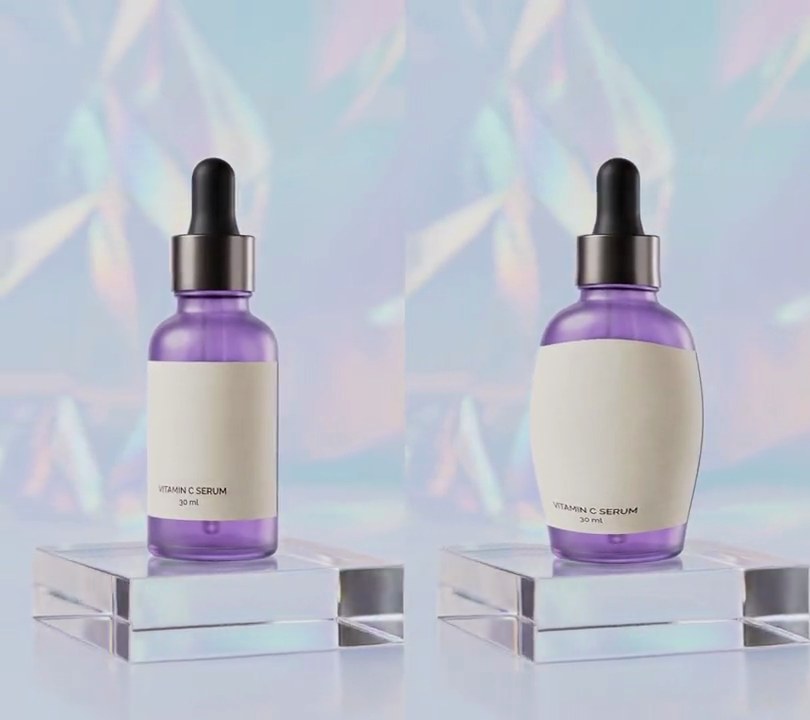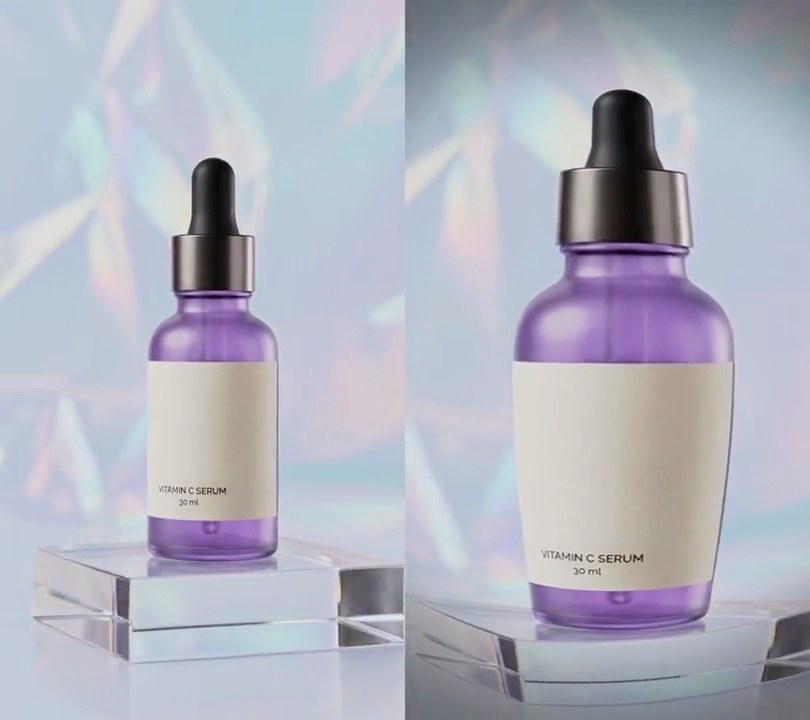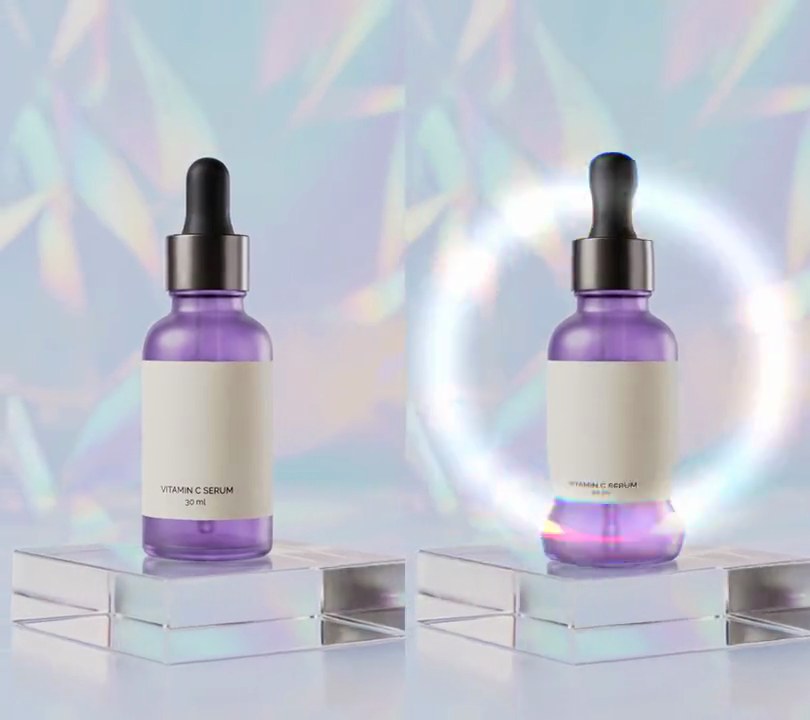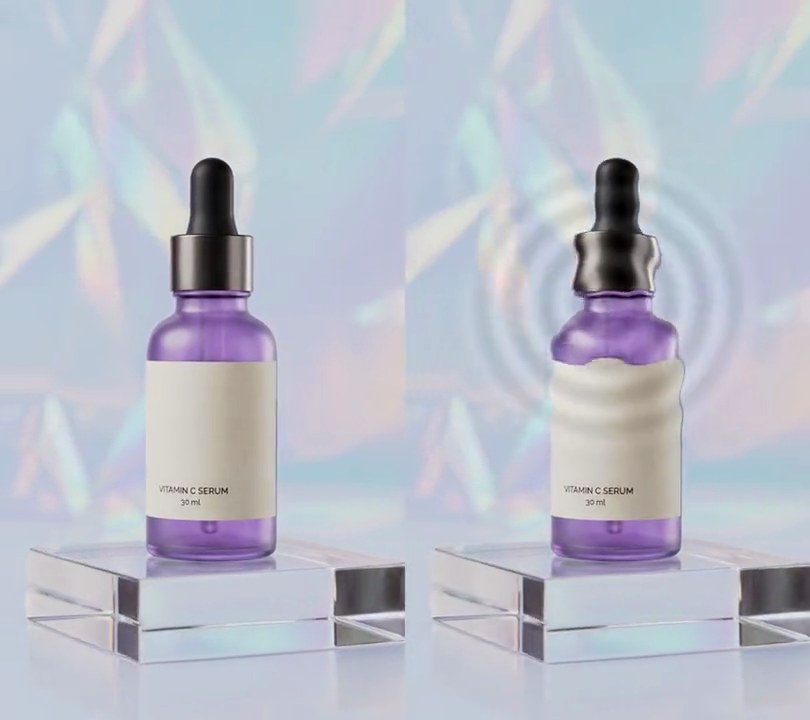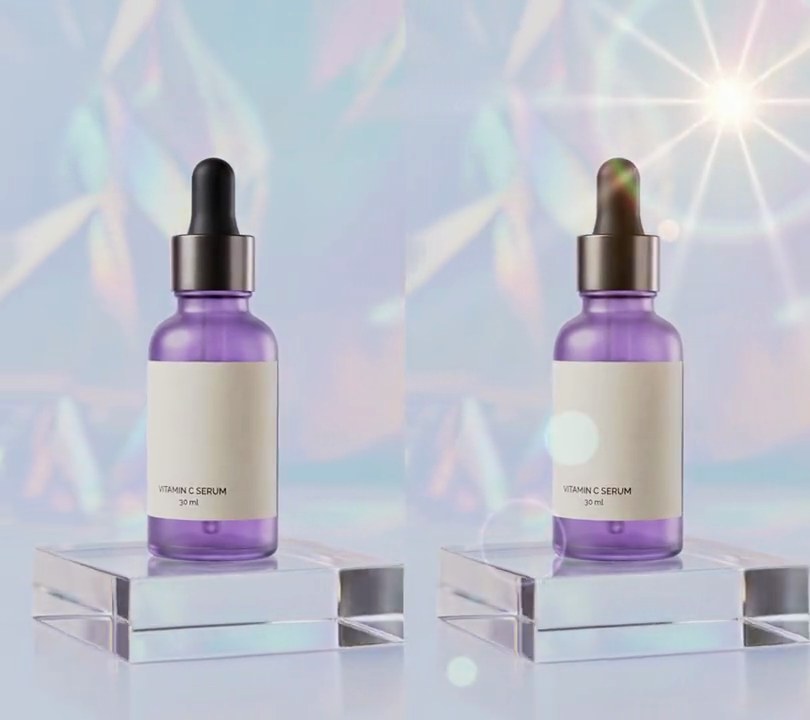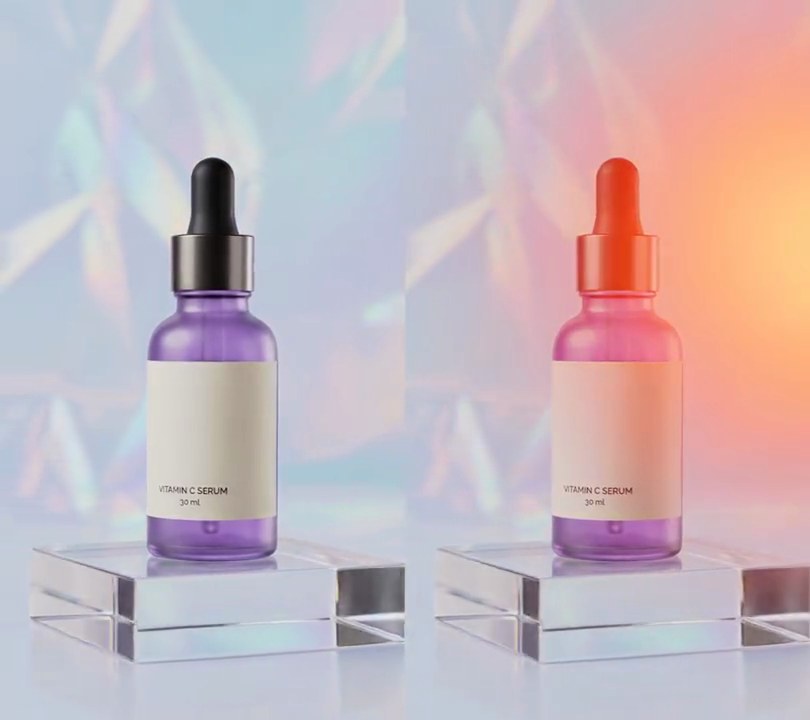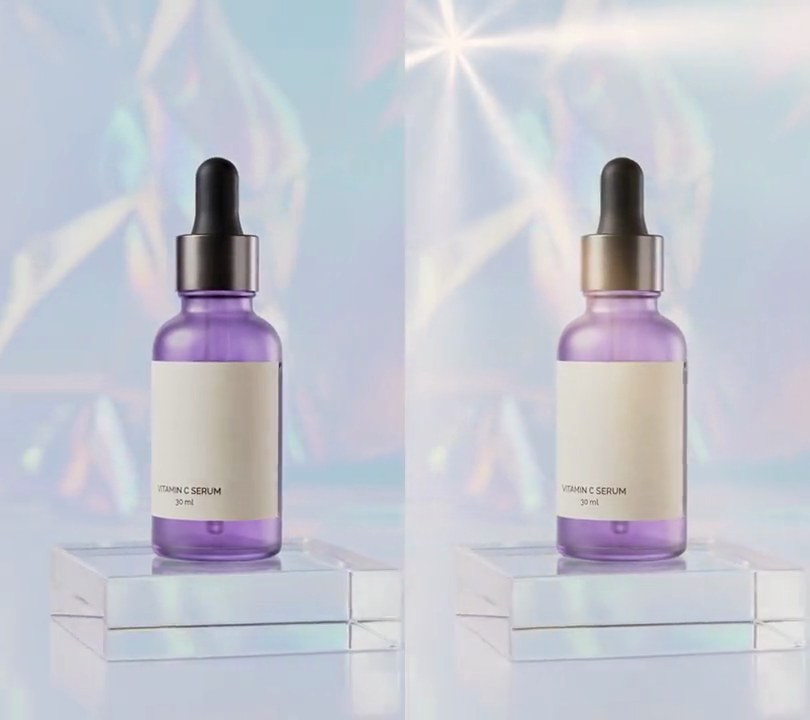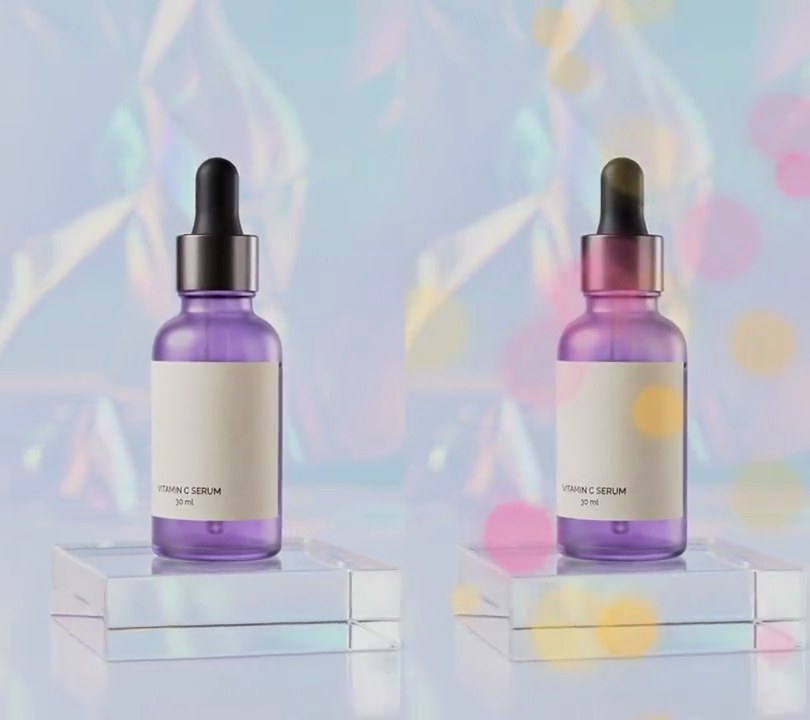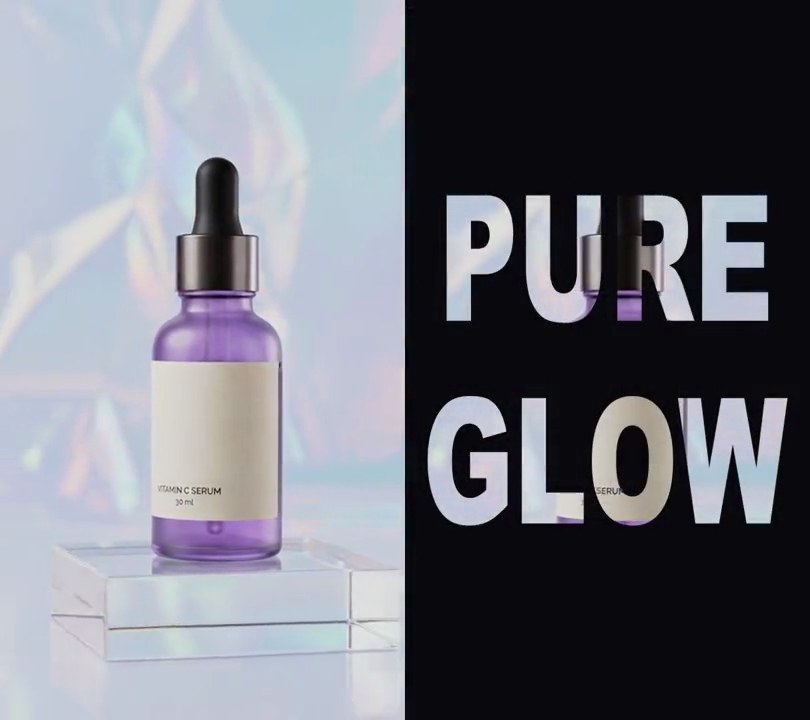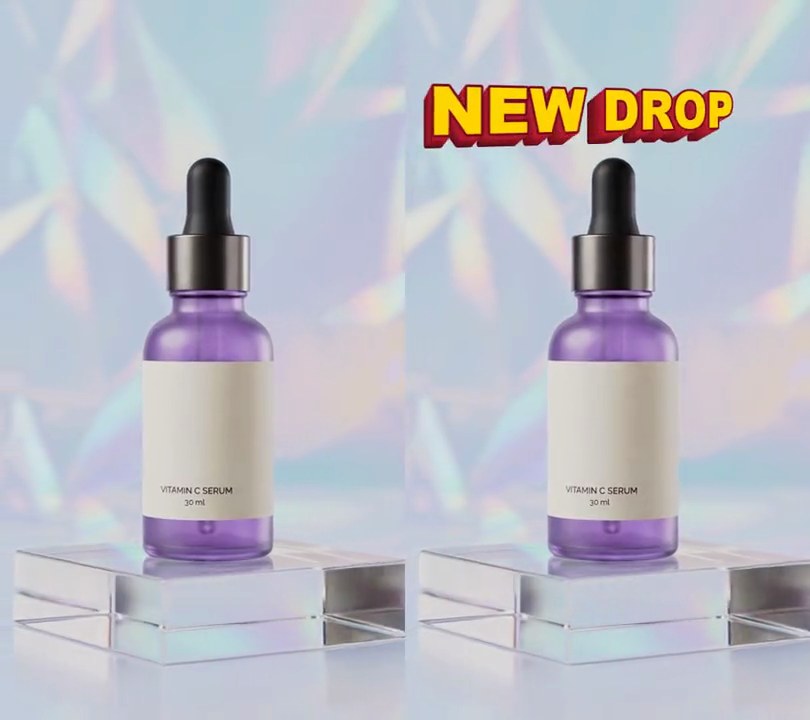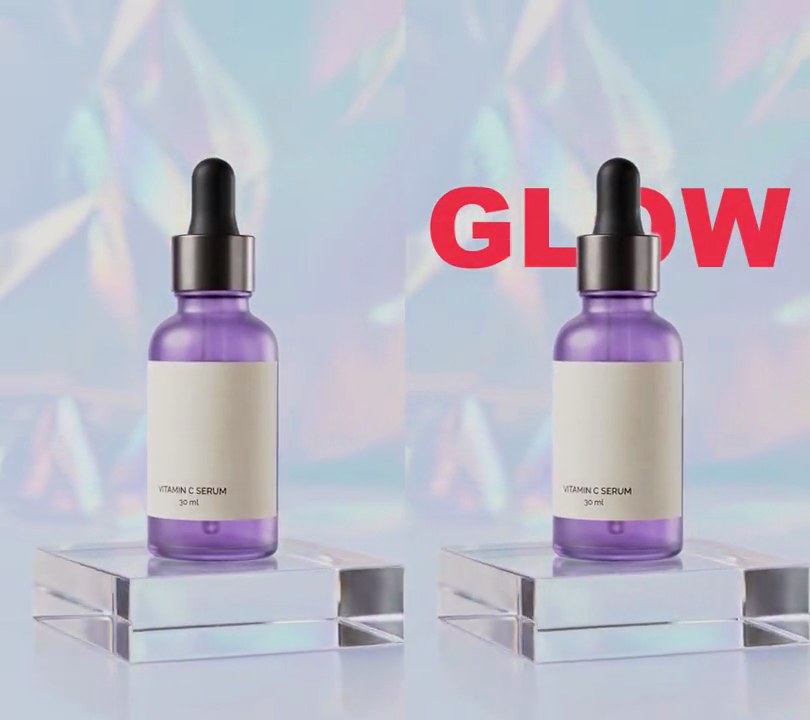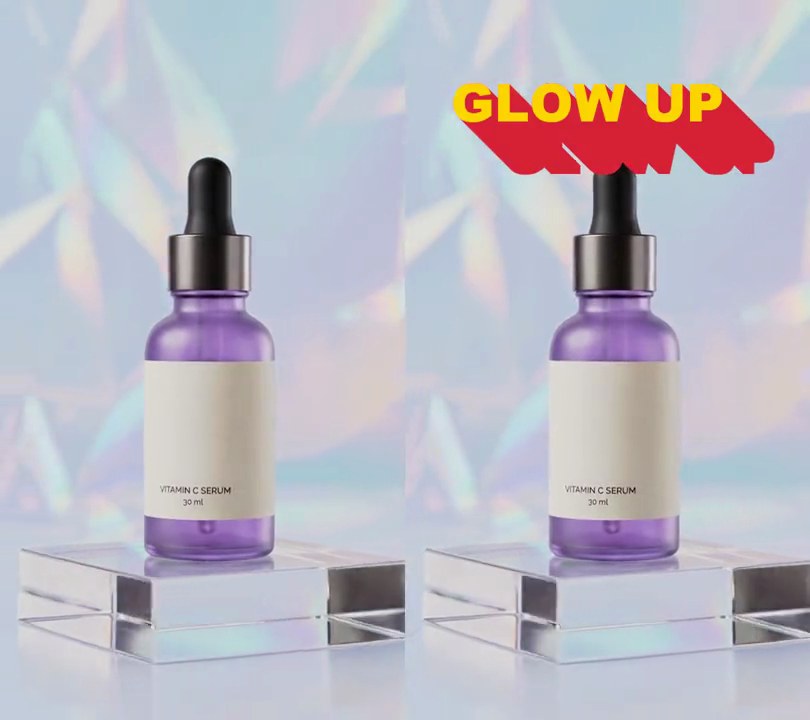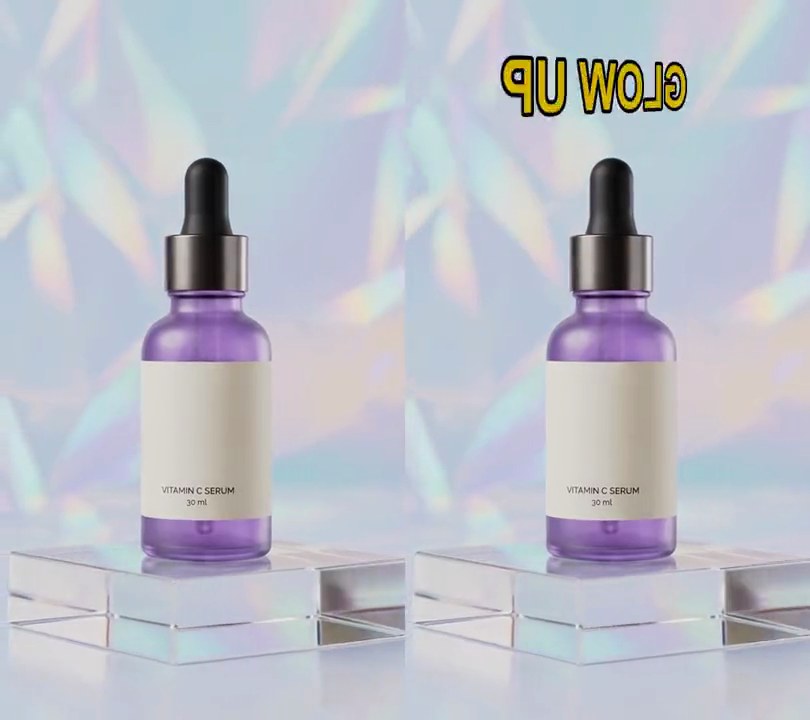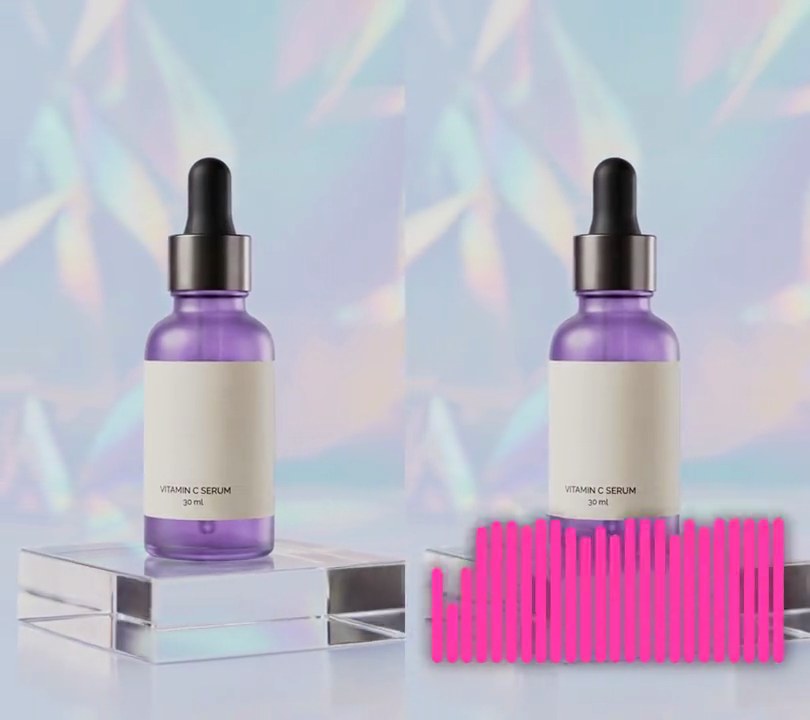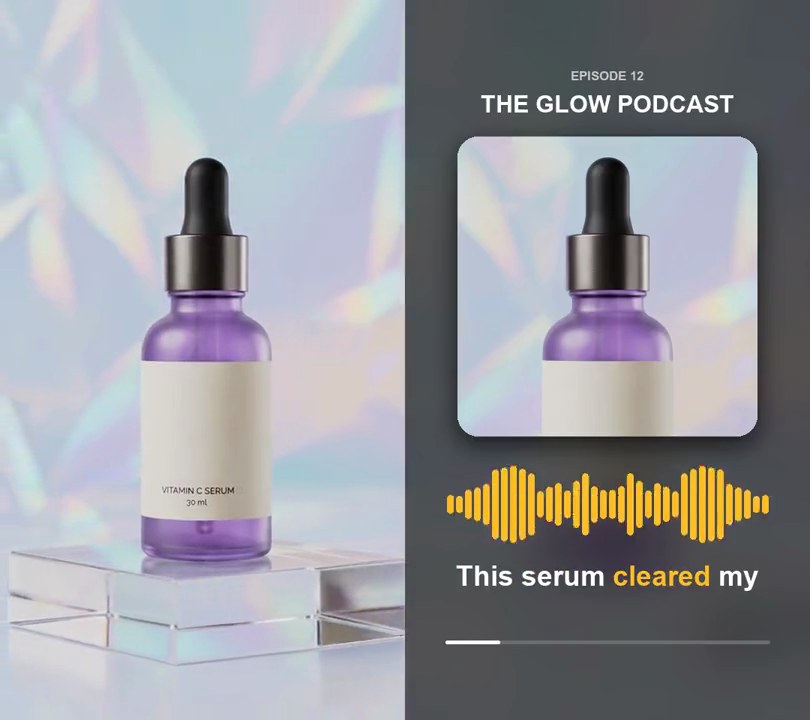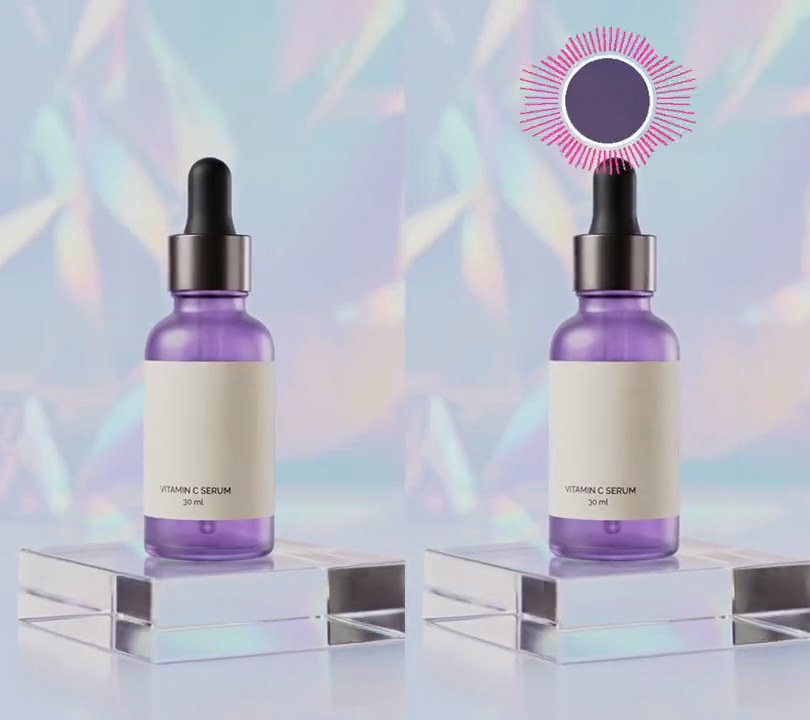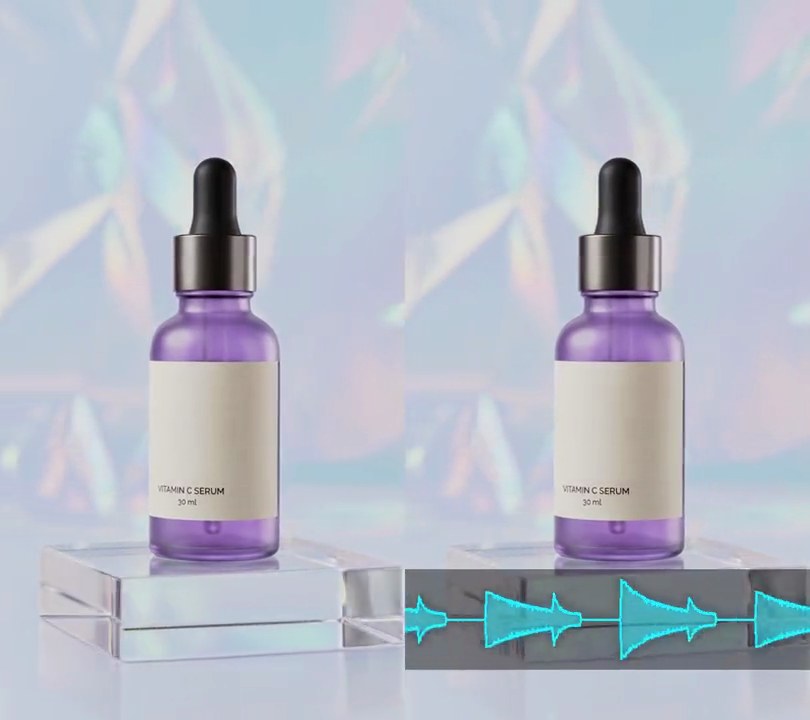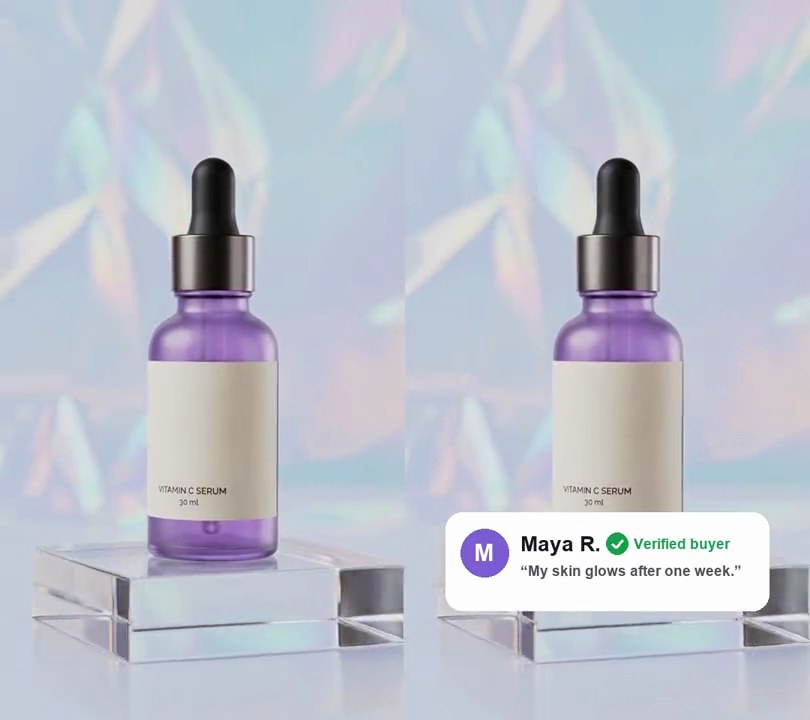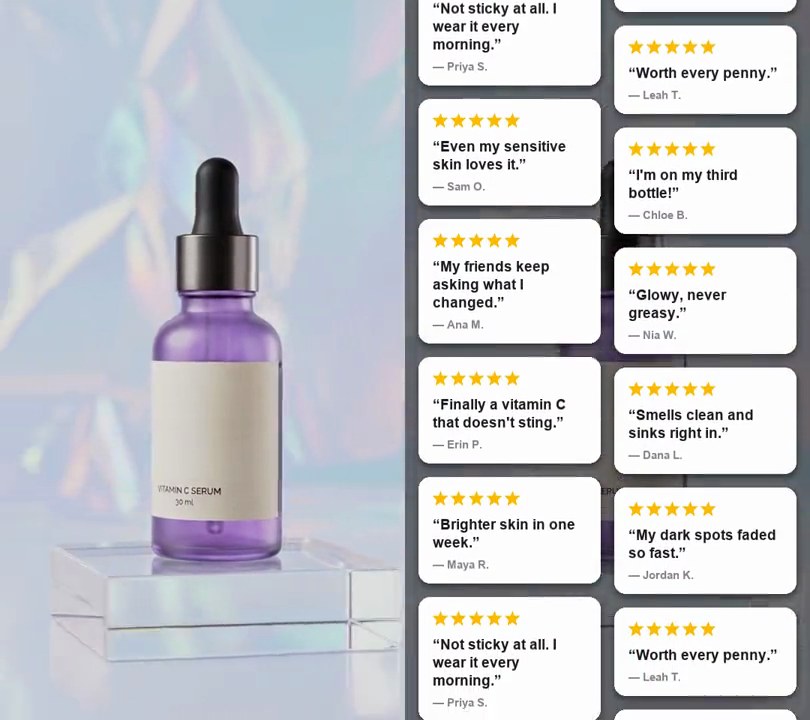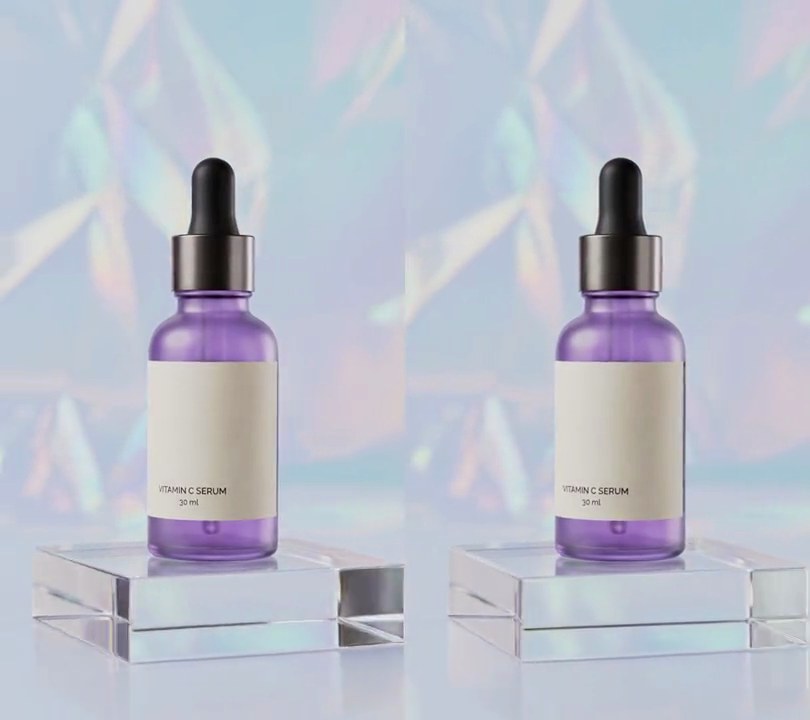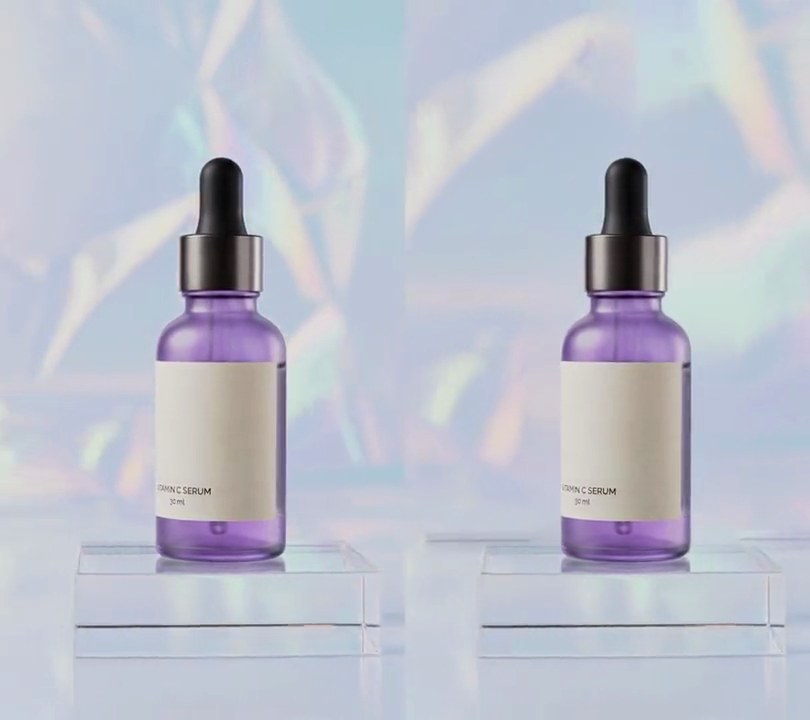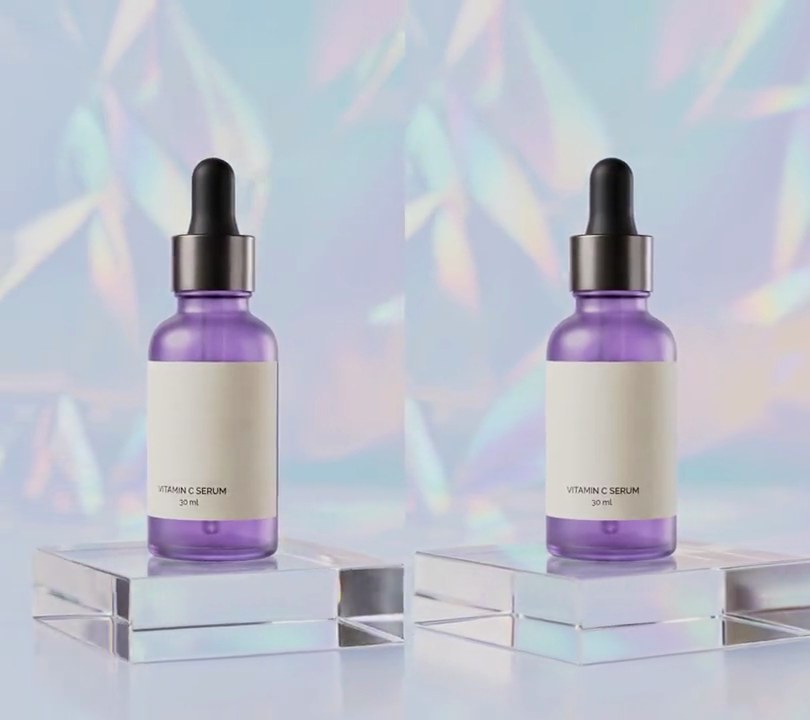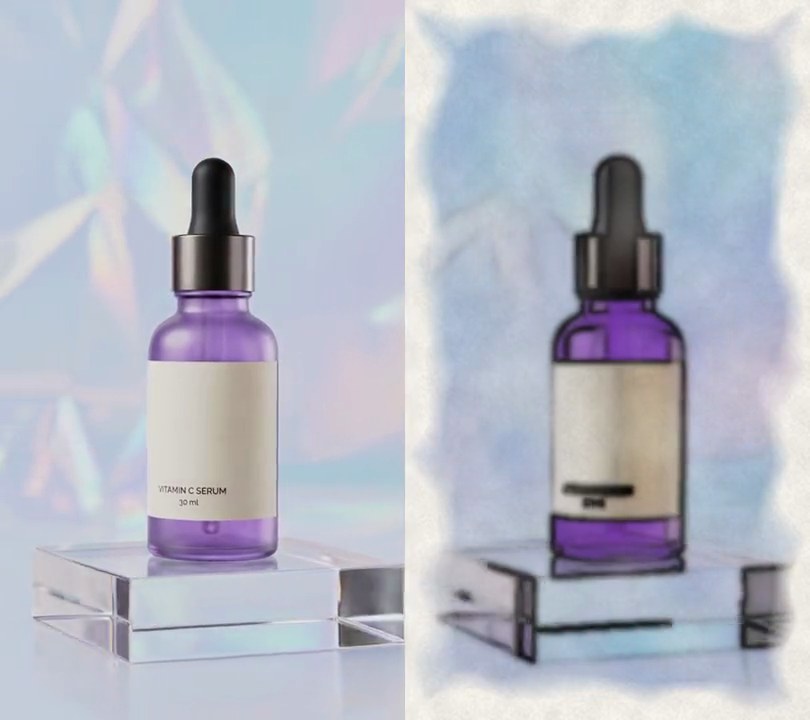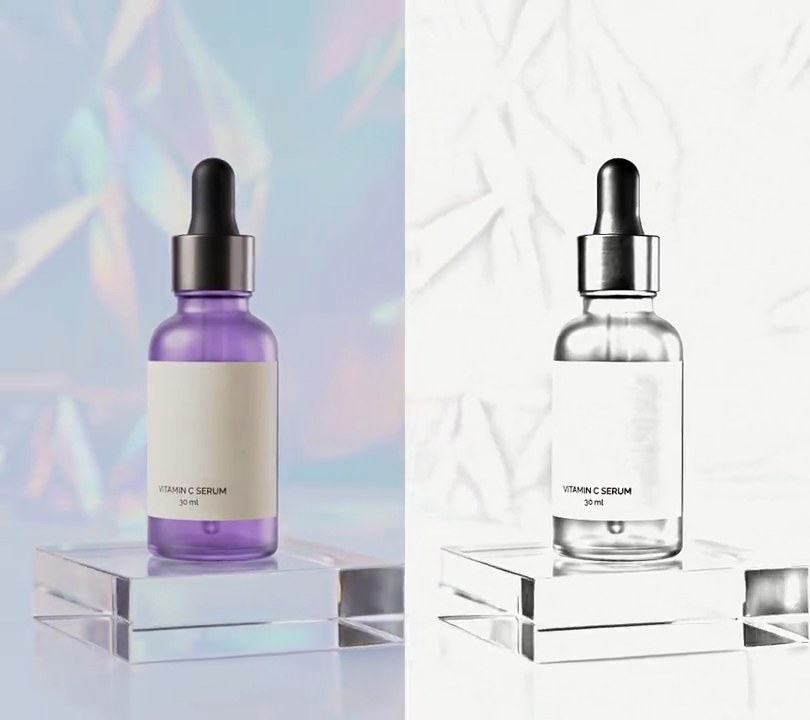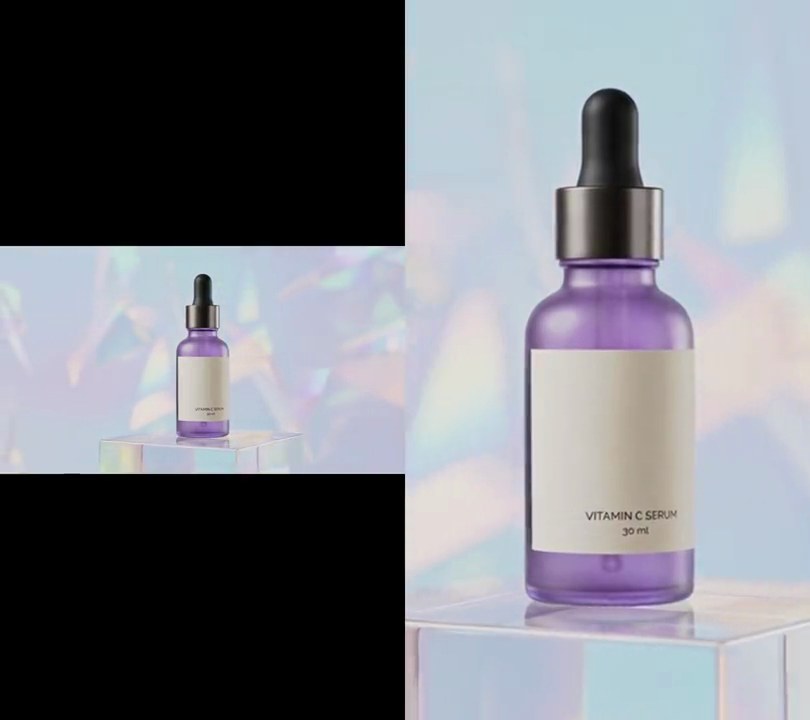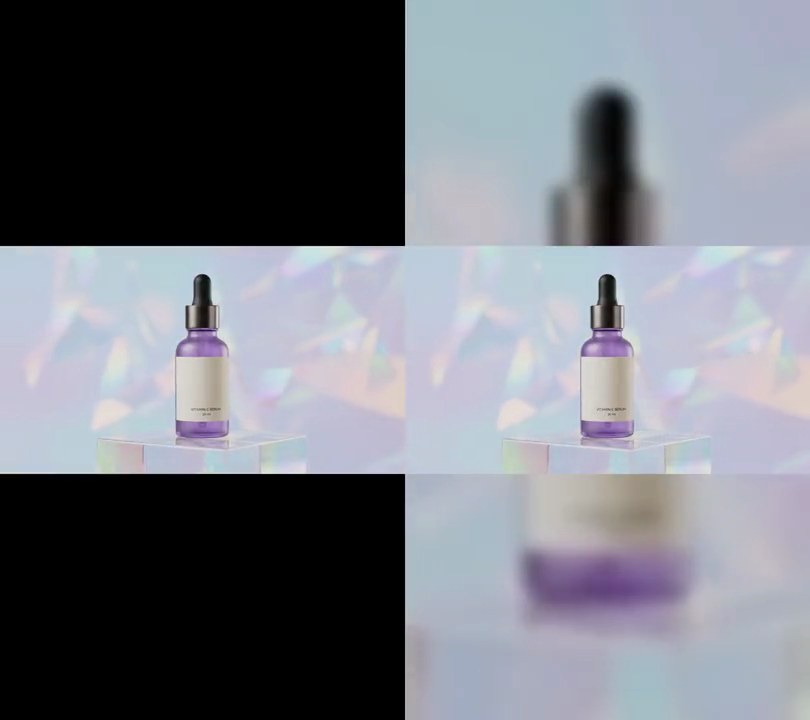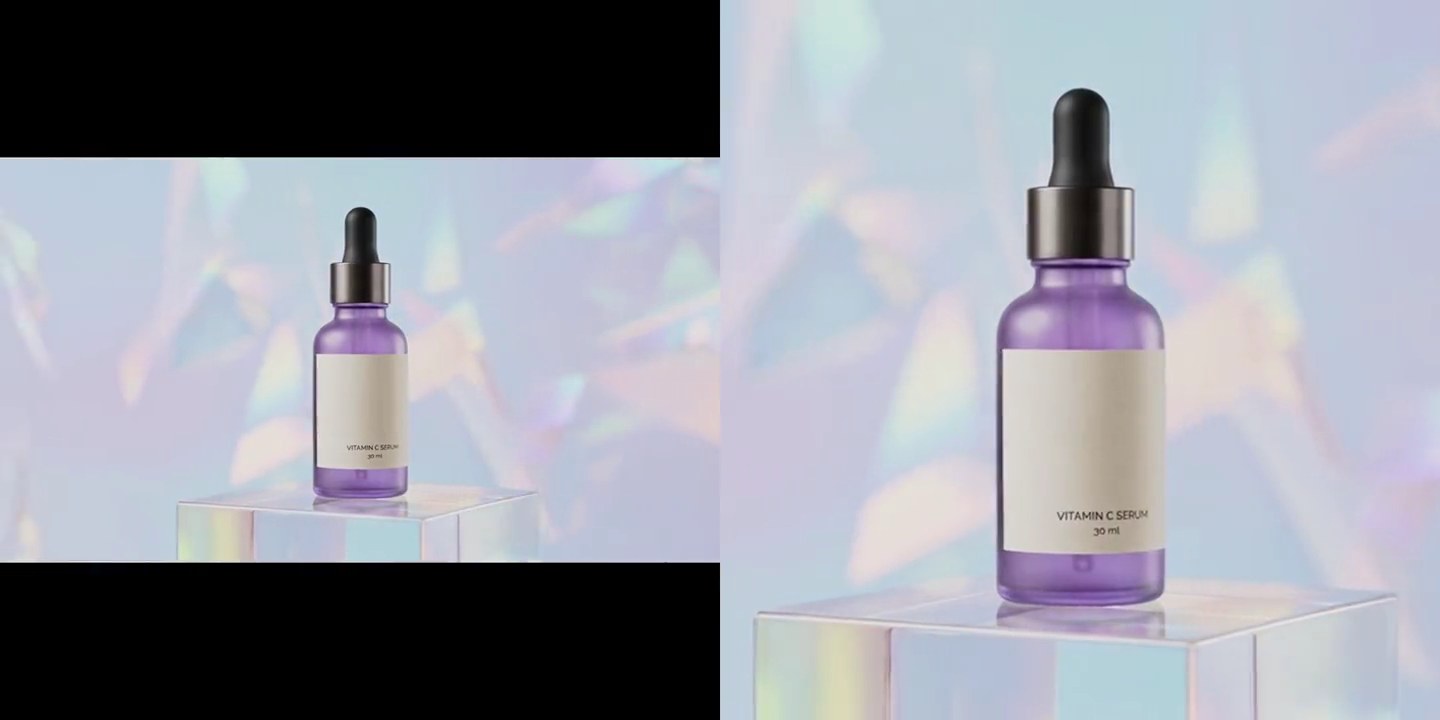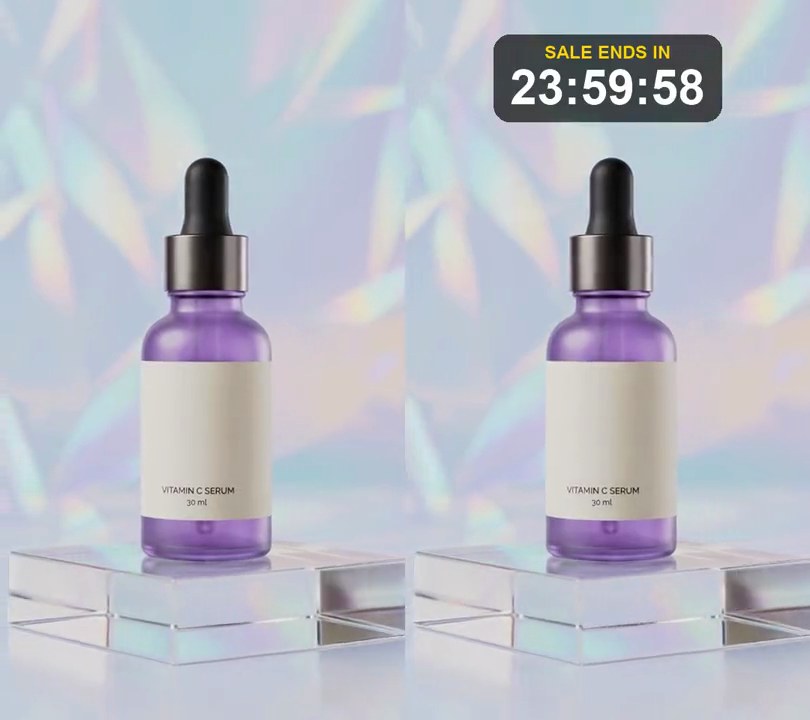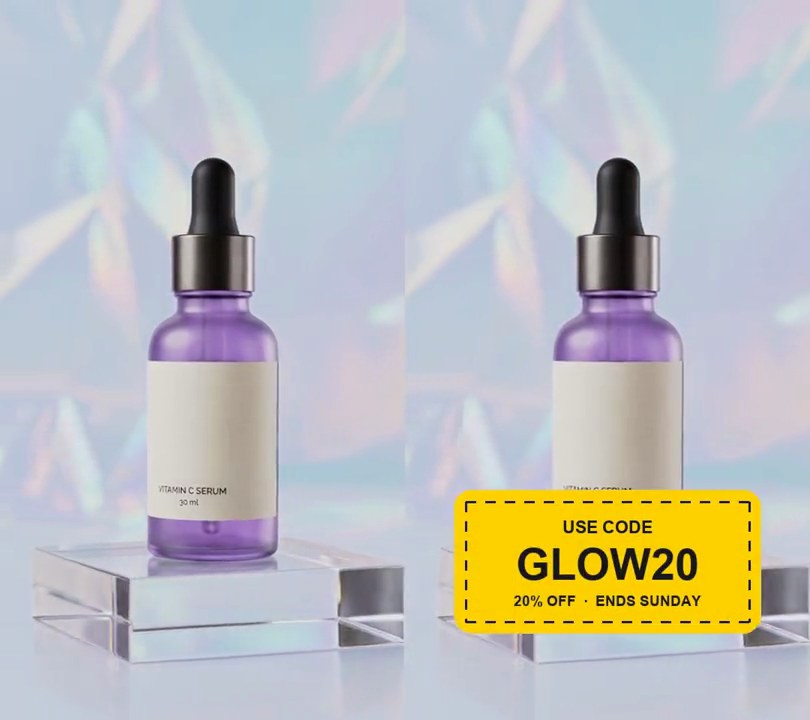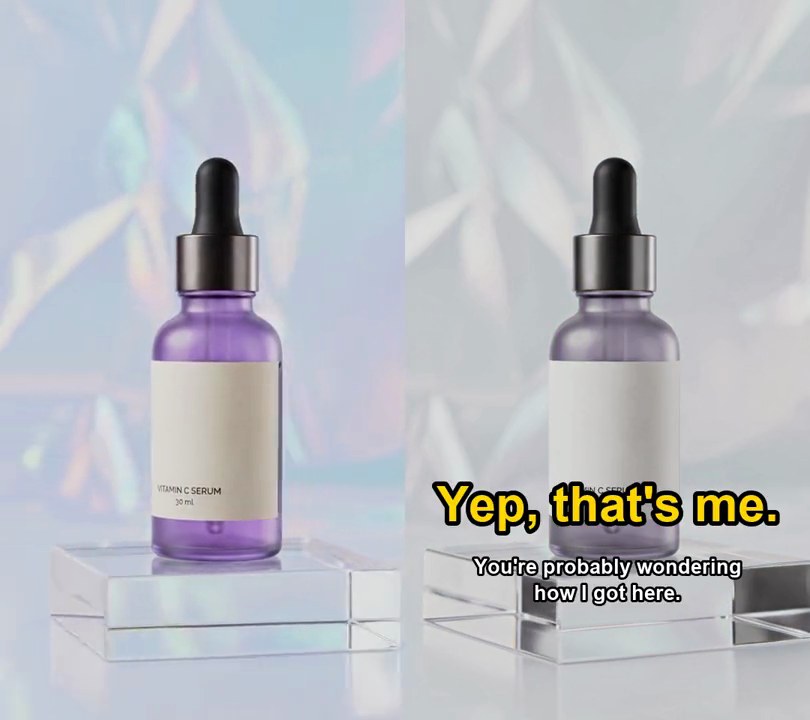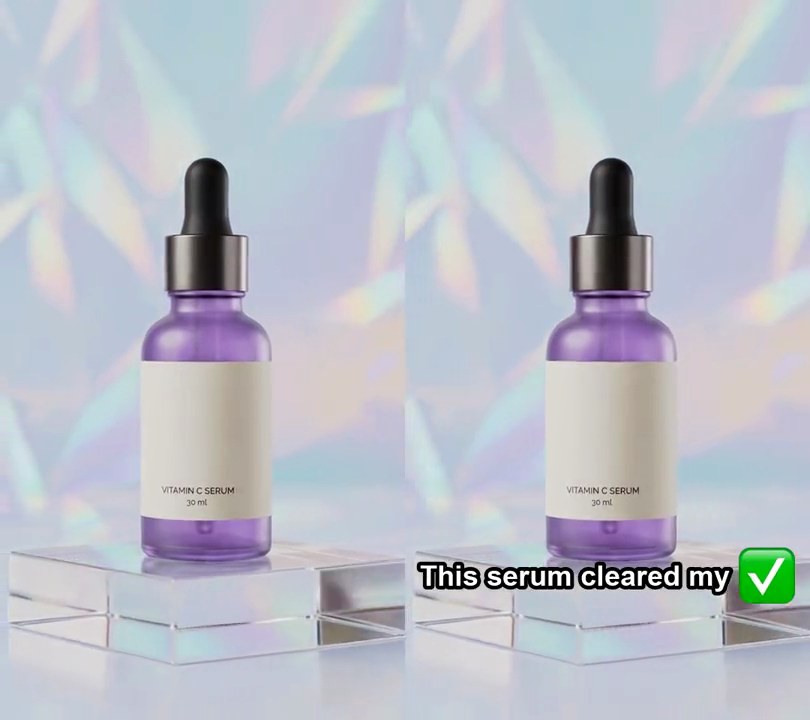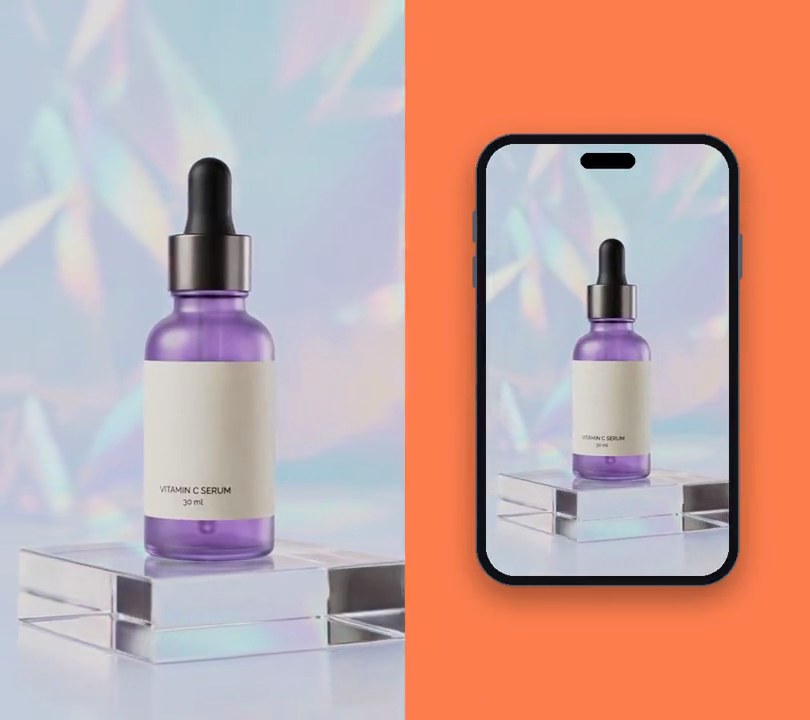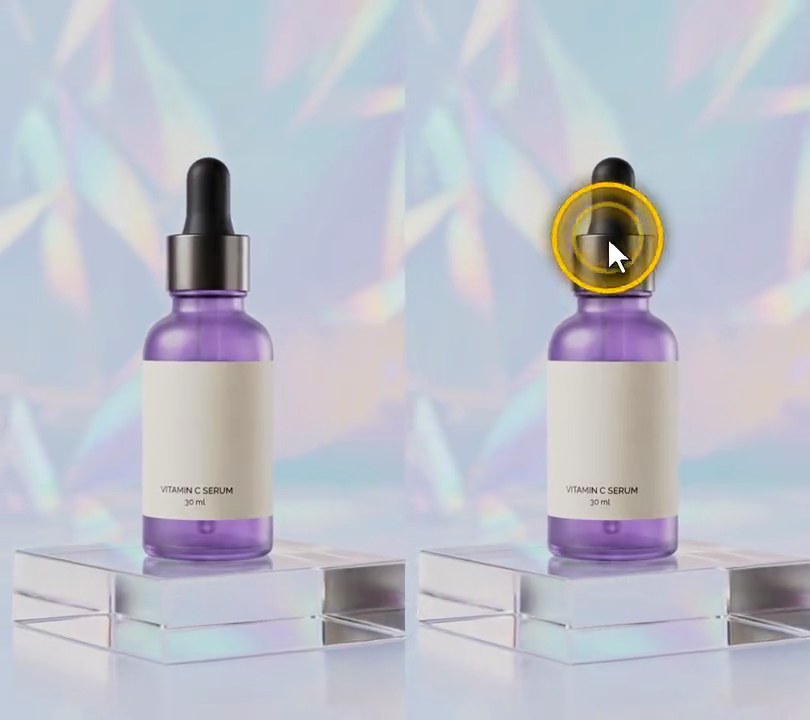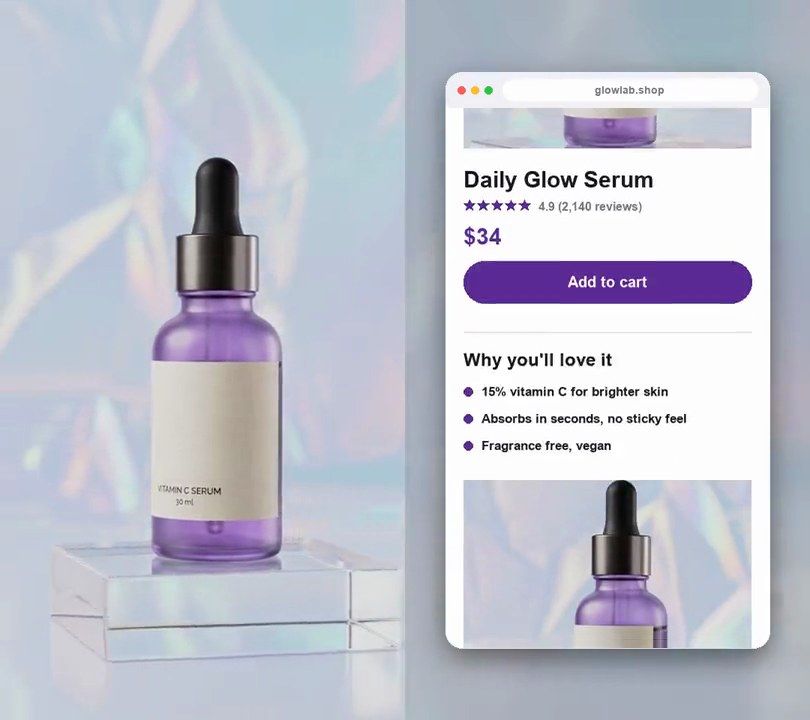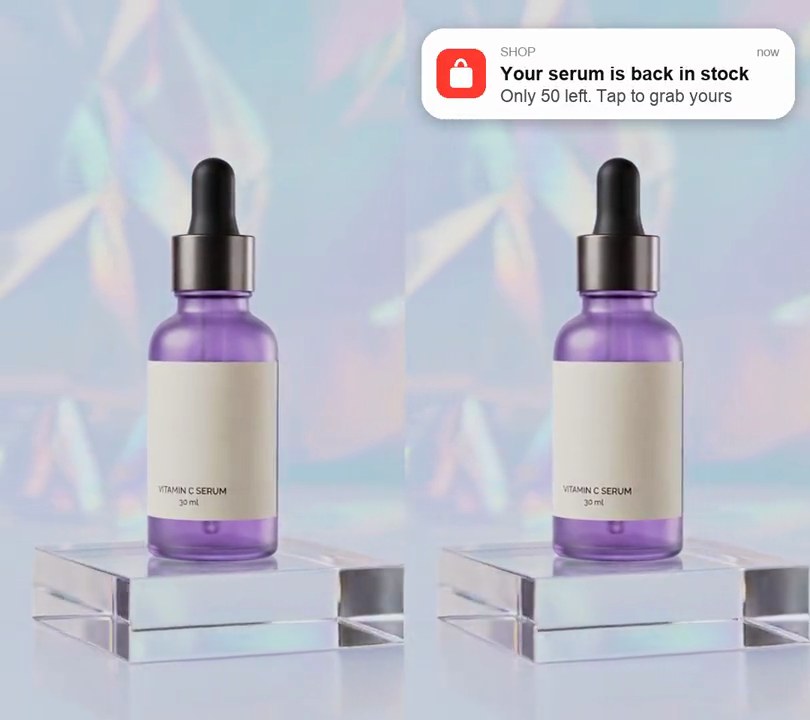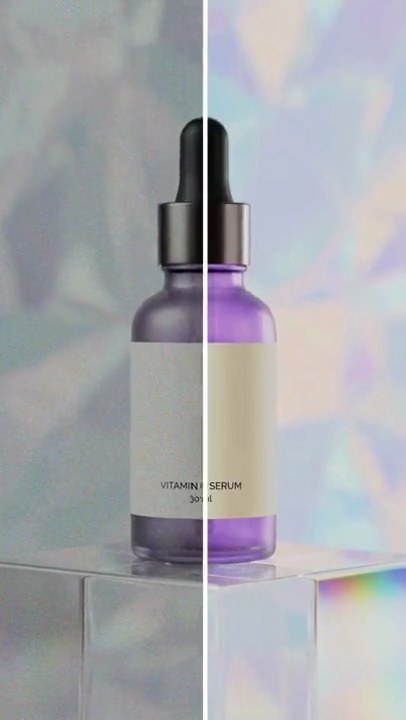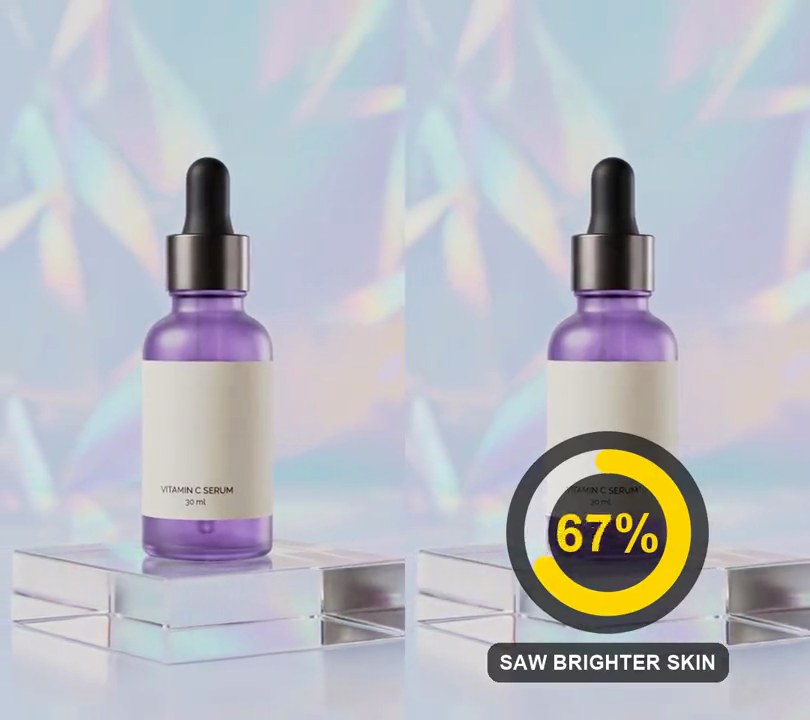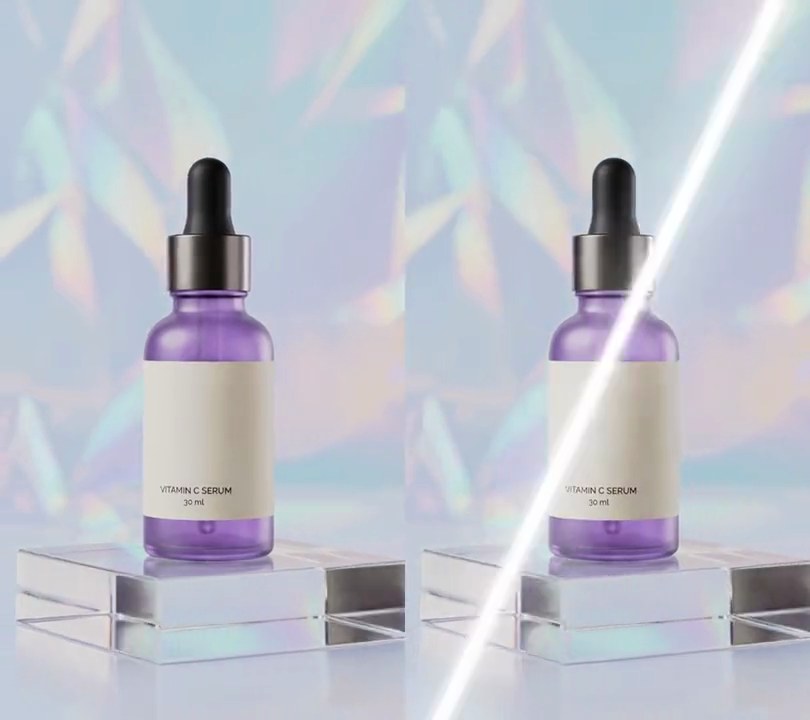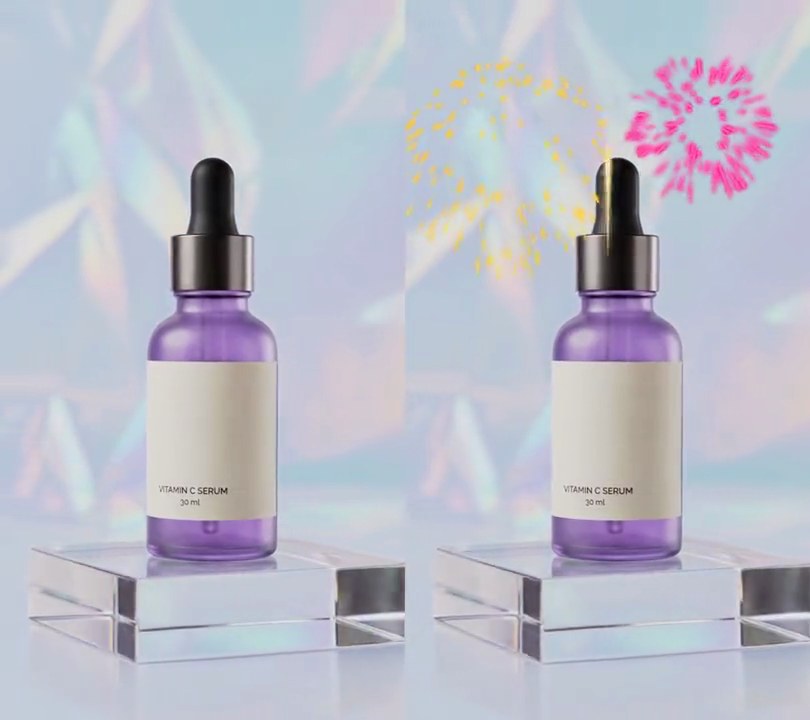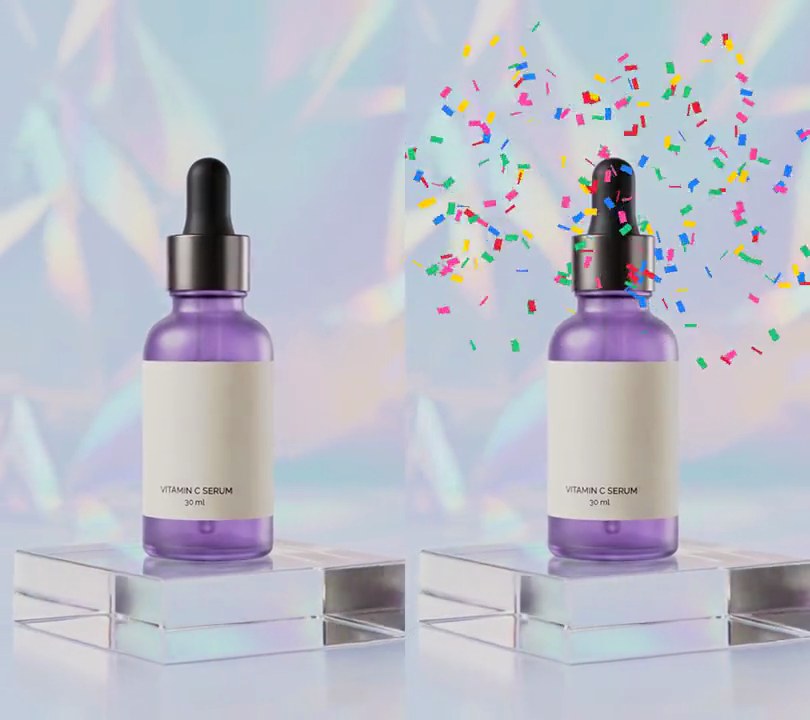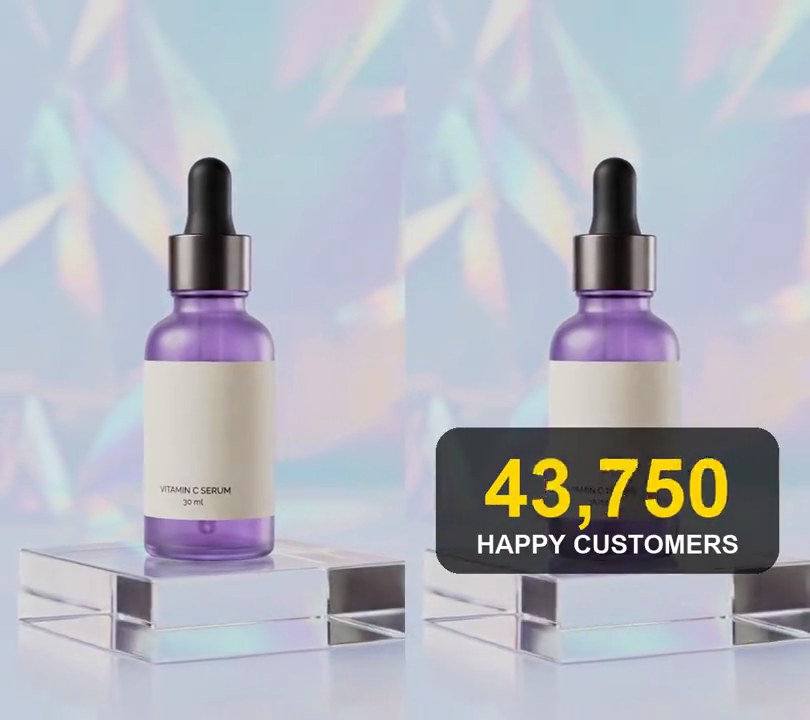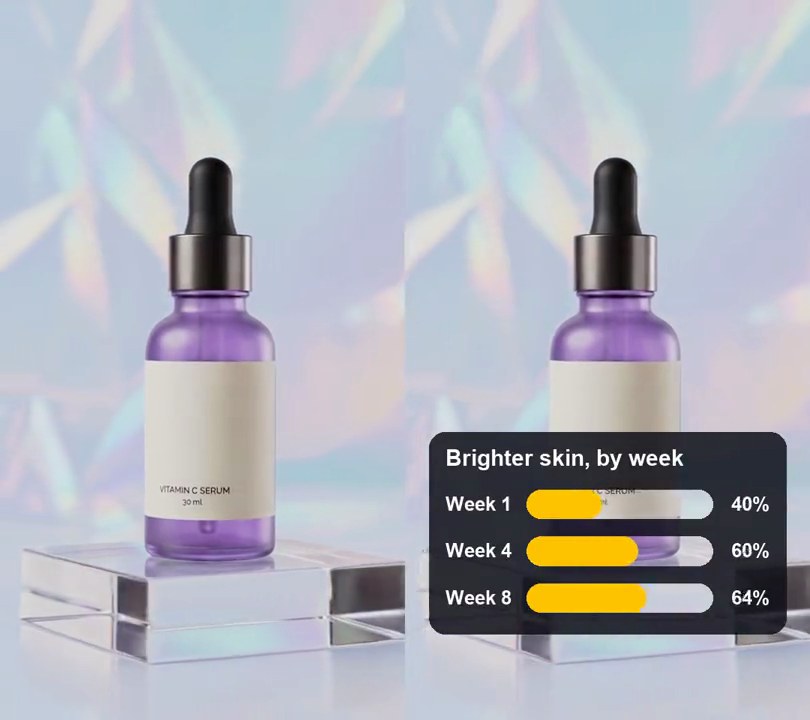
1. Punch-in zoom
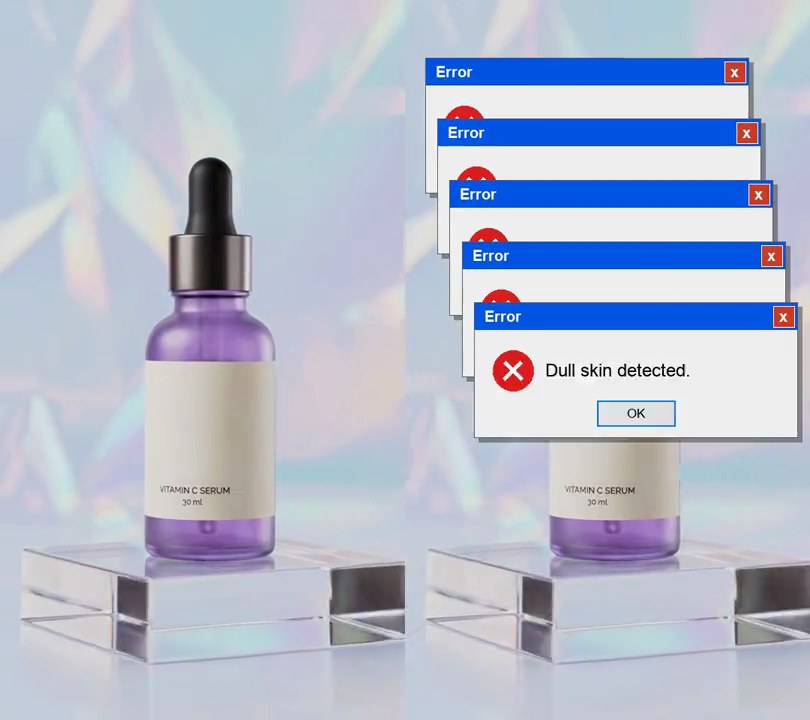
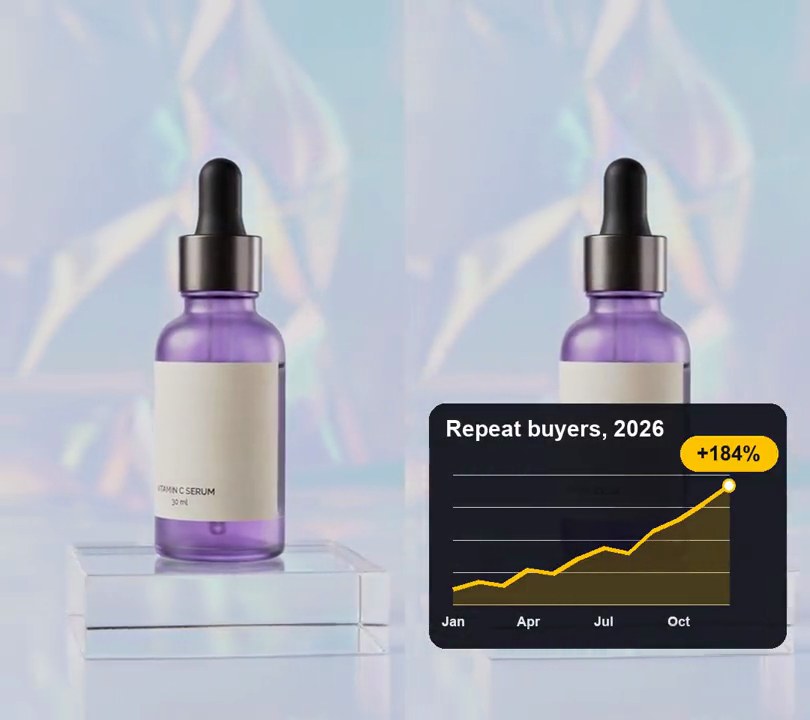
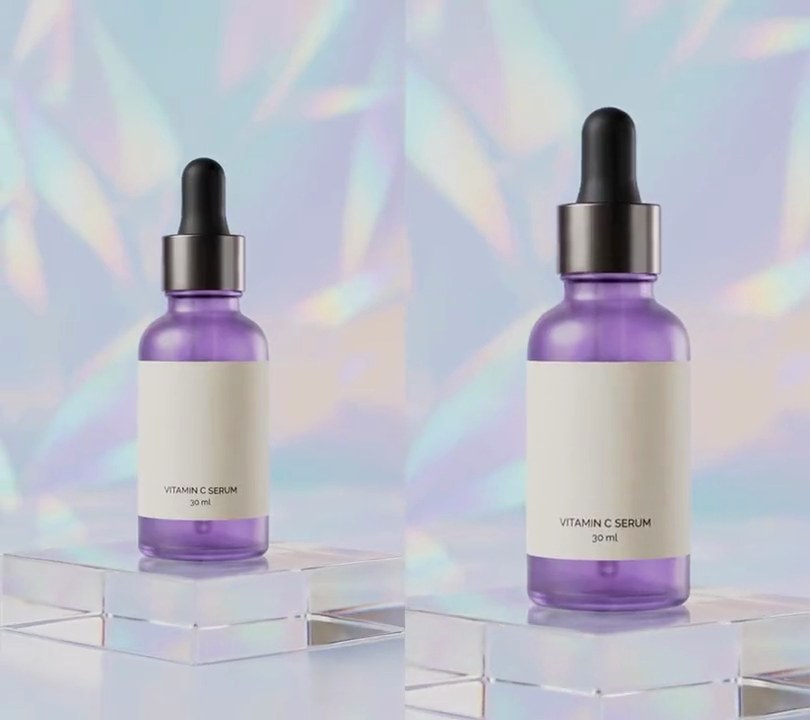
The shot snaps 25% closer on the first word, holds for a second, then cuts back wide.
Show the prompt
In input.mp4, add a punch-in zoom at the start: zoom in to 1.25x over the first 0.15 seconds, hold it until 1 second, then cut back to the full frame. The zoom must stay centered: crop the same amount from all four sides, so the middle of the frame doesn't move. Keep the size, frame rate and audio the same. Use ffmpeg and save it as output.mp4.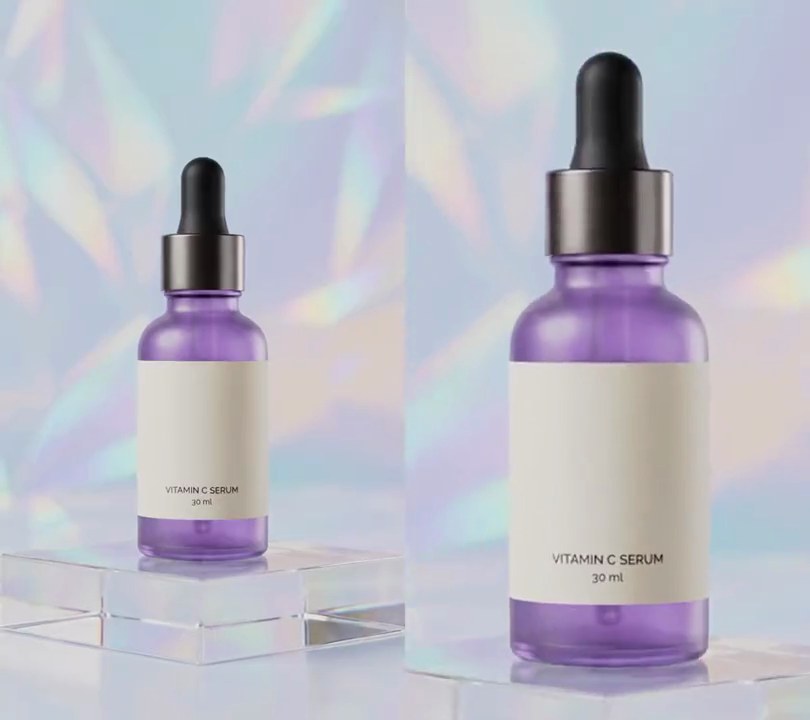
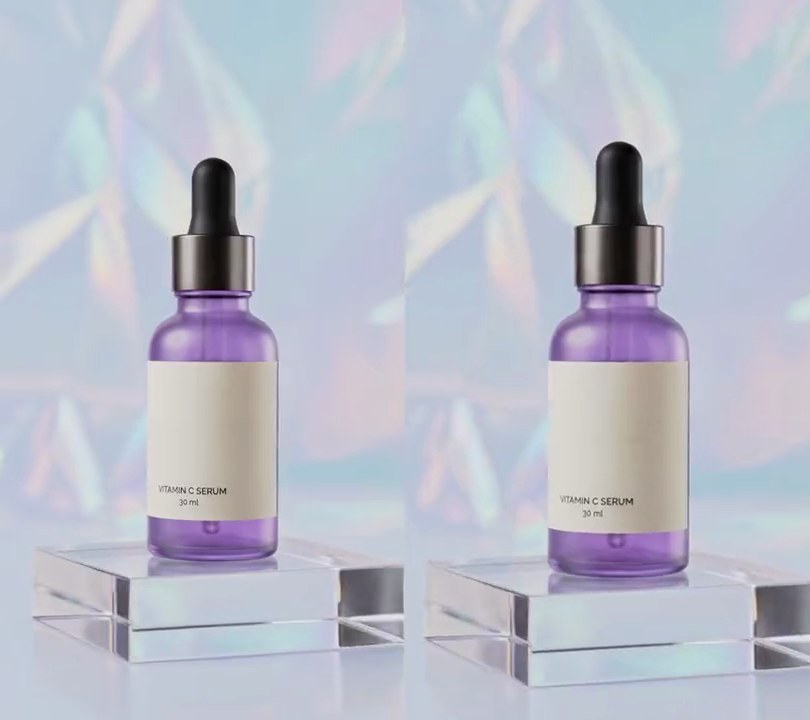
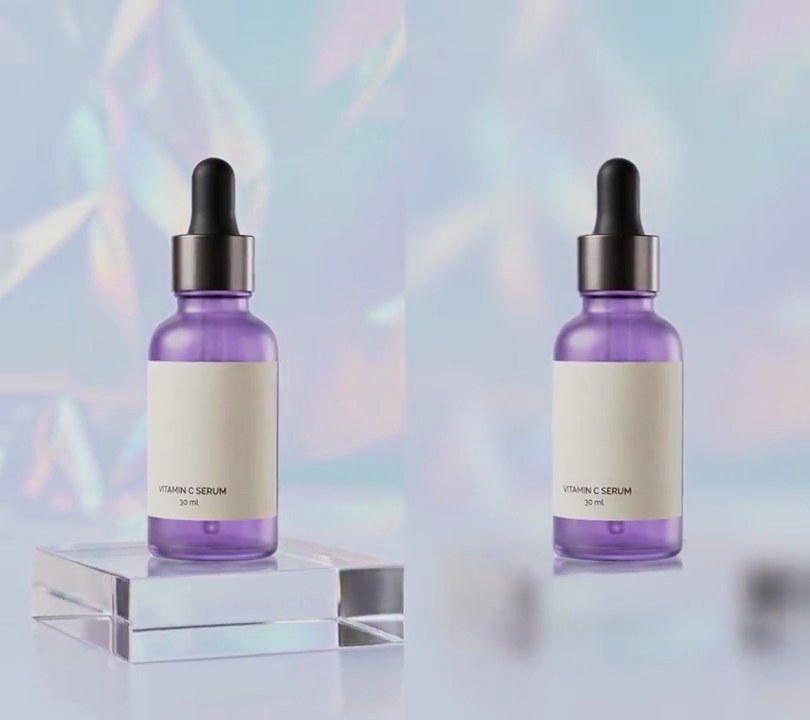
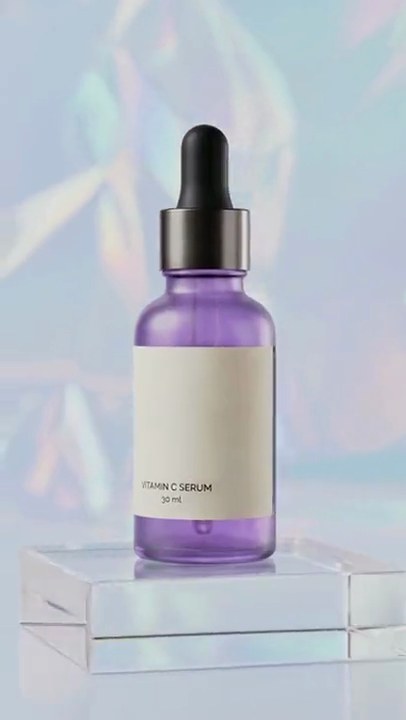
2. Zoom-out reveal
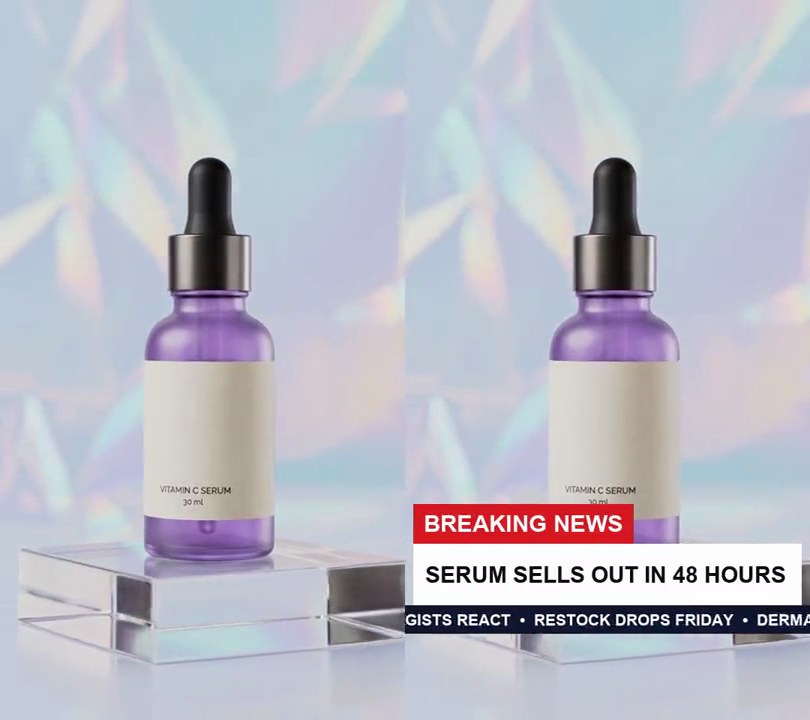
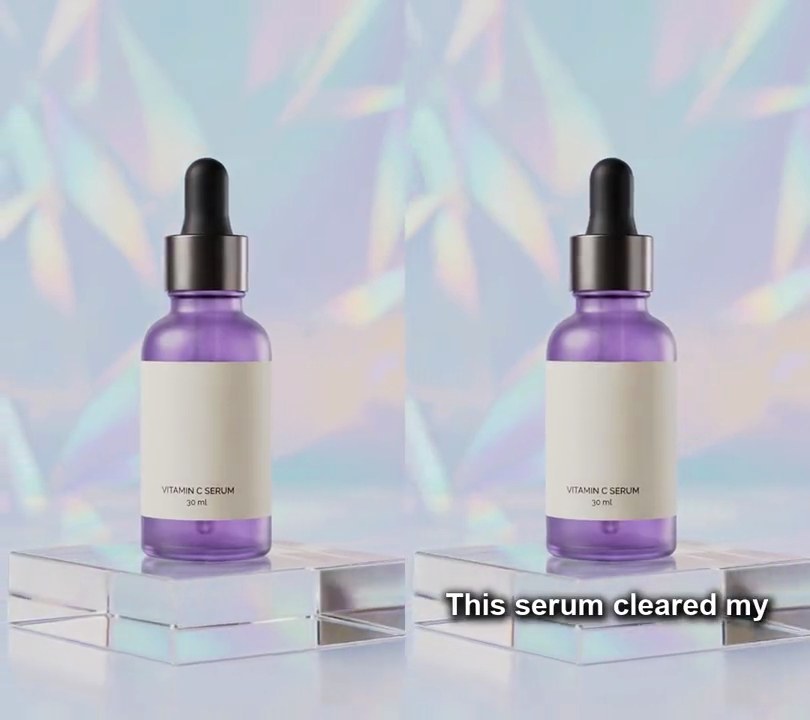
The first frame is a tight close-up that rushes back to the full shot in 0.6 seconds.
Show the prompt
In input.mp4, start 2x zoomed into the center and pull back to the full frame over the first 0.6 seconds, with the zoom at time t (seconds) equal to 1 + (1 - t/0.6)^2, so it moves fast at first and eases as it lands. Keep the zoom centered, and keep the size, frame rate and audio. Use ffmpeg and save it as output.mp4.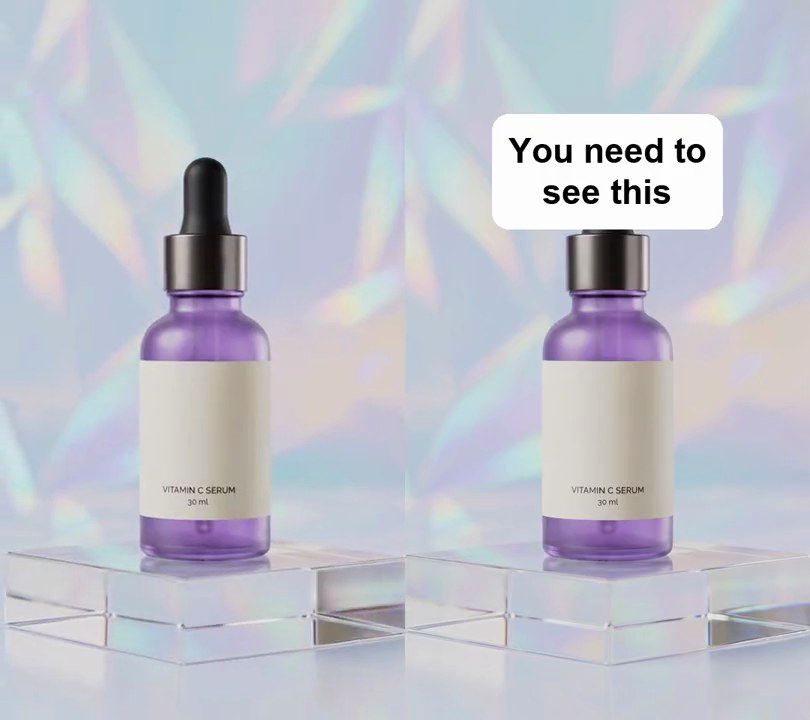
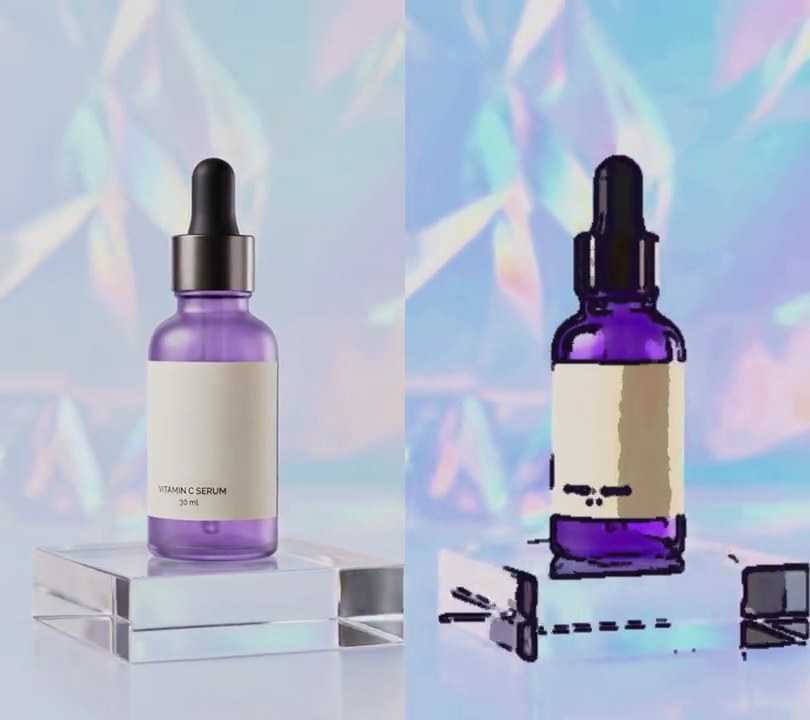
3. Freeze frame with text
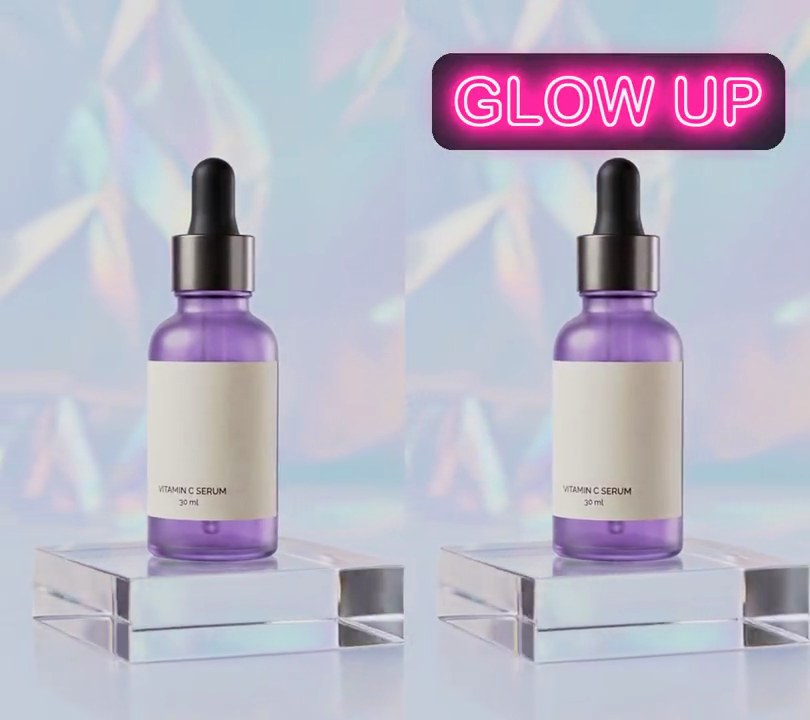
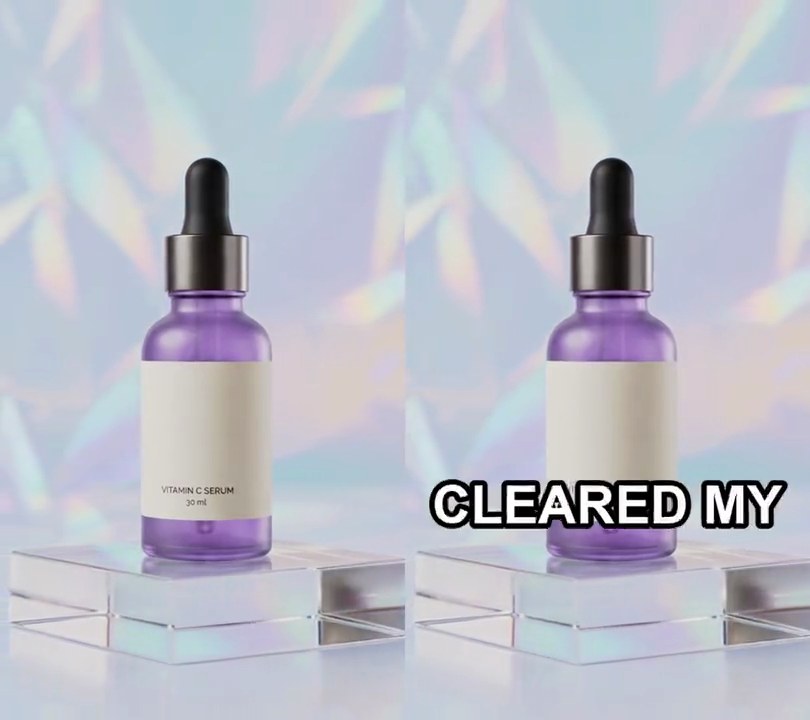
The first frame holds still for 1.2 seconds under a headline before the clip starts moving.
Show the prompt
Make input.mp4 open on a freeze frame: hold the first frame for 1.2 seconds with "You need to see this" in black on a white rounded box near the top, then play the clip normally with the text gone. Delay the audio by 1.2 seconds so it stays in sync. Use Python with Pillow to draw the text box and ffmpeg for the rest (don't rely on ffmpeg's drawtext filter), and save it as output.mp4.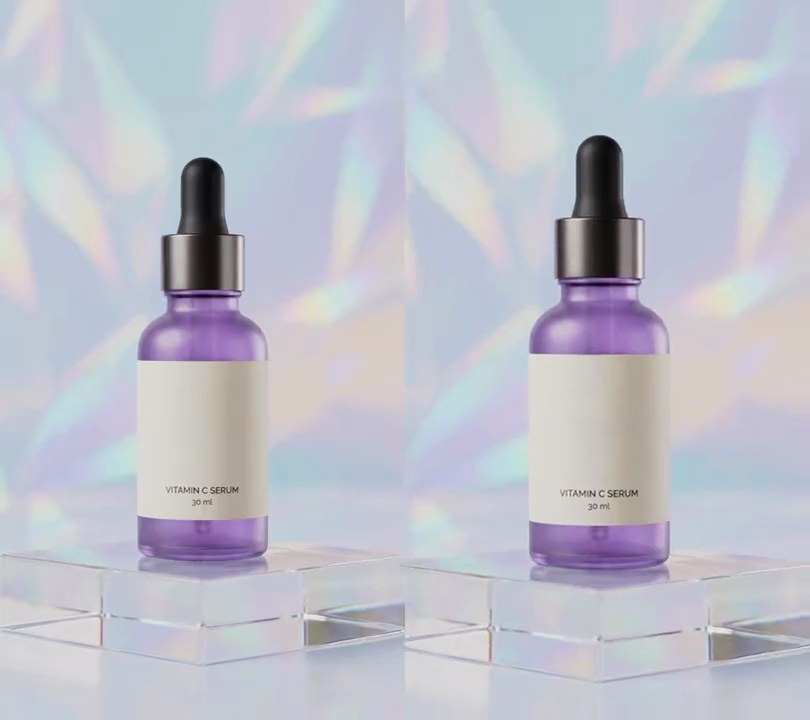
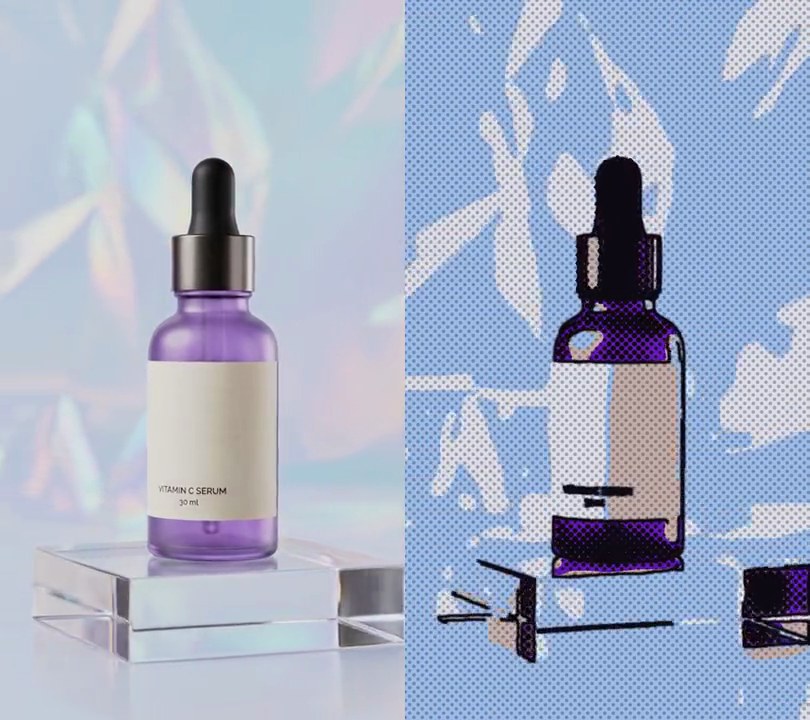
4. Camera shake
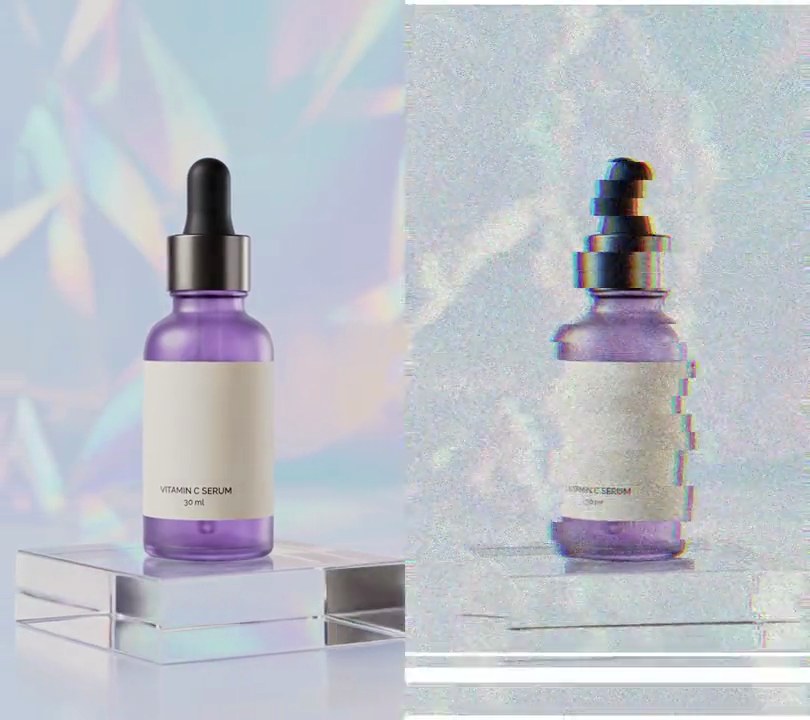
The frame jolts hard on the first beat and settles to still within 0.6 seconds.
Show the prompt
Add a camera shake to the first 0.6 seconds of input.mp4: the frame jolts about 14 pixels in changing directions and settles to still by 0.6 seconds. Don't show black edges (scale up slightly first). Keep the size and audio. Use ffmpeg and save it as output.mp4.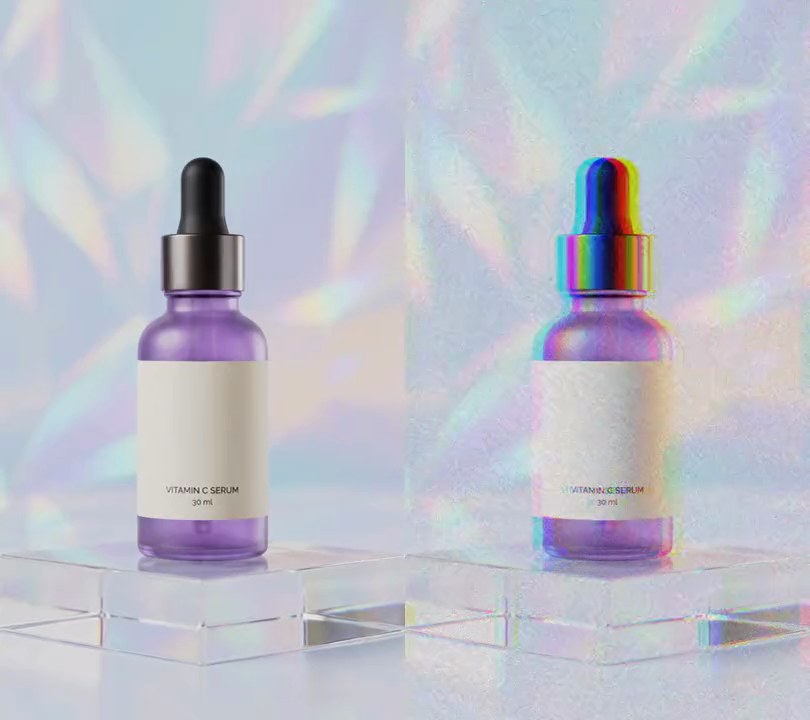
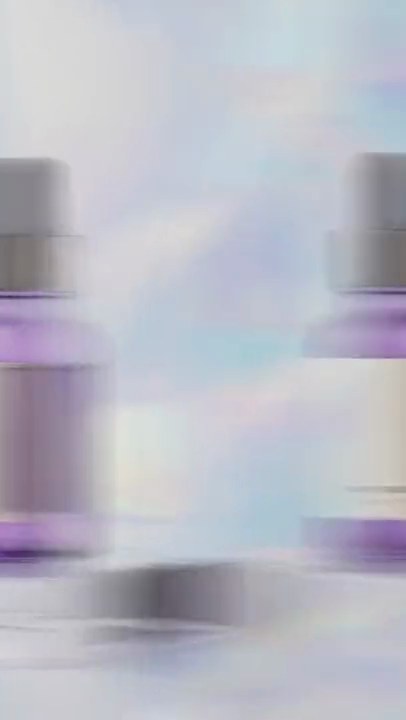
5. RGB split glitch
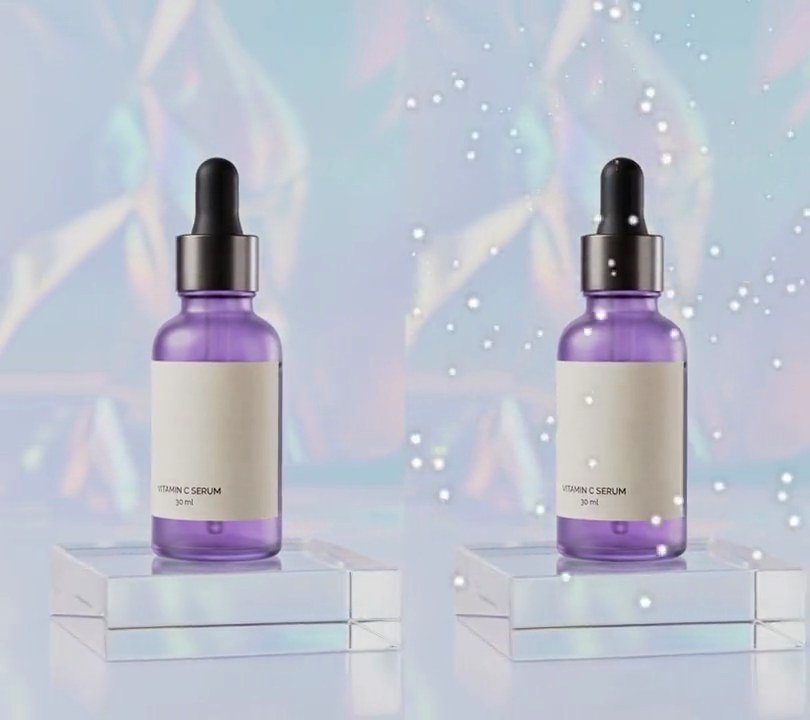
Once a second the red and blue layers jump apart for a few frames, like a broken signal.
Show the prompt
Add an RGB split glitch to input.mp4: for the first 0.12 seconds of every second, shift the red channel 14 pixels left and the blue channel 14 pixels right, and add flickering noise. Leave the rest of each second untouched. Keep the audio. Use ffmpeg and save it as output.mp4.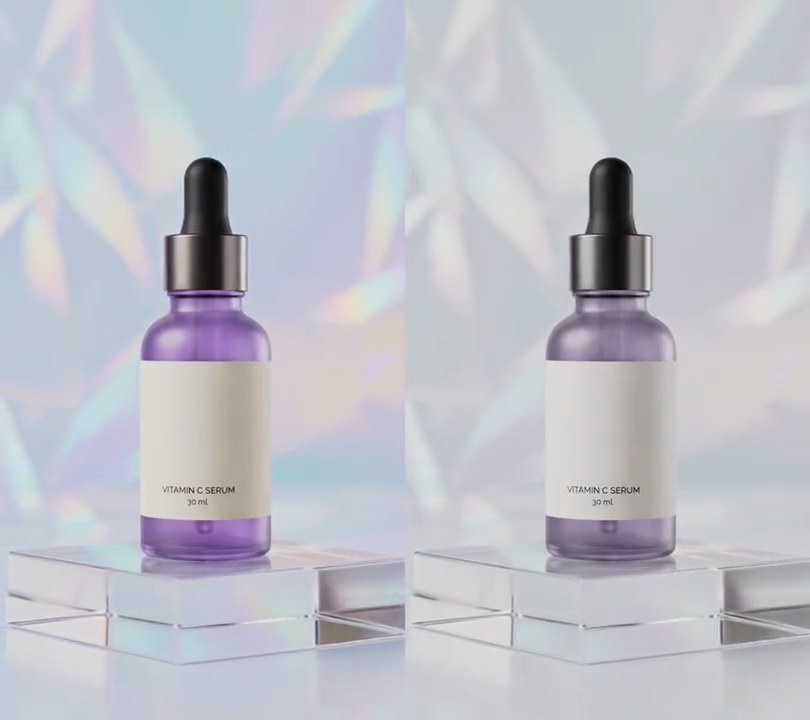
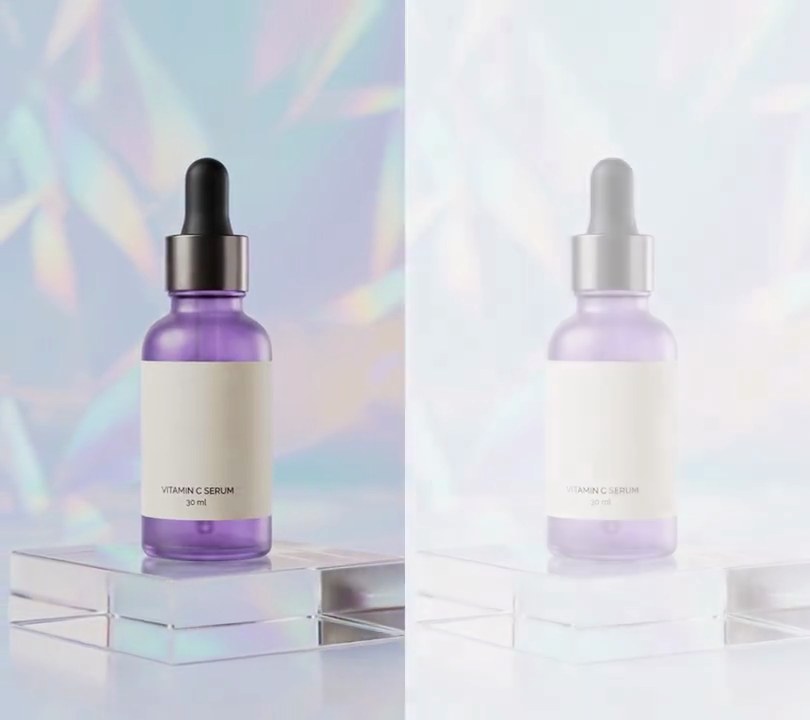
6. Color reveal
The clip opens in black and white, then the color floods in under a second later.
Show the prompt
Make input.mp4 open in black and white and bring the color in at 0.8 seconds, reaching full color by 1.05 seconds. Keep the audio. Use ffmpeg and save it as output.mp4.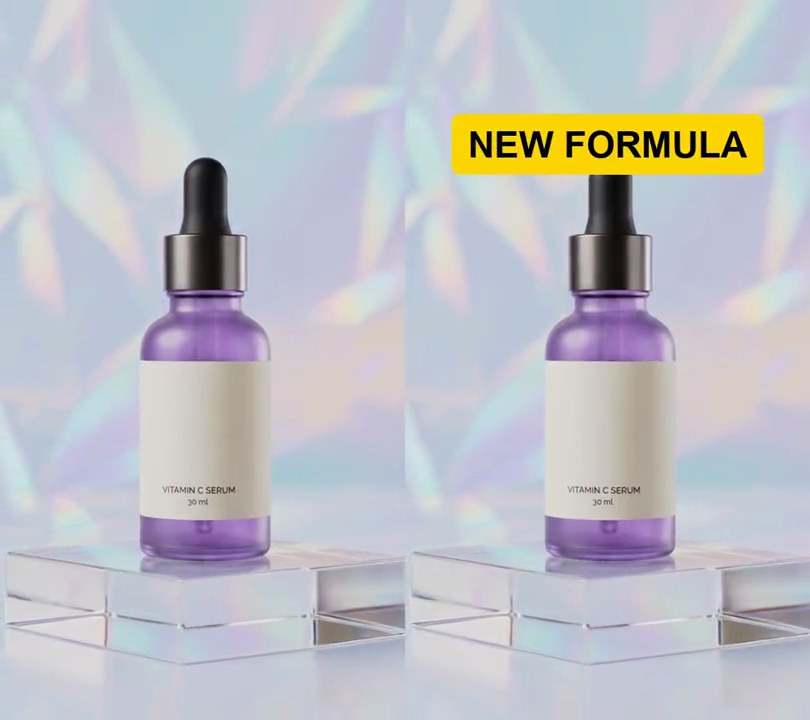
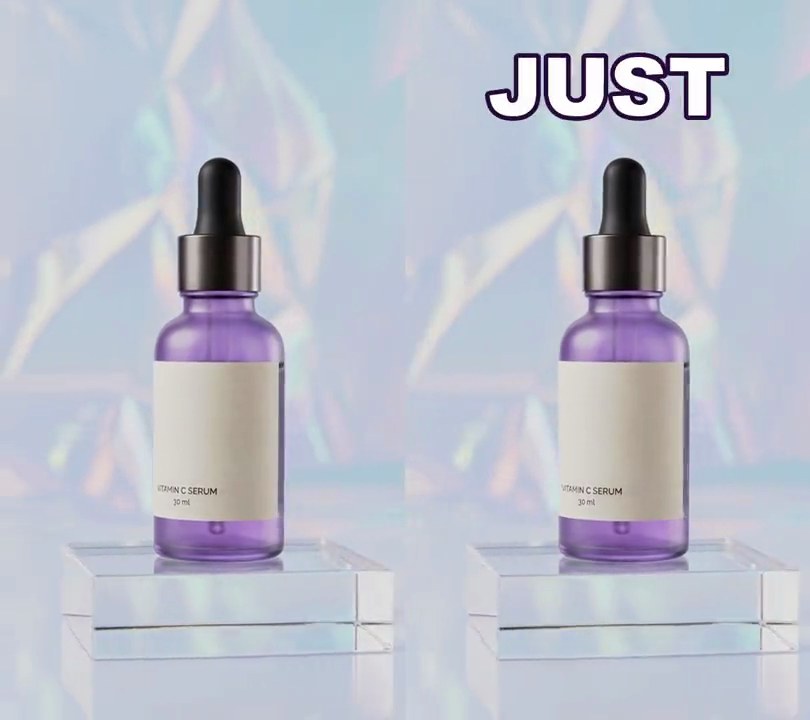
7. Pop-in text
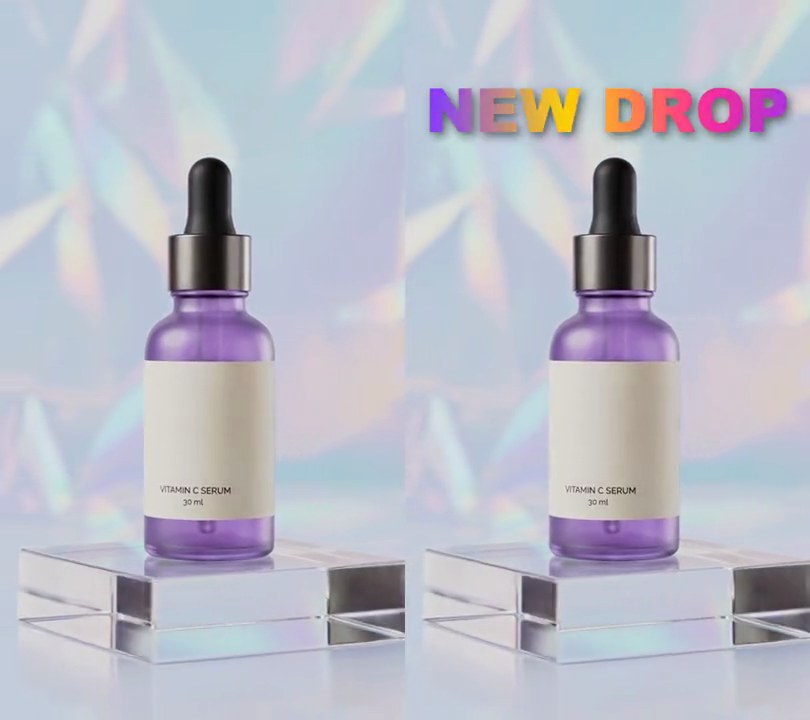
A headline on a yellow box springs out of nothing, overshoots slightly and settles.
Show the prompt
Add a pop-in headline to input.mp4: "NEW FORMULA" in black on a yellow (255, 214, 0) rounded box, centered 20% of the way down, growing from nothing at 0.3 seconds to full size by 0.65 seconds with a slight overshoot, then staying. Use Python with Pillow to draw it and ffmpeg to put it on the video (don't rely on ffmpeg's drawtext filter), keep the audio, and save it as output.mp4.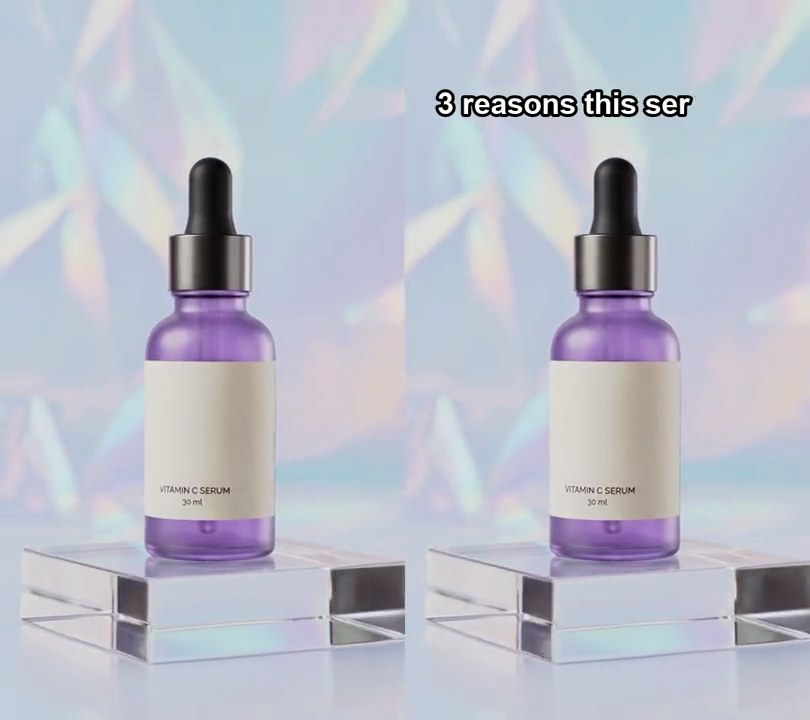
8. Typewriter text
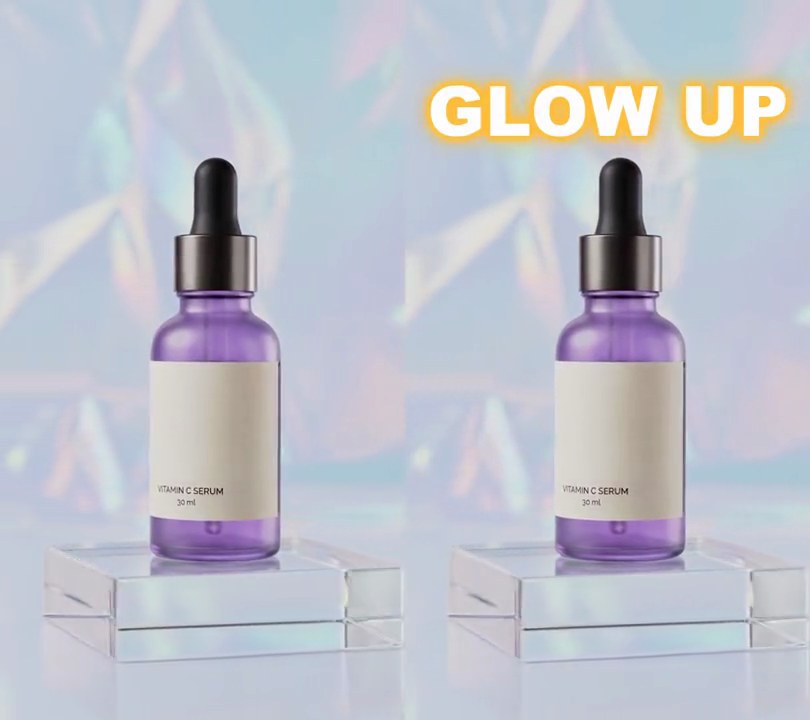
A headline types itself out one letter at a time, with a blinking cursor at the end.
Show the prompt
Add a typewriter text effect to input.mp4: the line "3 reasons this serum sold out" types out from 0.3 seconds at 14 characters per second, white bold text with a black outline, left-aligned near the top, with a blinking cursor after the last letter. Use Python with Pillow to draw it and ffmpeg to put it on the video (don't rely on ffmpeg's drawtext filter), keep the audio, and save it as output.mp4.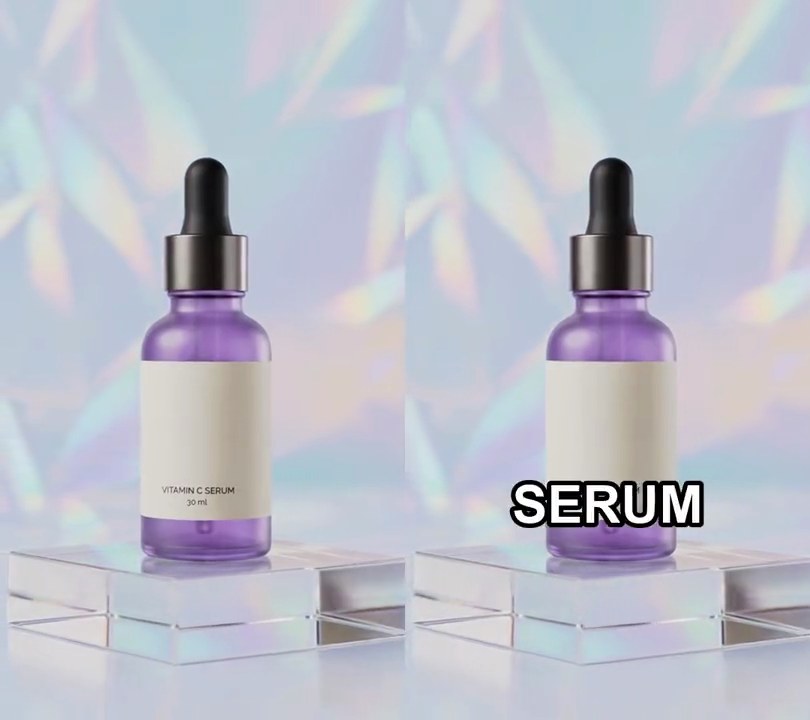
9. Word-by-word captions
Each word pops up alone in the middle of the screen at the moment it is spoken.
Show the prompt
Add word-by-word captions to input.mp4. words.json has the word timings. Show one word at a time in capitals, centered 70% of the way down, white bold text with a black outline, about 13% of the frame width tall, and only while that word is spoken. Keep the audio. Use Python with Pillow to draw the text and ffmpeg to put it on the video, and save it as output.mp4.
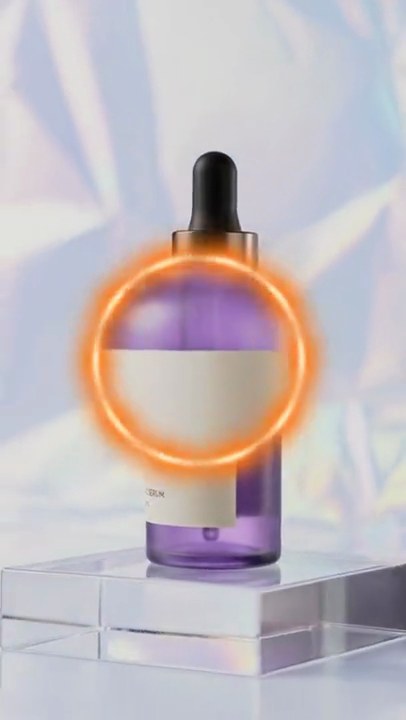
10. Flash transition
The picture burns out to pure white between two shots, like a camera flash going off.
Show the prompt
Join clipA.mp4 and clipB.mp4 with a 0.6 second flash transition: A fades up to pure white, then B fades in from white (ffmpeg xfade fadewhite). Crossfade the audio over the same 0.6 seconds. Match B's size and frame rate to A. Use ffmpeg and save it as output.mp4.