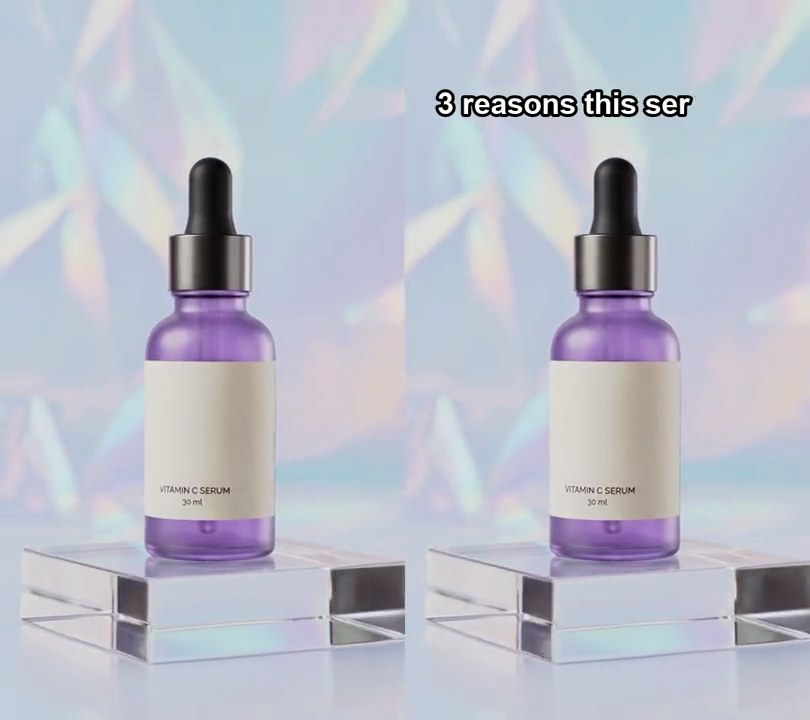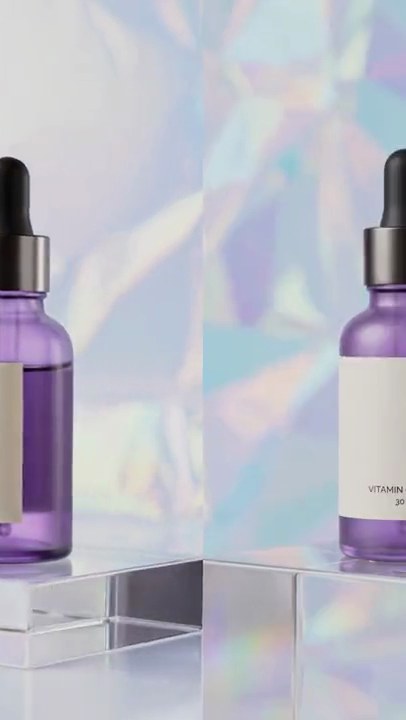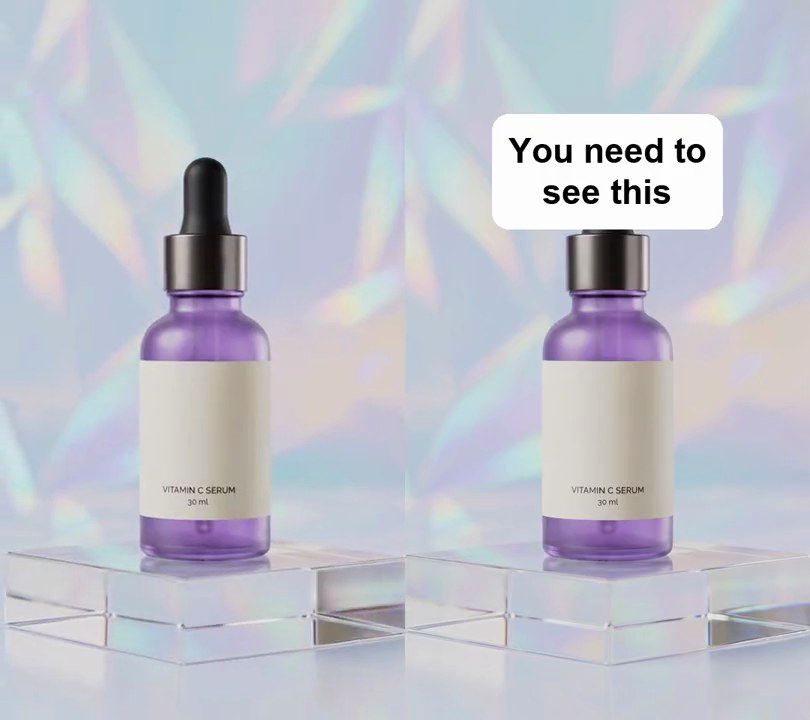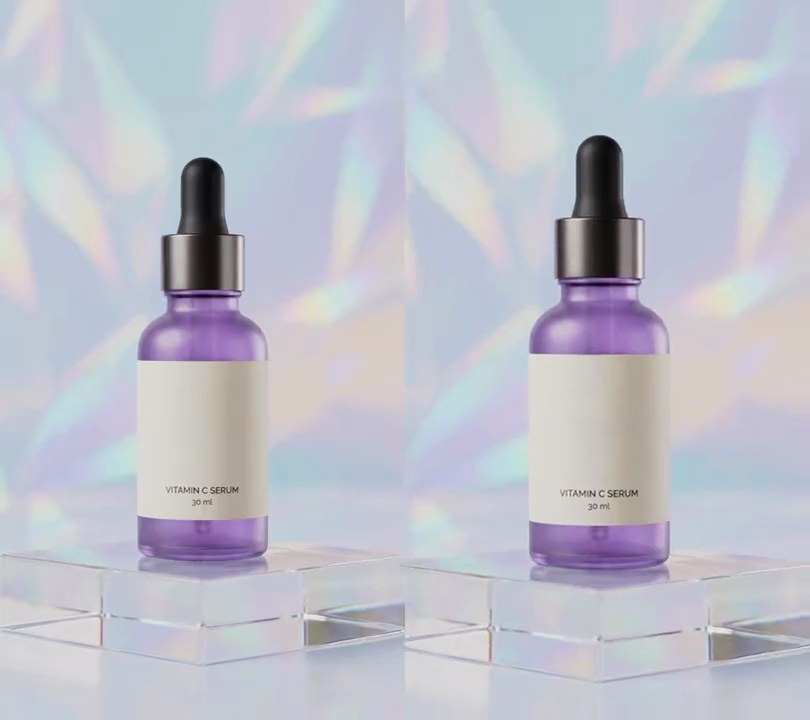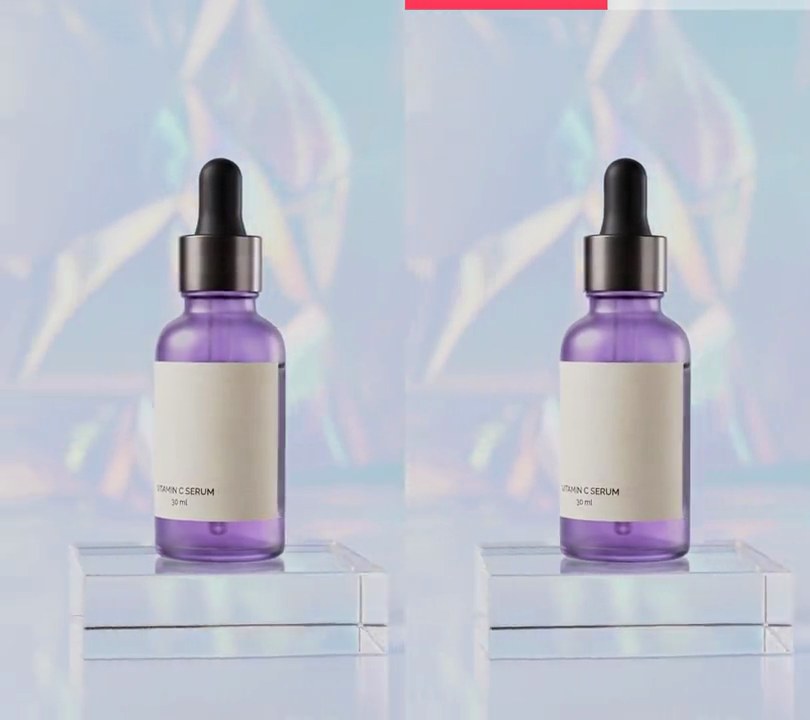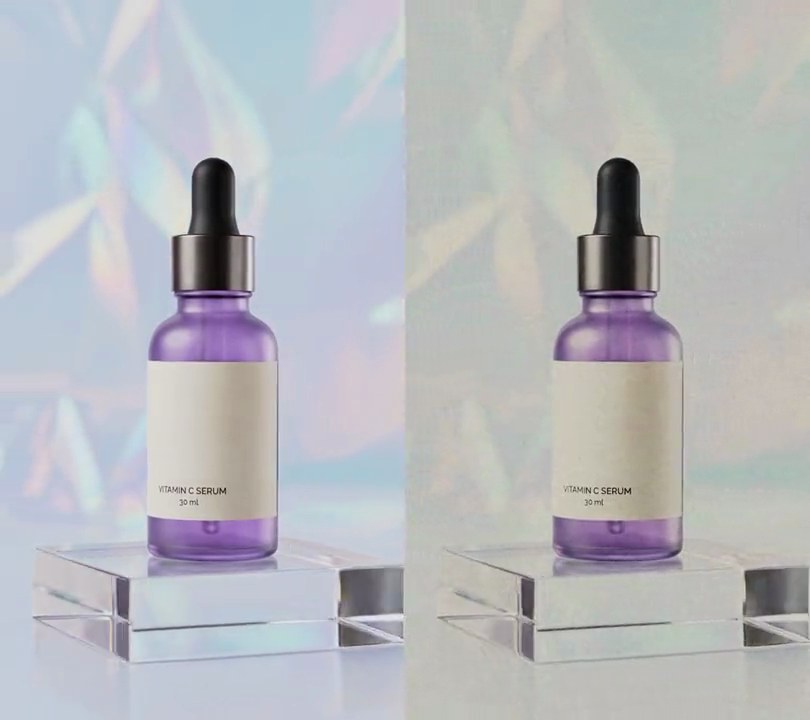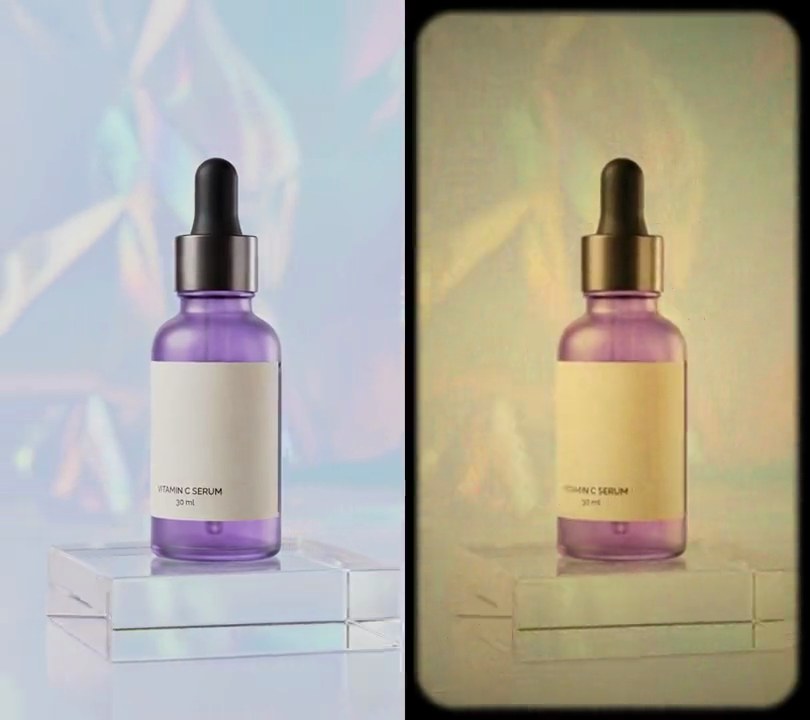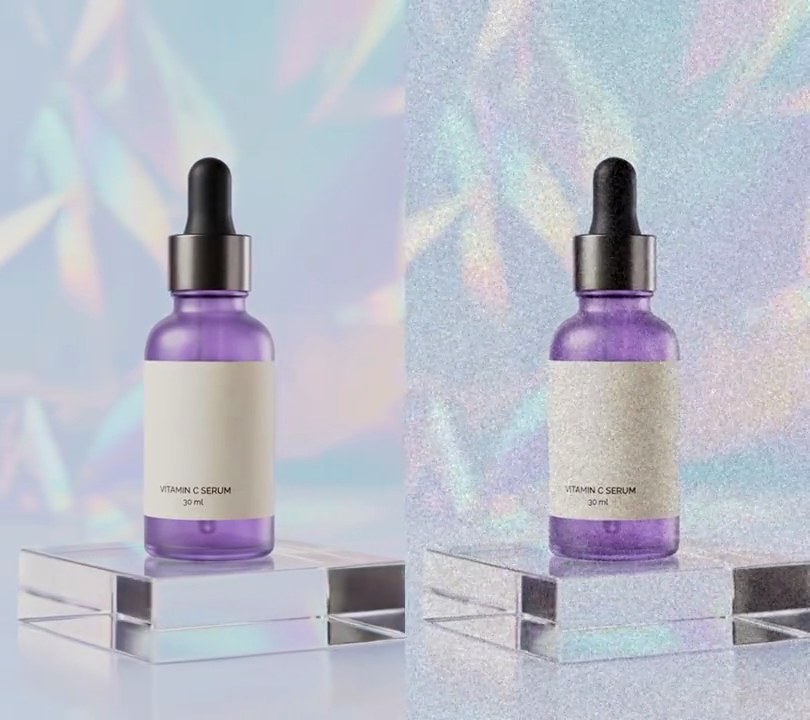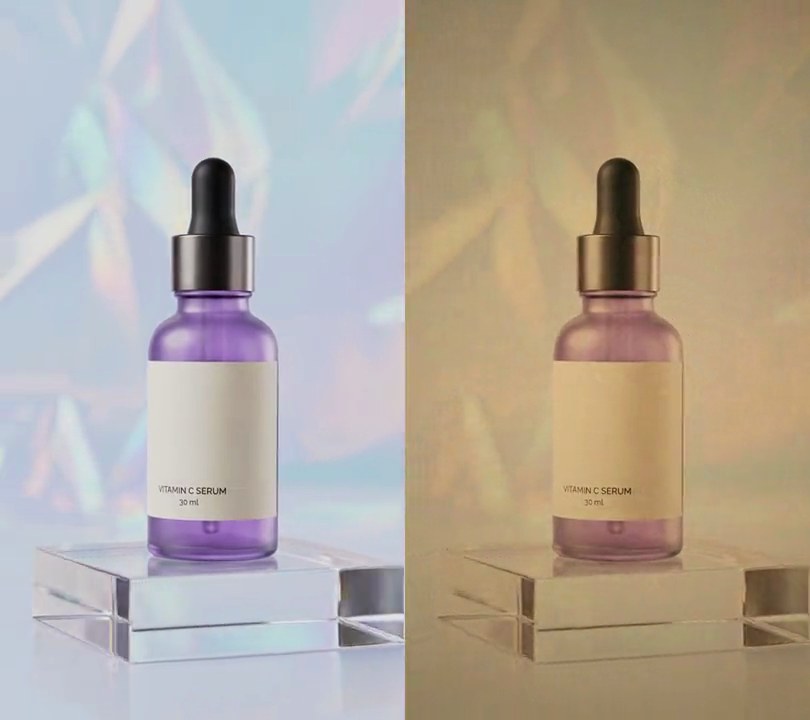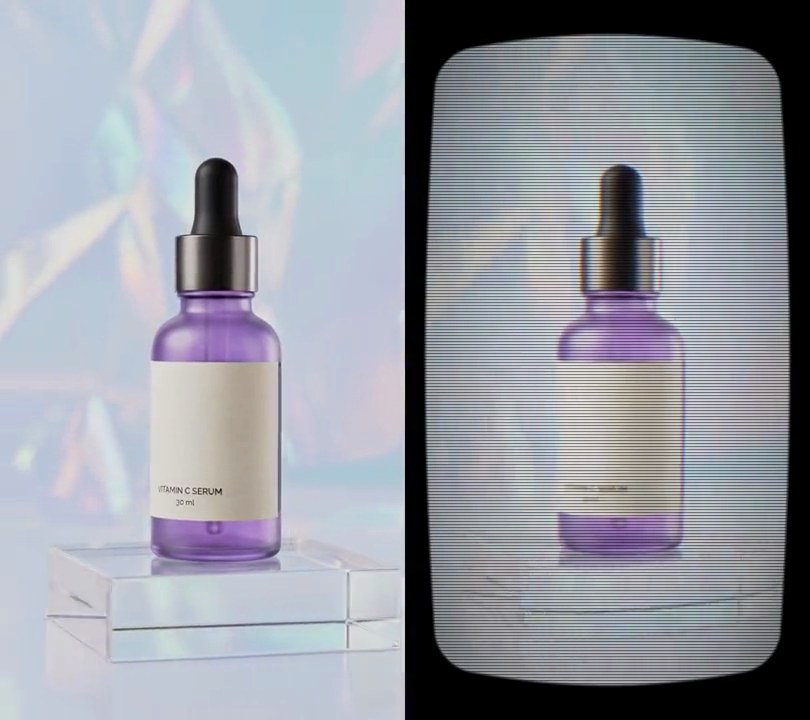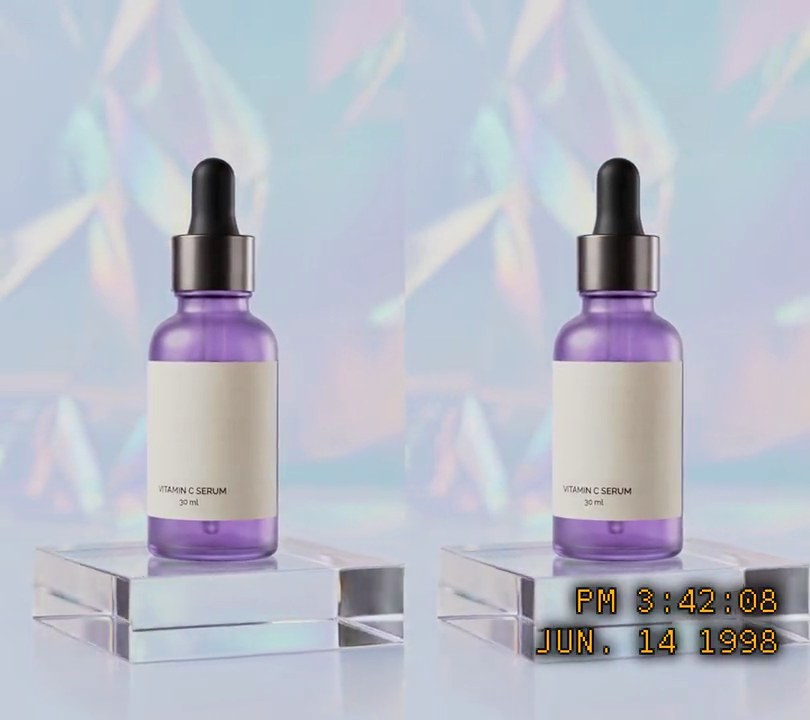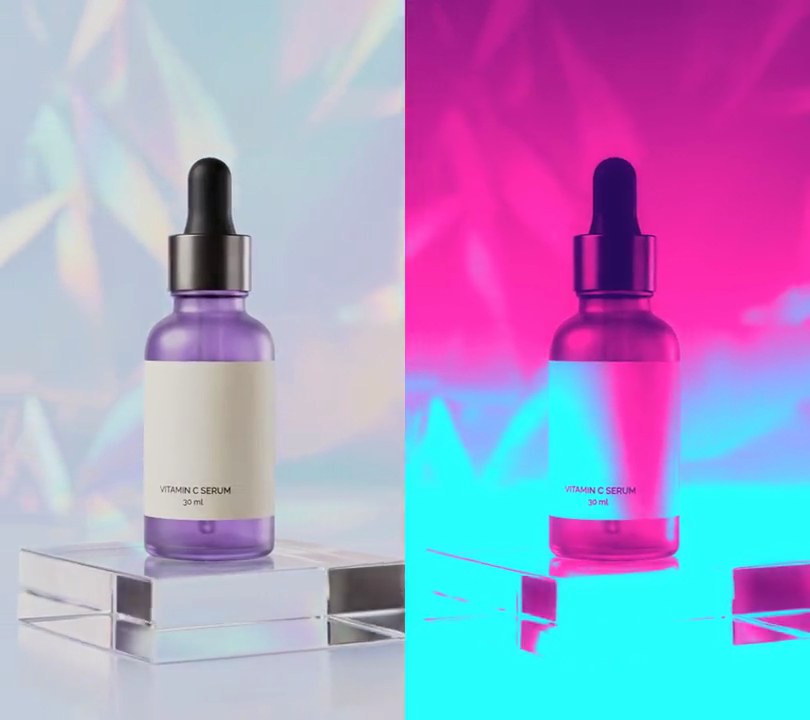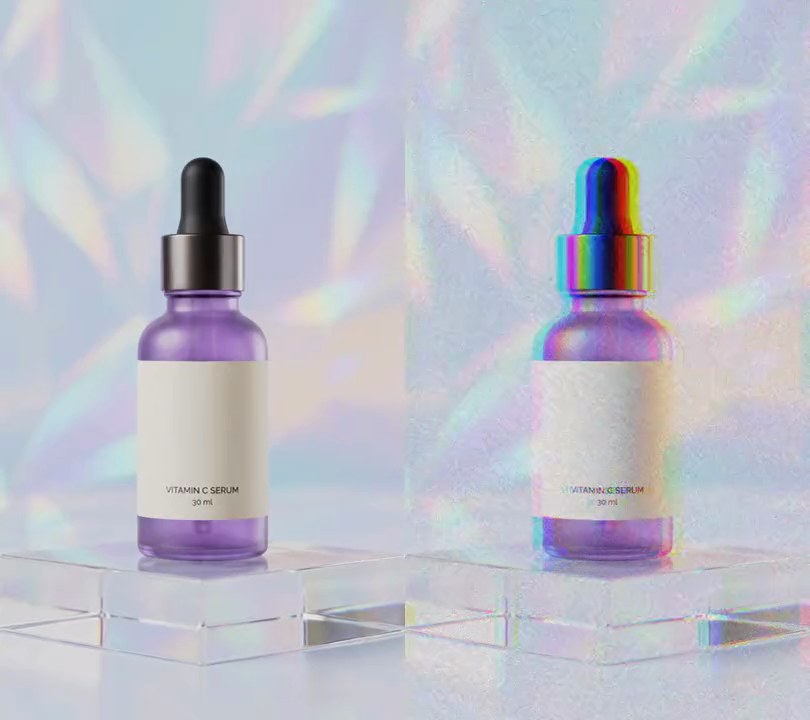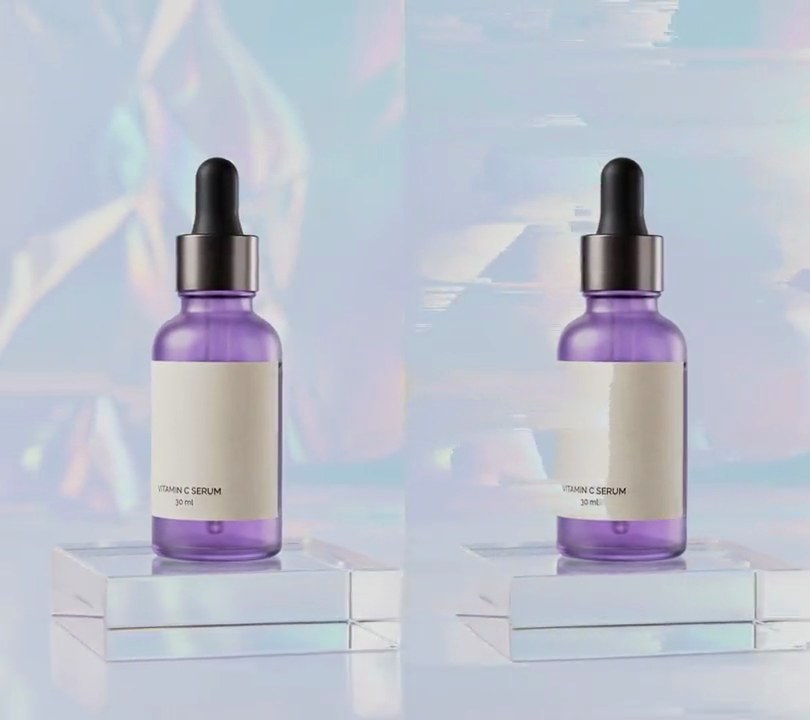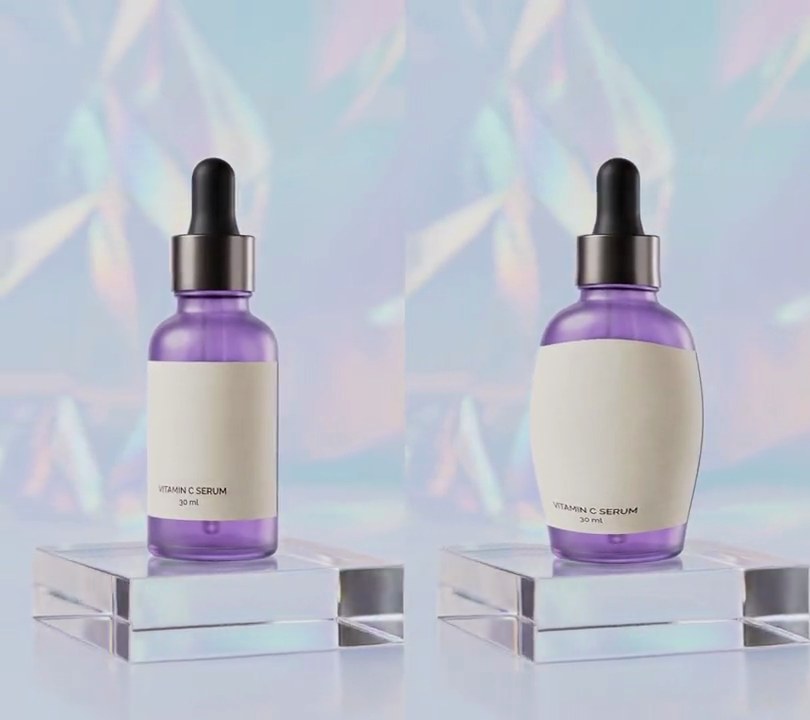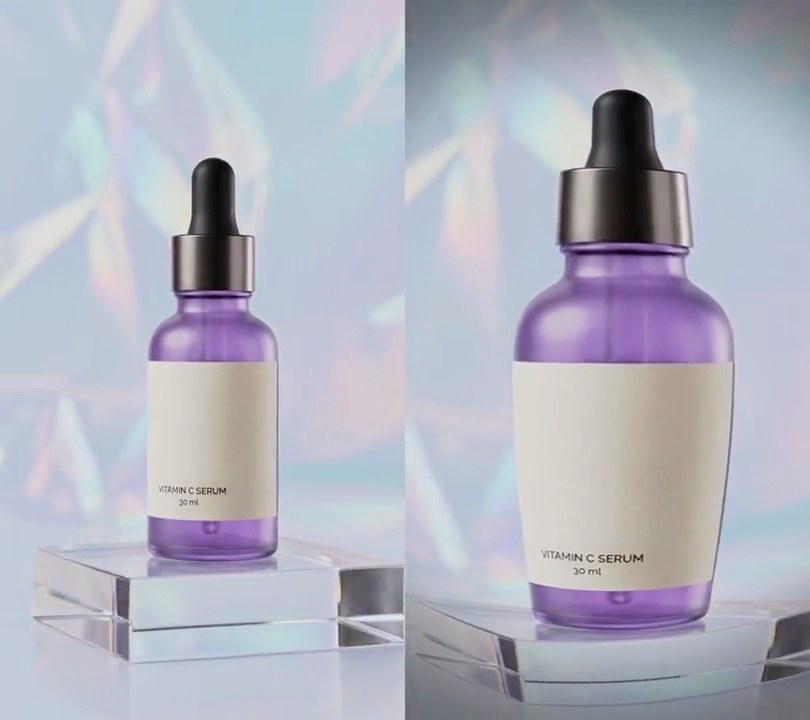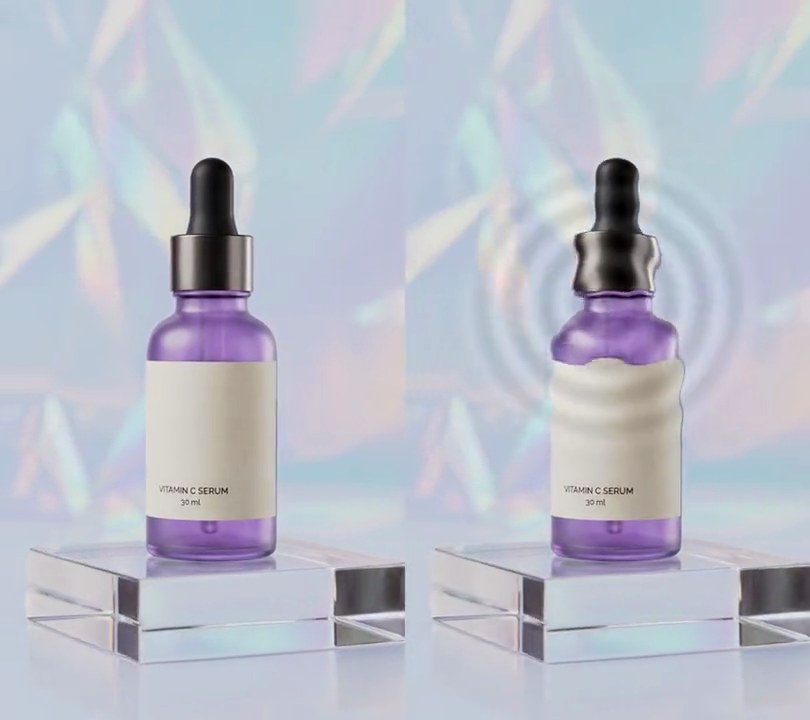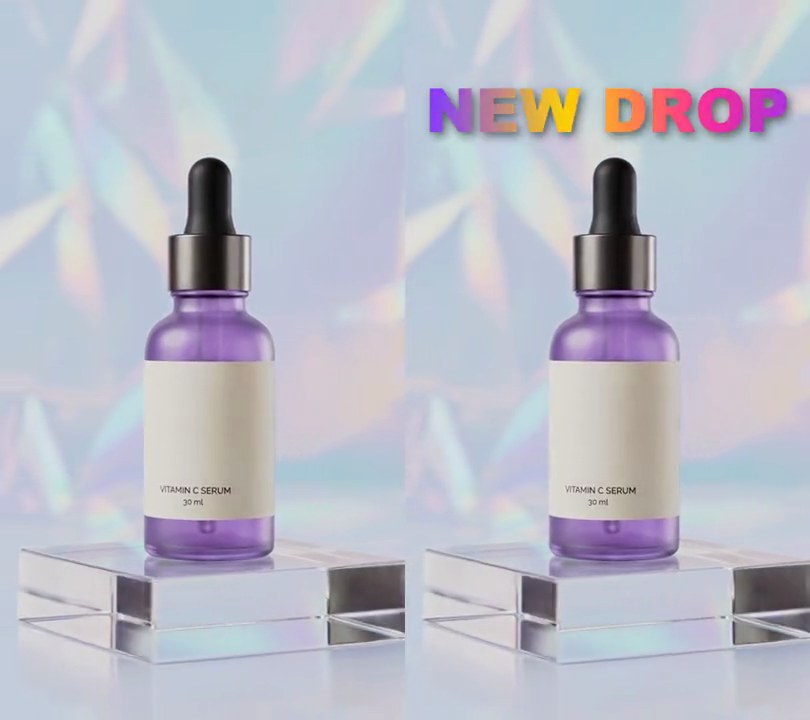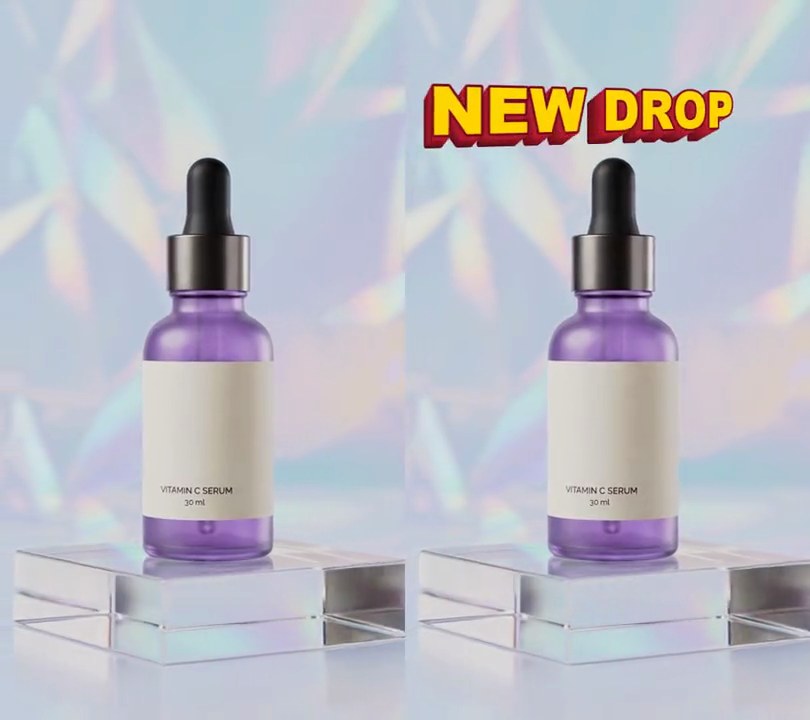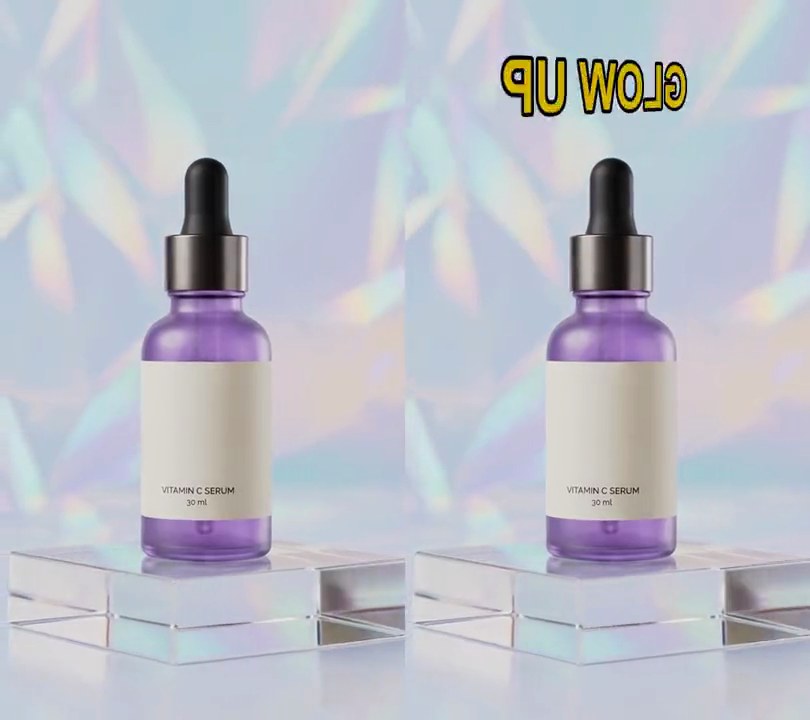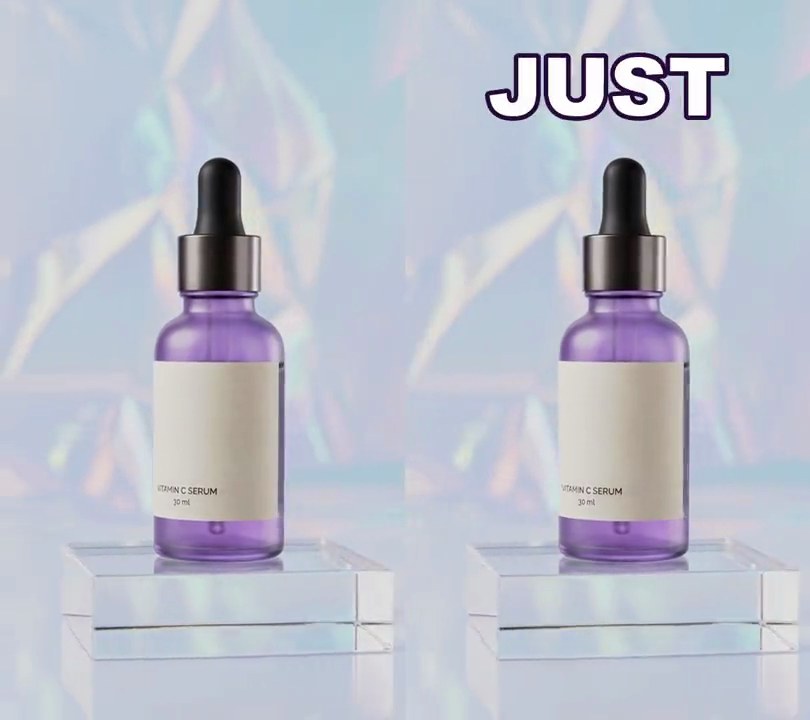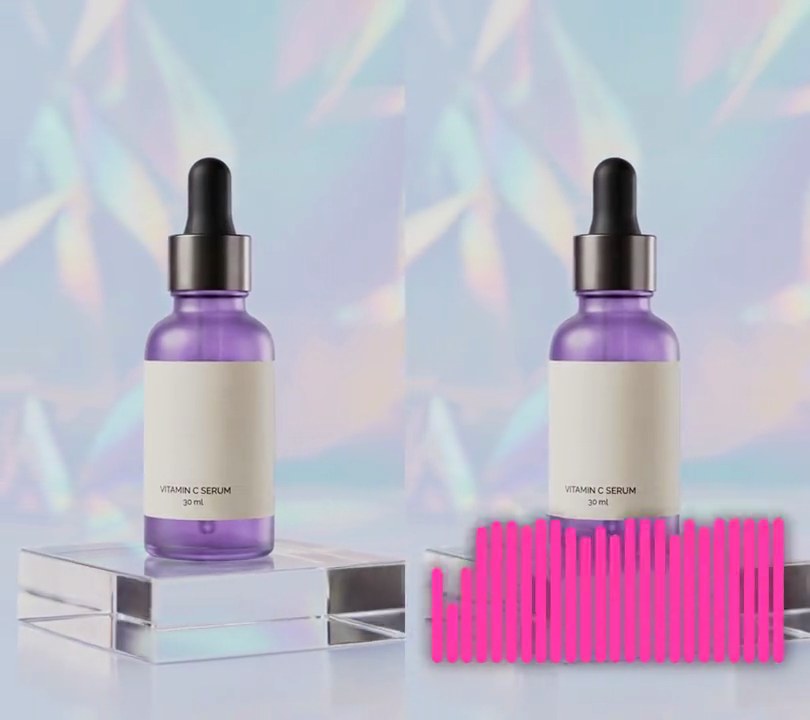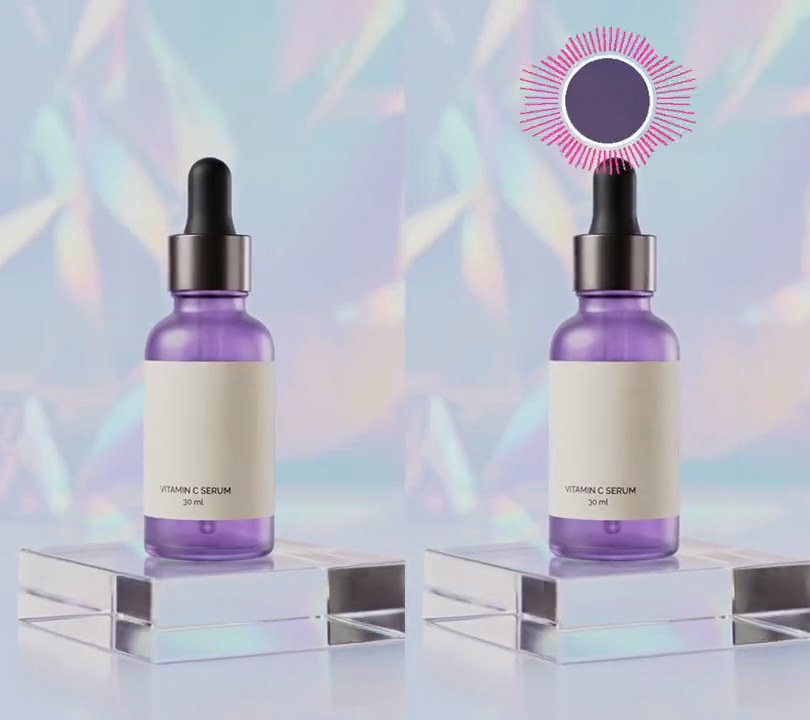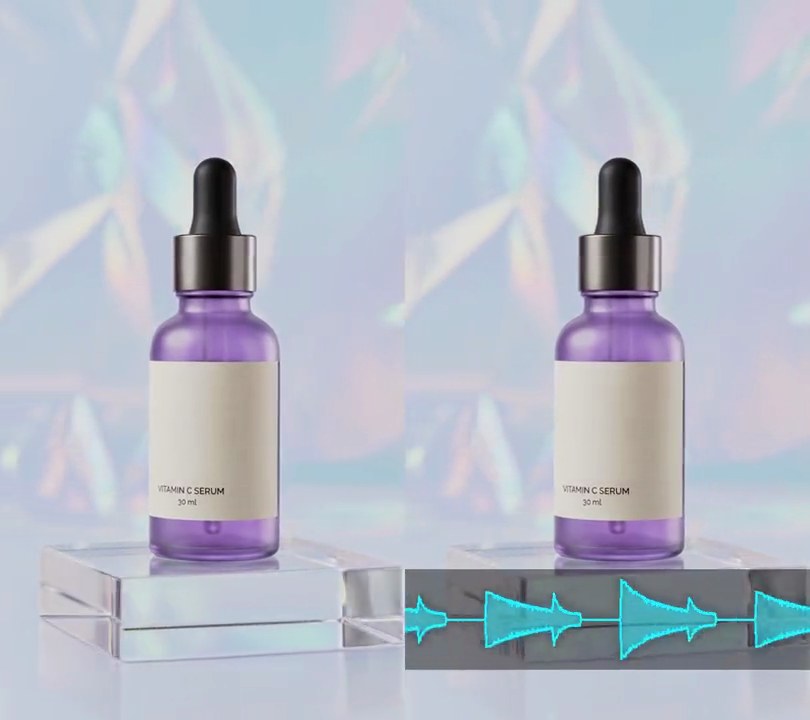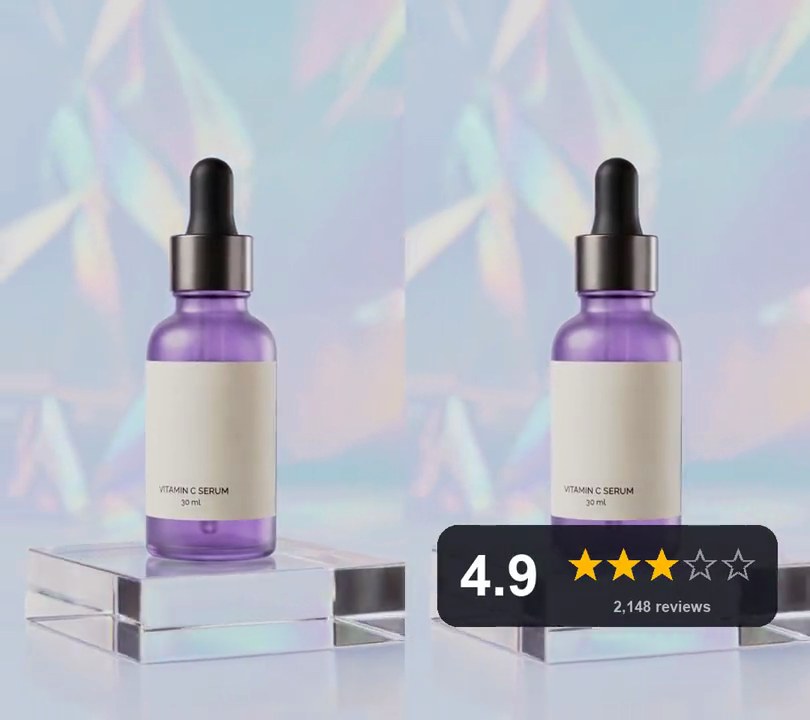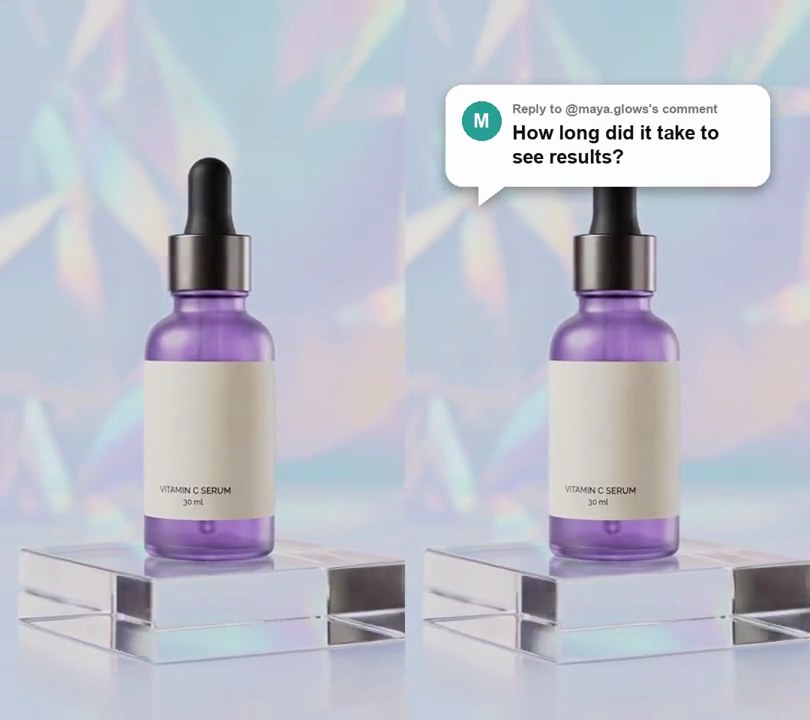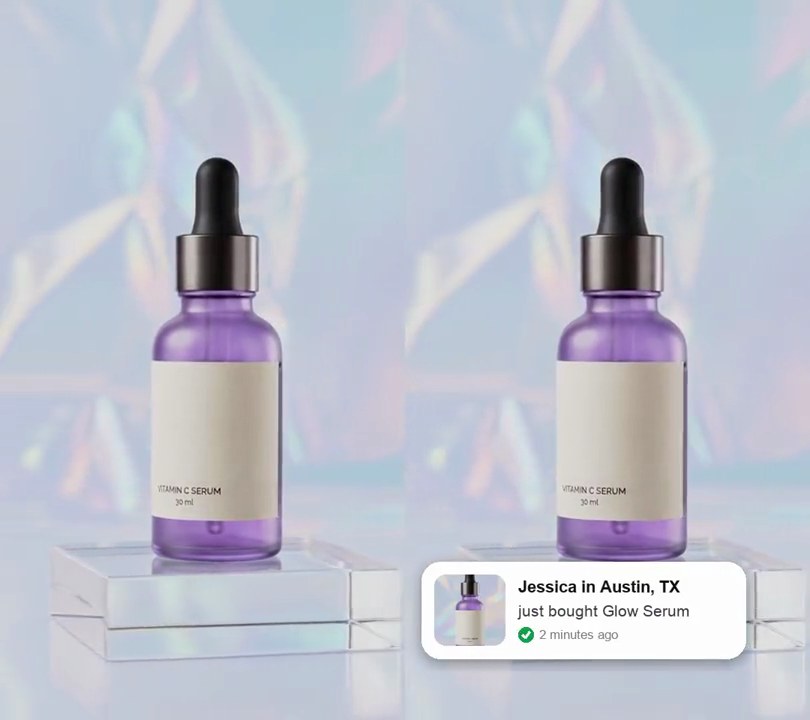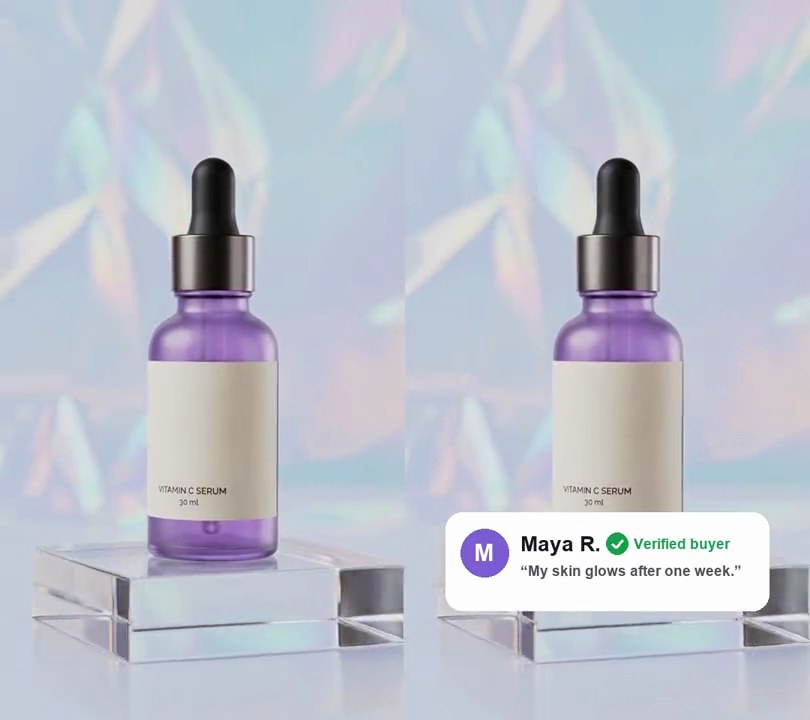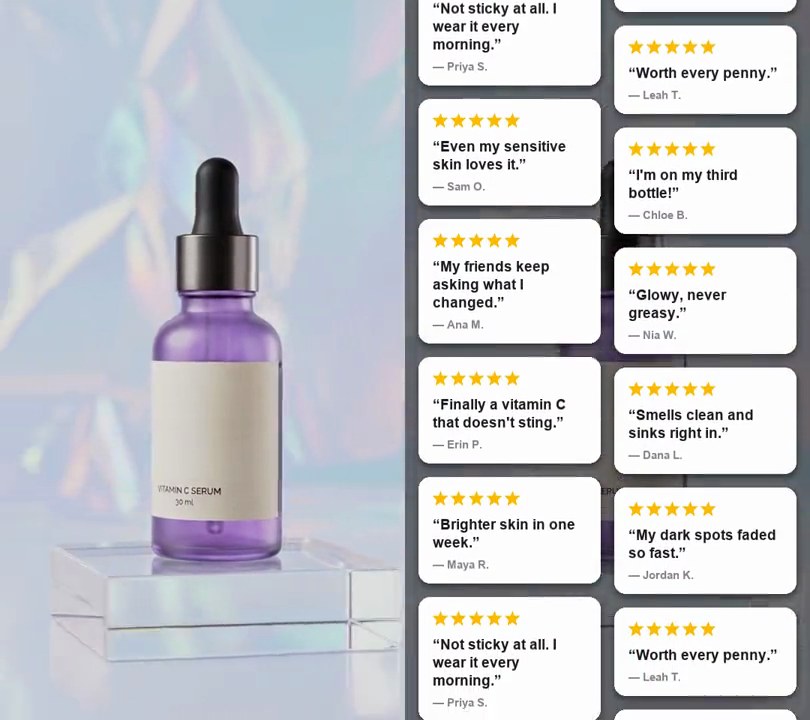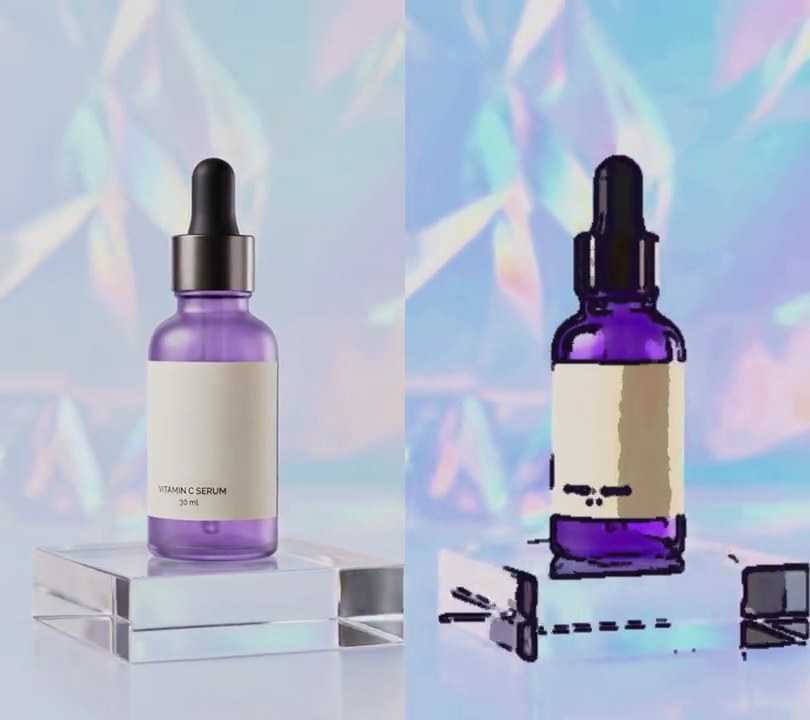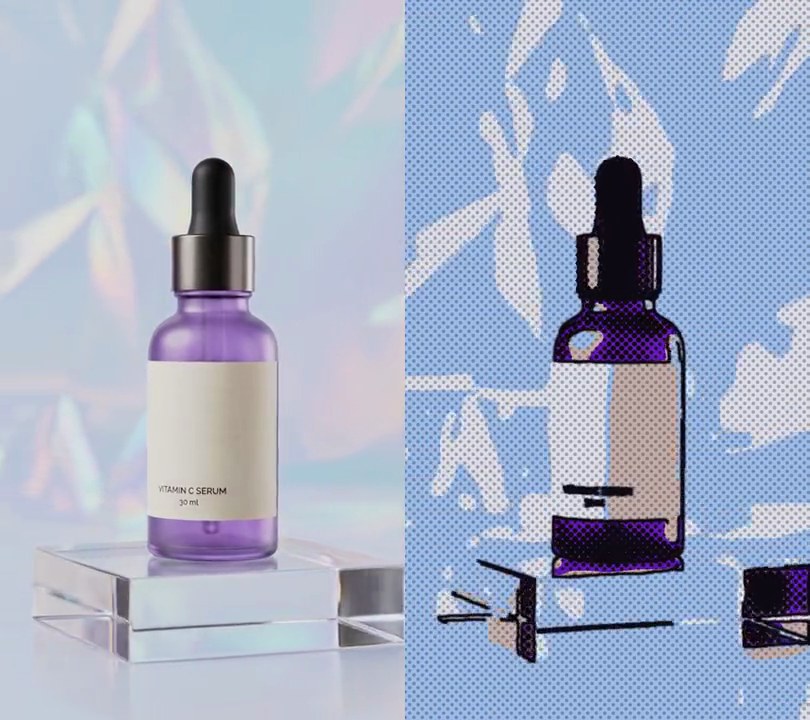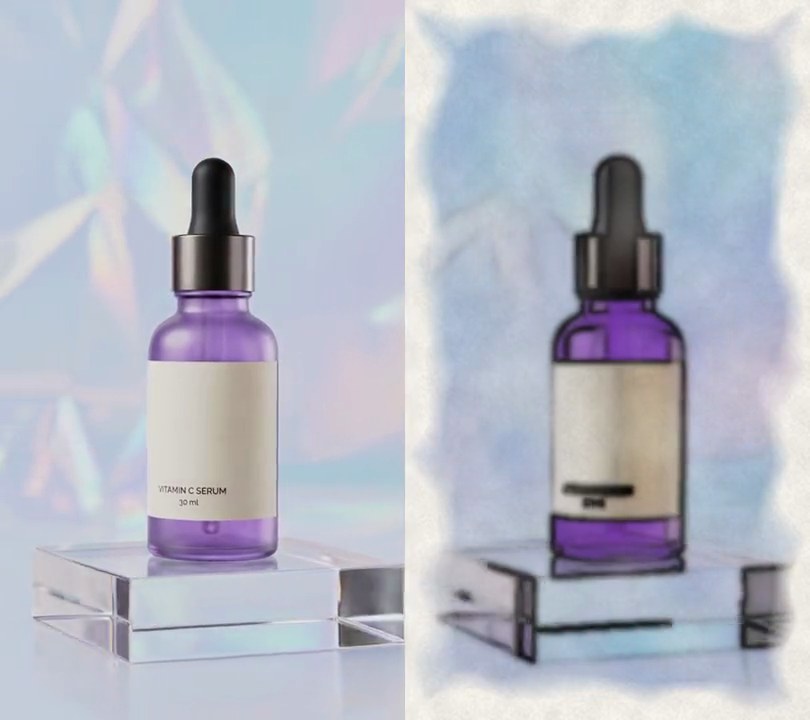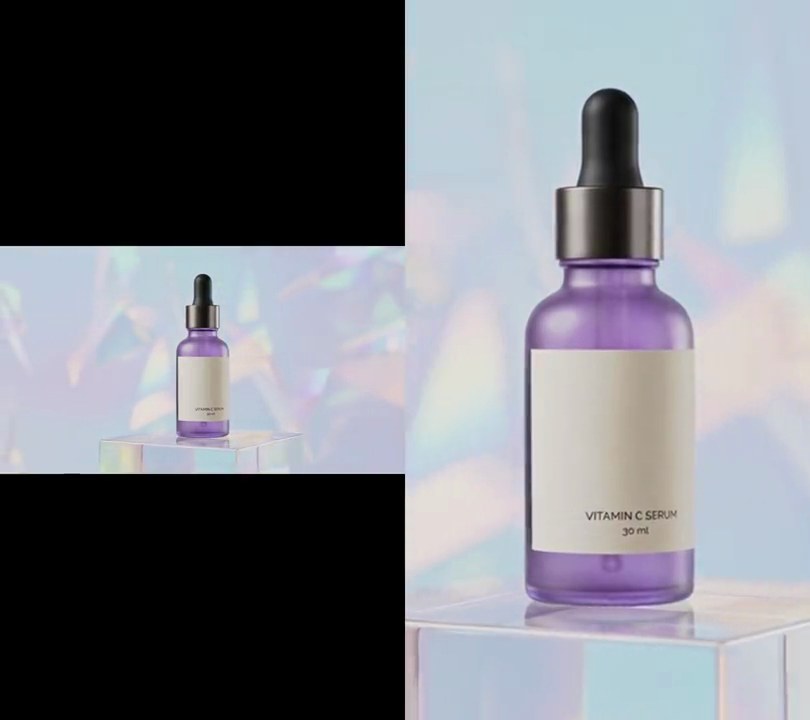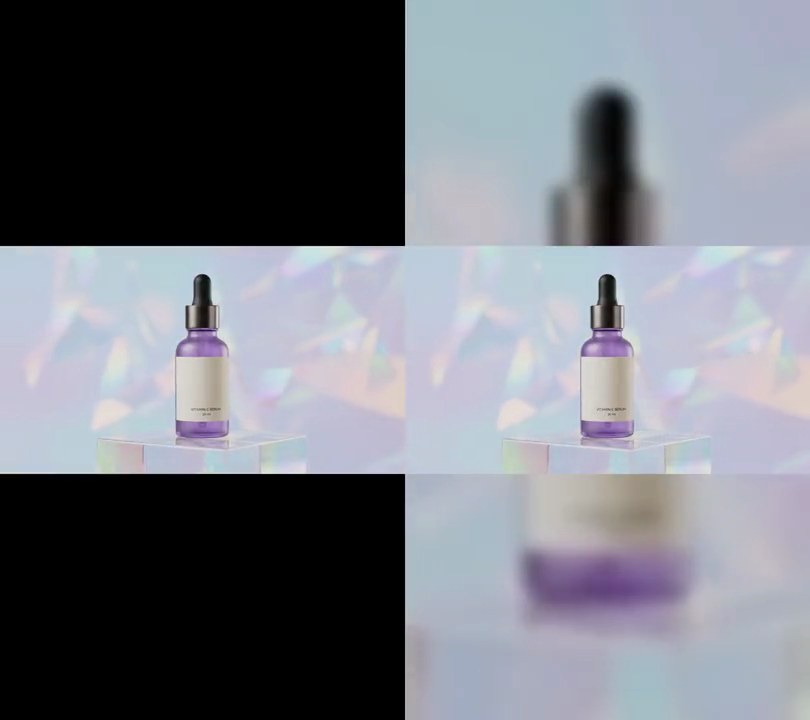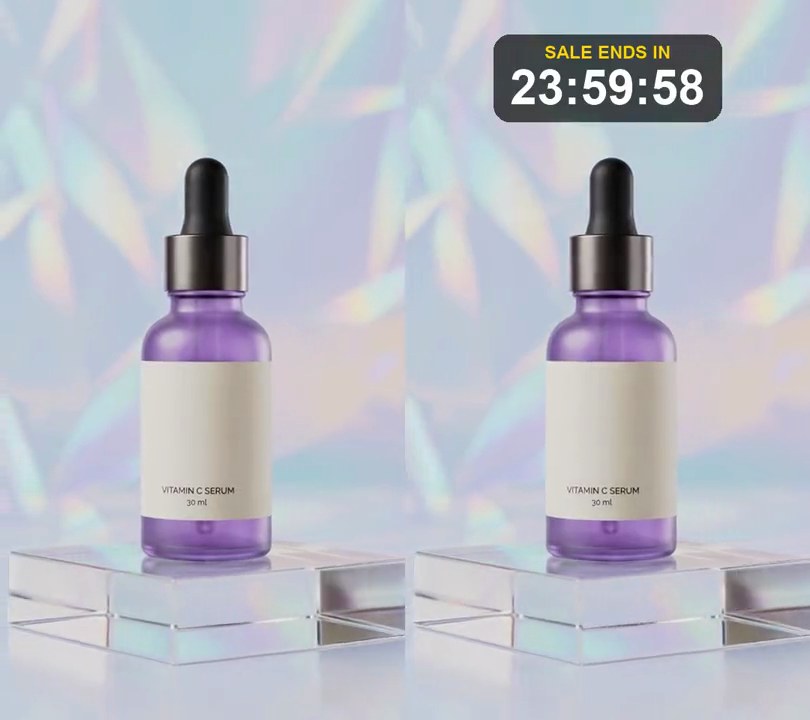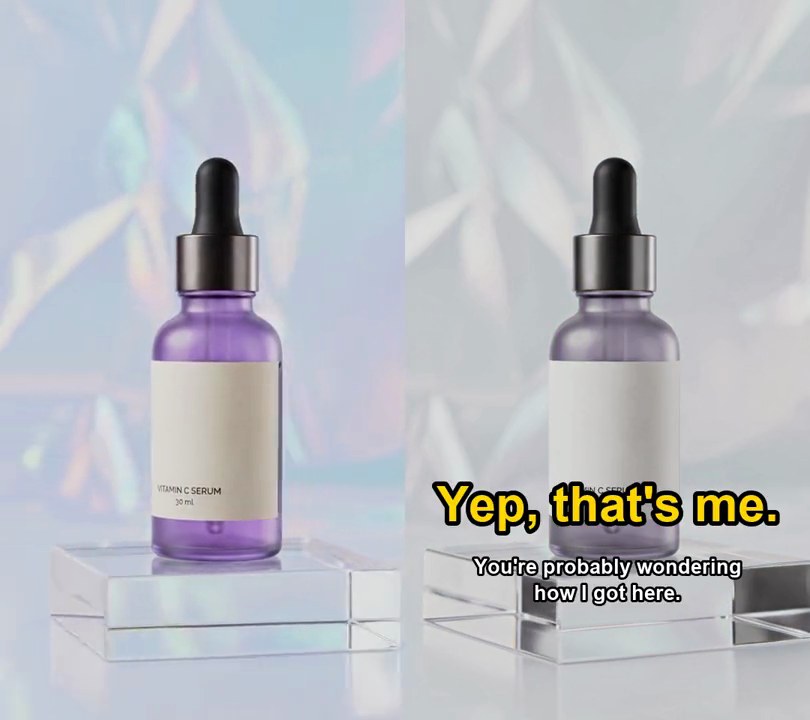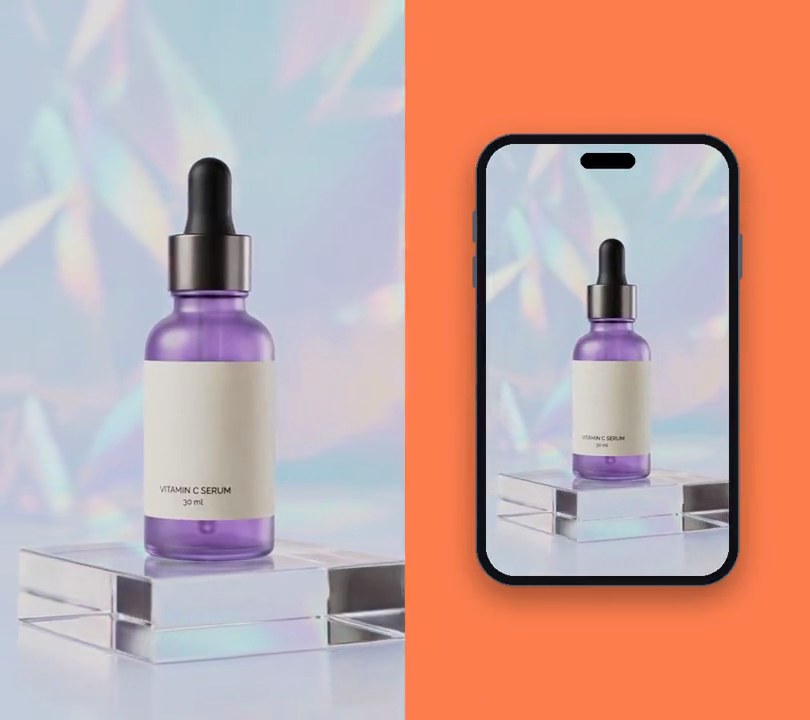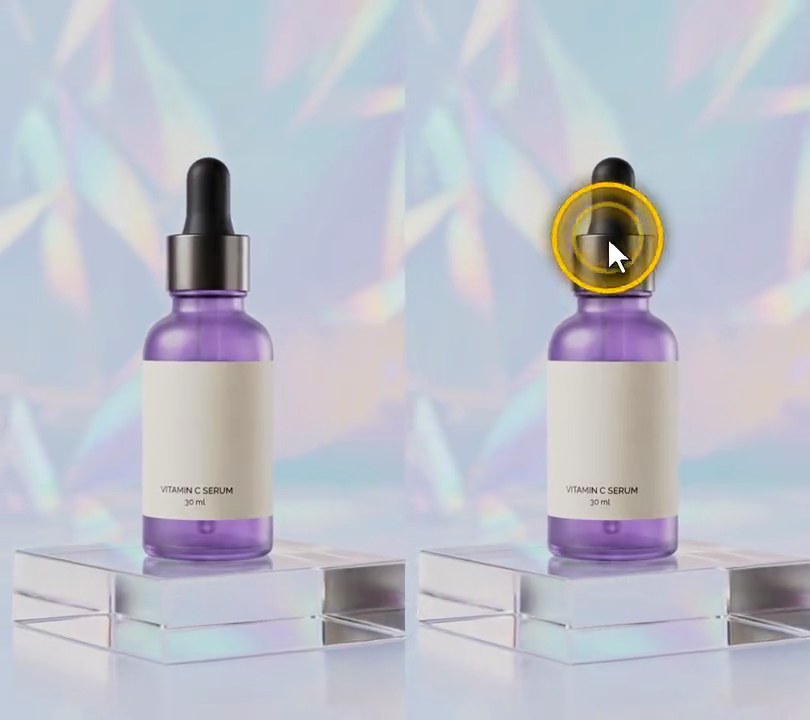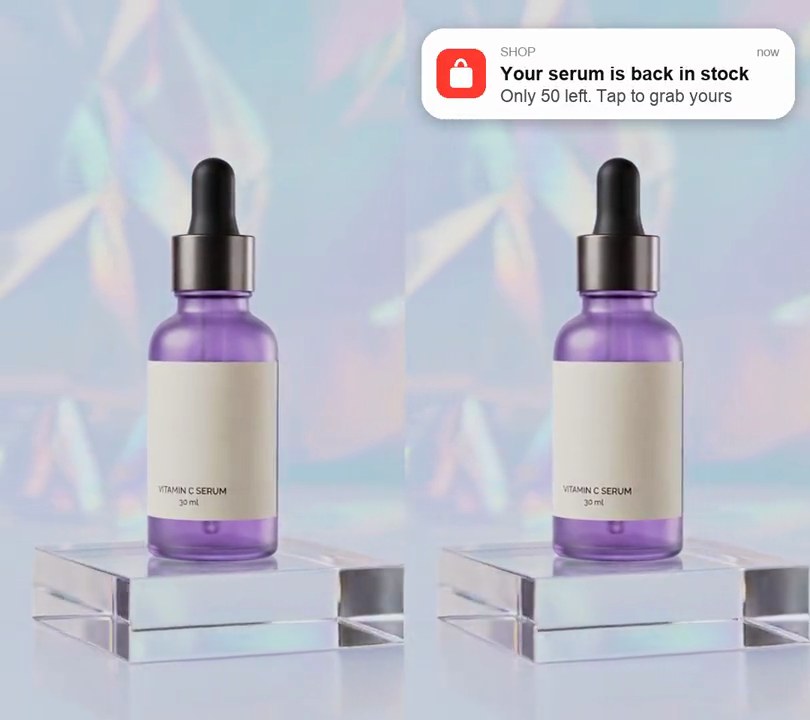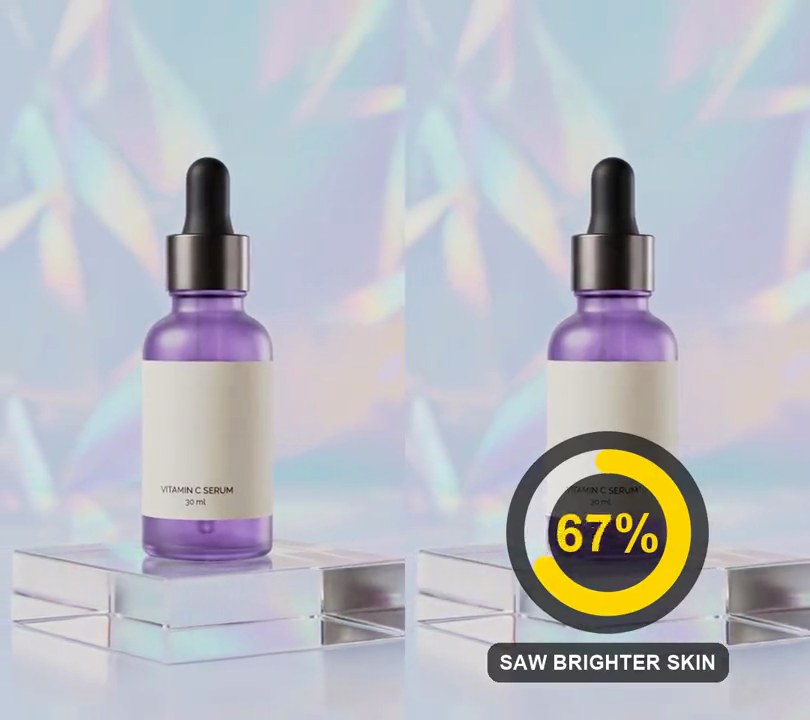
1. Ken Burns zoom
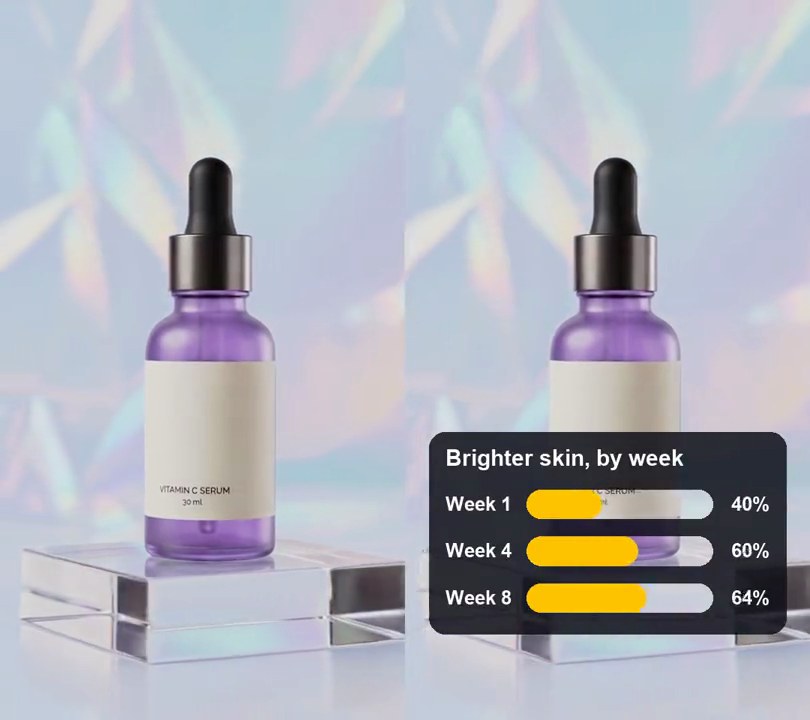
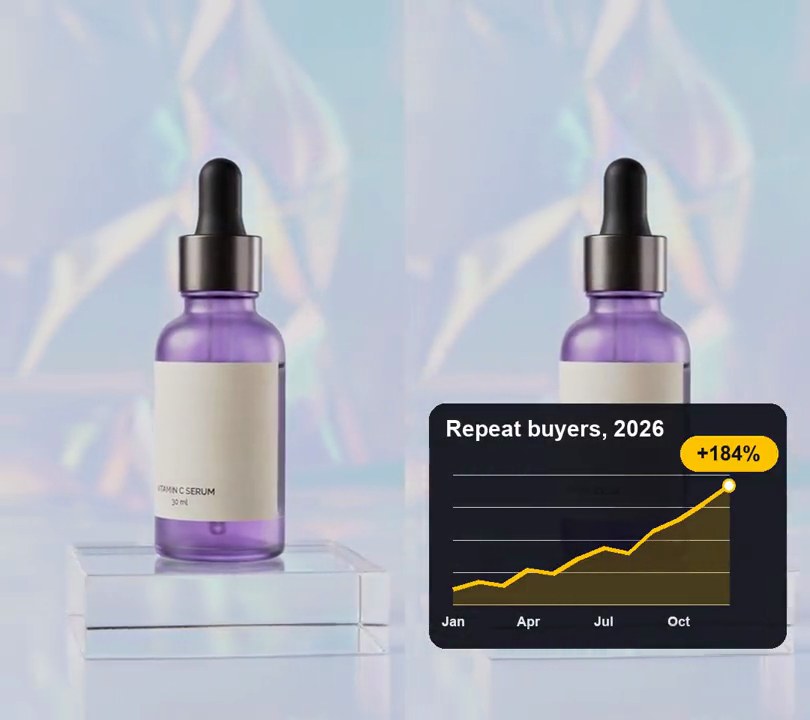
The camera creeps toward the product so a static shot never sits completely still.
Show the prompt
Add a slow Ken Burns zoom to input.mp4: push in on the center steadily from 1x on the first frame to 1.15x on the last frame, with no jitter. Keep the size, frame rate and audio. Use ffmpeg and save it as output.mp4.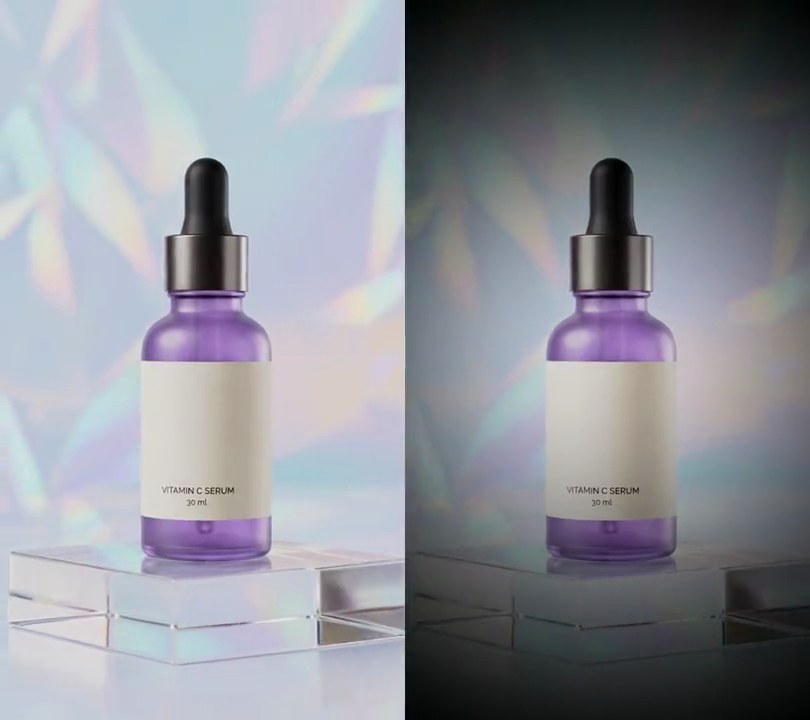
2. Spotlight vignette
The edges and corners darken so the product in the middle is the brightest thing on screen.
Show the prompt
Add a strong vignette to input.mp4 so the corners are clearly darker and the center stays as bright as it was. Keep the audio. Use ffmpeg and save it as output.mp4.
3. Sale badge
A round red "30% off" sticker pops onto the top-right corner, tilted slightly.
Show the prompt
Add a sale badge to input.mp4: a red (230, 30, 45) circle 30% of the frame width across, with "30%" over "OFF" in white and a thin white ring inside, tilted -10 degrees, centered at 78% across and 14% down. It pops in at 0.5 seconds over 0.35 seconds with a slight overshoot, then stays. Use Python with Pillow to draw it and ffmpeg to put it on the video (don't rely on ffmpeg's drawtext filter), keep the audio, and save it as output.mp4.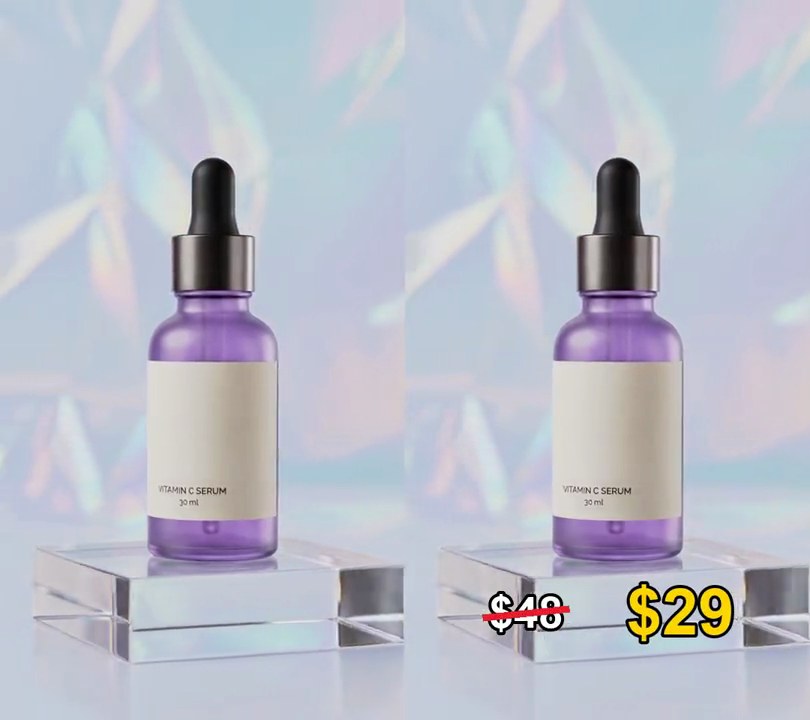
4. Price strikethrough
The old price gets crossed out with a red line, then the lower price pops in beside it.
Show the prompt
Add a price drop animation to input.mp4: "$48" in white bold (black outline) at 30% across and 85% down; at 1 second a thick red (230, 30, 45) line crosses it out over 0.25 seconds; at 1.4 seconds "$29" pops in larger in yellow (255, 214, 0) at 68% across. Both stay to the end. Use Python with Pillow to draw it and ffmpeg to put it on the video (don't rely on ffmpeg's drawtext filter), keep the audio, and save it as output.mp4.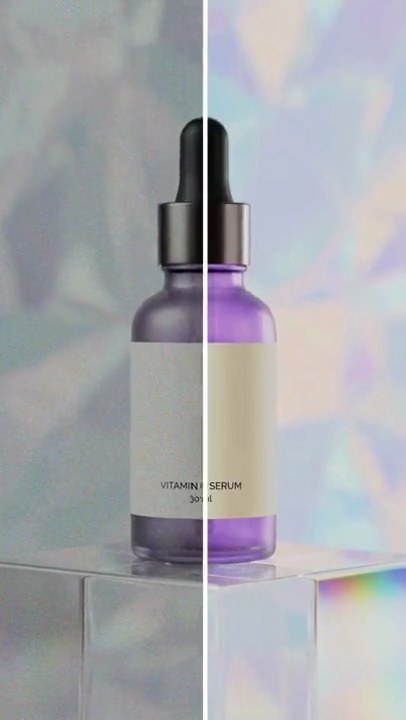
5. Before/after slider
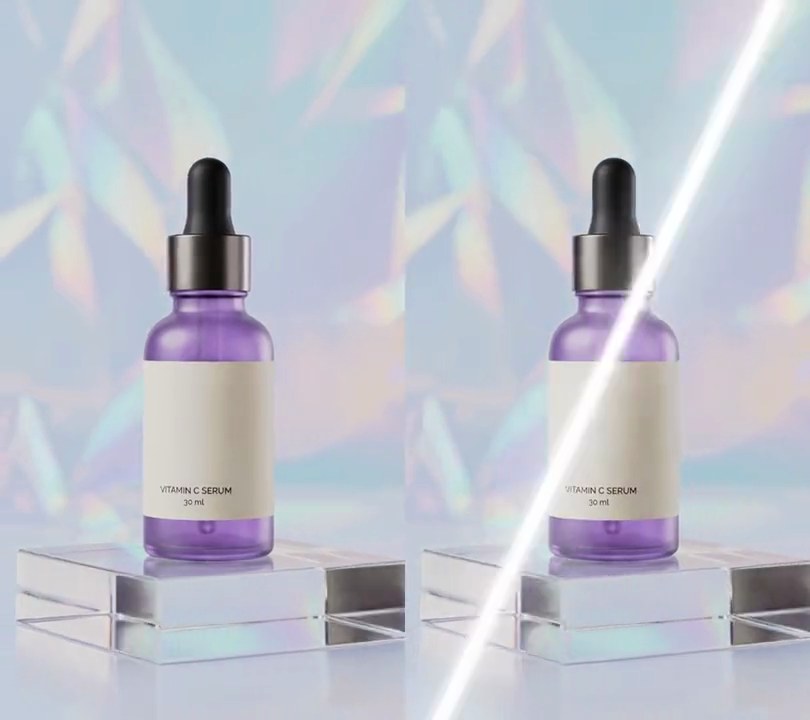
A white line swings across the frame, with the dull before shot on its left and the after shot on its right.
Show the prompt
Make a before/after slider from before.mp4 and after.mp4: a 6-pixel white vertical divider swings back and forth between 10% and 90% of the width (position 0.5+0.4*cos(1.3*t)), with before.mp4 shown left of the divider and after.mp4 right of it. Use after.mp4's audio. Use ffmpeg and save it as output.mp4.
6. Picture in picture
A second clip plays in a small white-framed window in the top-right corner.
Show the prompt
Put inset.mp4 as a picture-in-picture over main.mp4: scale it to 32% of main's width, give it a 6-pixel white border, and place it in the top-right corner with a gap of 4% of main's width from the top and right edges. Keep main's audio. Use ffmpeg and save it as output.mp4.
7. Split screen
Two clips play at once, one filling the top half of the frame and one the bottom half.
Show the prompt
Stack top.mp4 above bottom.mp4 in one vertical video the same size as top.mp4. Each clip fills its half, cropped from the center. Use top.mp4's audio. Use ffmpeg and save it as output.mp4.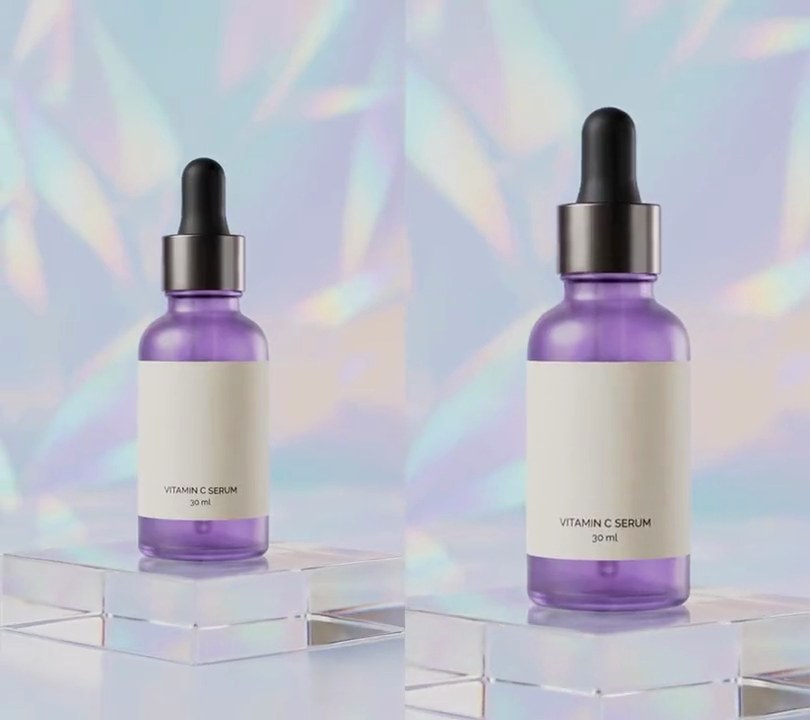
8. Punch-in zoom
The shot snaps 25% closer on the first word, holds for a second, then cuts back wide.
Show the prompt
In input.mp4, add a punch-in zoom at the start: zoom in to 1.25x over the first 0.15 seconds, hold it until 1 second, then cut back to the full frame. The zoom must stay centered: crop the same amount from all four sides, so the middle of the frame doesn't move. Keep the size, frame rate and audio the same. Use ffmpeg and save it as output.mp4.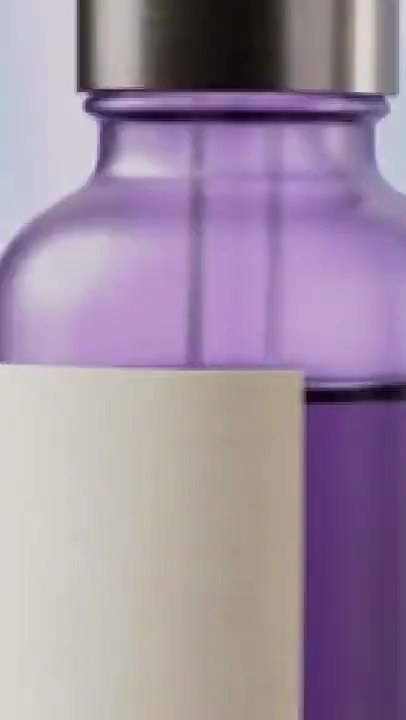
9. Zoom transition
The shot rushes into the middle of clip A and lands on clip B.
Show the prompt
Join clipA.mp4 and clipB.mp4 with a 0.6 second zoom transition that zooms into the center of A and lands on B (ffmpeg xfade zoomin). Crossfade the audio over the same 0.6 seconds. Match B's size and frame rate to A. Use ffmpeg and save it as output.mp4.
10. Circle reveal transition
Clip B grows out of a circle in the middle of clip A until it fills the screen.
Show the prompt
Join clipA.mp4 and clipB.mp4 with a 0.6 second circle reveal: B appears inside a circle in the middle of A that grows until it fills the frame (ffmpeg xfade circleopen). Crossfade the audio over the same 0.6 seconds. Match B's size and frame rate to A. Use ffmpeg and save it as output.mp4.