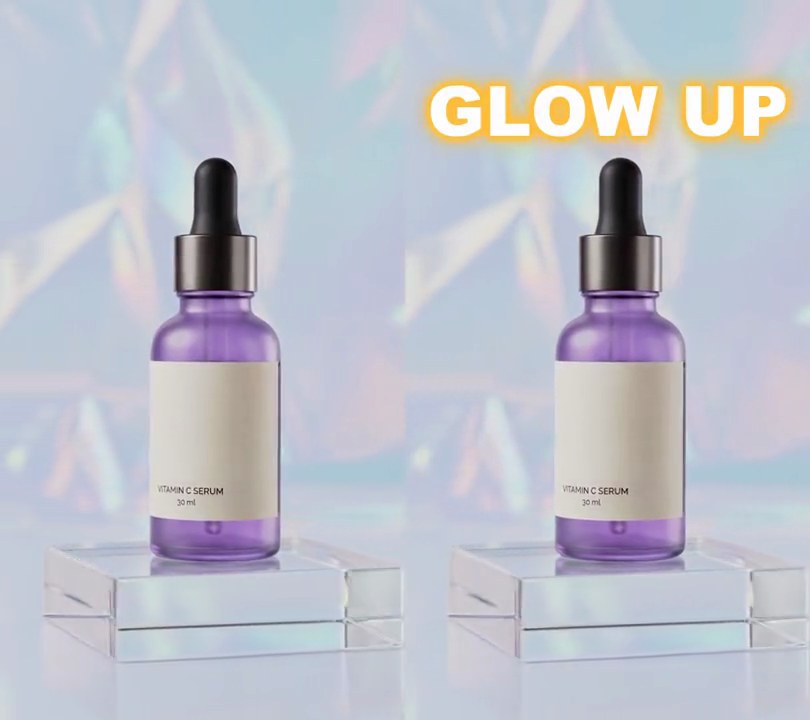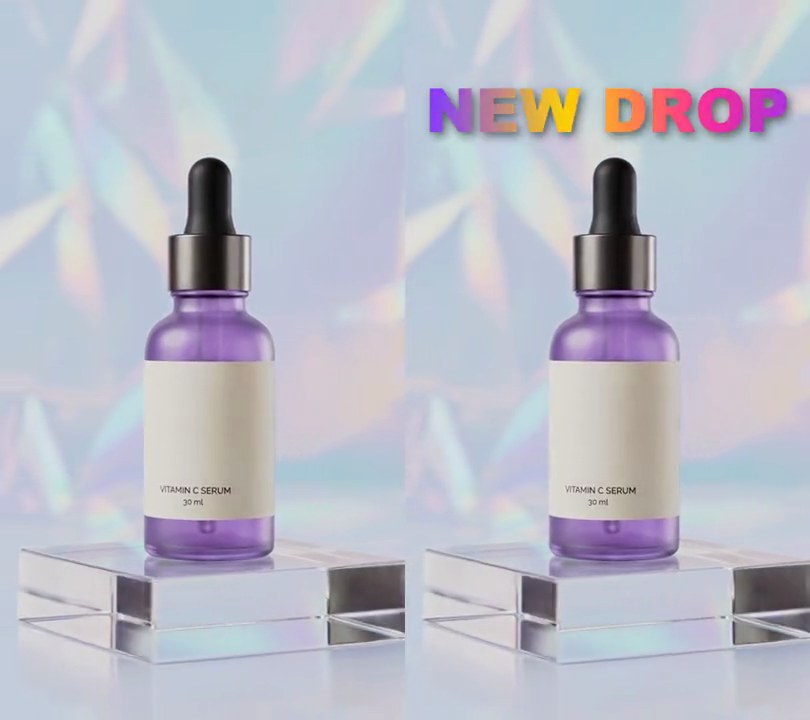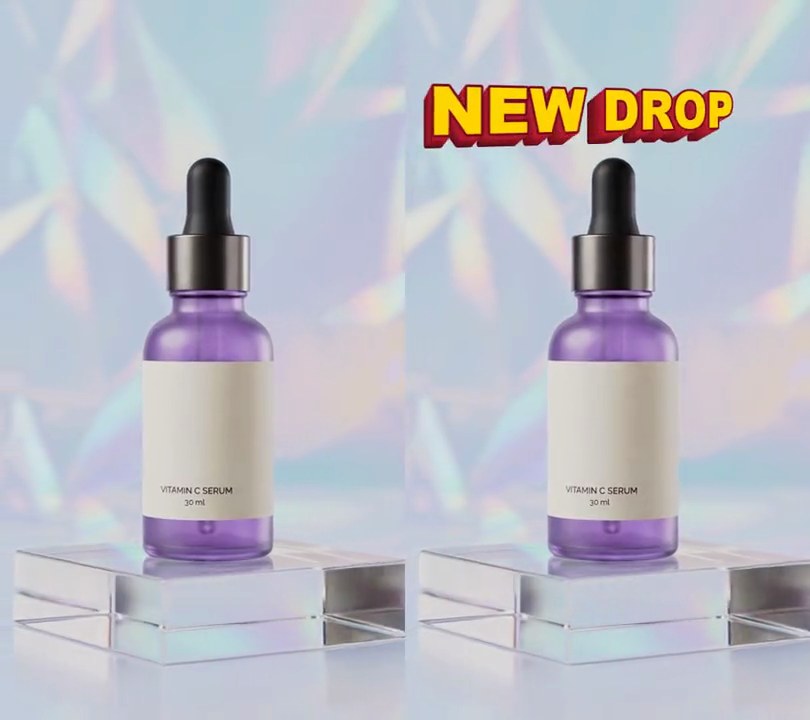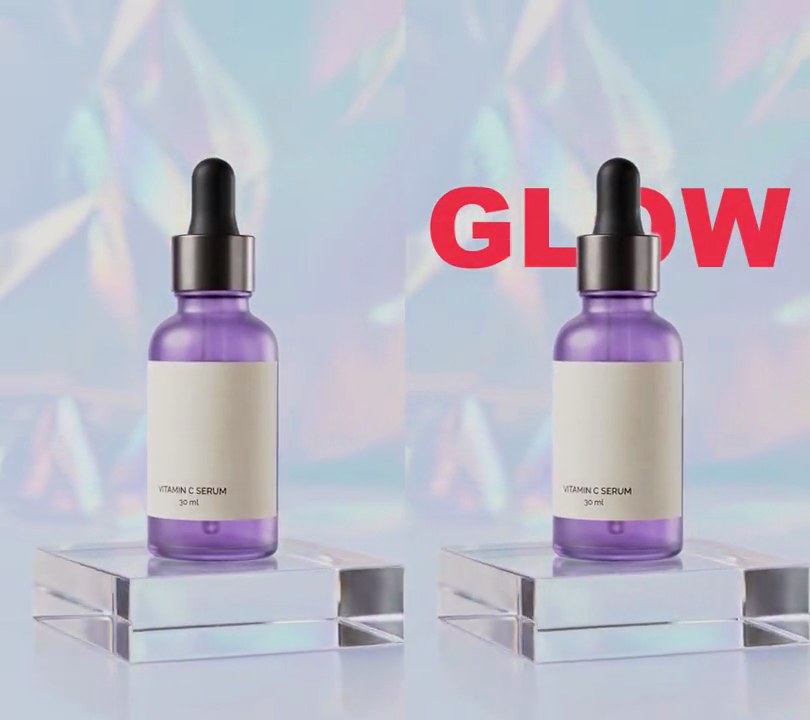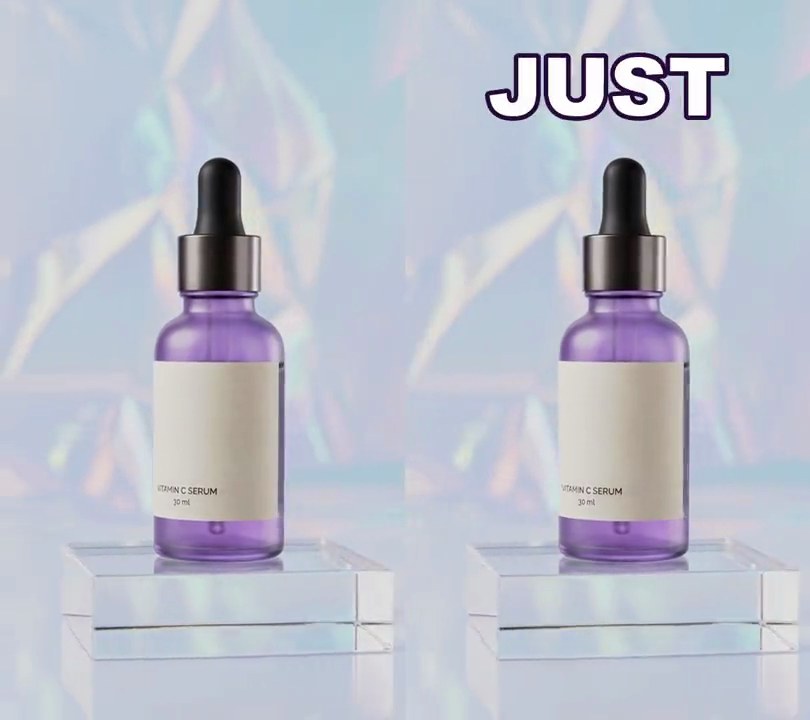
1. Word-by-word captions
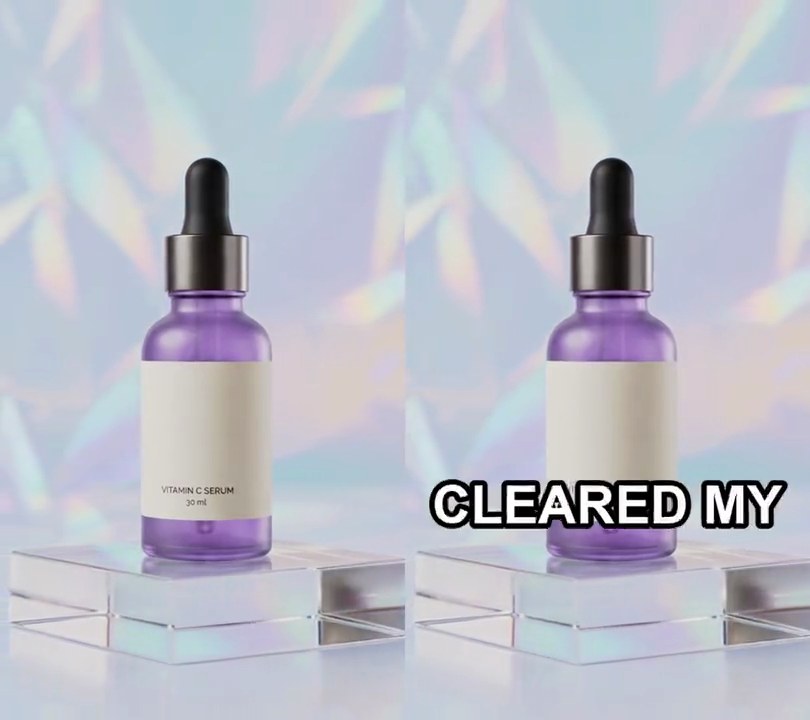
Each word pops up alone in the middle of the screen at the moment it is spoken.
Show the prompt
Add word-by-word captions to input.mp4. words.json has the word timings. Show one word at a time in capitals, centered 70% of the way down, white bold text with a black outline, about 13% of the frame width tall, and only while that word is spoken. Keep the audio. Use Python with Pillow to draw the text and ffmpeg to put it on the video, and save it as output.mp4.
2. Highlighted word captions
Three words sit on screen at a time and the one being spoken turns yellow.
Show the prompt
Add captions to input.mp4 using the word timings in words.json. Show the words three at a time in capitals, centered 70% of the way down, white bold text with a black outline, and turn the word being spoken yellow (255, 212, 0). Each group stays up from its first word's start to its last word's end. Use Python with Pillow to draw it and ffmpeg to put it on the video (don't rely on ffmpeg's drawtext filter), keep the audio, and save it as output.mp4.
3. Boxed captions
Each phrase sits in black type on a white rounded box, four words at a time.
Show the prompt
Add captions to input.mp4 using the word timings in words.json. Show four words at a time as black text on a white rounded box, centered 72% of the way down, from the group's first word to its last word. Use Python with Pillow to draw it and ffmpeg to put it on the video (don't rely on ffmpeg's drawtext filter), keep the audio, and save it as output.mp4.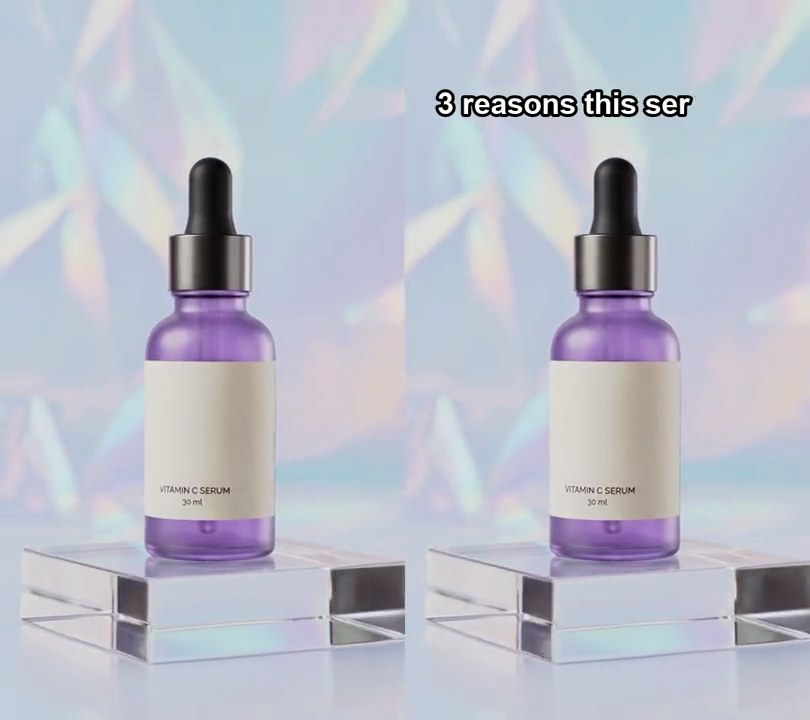
4. Typewriter text
A headline types itself out one letter at a time, with a blinking cursor at the end.
Show the prompt
Add a typewriter text effect to input.mp4: the line "3 reasons this serum sold out" types out from 0.3 seconds at 14 characters per second, white bold text with a black outline, left-aligned near the top, with a blinking cursor after the last letter. Use Python with Pillow to draw it and ffmpeg to put it on the video (don't rely on ffmpeg's drawtext filter), keep the audio, and save it as output.mp4.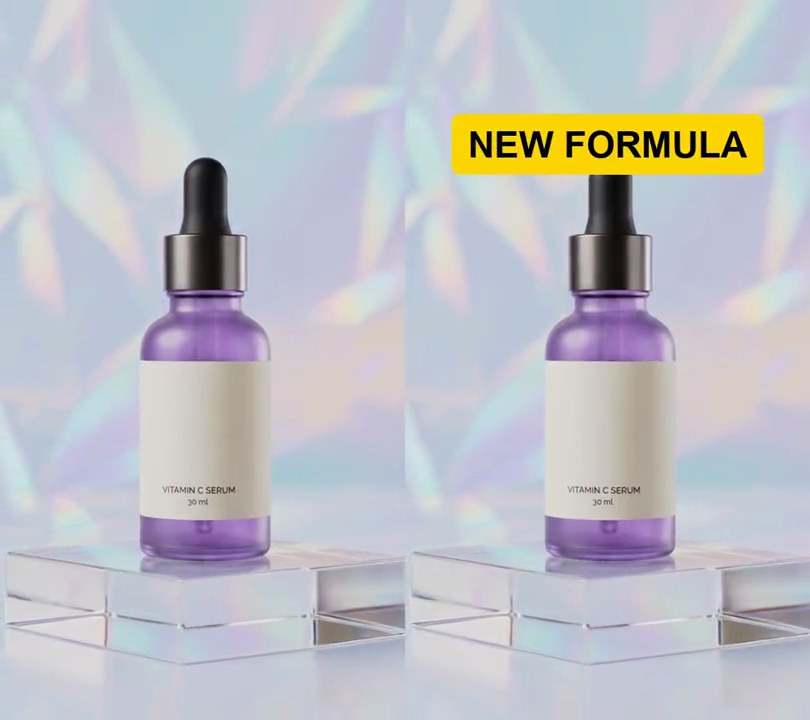
5. Pop-in text
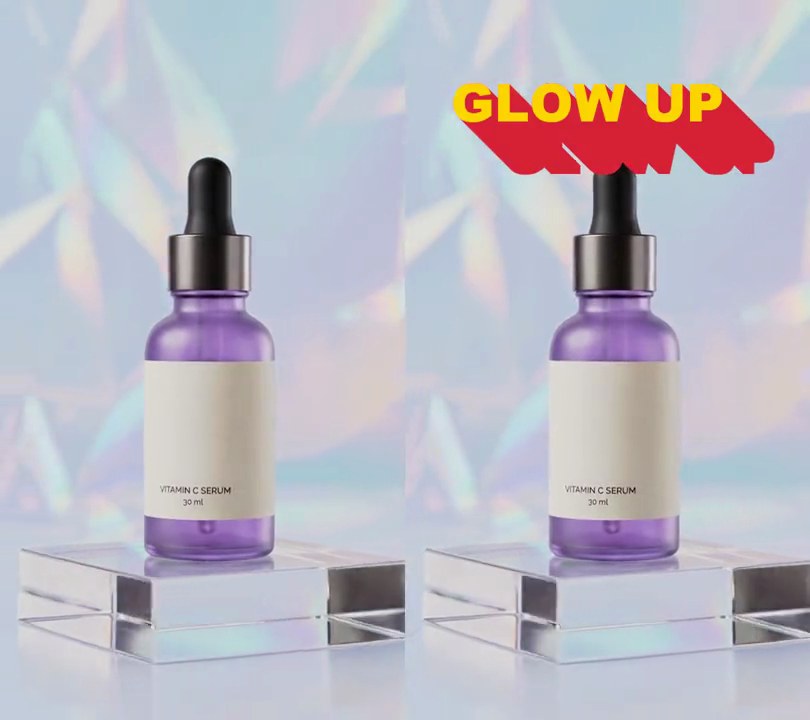
A headline on a yellow box springs out of nothing, overshoots slightly and settles.
Show the prompt
Add a pop-in headline to input.mp4: "NEW FORMULA" in black on a yellow (255, 214, 0) rounded box, centered 20% of the way down, growing from nothing at 0.3 seconds to full size by 0.65 seconds with a slight overshoot, then staying. Use Python with Pillow to draw it and ffmpeg to put it on the video (don't rely on ffmpeg's drawtext filter), keep the audio, and save it as output.mp4.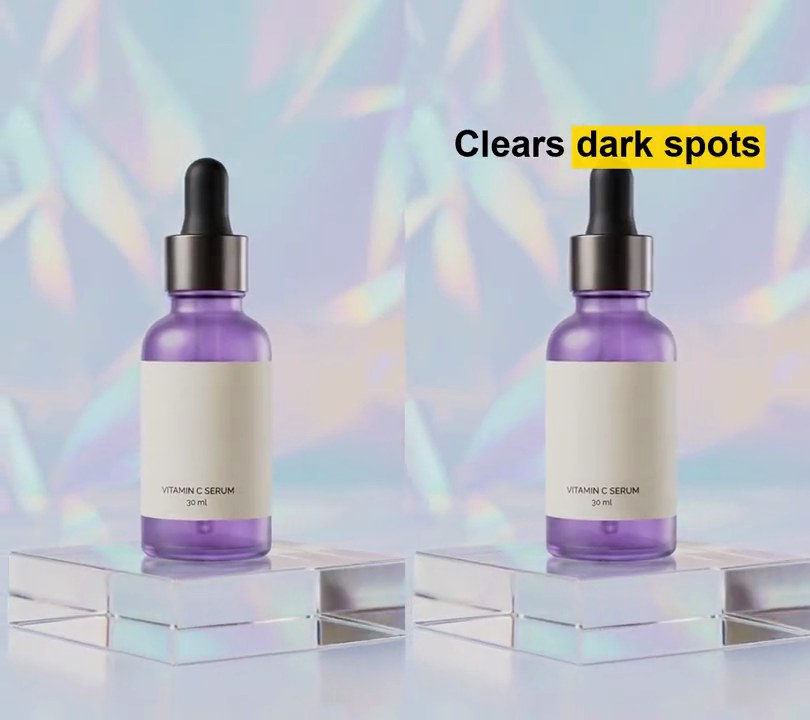
6. Text highlight marker
A yellow marker stroke swipes in behind the key words of the headline.
Show the prompt
Add a highlighted headline to input.mp4: "Clears dark spots" in black bold, centered 20% of the way down, and starting at 0.6 seconds a yellow marker rectangle swipes left to right behind "dark spots" over 0.4 seconds and stays. Use Python with Pillow to draw it and ffmpeg to put it on the video (don't rely on ffmpeg's drawtext filter), keep the audio, and save it as output.mp4.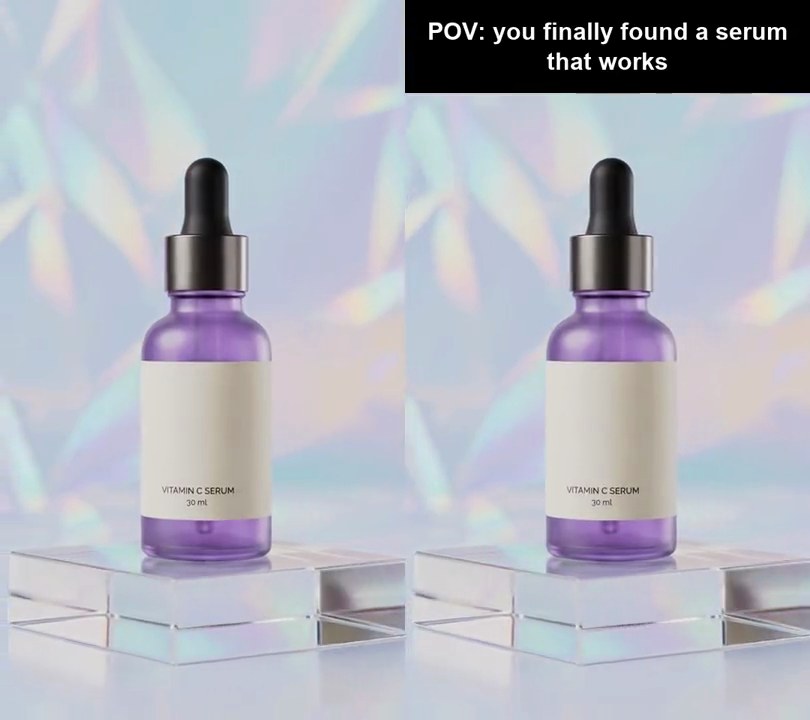
7. Headline bar
A solid black band across the top holds a white headline for the whole video.
Show the prompt
Add a headline bar to input.mp4: a solid black band across the top of the frame with "POV: you finally found a serum that works" in white bold, centered and wrapped to fit, on screen the whole time. Use Python with Pillow to draw it and ffmpeg to put it on the video (don't rely on ffmpeg's drawtext filter), keep the audio, and save it as output.mp4.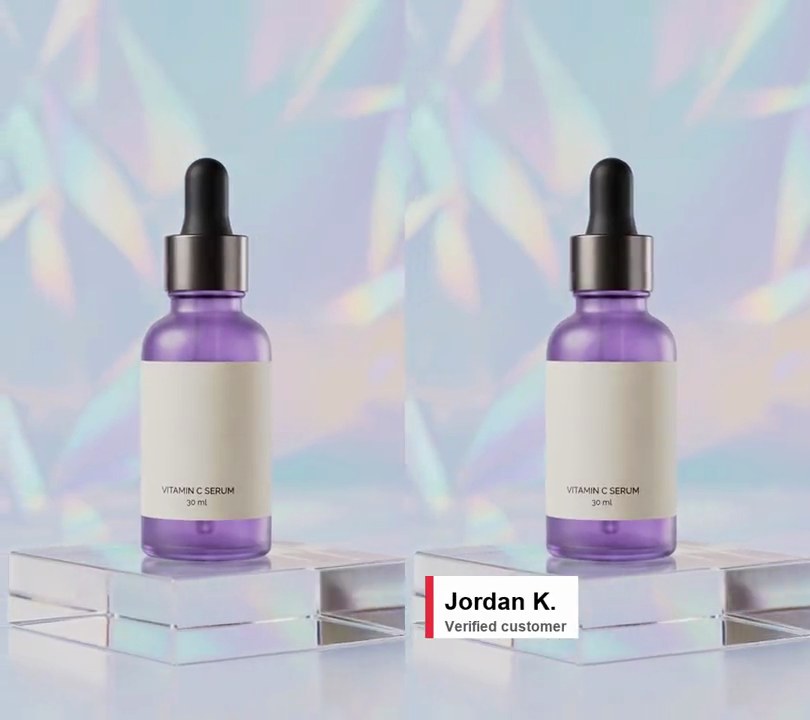
8. Lower third
A white name card with a red edge slides in from the left near the bottom and stays.
Show the prompt
Add a lower third to input.mp4: a white card with a red (230, 40, 60) strip on its left edge, showing "Jordan K." in black bold and "Verified customer" in grey under it, sliding in from off the left edge at 0.5 seconds over 0.4 seconds (fast then slowing), stopping 5% in from the left with its top 80% of the way down. Use Python with Pillow to draw it and ffmpeg to put it on the video (don't rely on ffmpeg's drawtext filter), keep the audio, and save it as output.mp4.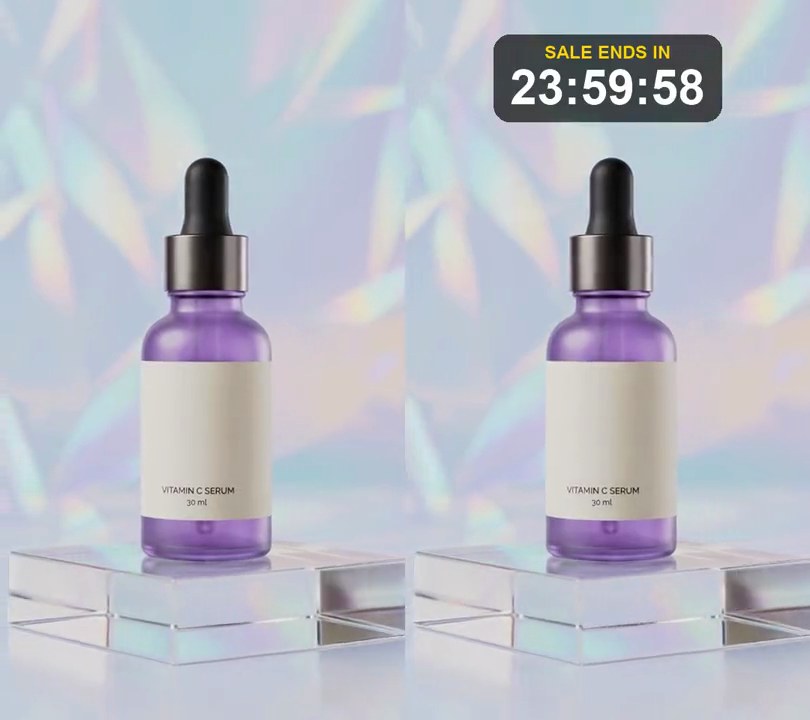
9. Countdown timer
A "sale ends in" clock near the top counts down one second at a time.
Show the prompt
Add a countdown timer to input.mp4: near the top center, a dark translucent rounded box with "SALE ENDS IN" in yellow and a white HH:MM:SS clock under it that starts at 23:59:59 and goes down one second every second. Use Python with Pillow to draw it and ffmpeg to put it on the video (don't rely on ffmpeg's drawtext filter), keep the audio, and save it as output.mp4.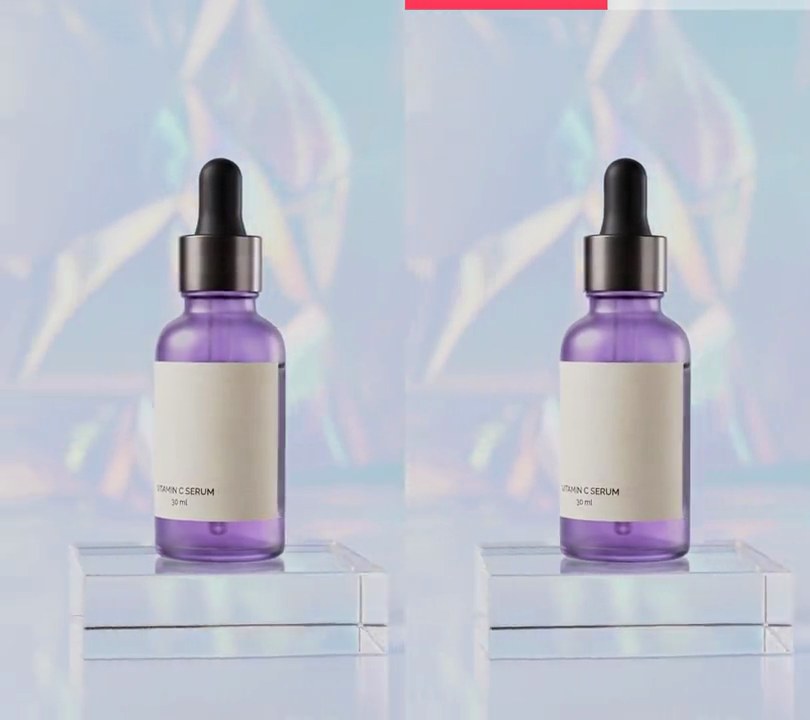
10. Progress bar
A thin pink bar along the top edge fills from left to right as the video plays.
Show the prompt
Add a progress bar to input.mp4: a bar along the very top, 1.2% of the frame height, in (255, 59, 92) over a faint white track, filling from left to right so it is full on the last frame. Use Python with Pillow to draw it and ffmpeg to put it on the video (don't rely on ffmpeg's drawtext filter), keep the audio, and save it as output.mp4.