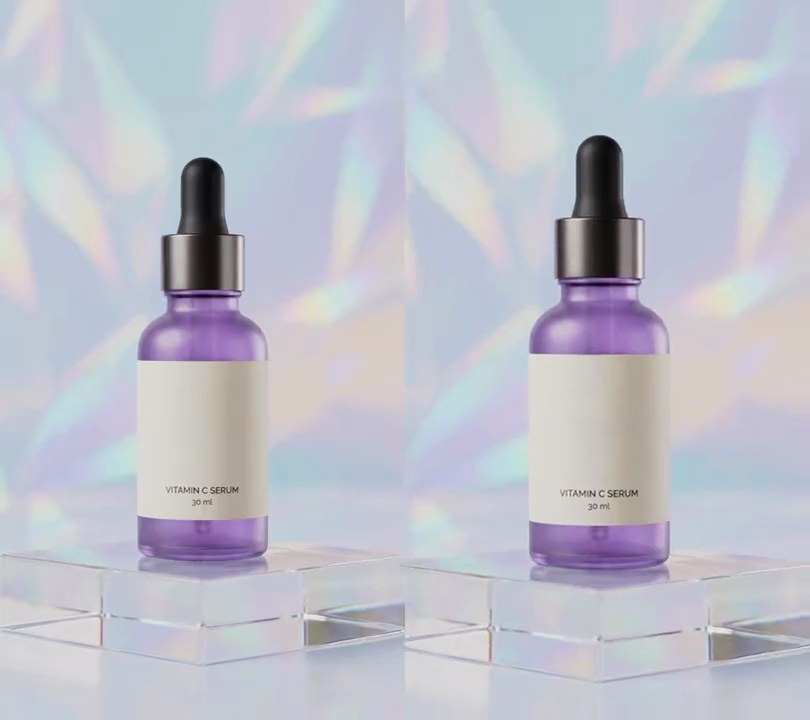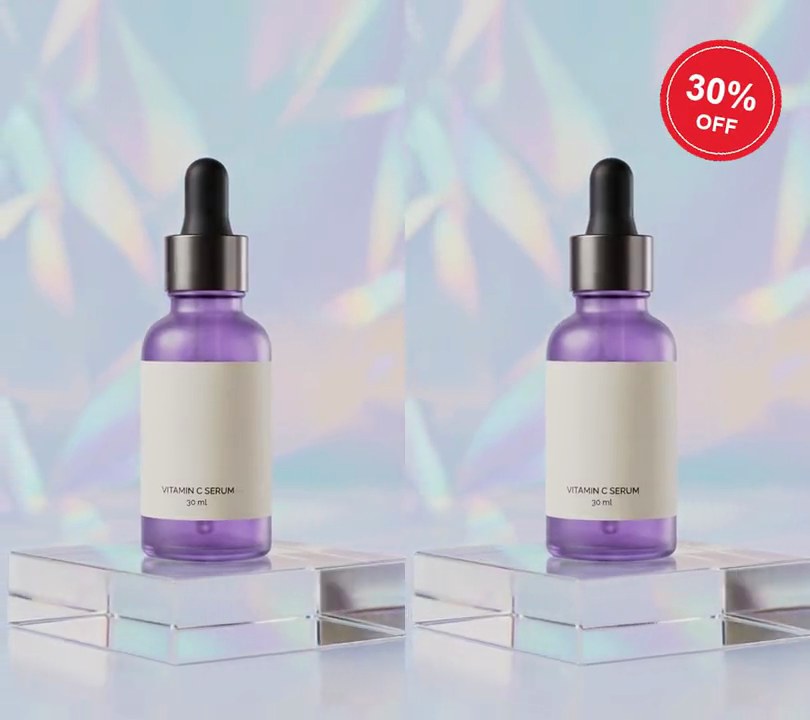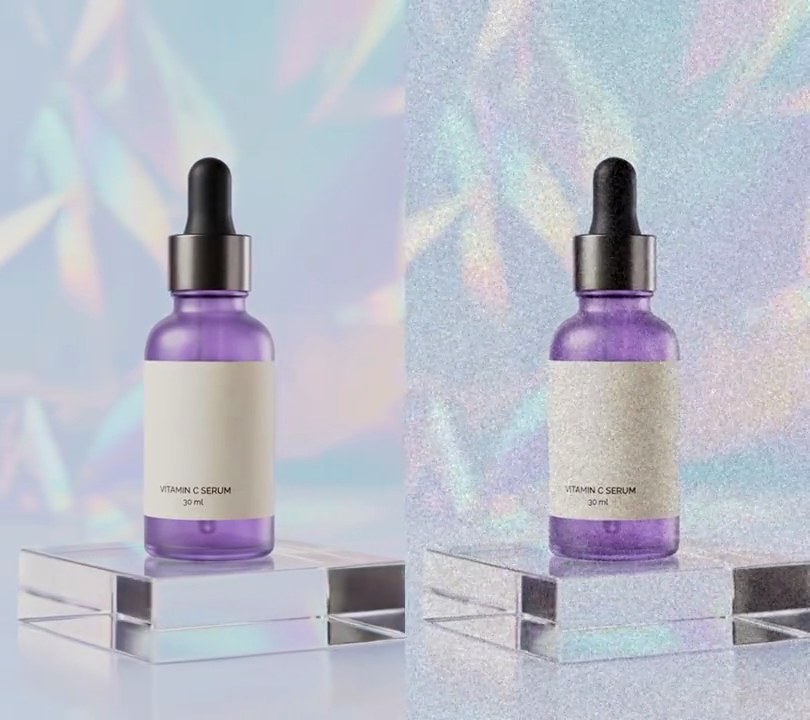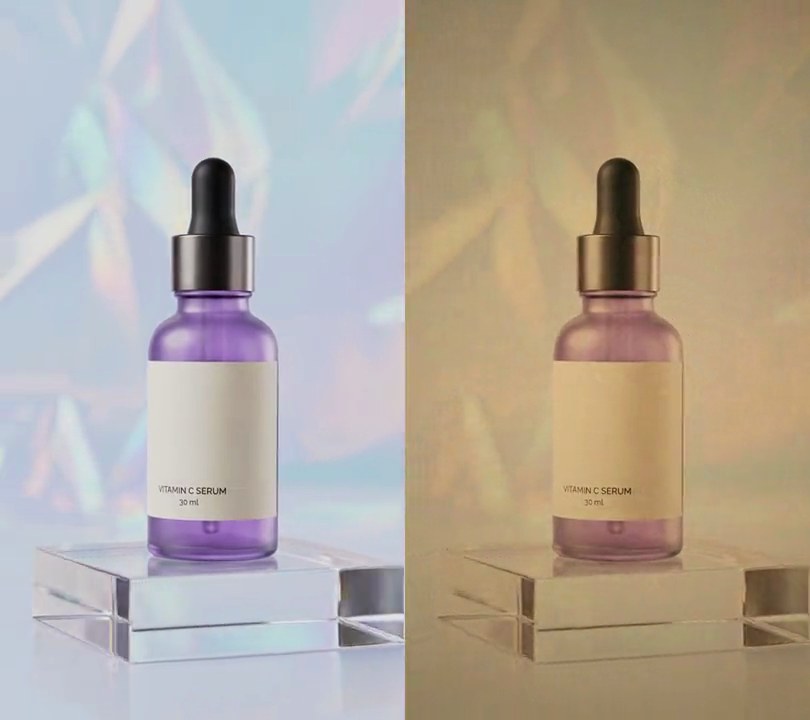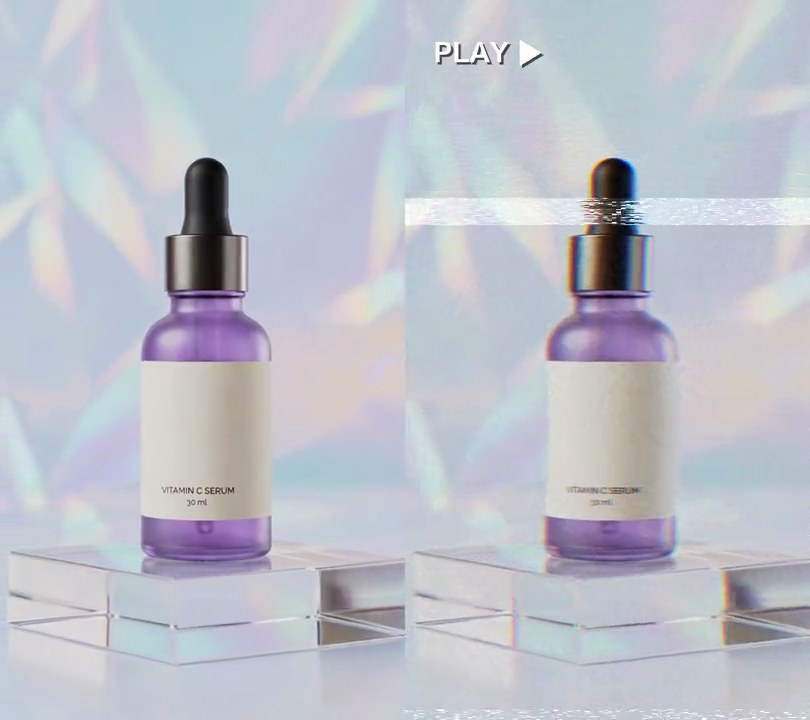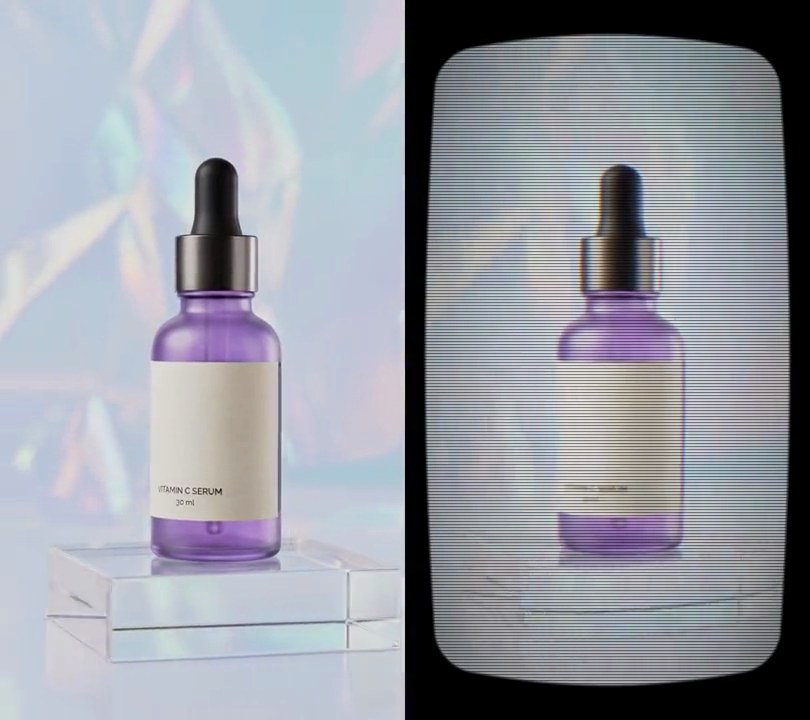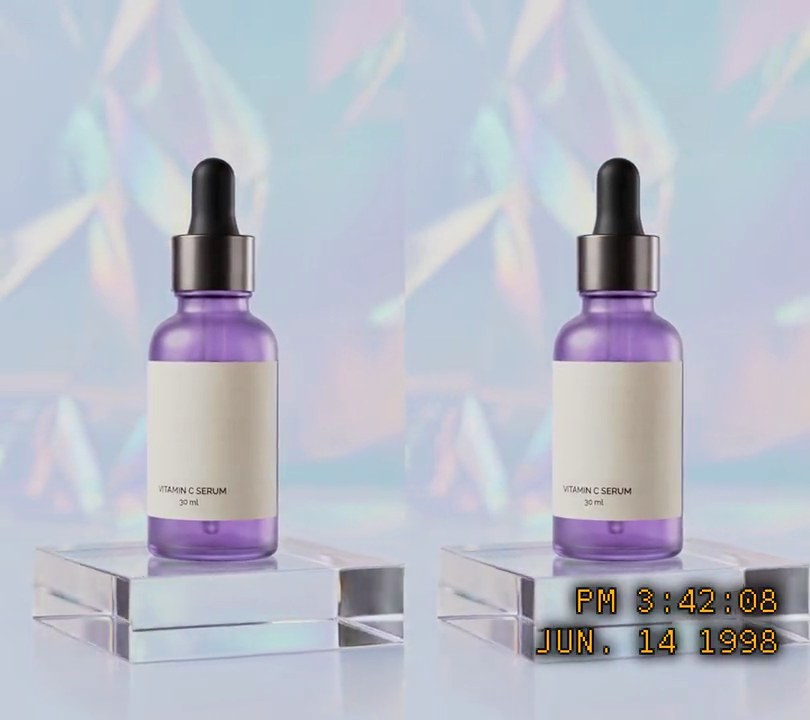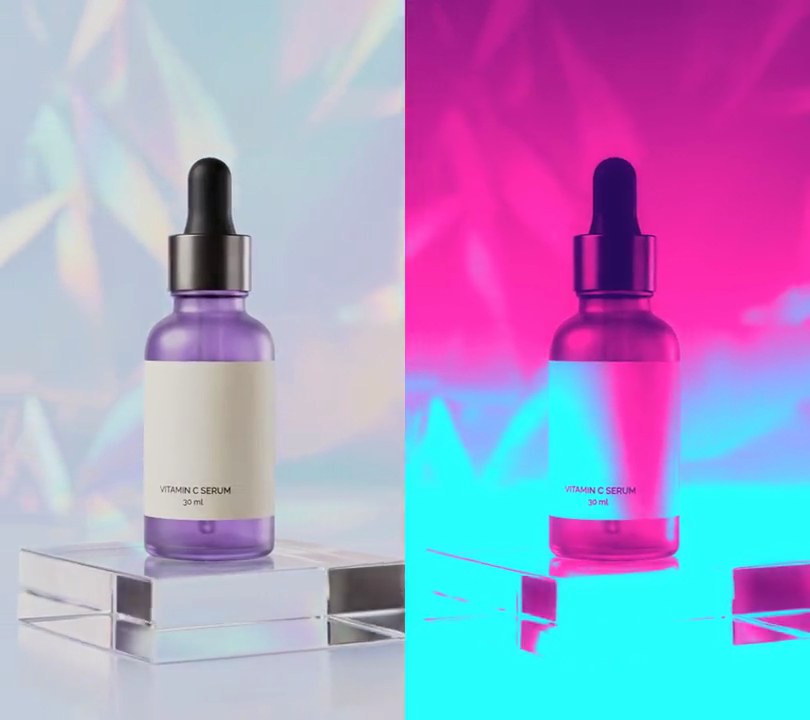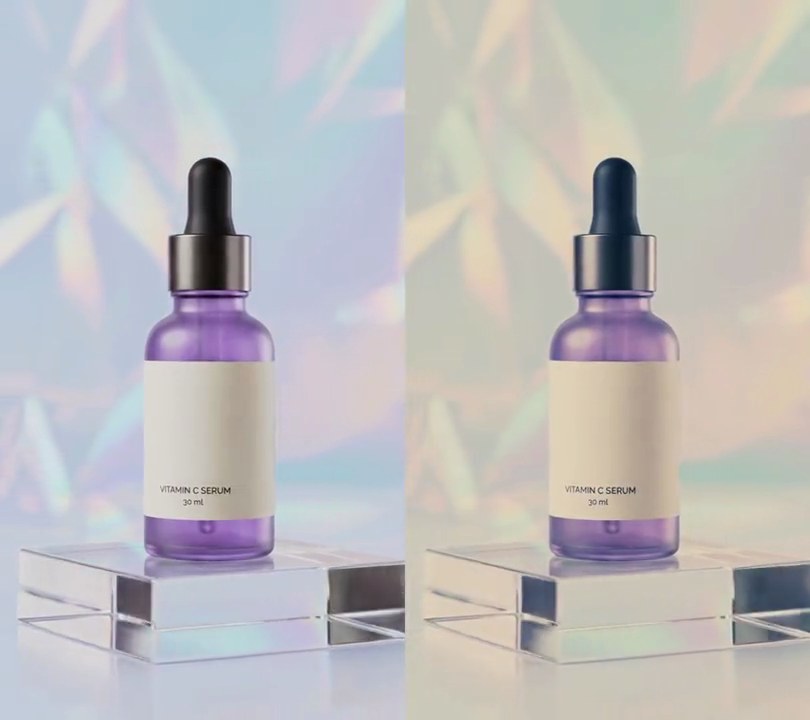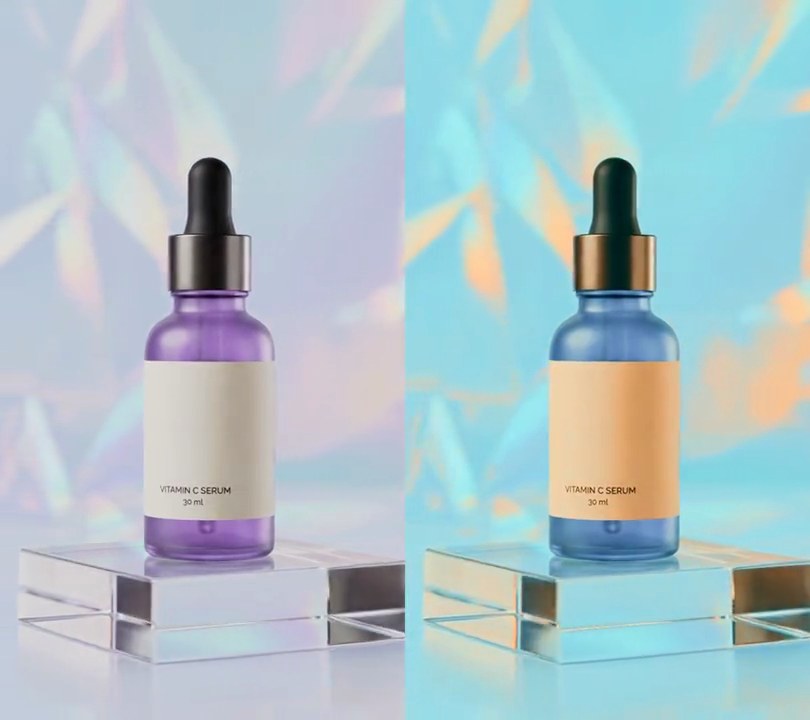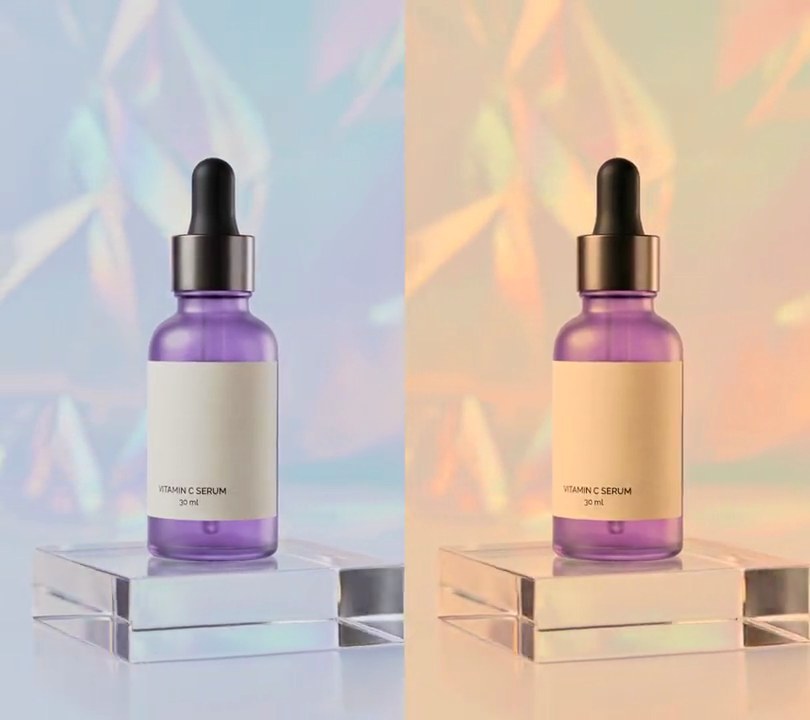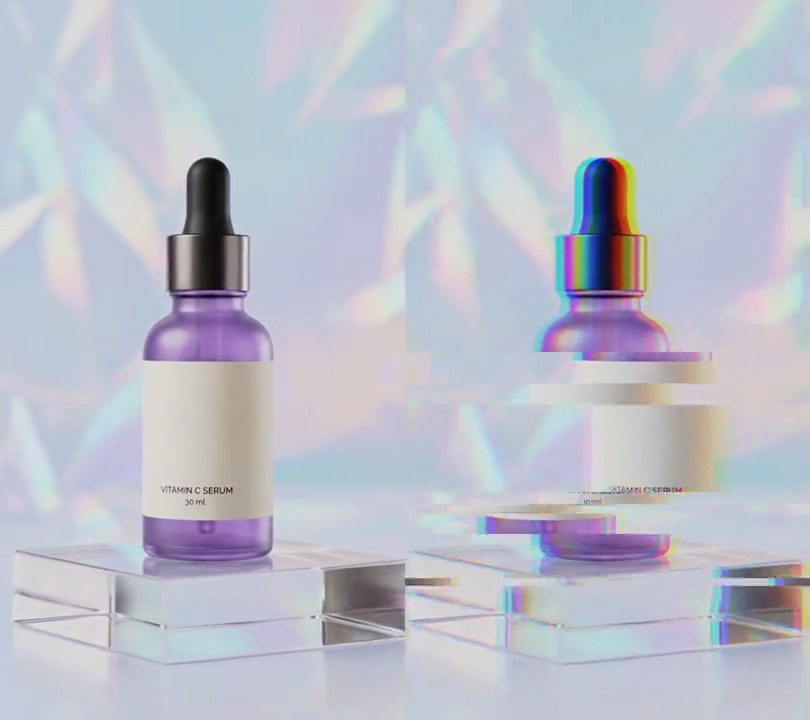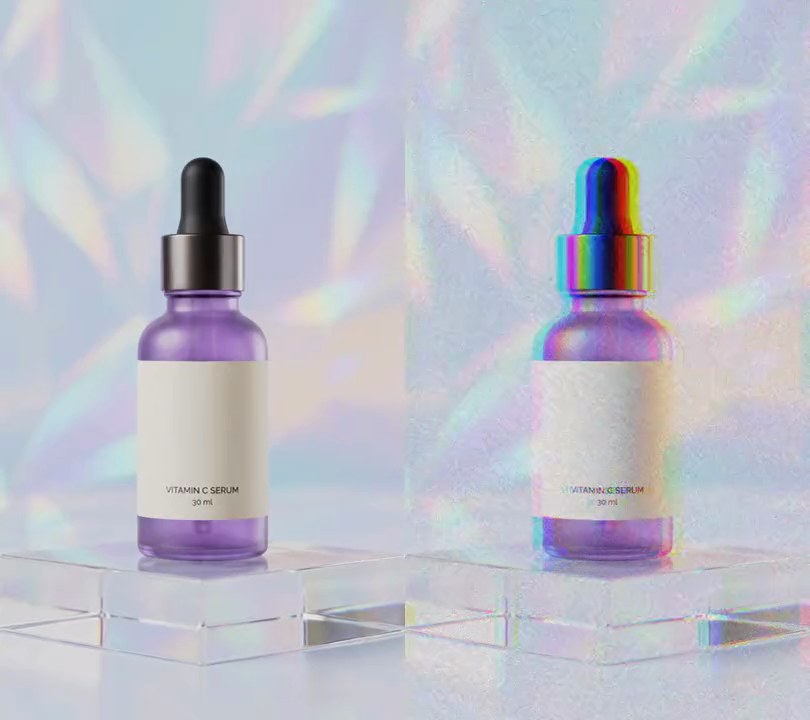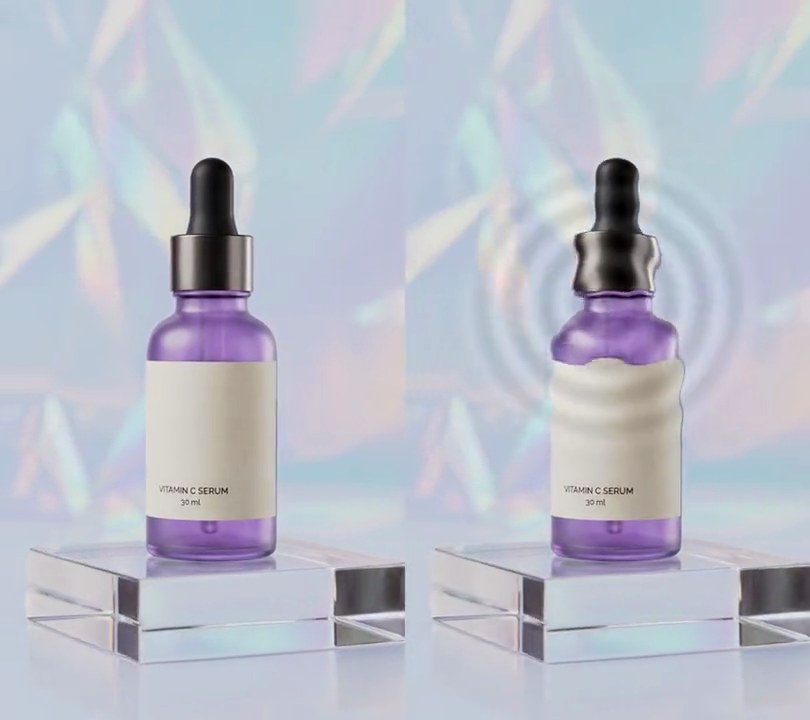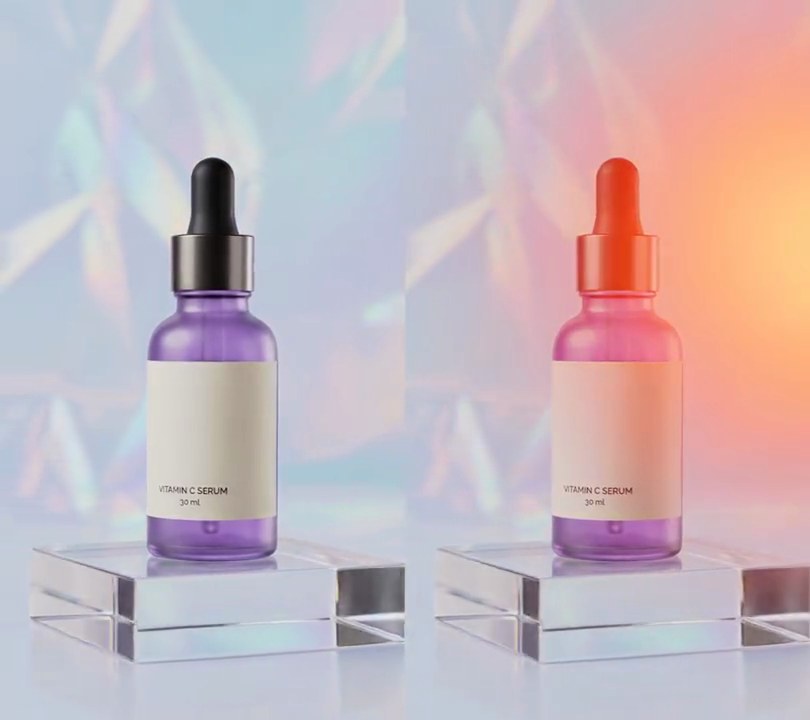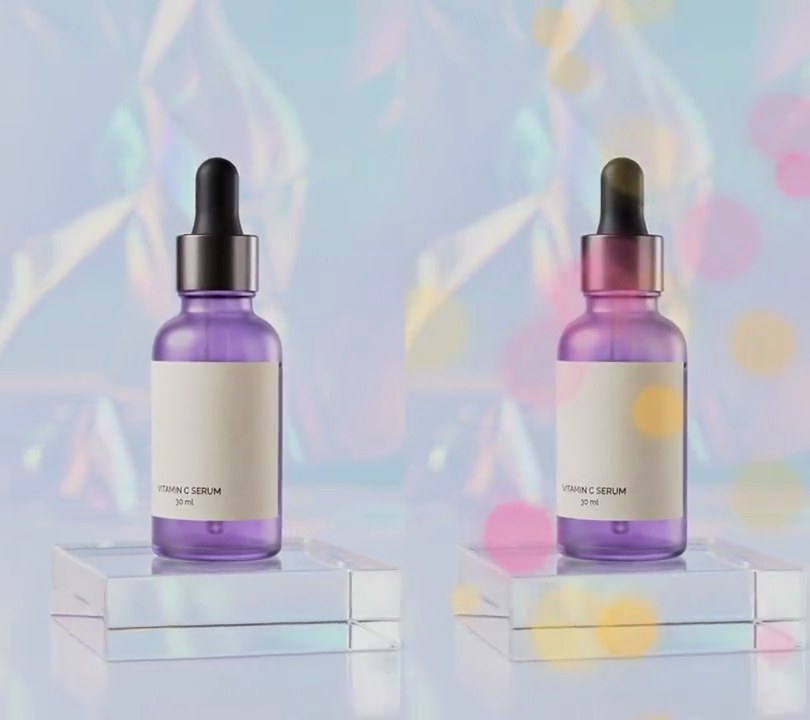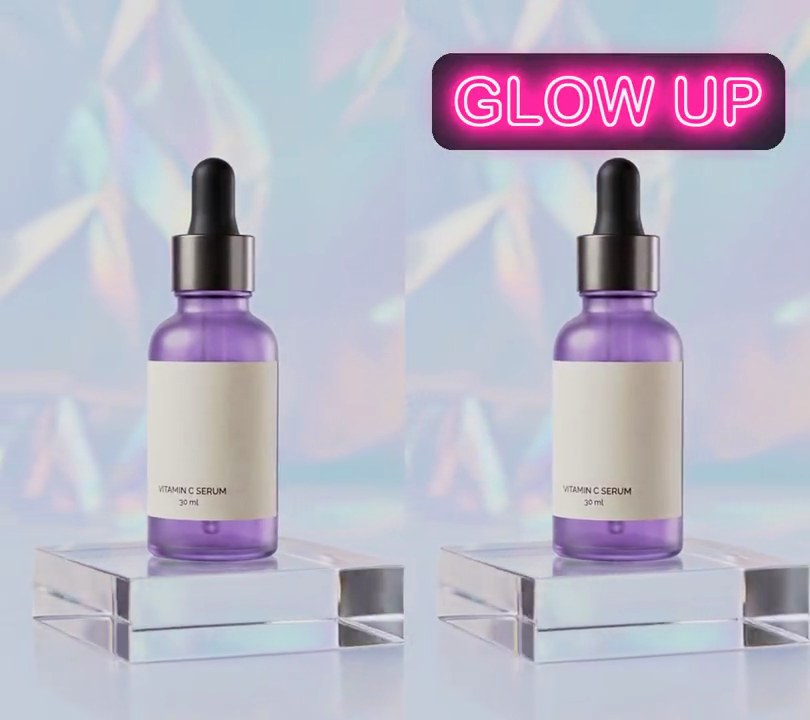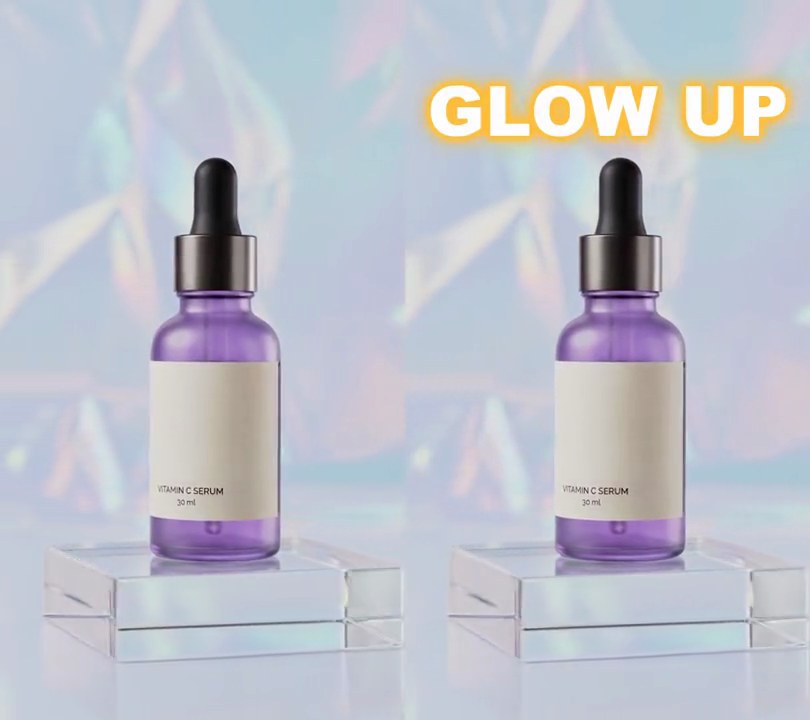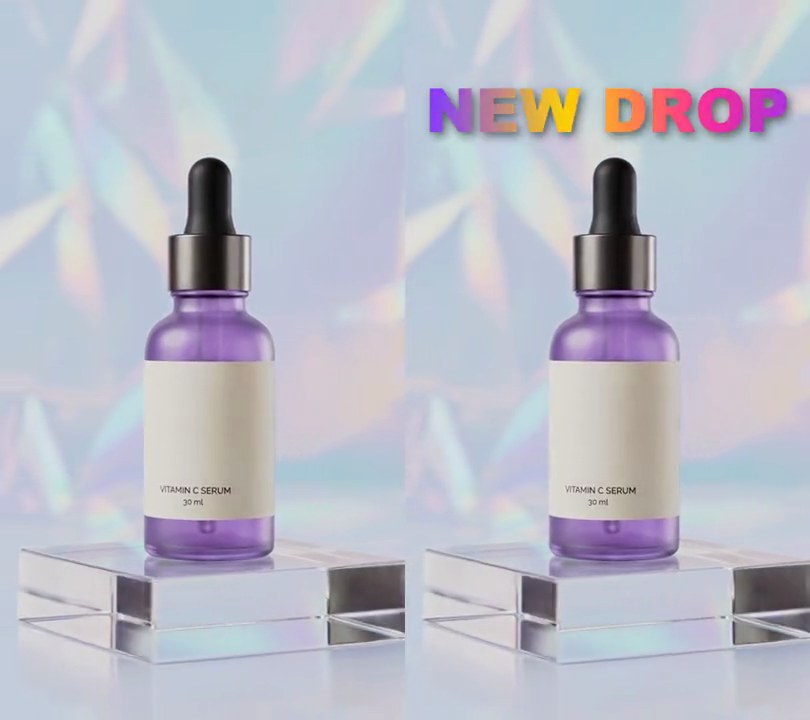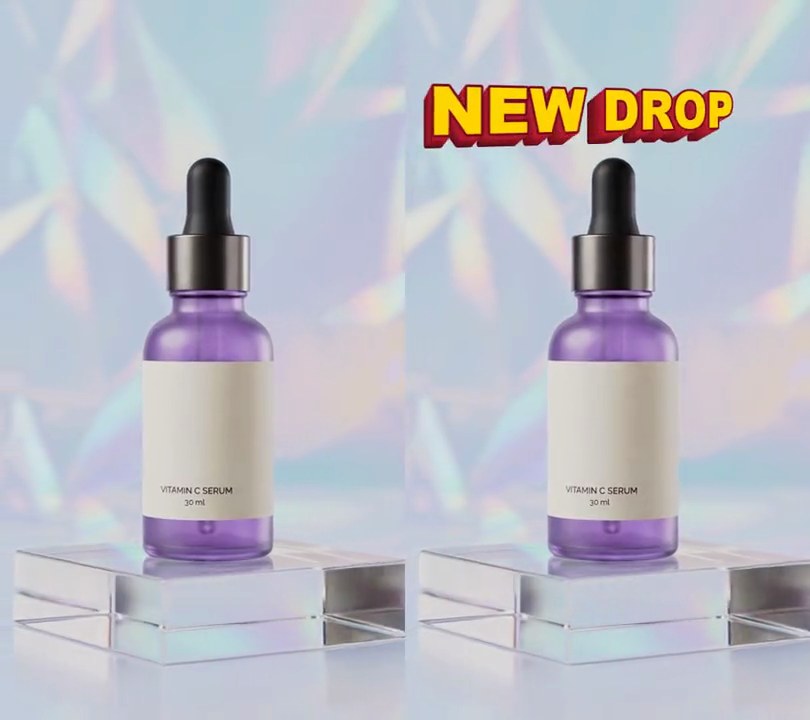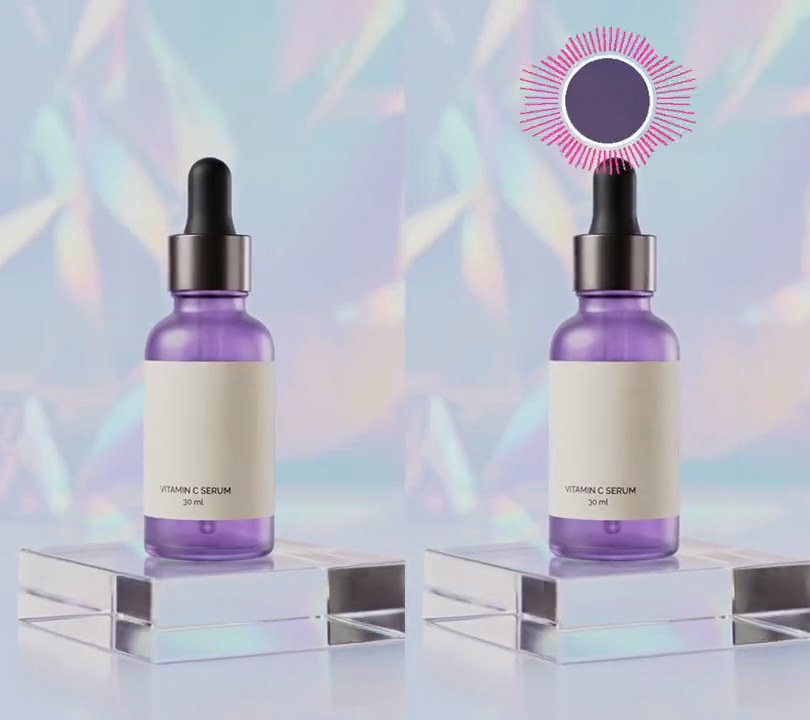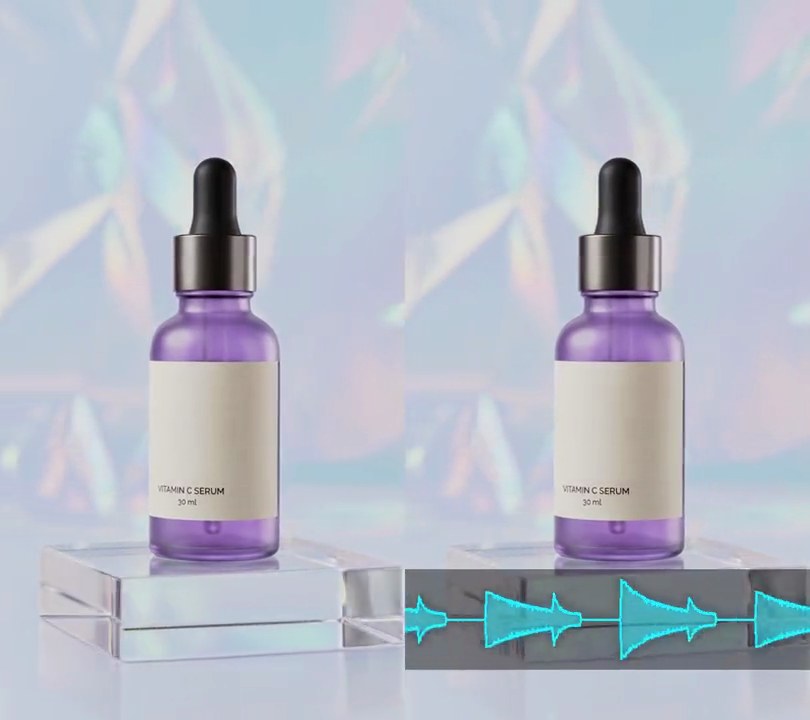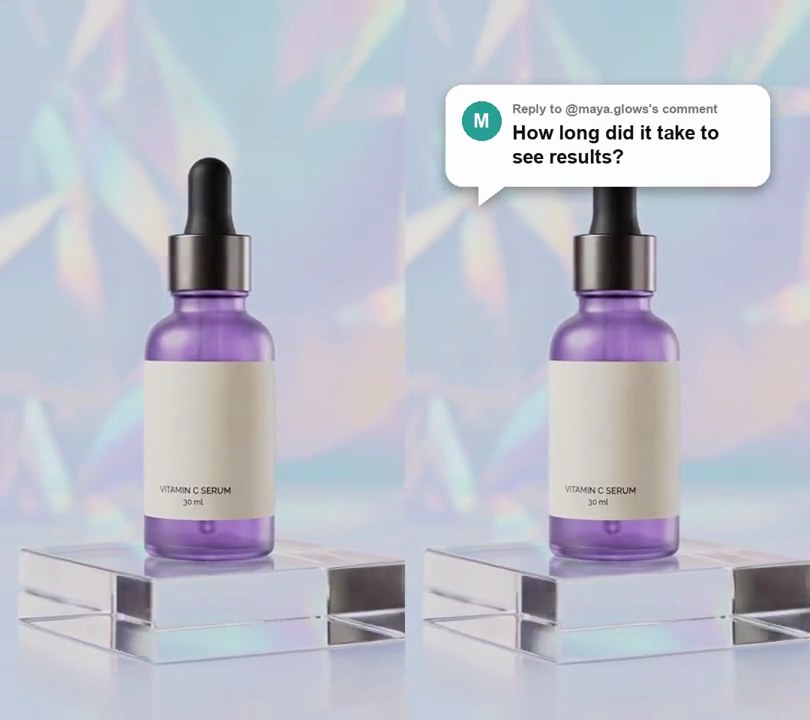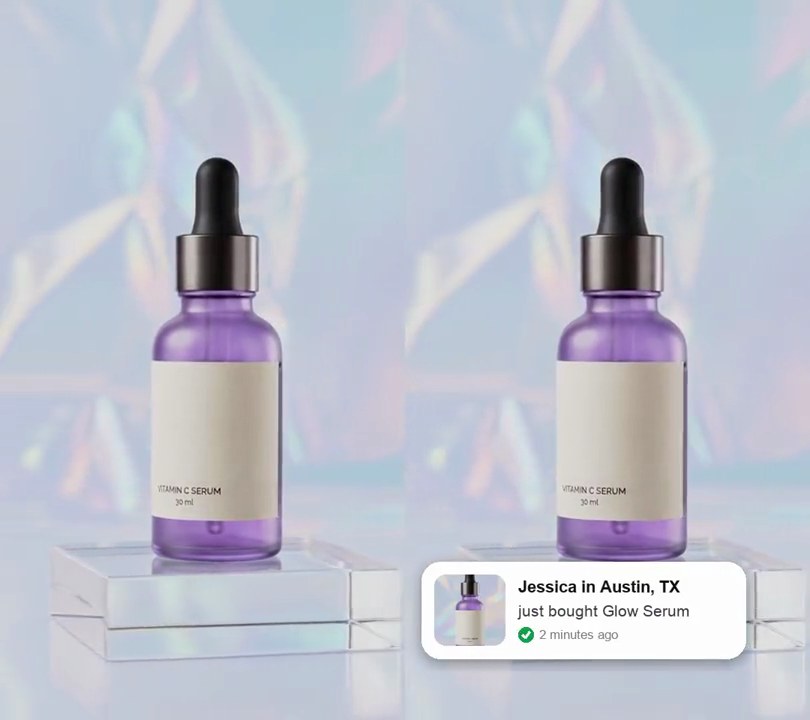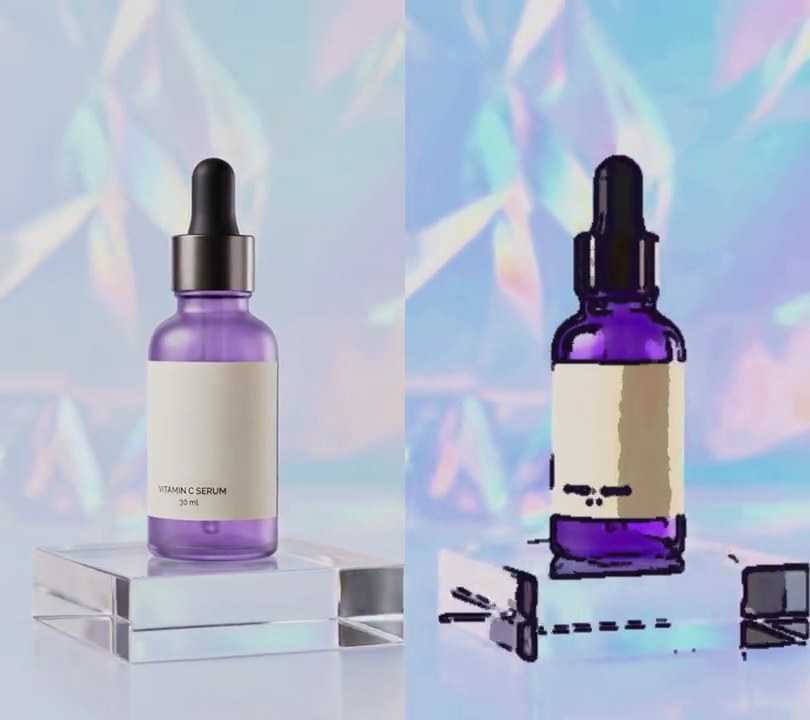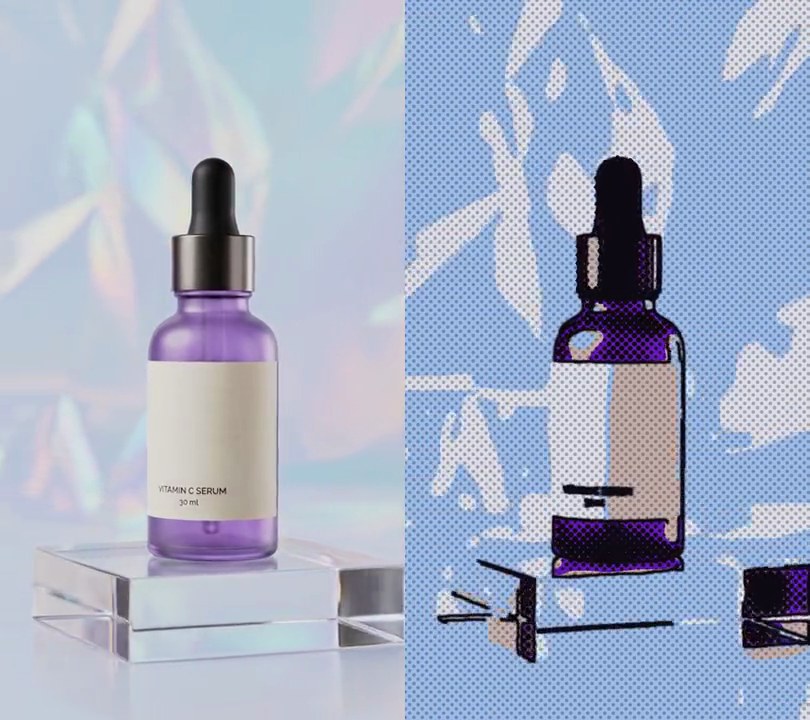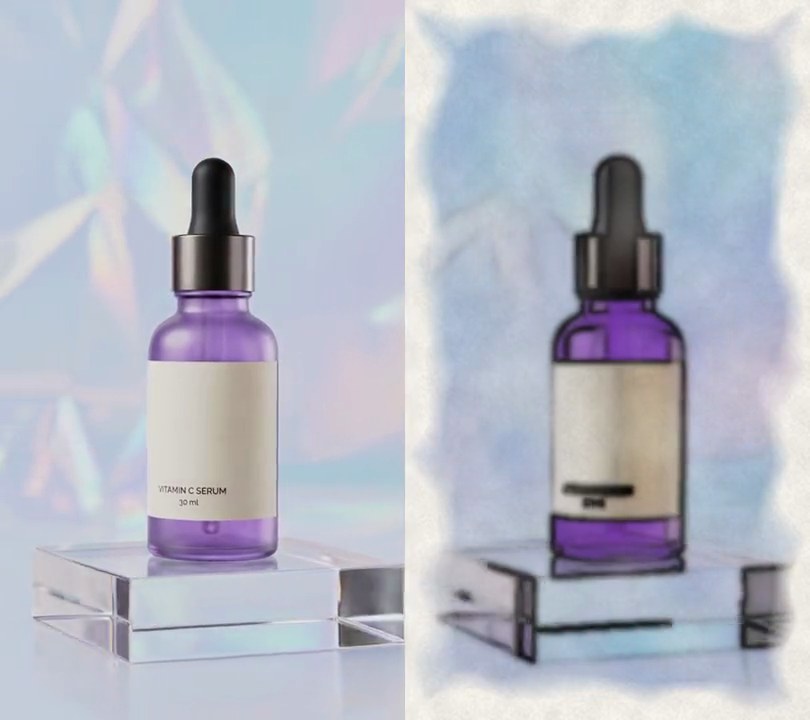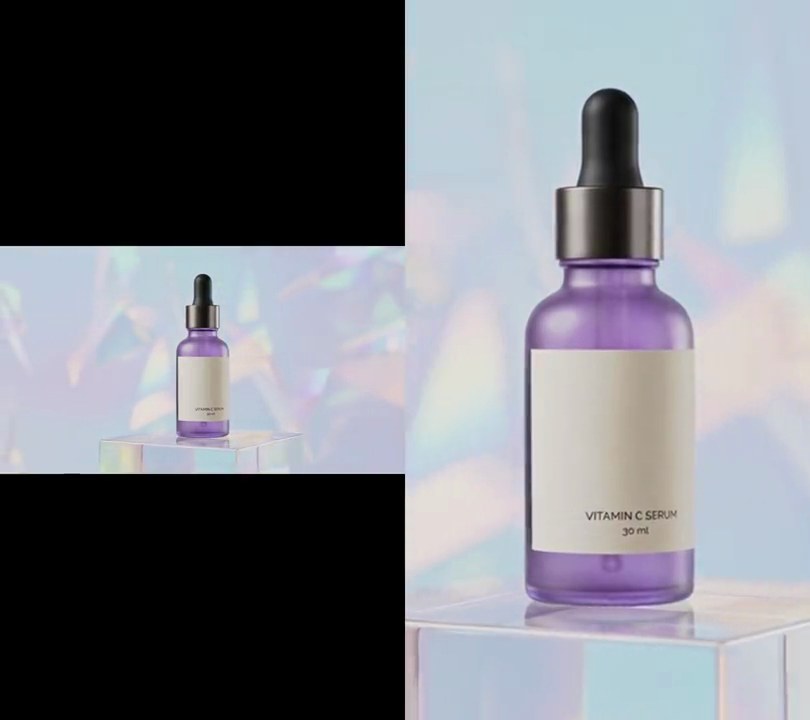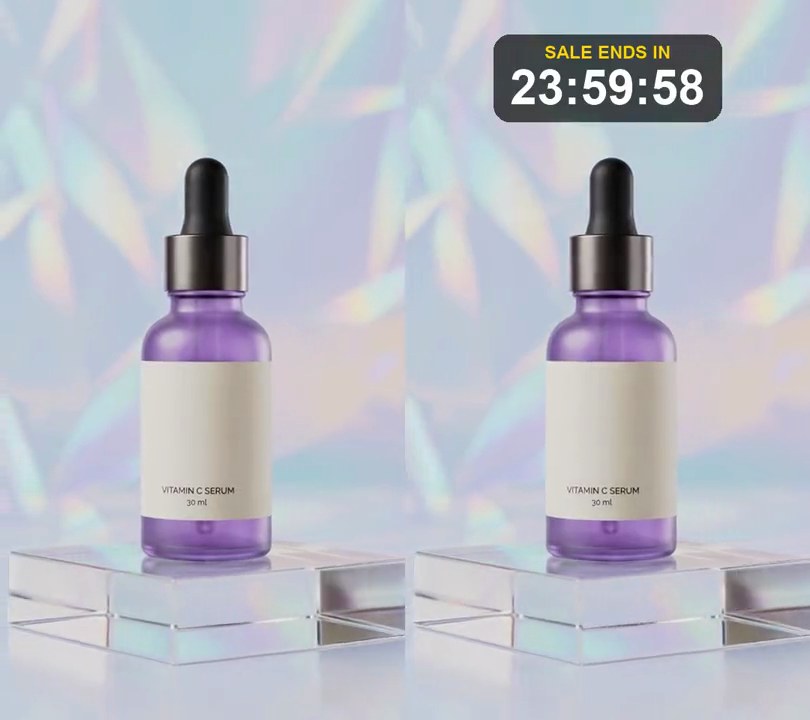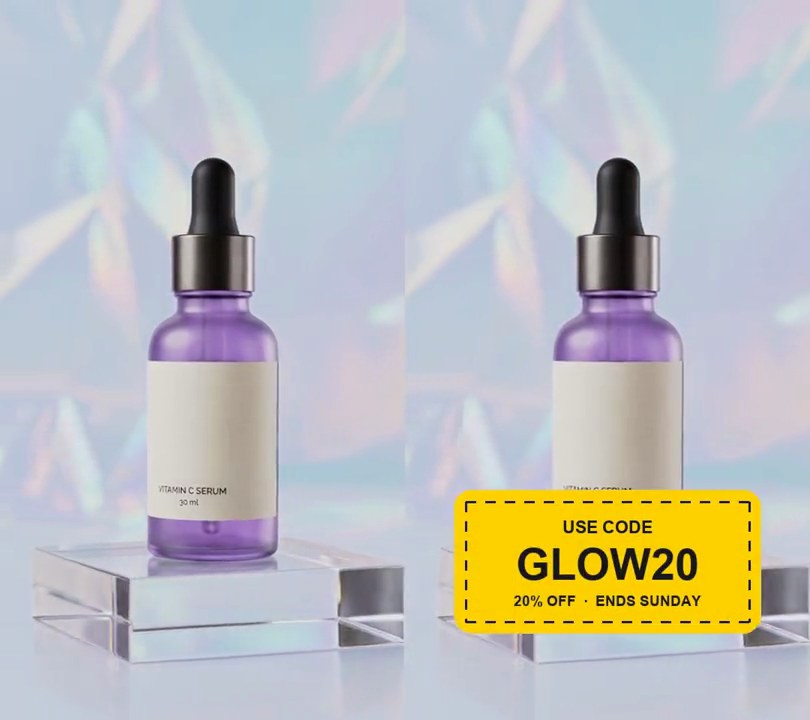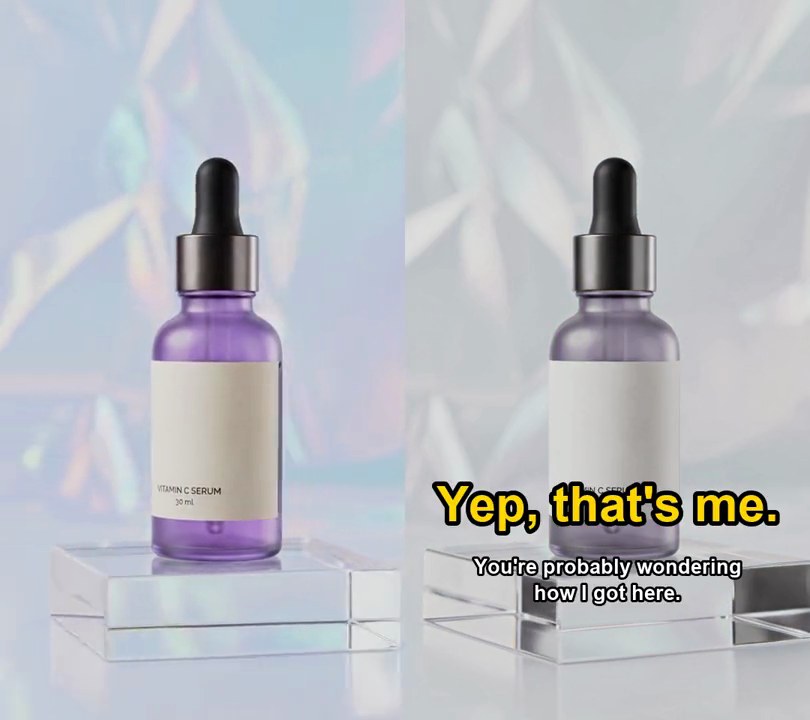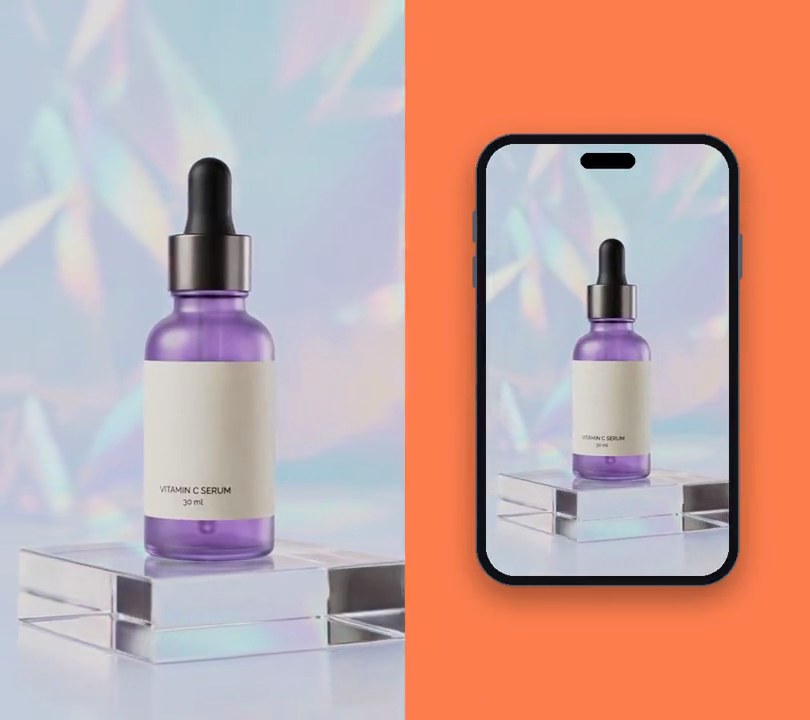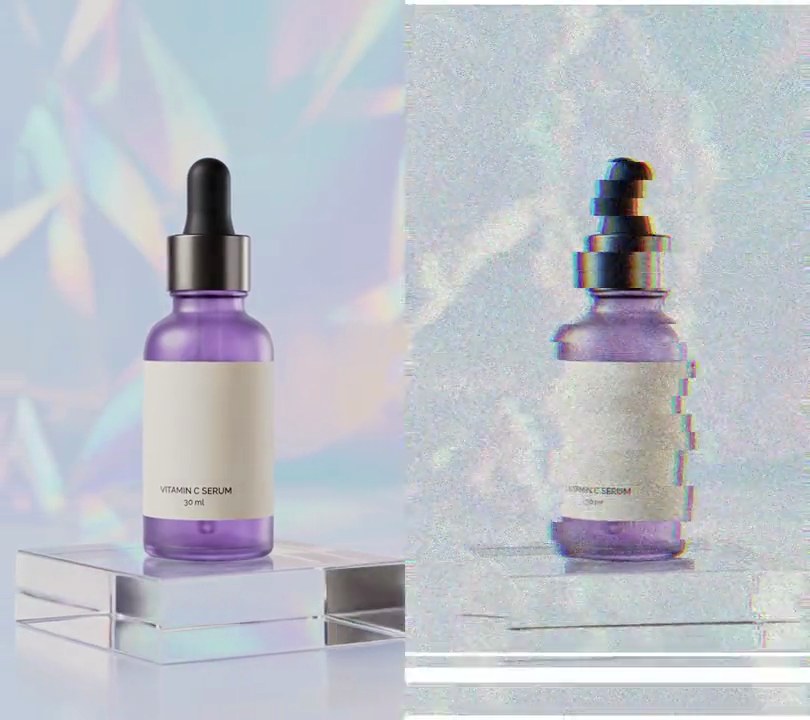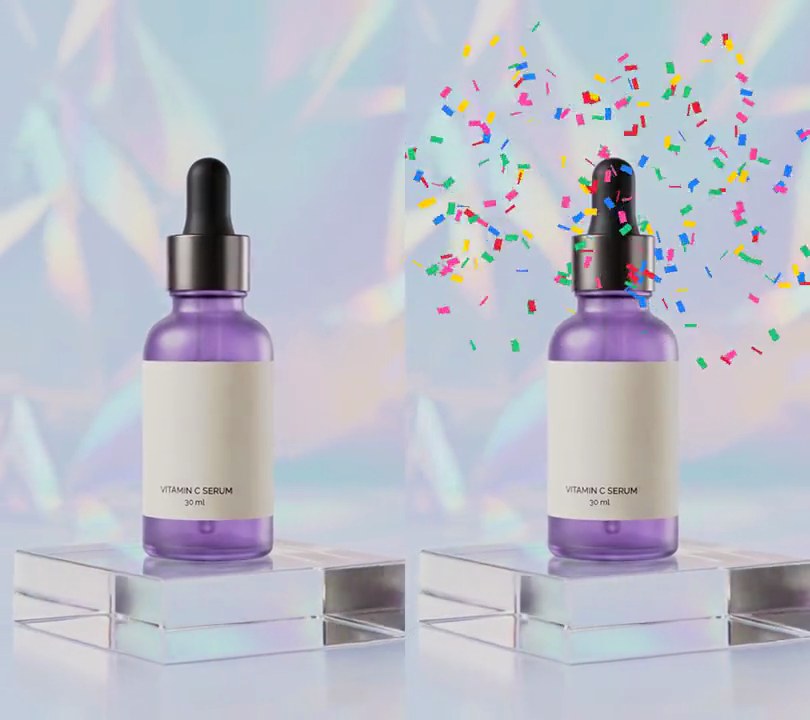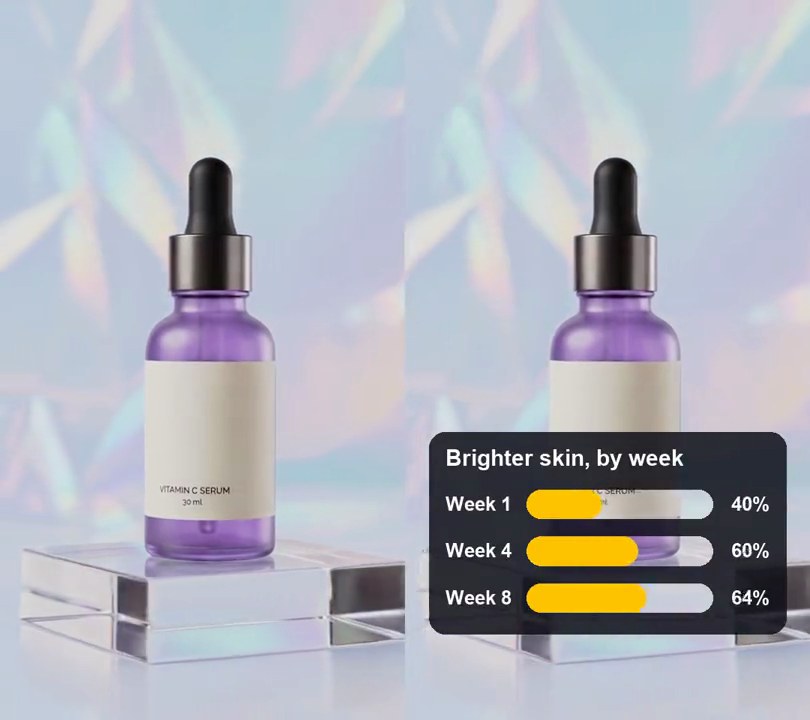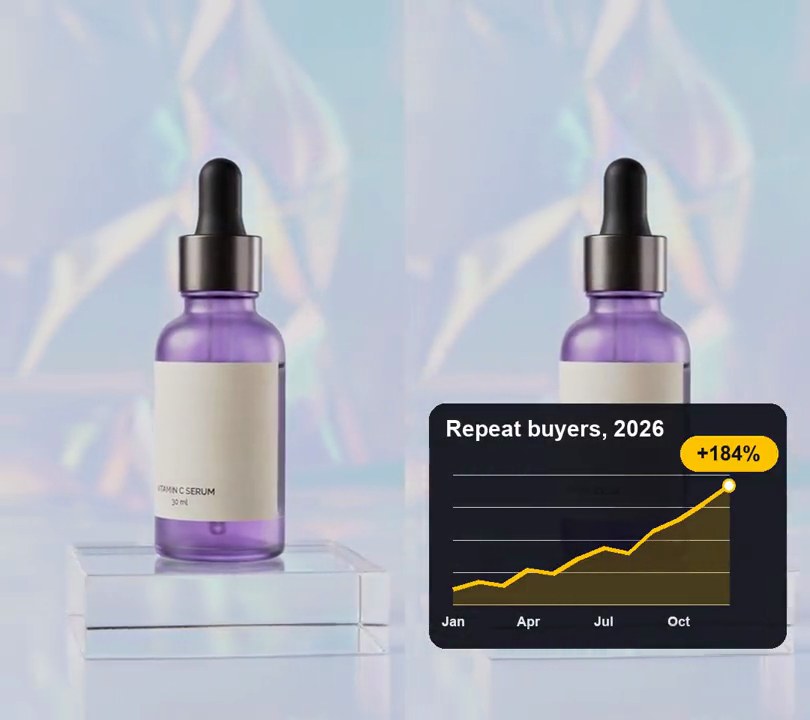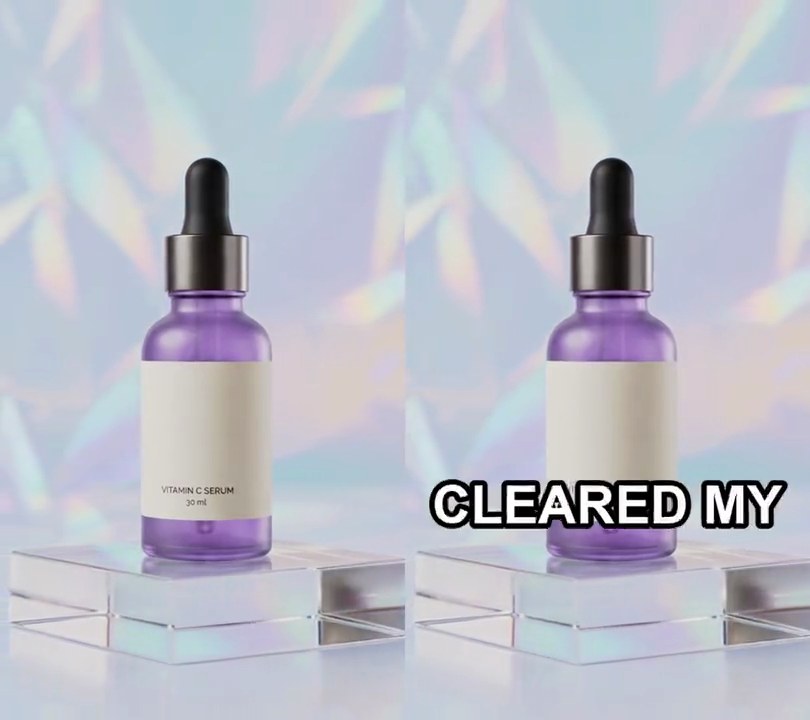
1. Testimonial montage
Three customer clips cut past every two seconds, and at each cut a fresh white name tag with the person's initial, five gold stars and "Verified buyer" rises into the bottom left.
Show the prompt
Make a testimonial montage from clip1.mp4, clip2.mp4 and clip3.mp4: play clip1 from 0 to 2s, then clip2 from its own 2s to 4s, then clip3 from its own 4s to 6s, each with its own audio, as hard cuts. Fit every clip to clip1's size (540x960) by scaling it to fill and cropping the center, at 30fps, so the output is 6 seconds. Each clip gets its own name tag: "Maya R.", "Jordan K." and "Priya S." in that order. A tag is a white pill (fully rounded ends) with a soft black drop shadow, its top-left corner 6% across and 78% down the frame, padding 3.2% of the frame width. Inside, on the left, a dark purple (60, 40, 110) circle as tall as the two text lines with the name's first letter in white bold; to its right the name in bold near-black (25, 25, 30) text 6.2% of the frame width tall, and under it five gold (255, 185, 0) five-pointed stars, each 4% of the frame width across, followed by "Verified buyer" in grey (130, 130, 140) bold text 3.8% of the frame width tall. Nothing shows for the first 0.15 seconds of each clip; then that clip's tag fades in while rising 4% of the frame height into place over 0.3 seconds with a cubic ease-out, and stays until the next cut, where it disappears with the clip. Use Python with Pillow to draw the tags and ffmpeg to cut the clips and put the tags on (don't rely on ffmpeg's drawtext filter), keep each clip's audio, and save it as output.mp4.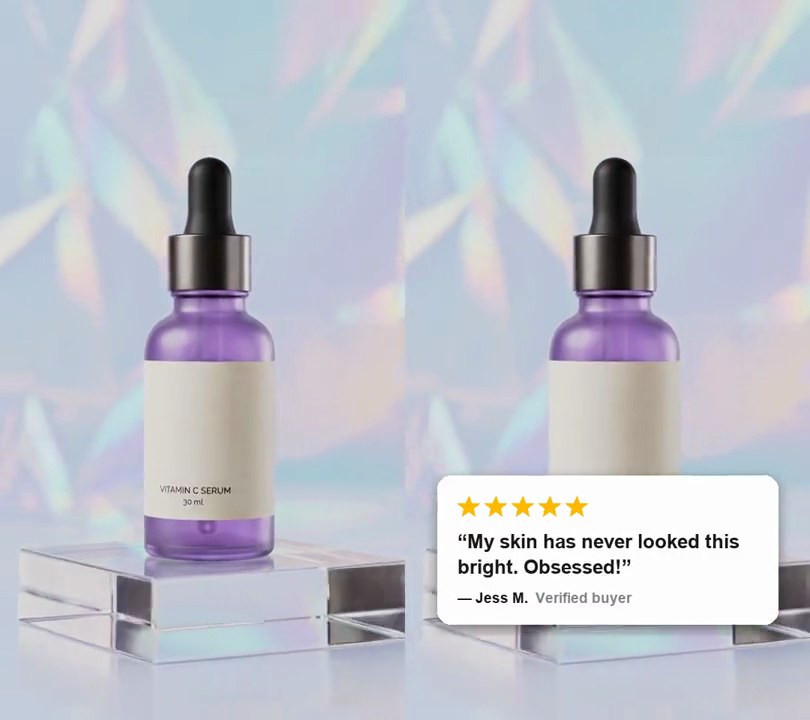
2. Review card overlay
A white review card with five gold stars, a short customer quote and the reviewer's name slides in from the left and settles across the lower third.
Show the prompt
Add a customer review card to input.mp4. Draw a white rounded rectangle 84% of the frame width (corner radius 3.4% of the width) with a soft black drop shadow, centered across, its top edge 66% down the frame. Inside, with a padding of 5% of the frame width: a row of five gold (255, 185, 0) five-pointed stars, each 5.6% of the frame width across; below them the quote “My skin has never looked this bright. Obsessed!” in bold near-black (25, 25, 30) text 4.8% of the frame width tall, wrapped to the card; below that “— Jess M.” in bold near-black and “Verified buyer” in grey (130, 130, 140), both 3.6% of the frame width tall. Nothing shows before 0.6 seconds; then the card slides in from fully off the left edge to its centered spot over 0.45 seconds with an ease-out (cubic), and stays to the end. Use Python with Pillow to draw it and ffmpeg to put it on the video (don't rely on ffmpeg's drawtext filter), keep the audio, and save it as output.mp4.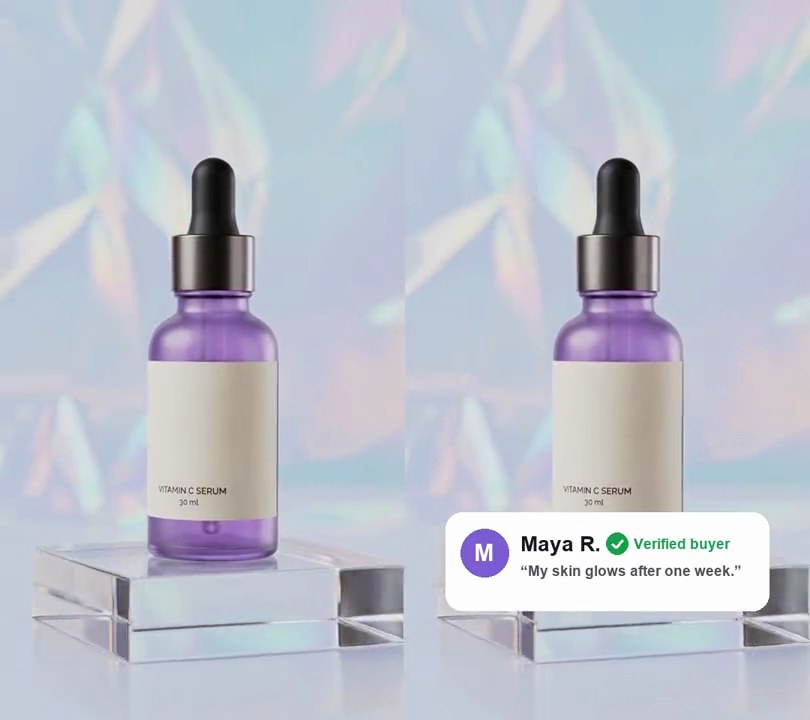
3. Verified badge
A white review card from Maya R. fades in under the bottle, then a green tick badge pops in right after her name and "Verified buyer" fades in beside it.
Show the prompt
Add a verified-buyer review card to input.mp4 (540x960). The card is white, 432x132 pixels with 22-pixel rounded corners, centered across with its center 78% down the frame. On it: a purple (124, 92, 210) circle avatar 64 pixels across, 20 pixels in from the card's left edge, with a white bold "M"; the name "Maya R." in 28-pixel bold dark gray (25, 25, 35) starting 100 pixels in, 42 pixels from the card's top; and under it, 78 pixels from the top, the quote “My skin glows after one week.” in 19-pixel bold gray (80, 80, 95). The card fades in from 0.3 to 0.6 seconds. At 1.2 seconds a green (22, 163, 74) circle 30 pixels across with a white tick pops in centered 22 pixels after the end of the name, on the name's line, scaling up over 0.3 seconds with a slight overshoot; the words "Verified buyer" in 19-pixel bold of the same green fade in just right of it from 1.35 to 1.6 seconds. Everything then stays to the end. Use Python with Pillow to draw it and ffmpeg to put it on the video (don't use ffmpeg's drawtext filter), keep the audio, and save it as output.mp4.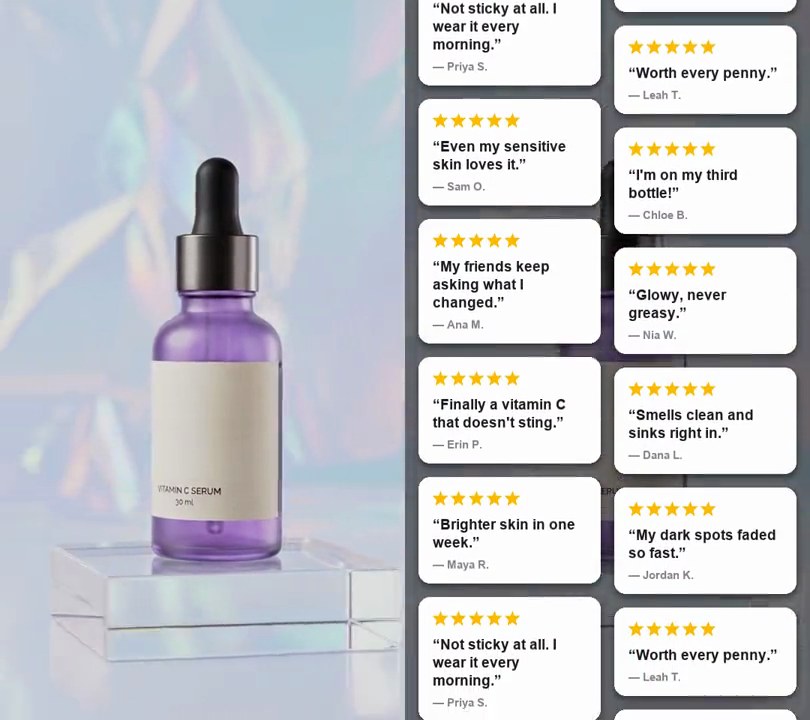
4. Review wall
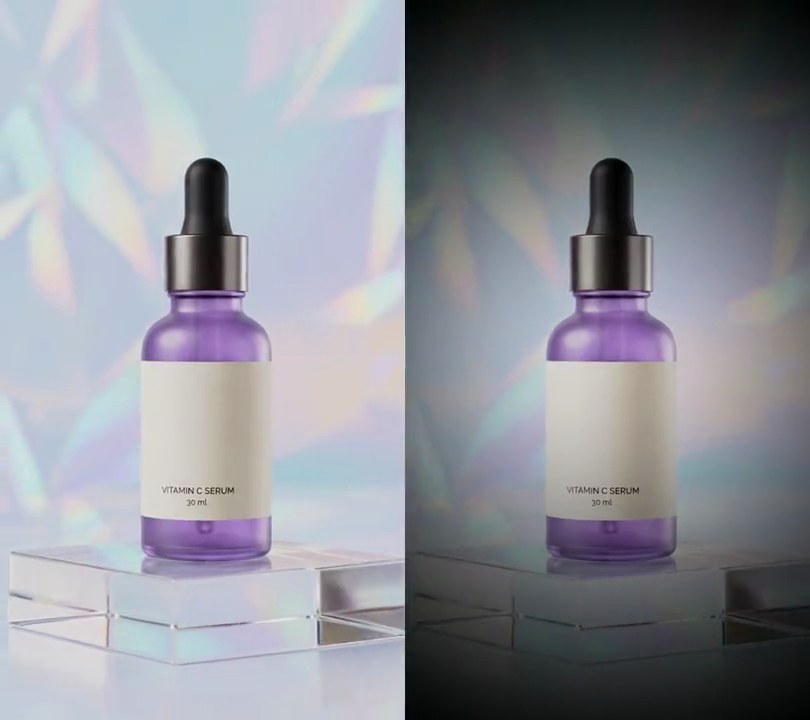
Two staggered columns of white five-star review cards rise from the bottom over the darkened video and keep scrolling up the screen, one customer quote after another.
Show the prompt
Add a scrolling wall of customer reviews to input.mp4. Use these ten reviews, dealt alternately into a left and a right column (first to the left, second to the right, and so on), each column repeating its five reviews as often as it needs to stay full to the end: “Brighter skin in one week.” Maya R.; “My dark spots faded so fast.” Jordan K.; “Not sticky at all. I wear it every morning.” Priya S.; “Worth every penny.” Leah T.; “Even my sensitive skin loves it.” Sam O.; “I'm on my third bottle!” Chloe B.; “My friends keep asking what I changed.” Ana M.; “Glowy, never greasy.” Nia W.; “Finally a vitamin C that doesn't sting.” Erin P.; “Smells clean and sinks right in.” Dana L. Each card is a white rounded rectangle (corner radius 6% of the card width) with a soft black drop shadow; on a 540x960 video the cards are 243 pixels wide with an 18 pixel gap around and between the columns (gaps 3.3% of the frame width). Inside, with padding 8% of the card width: a row of five gold (255, 185, 0) five-pointed stars, each 8% of the card width across; the quote in curly quotes in bold near-black (25, 25, 30) text 8% of the card width tall, wrapped to the card; and “— Name” in bold grey (130, 130, 140) text 6% of the card width tall. Cards in a column are stacked with the same 18 pixel gap, and the right column sits 9% of the frame height lower than the left. Nothing shows before 0.5 seconds. From 0.5 seconds the wall rises from fully below the frame until its top is 18 pixels from the top edge, over 0.6 seconds with a cubic ease-out, while also scrolling up steadily at 12% of the frame height per second until the end, so the cards never stop moving. As the wall rises, darken the video behind it with black at 50% opacity, fading in over the same 0.6 seconds. Use Python with Pillow to draw it and ffmpeg to put it on the video (don't rely on ffmpeg's drawtext filter), keep the audio, and save it as output.mp4.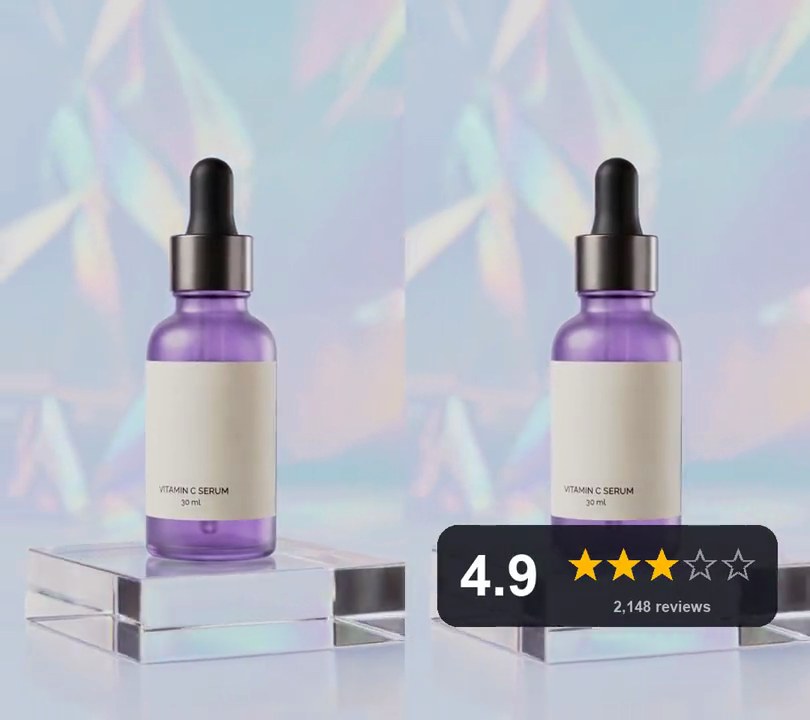
5. Star rating animation
A dark card pops up near the bottom of the frame reading "4.9" beside five empty star outlines, which fill gold one at a time from left to right.
Show the prompt
Add an animated star rating to input.mp4. At 0.5 seconds a dark rounded card pops up over 0.3 seconds with a slight overshoot: 84% of the frame width, 30% as tall as it is wide, centered across and 80% down, color (22, 22, 30) at 88% opacity, corner radius a fifth of its height. On its left, "4.9" in white bold type 56% of the card height tall; to its right, five star outlines in grey (150, 150, 160) spread evenly from 38% to 94% across the card at 40% of its height, each star 34% of the card height from point to point, with "2,148 reviews" in light grey (185, 185, 195) under them. Starting at 1.0 seconds, the stars fill solid gold (255, 185, 0) one by one, left to right, every 0.3 seconds; each starts 35% larger and settles to size over 0.2 seconds, and the fifth fills only its left 90% to match 4.9. The card then stays to the end. Use Python with Pillow to draw it and ffmpeg to put it on the video (don't rely on ffmpeg's drawtext filter), keep the audio, and save it as output.mp4.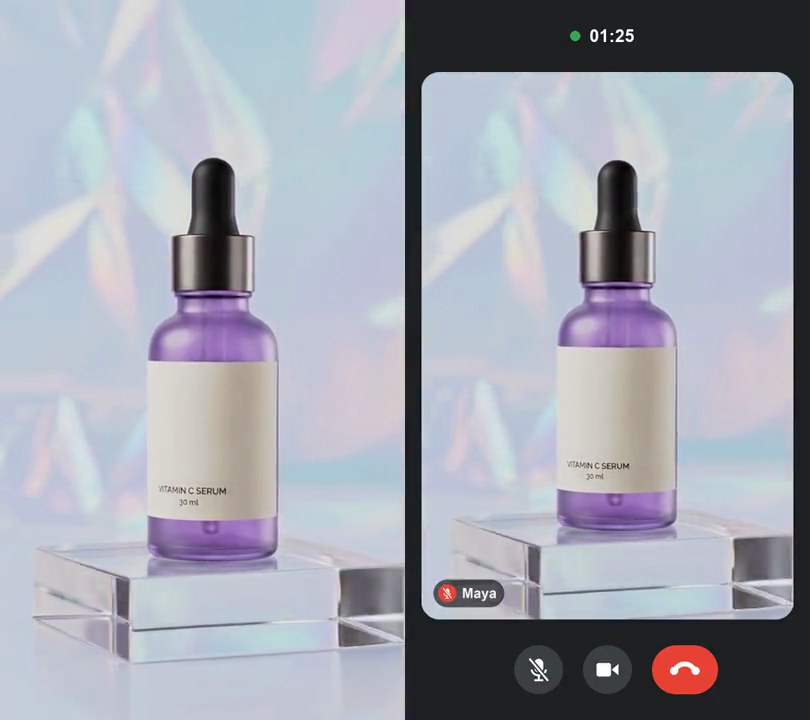
6. Video call frame
The clip plays as a rounded tile in a dark video-call screen, with a "Maya" name tag and red mute badge in its corner, a ticking call timer above and mic, camera and red hang-up buttons below.
Show the prompt
Make input.mp4 look like a live video call. Keep the 540x960 frame and fill it with a dark (32, 33, 36) app background. Put the video in a rounded tile from 4% to 96% across and 10% to 86% down (corner radius 4.5% of the frame width), scaled to cover the tile and cropped from the middle. In the tile's bottom-left corner, inset 3% of the frame width, add a name tag: a black pill at 60% opacity, 6.8% of the frame width tall, holding a red (234, 67, 53) circle with a white crossed-out microphone and the name "Maya" in white bold text 3.4% of the frame width tall. Centered above the tile at 5% down, show a call timer in white bold text 4.2% of the frame width tall with a small green (52, 168, 83) dot to its left, reading 01:23 at the start and counting up one second per second. Centered in the band below the tile (at 93% down), draw three controls centered at 33%, 50% and 69% across: a (60, 64, 67) circle 12% of the frame width across with a white crossed-out microphone, the same circle with a white camera icon, and a red (234, 67, 53) pill 16% of the frame width wide and 12% tall with a white hang-up handset. Show it all from the first frame to the end. Use Python with Pillow to draw everything (draw any text with Pillow, not ffmpeg's drawtext) and ffmpeg to read and write the video, keep the audio, and save it as output.mp4.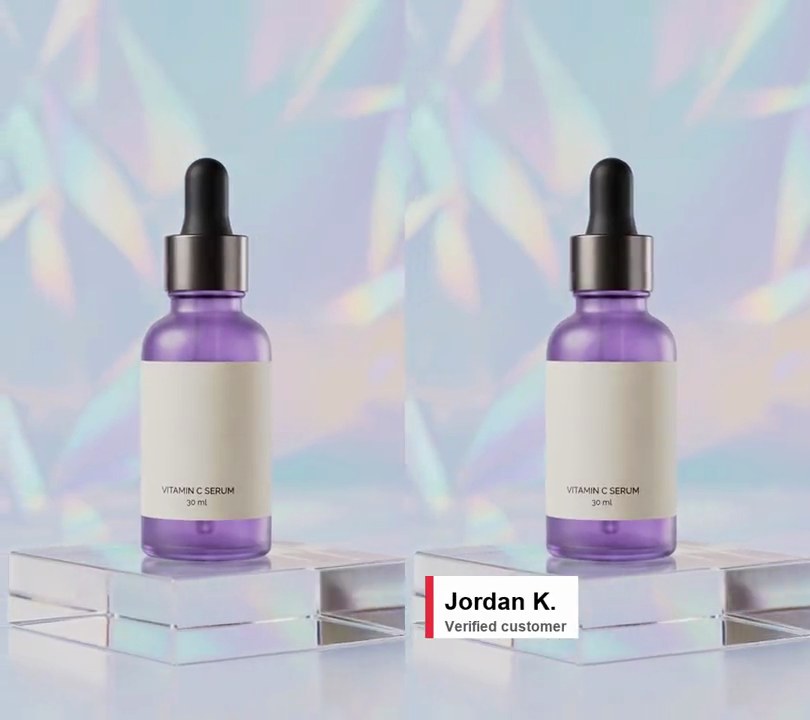
7. Lower third
A white name card with a red edge slides in from the left near the bottom and stays.
Show the prompt
Add a lower third to input.mp4: a white card with a red (230, 40, 60) strip on its left edge, showing "Jordan K." in black bold and "Verified customer" in grey under it, sliding in from off the left edge at 0.5 seconds over 0.4 seconds (fast then slowing), stopping 5% in from the left with its top 80% of the way down. Use Python with Pillow to draw it and ffmpeg to put it on the video (don't rely on ffmpeg's drawtext filter), keep the audio, and save it as output.mp4.
8. Highlighted word captions
Three words sit on screen at a time and the one being spoken turns yellow.
Show the prompt
Add captions to input.mp4 using the word timings in words.json. Show the words three at a time in capitals, centered 70% of the way down, white bold text with a black outline, and turn the word being spoken yellow (255, 212, 0). Each group stays up from its first word's start to its last word's end. Use Python with Pillow to draw it and ffmpeg to put it on the video (don't rely on ffmpeg's drawtext filter), keep the audio, and save it as output.mp4.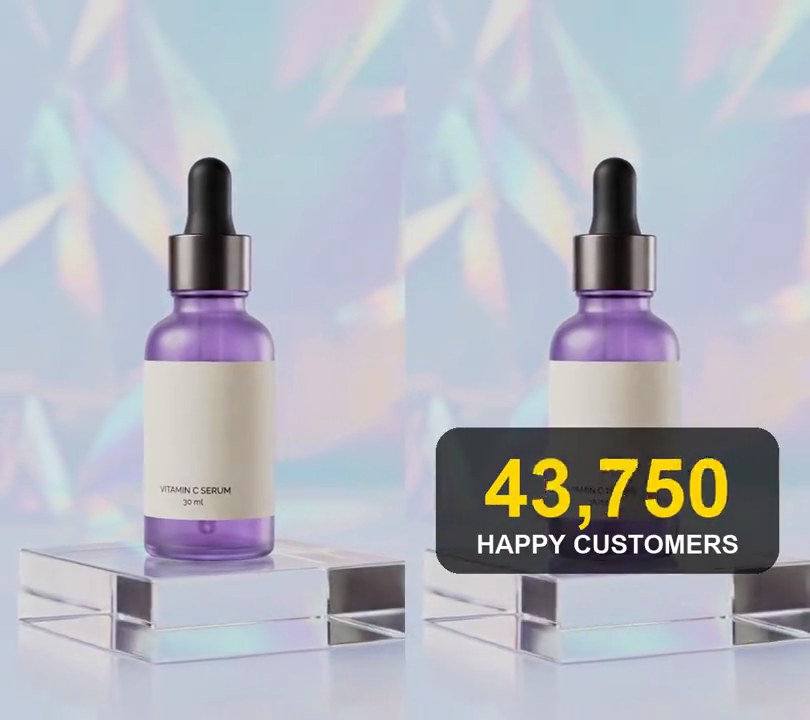
9. Number counter
A big yellow number races up from 0 and slows as it lands on "50,000+" above "happy customers".
Show the prompt
Add a number counter to input.mp4: from 0.5 seconds, a black box at 69% opacity with rounded corners, 85% of the frame width wide and centered across, with its center about 70% down the frame. In it, a yellow (255, 214, 0) bold number 20% of the frame width tall counts up from 0 to 50,000 with comma separators over 2 seconds, easing out (value = 50000 * (1 - (1 - p)^3), p going 0 to 1), and gains a "+" ("50,000+") once it lands at 2.5 seconds; under it "HAPPY CUSTOMERS" in white, 6.5% of the frame width tall. Nothing shows before 0.5 seconds, and the counter stays until the end. Use Python with Pillow to draw it and ffmpeg to put it on the video (don't rely on ffmpeg's drawtext filter), keep the audio, and save it as output.mp4.
10. Day counter
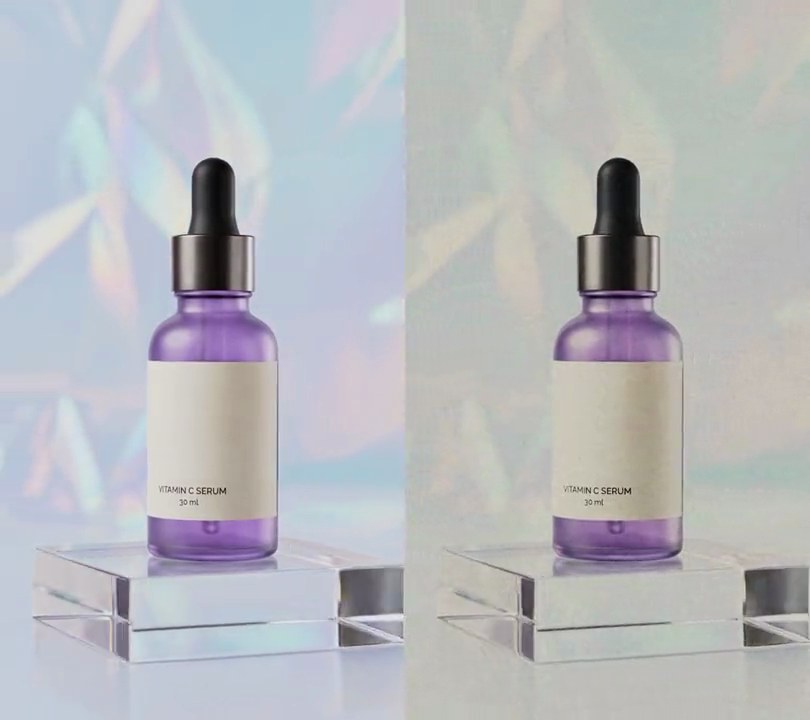
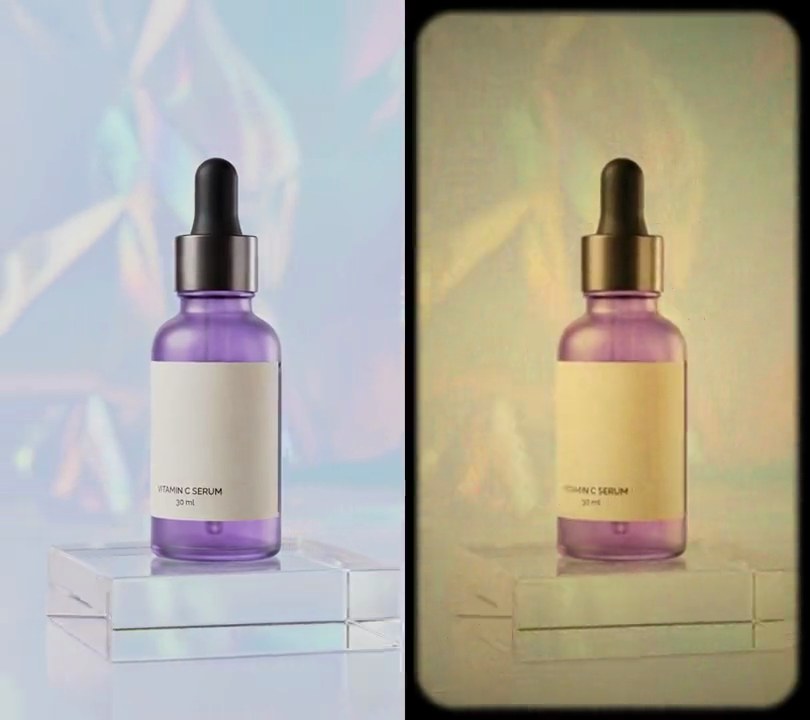
A dark card at the top counts "DAY 1", "DAY 7" and "DAY 30" while the clip turns from dull to vivid and a yellow timeline along the bottom fills to each day.
Show the prompt
Make a day-by-day results video from before.mp4 (the dull look) and after.mp4 (the vivid look), both 540x960. From 0 to 2 seconds show before.mp4, from 2 to 4 seconds a 50/50 mix of the two, and from 4 to 6 seconds after.mp4, keeping before.mp4's audio. Each stage gets a label centered horizontally at 12% down the frame: a dark rounded card (RGB 20, 20, 24 at 80% opacity) reading "DAY" in white bold at 7.5% of the frame width tall, followed by the number in yellow (255, 205, 0) bold at 13% of the width: "DAY 1" at 0 seconds, "DAY 7" at 2 seconds and "DAY 30" at 4 seconds. Each label pops in over 0.3 seconds with a slight overshoot and replaces the one before. Along the bottom, at 88% down, draw a timeline from 15% to 85% across on its own dark rounded card: a thin translucent white line with three dots (at 15%, 50% and 85% across) captioned "DAY 1", "DAY 7" and "DAY 30" underneath. The line turns yellow (255, 205, 0) up to the current day's dot, filling over 0.4 seconds as each new day starts, reached dots are yellow and the current one has a yellow ring around it. Draw the labels and timeline with Python and Pillow (don't use ffmpeg's drawtext filter), composite them with ffmpeg, keep the audio and save it as output.mp4 (6 seconds, 30fps).