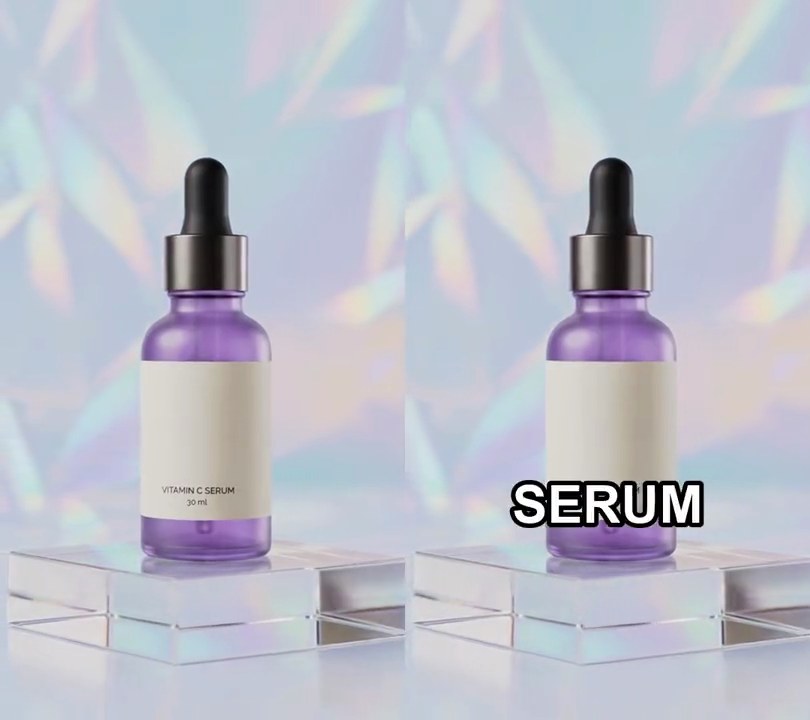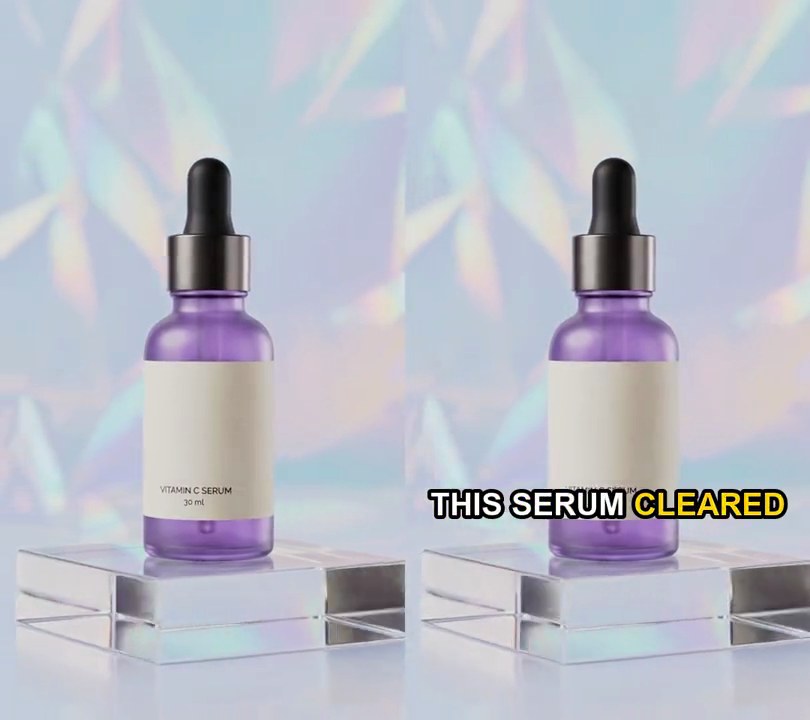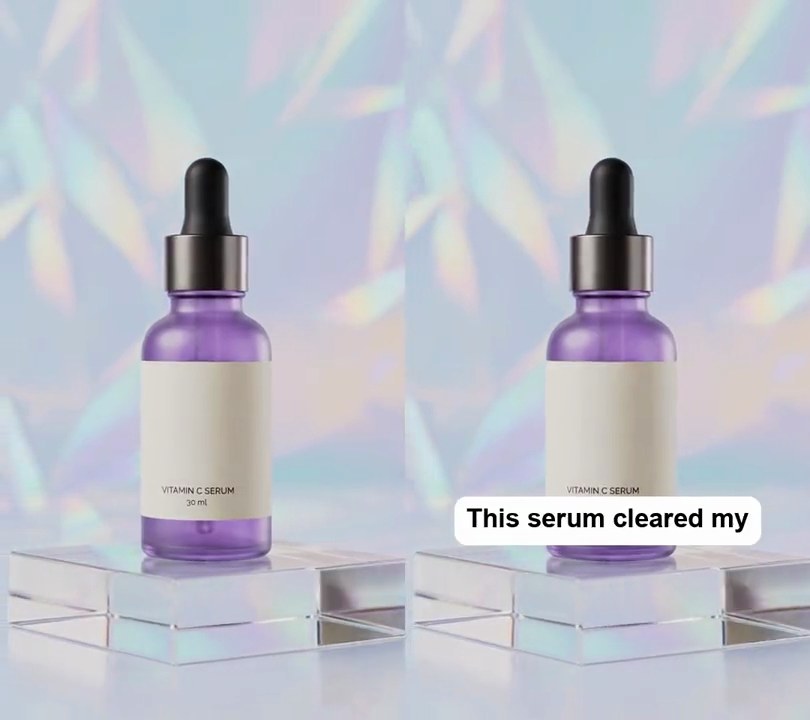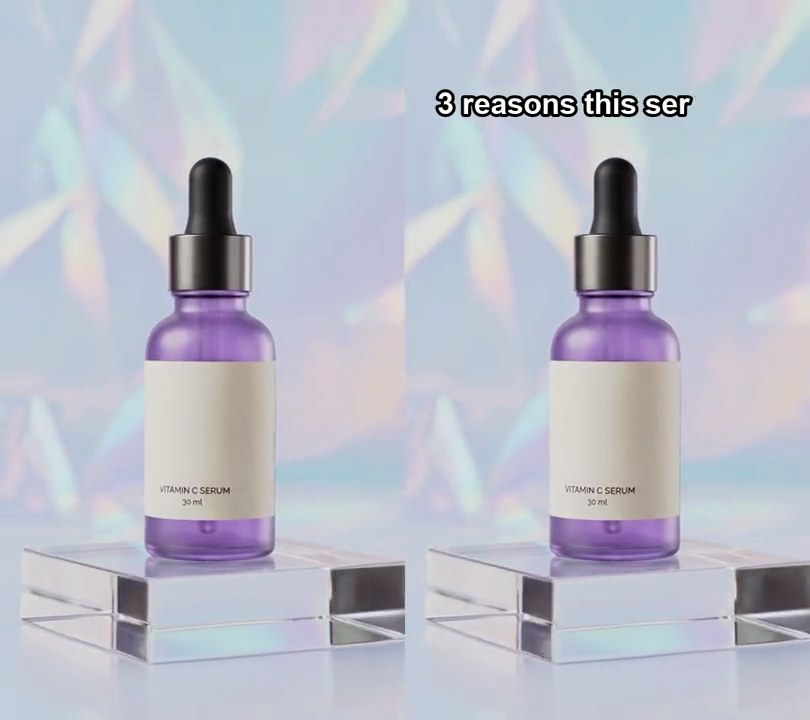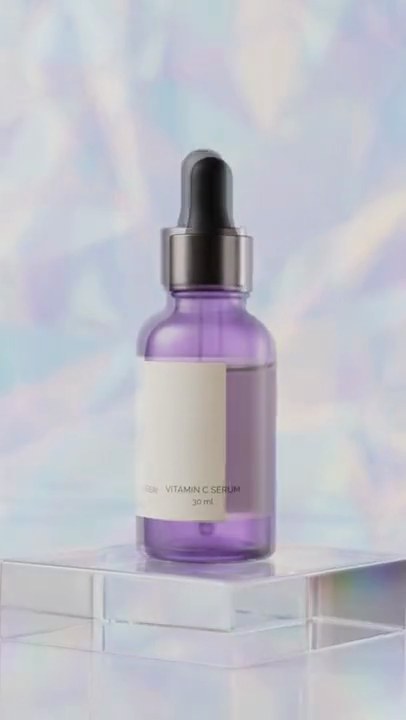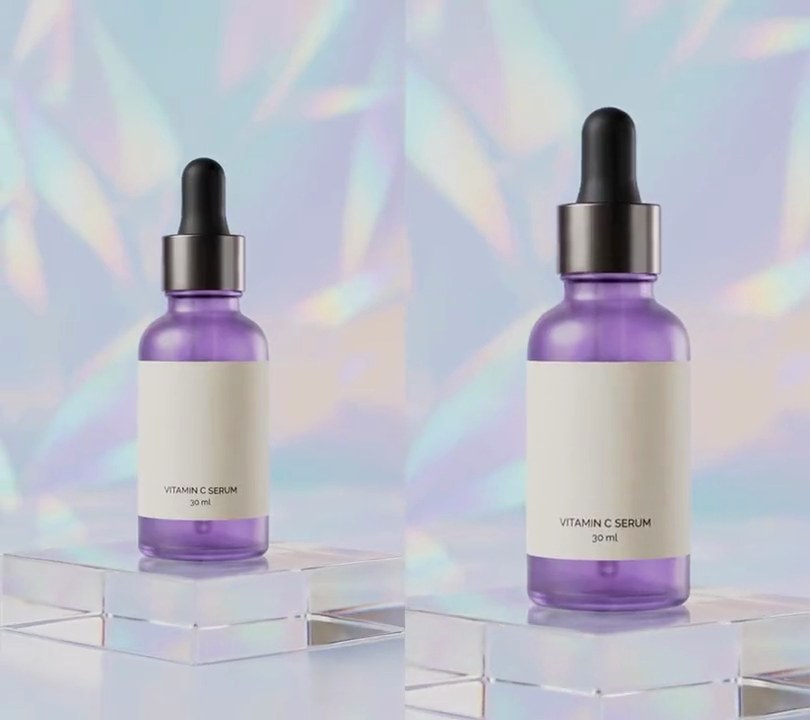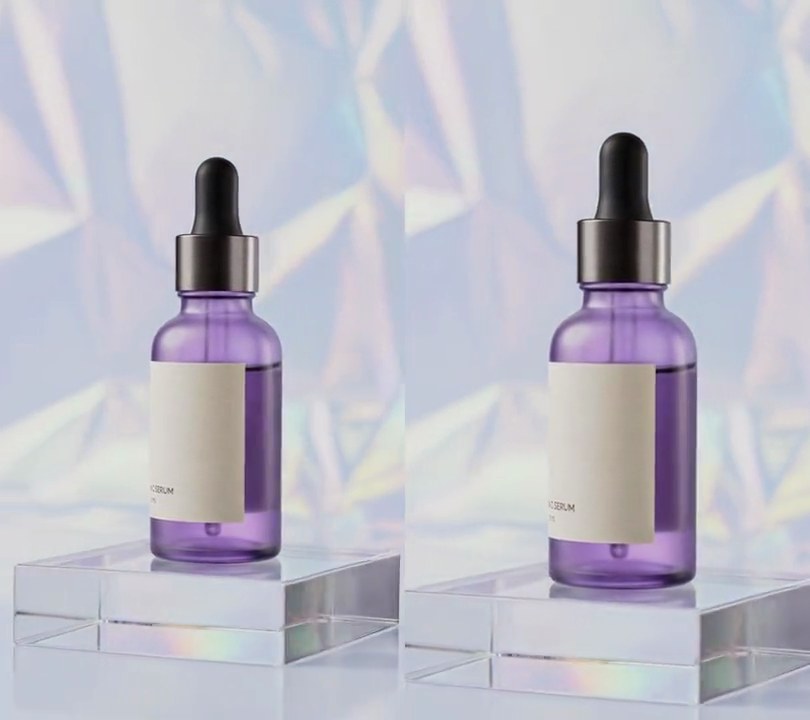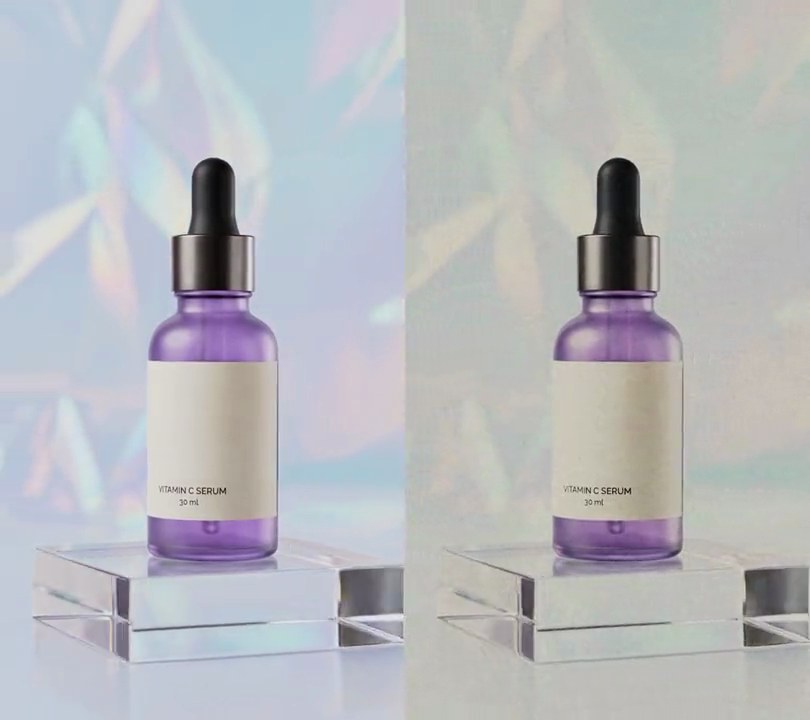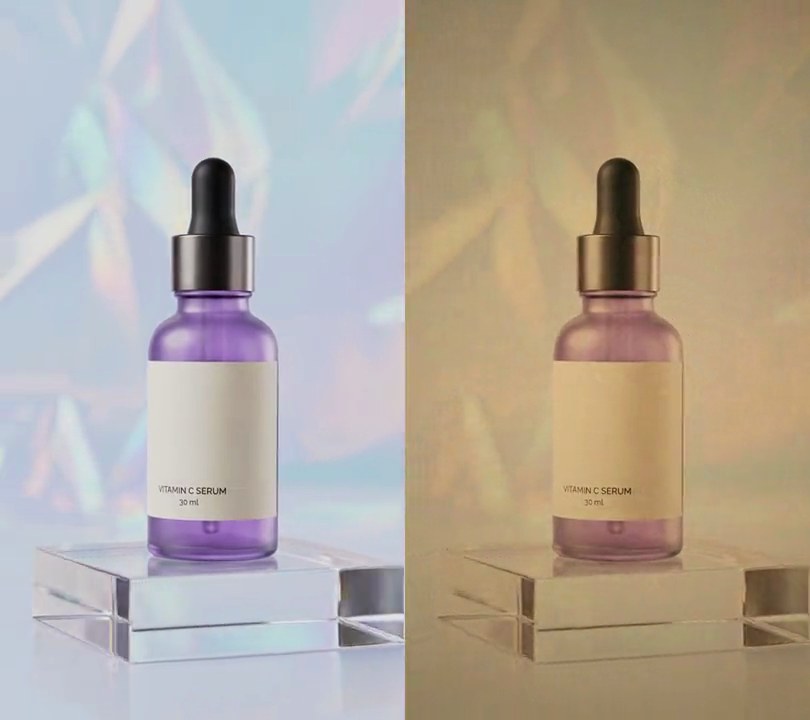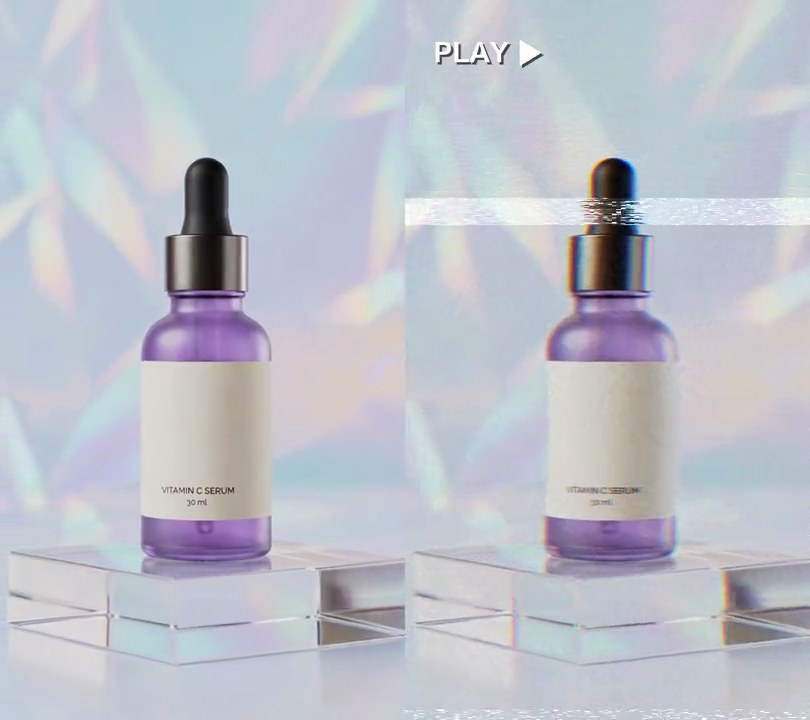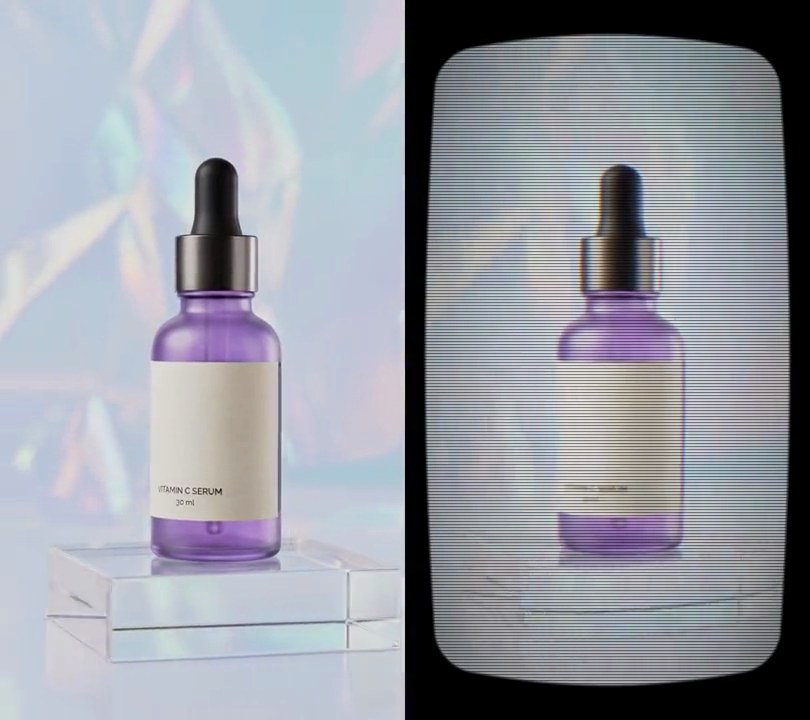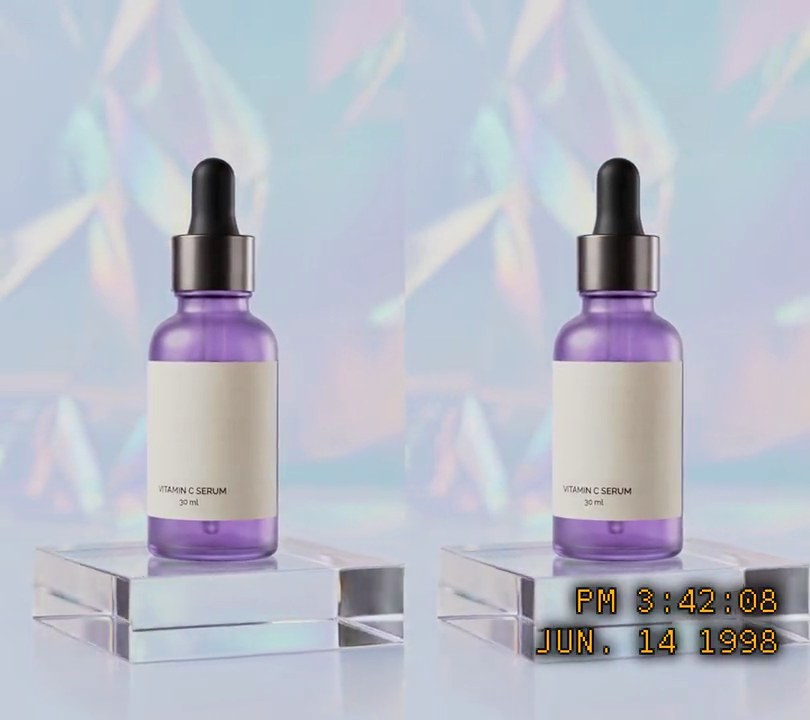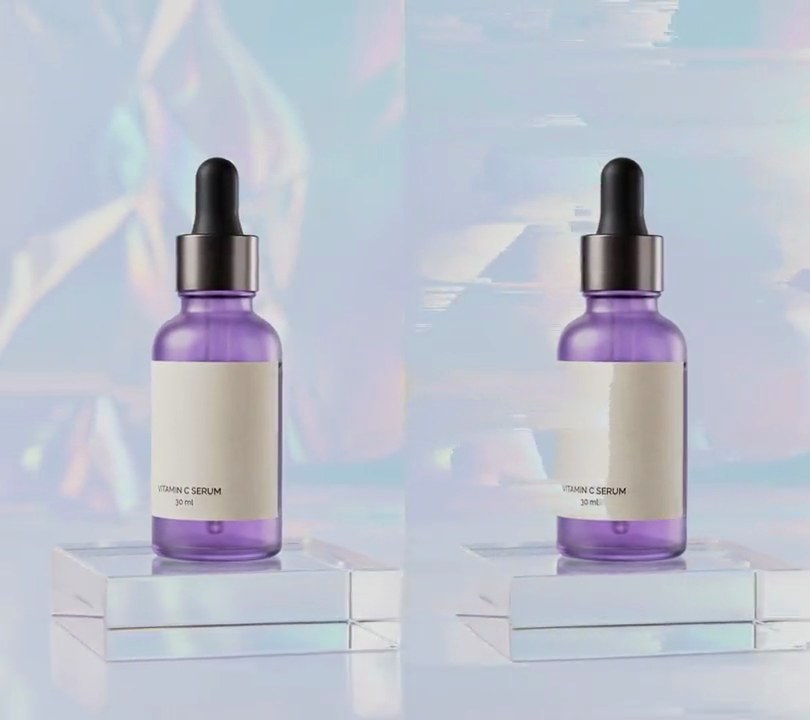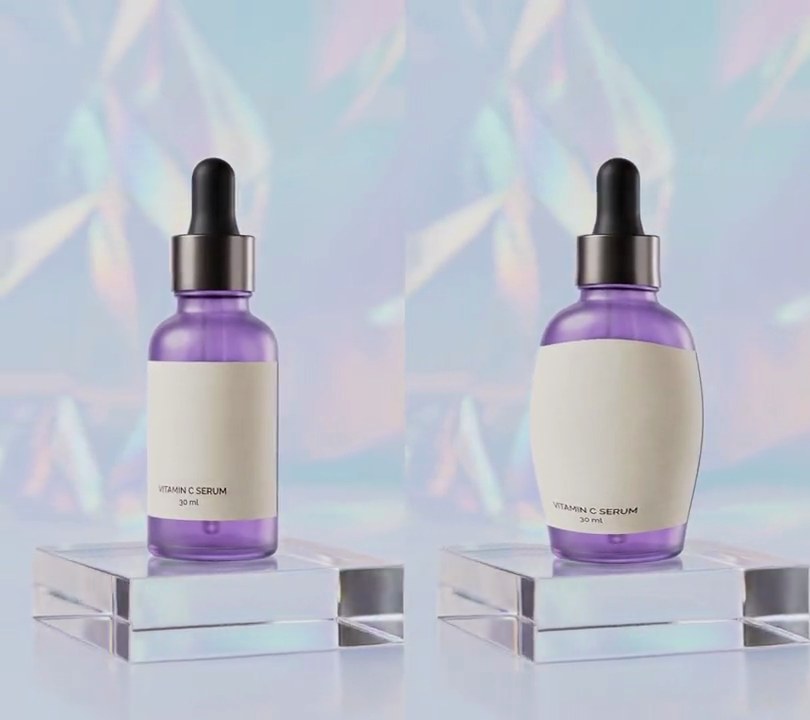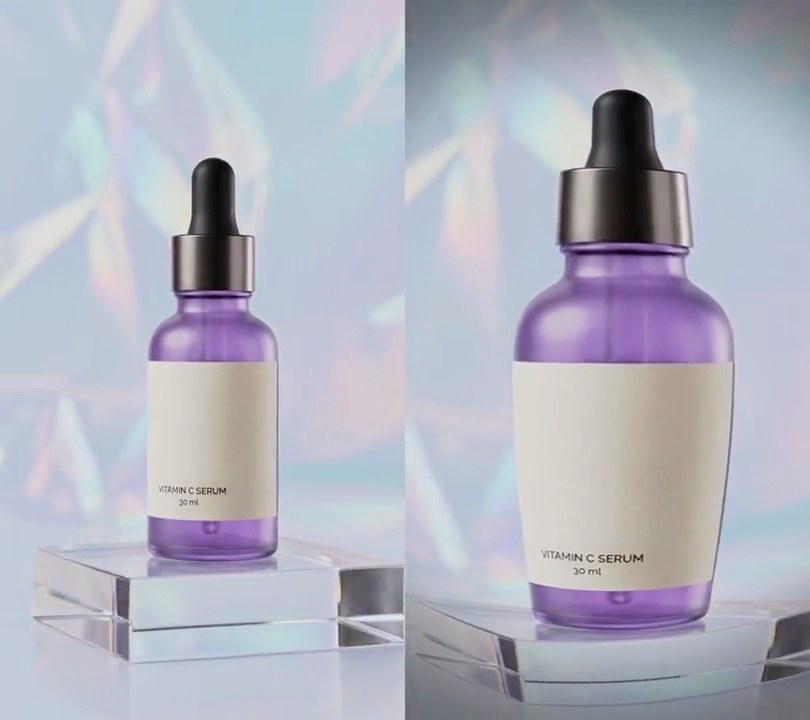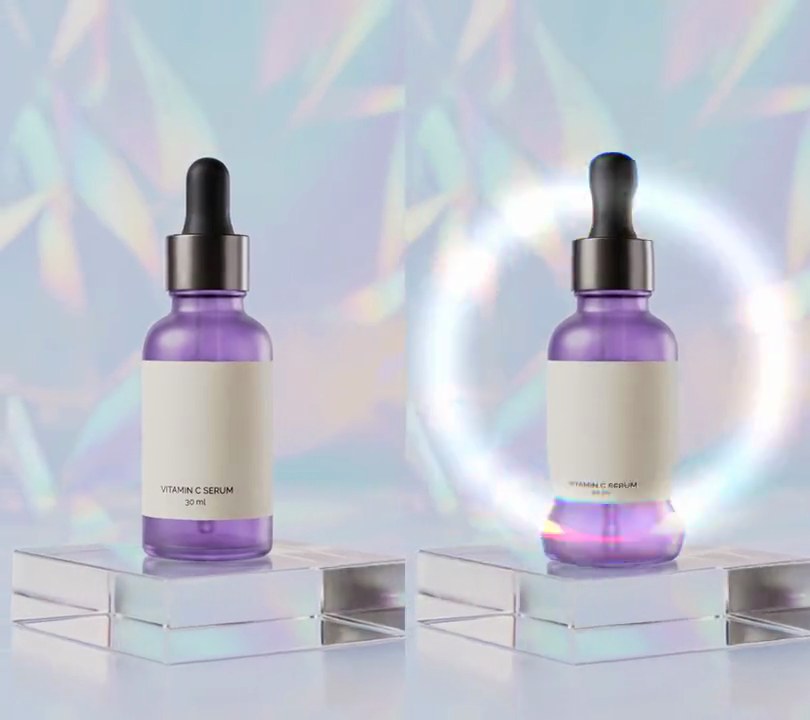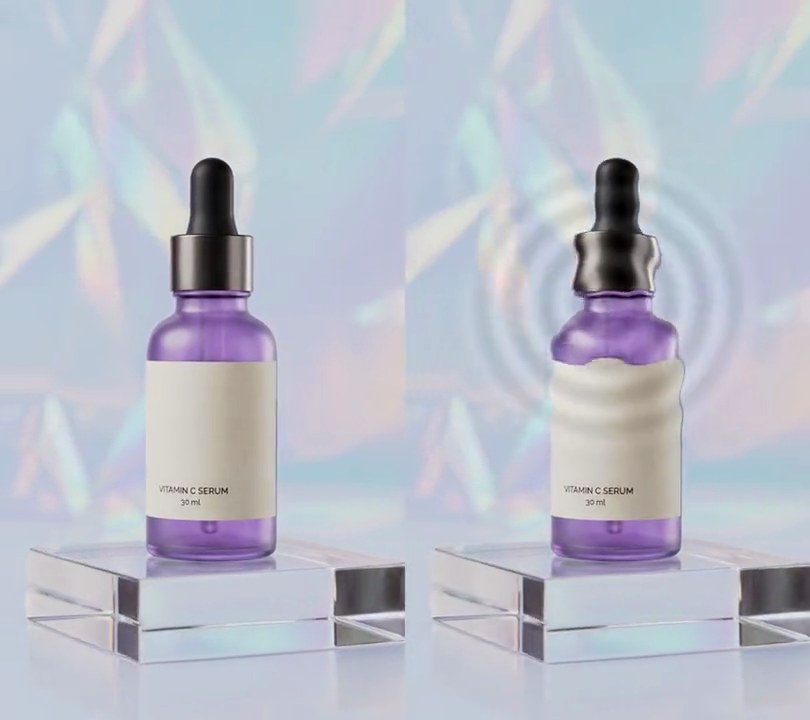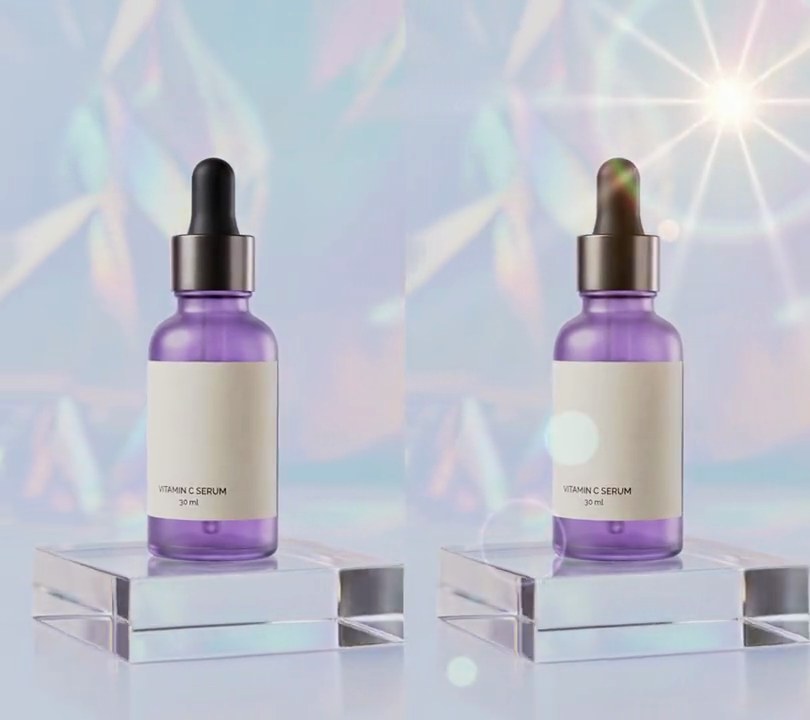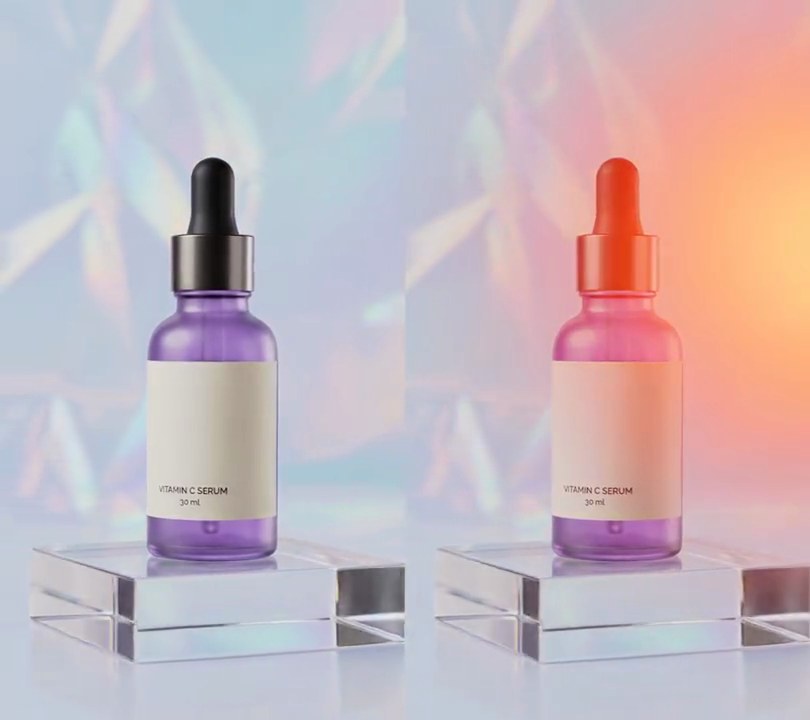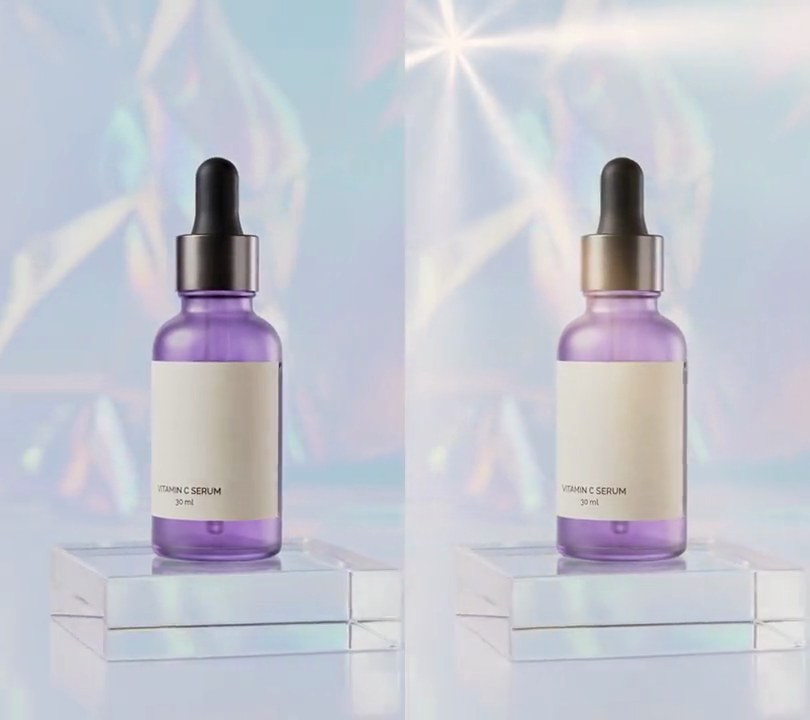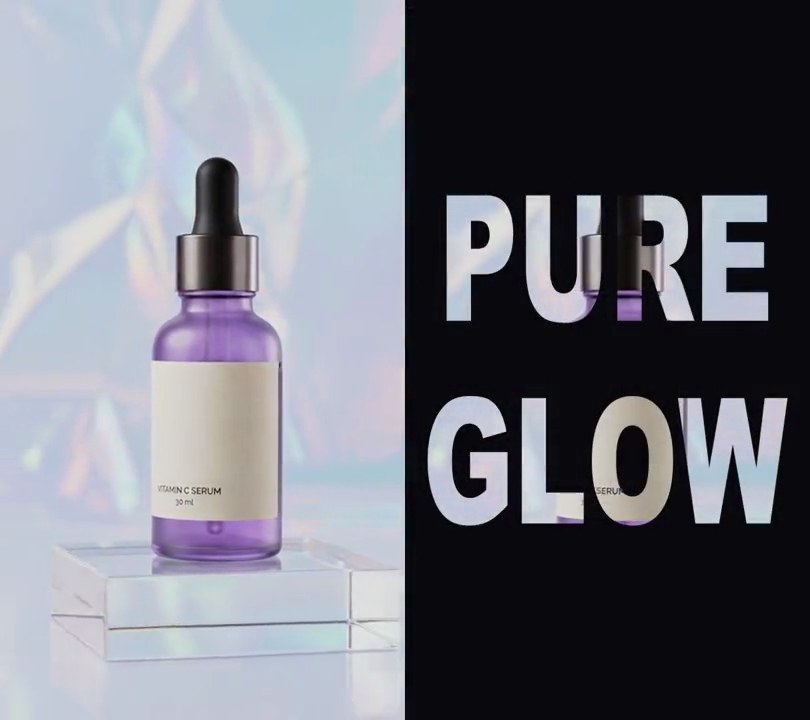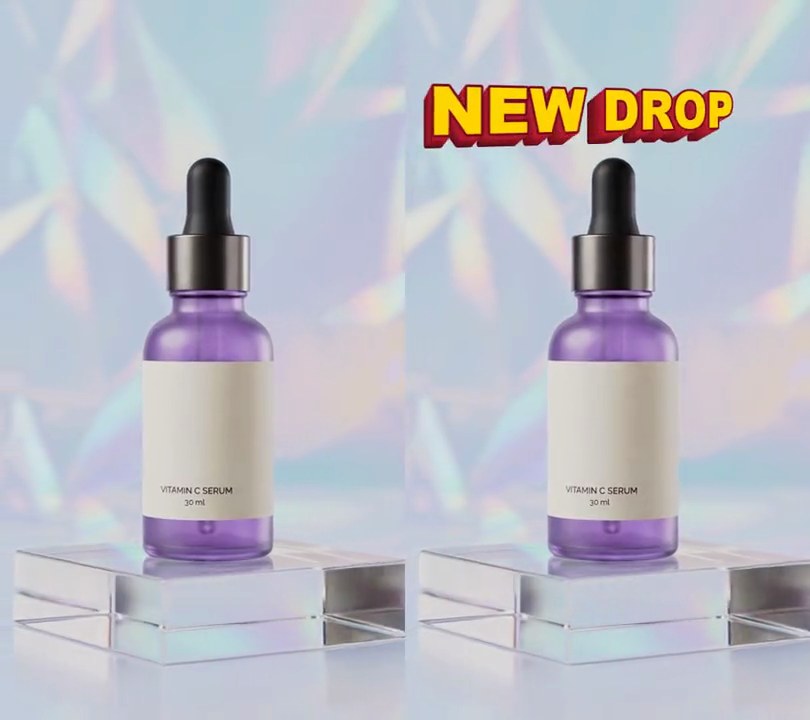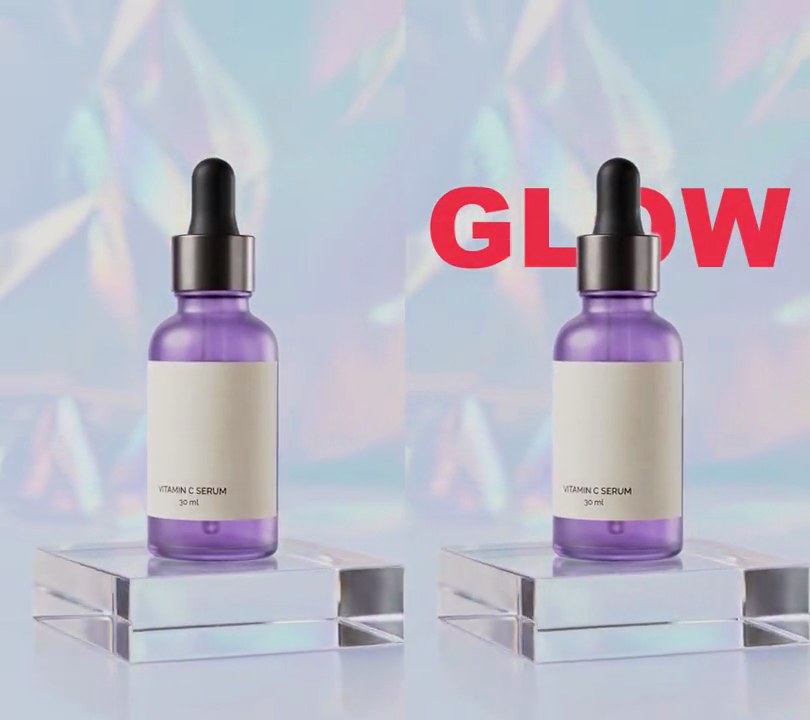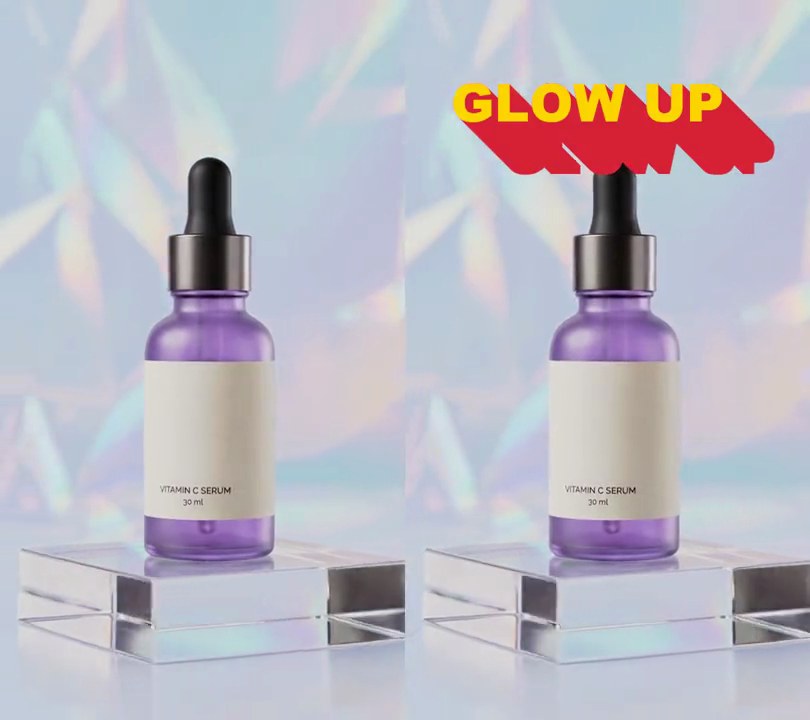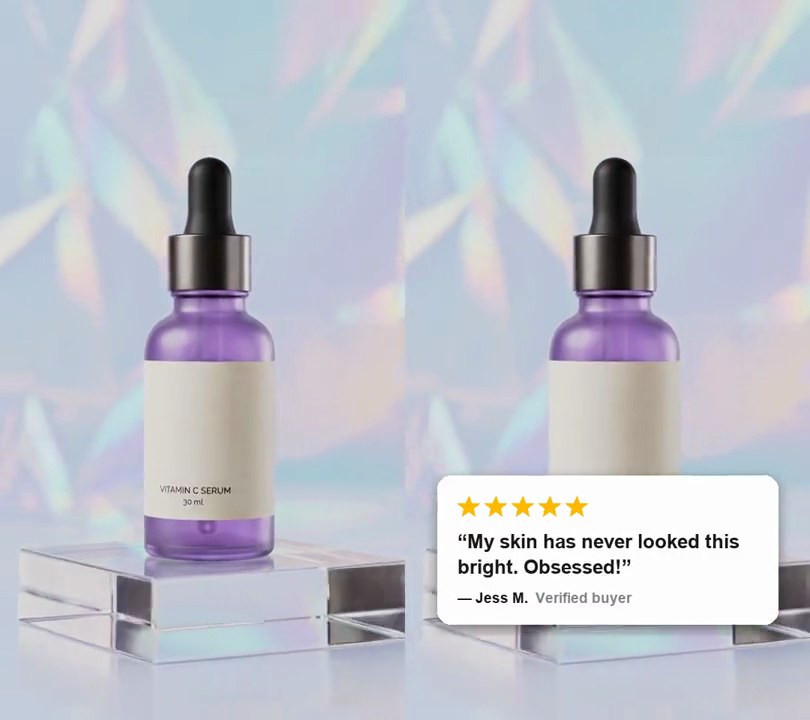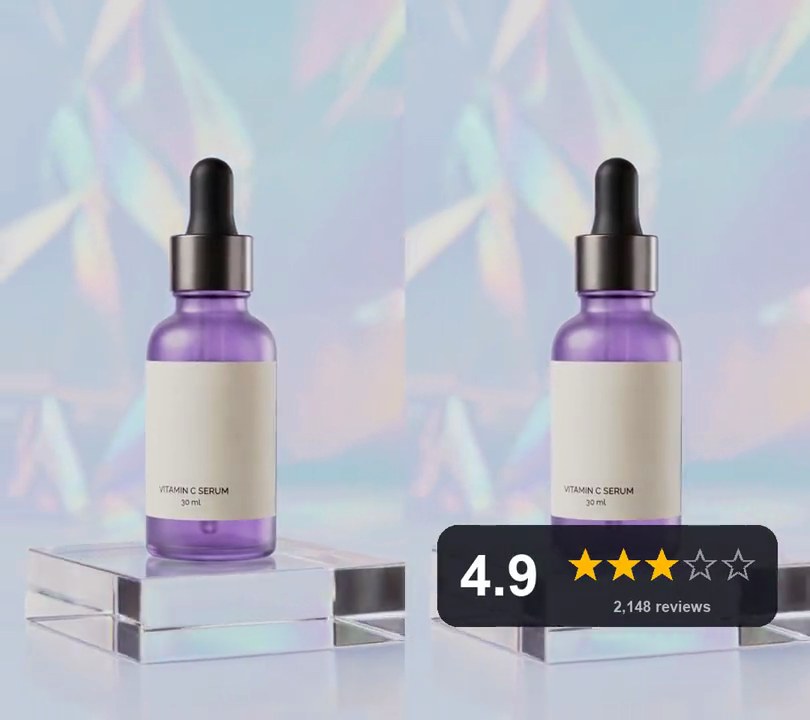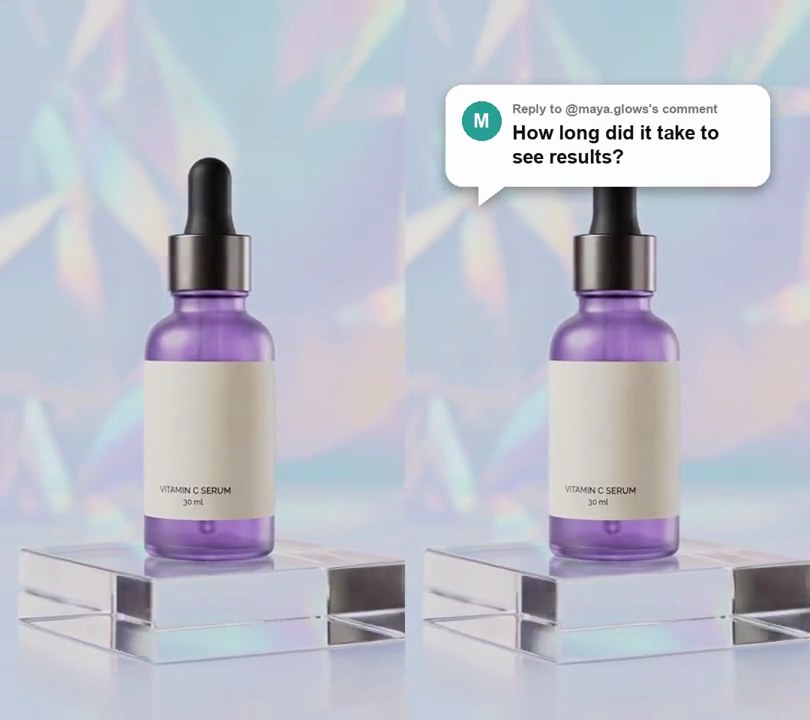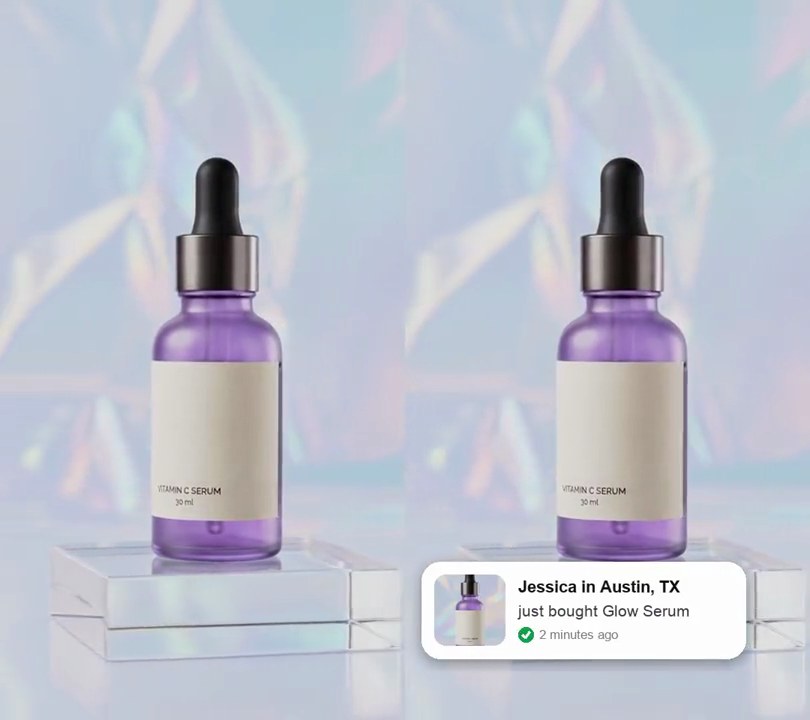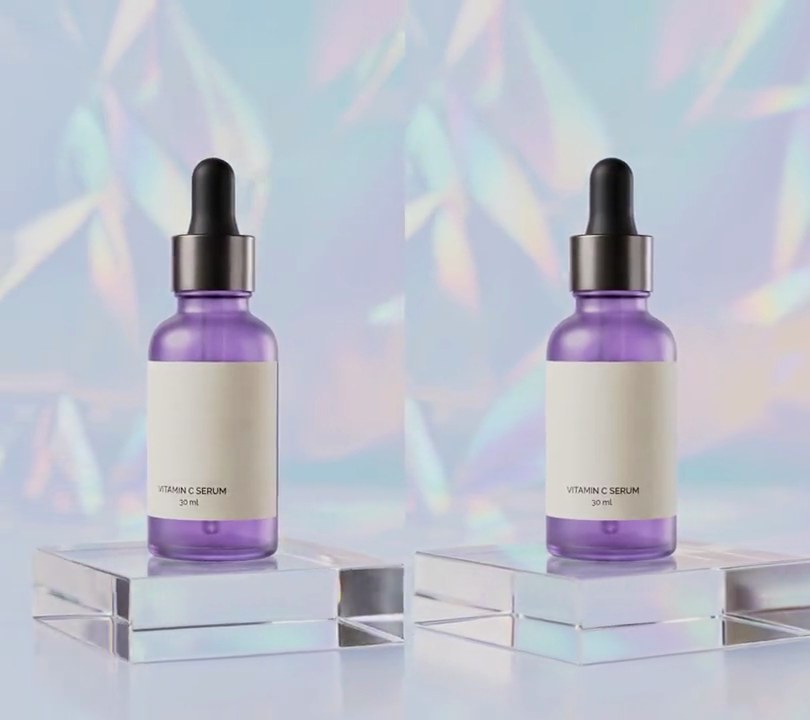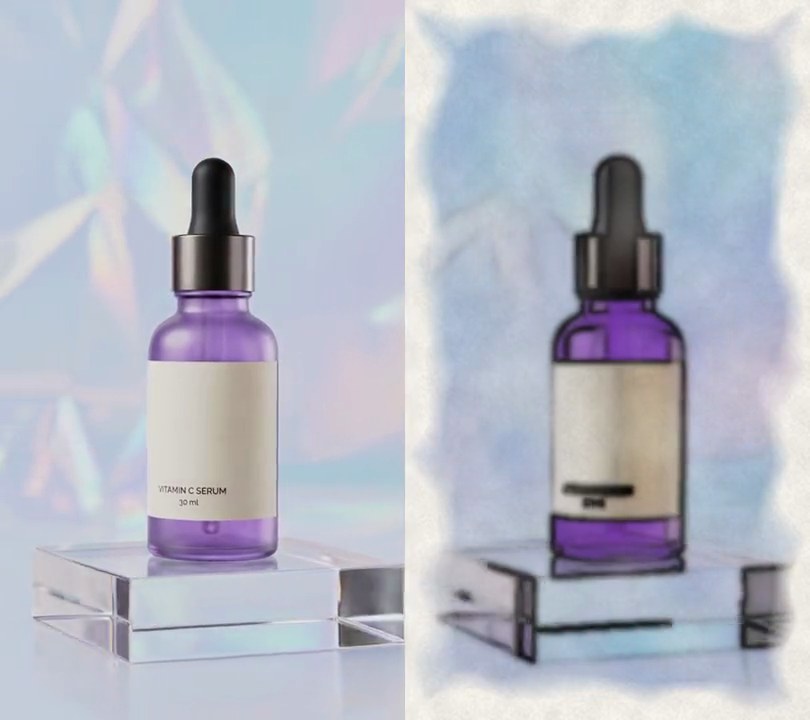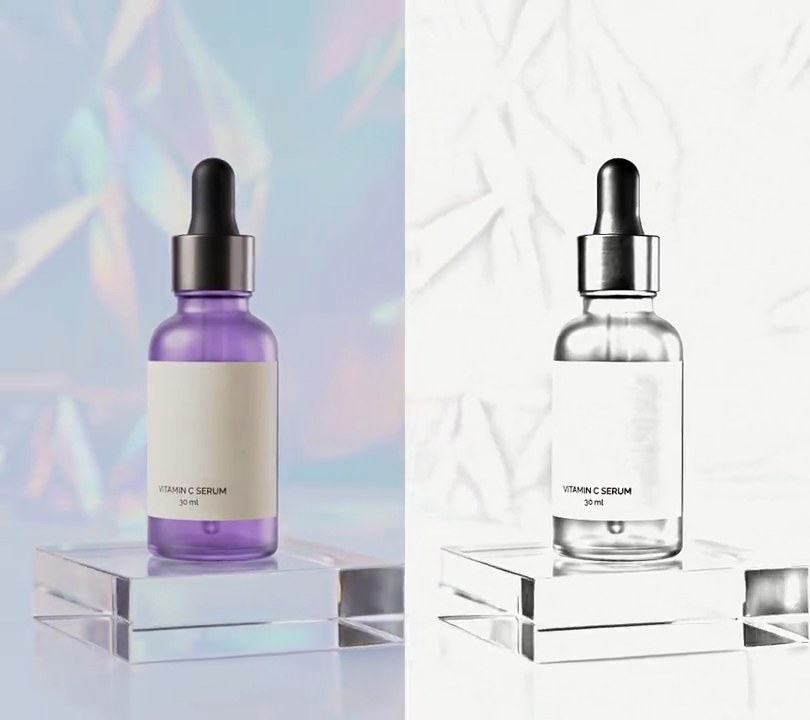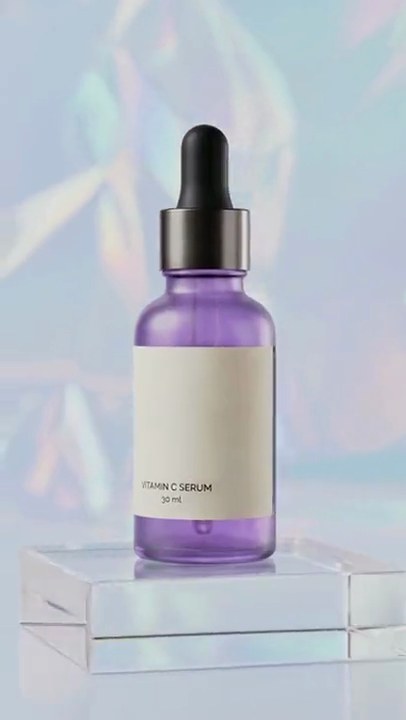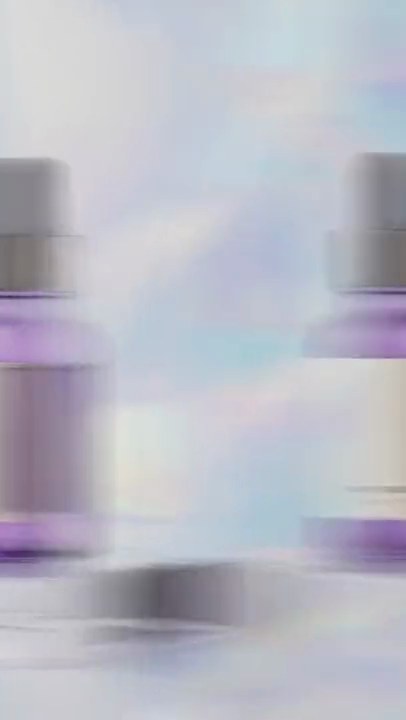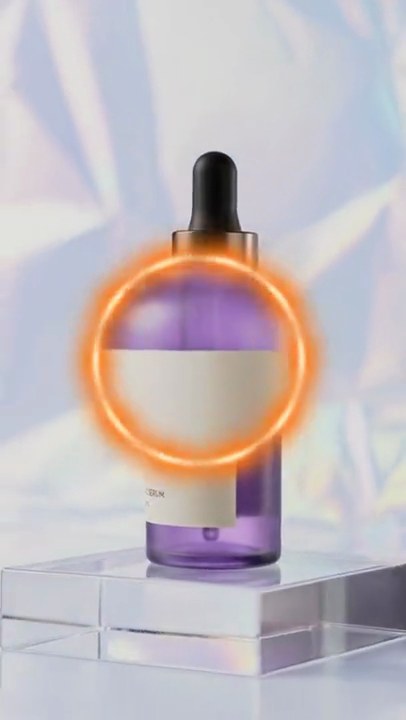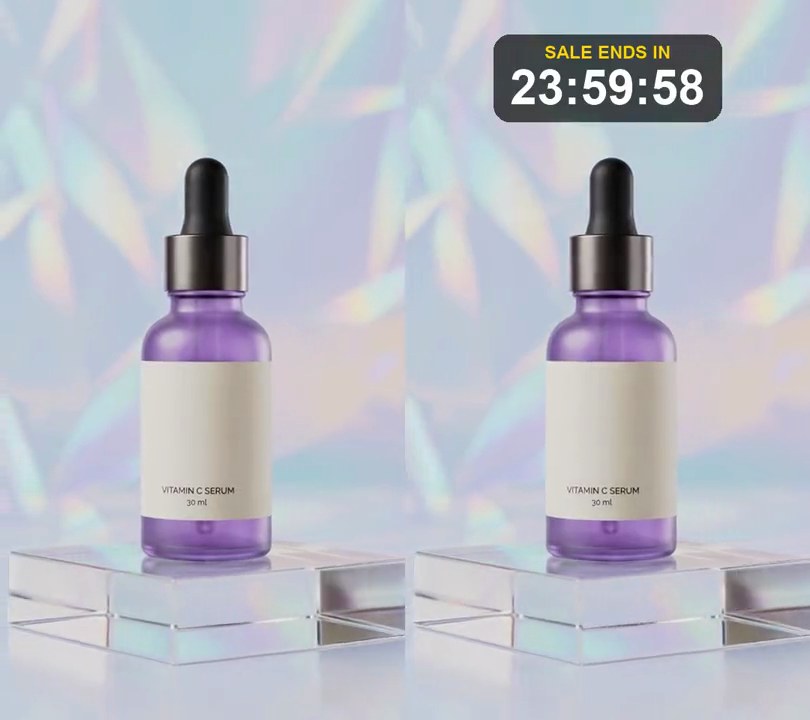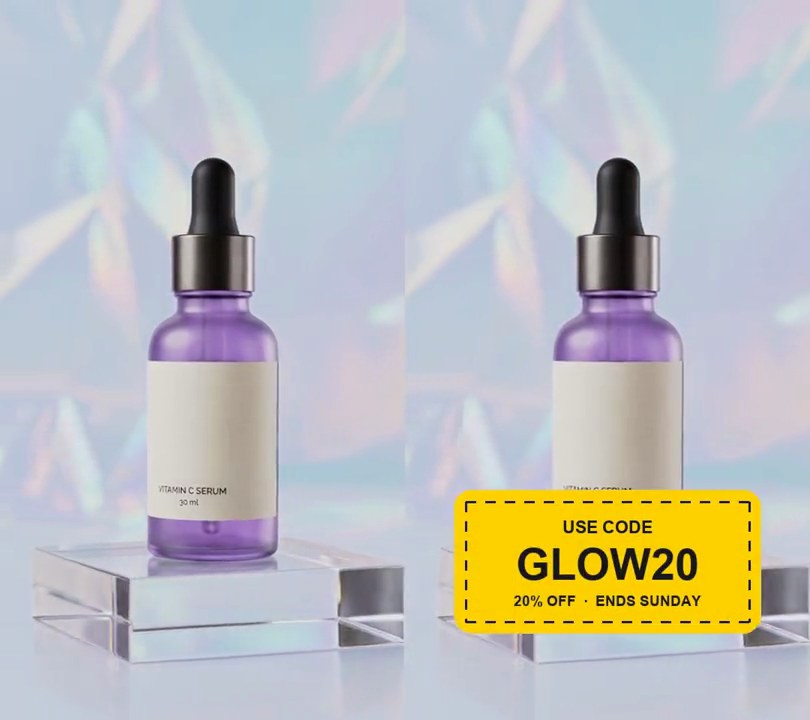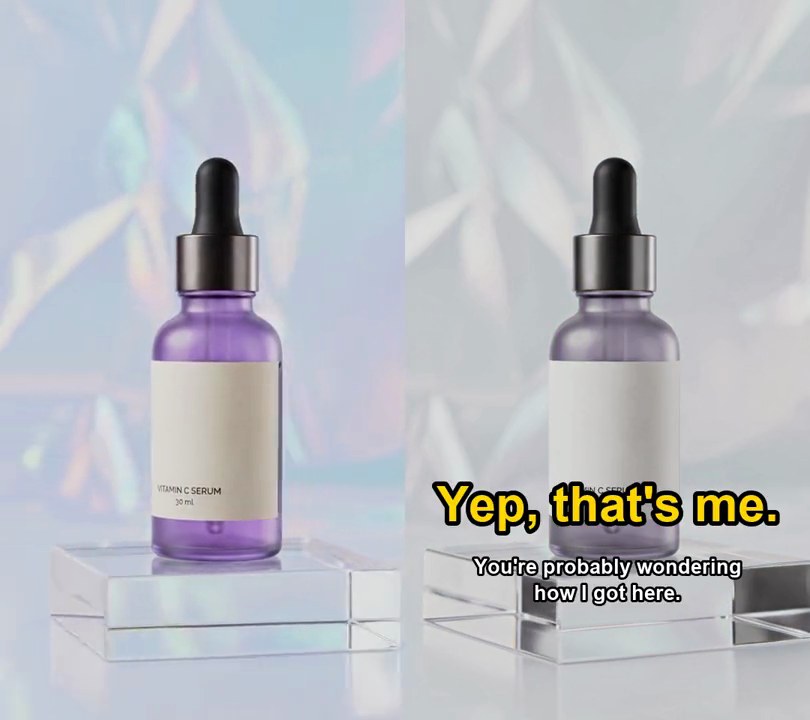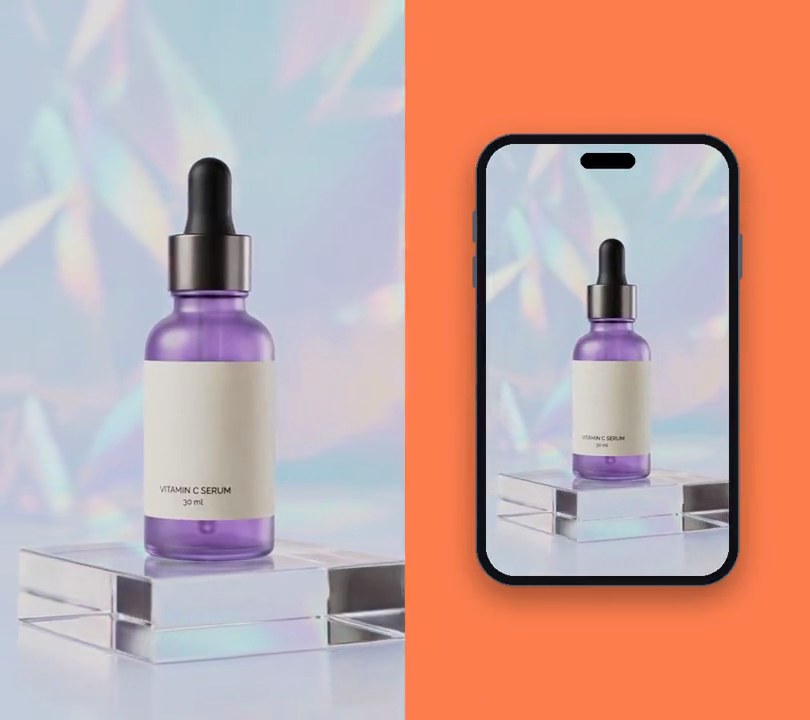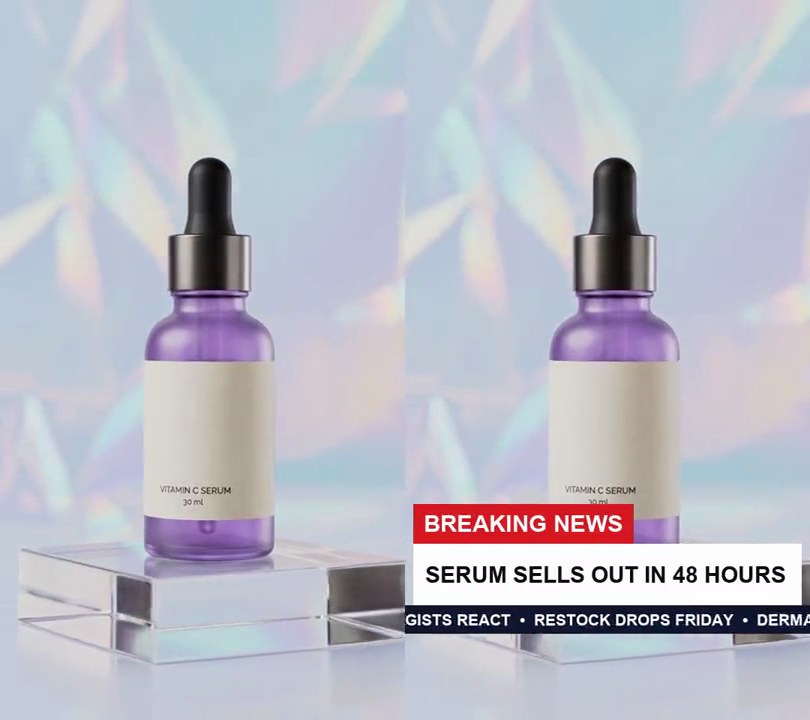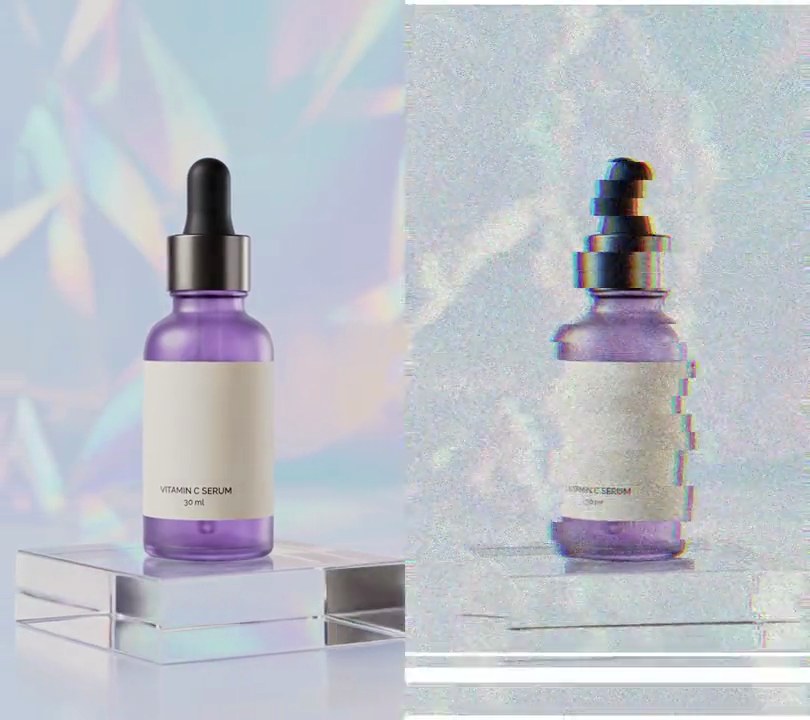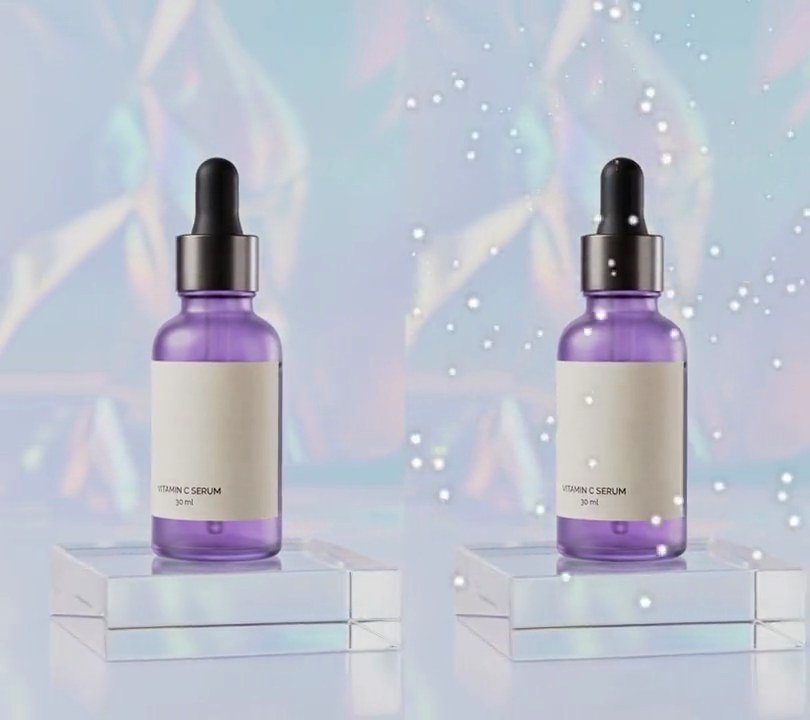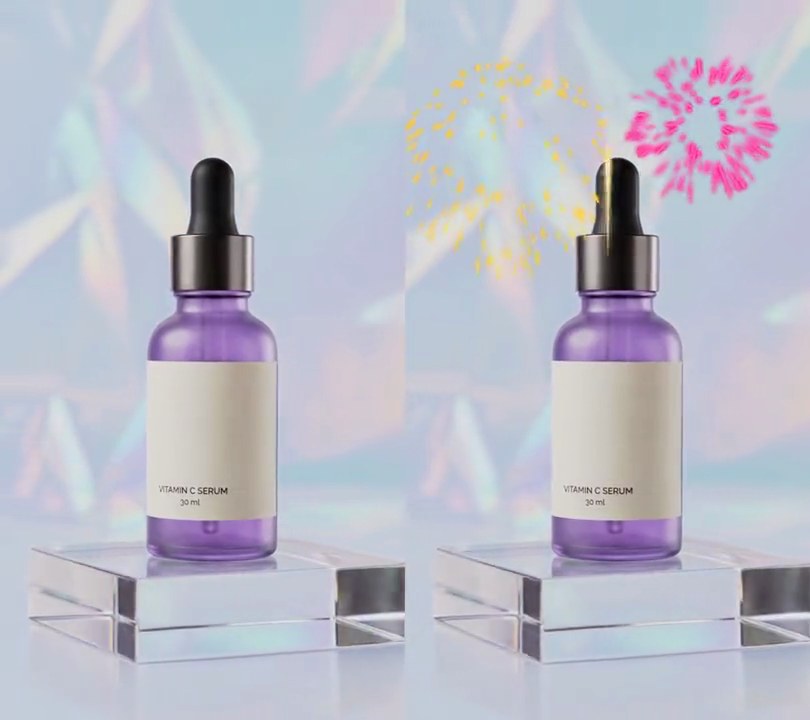
1. Vertical reframe
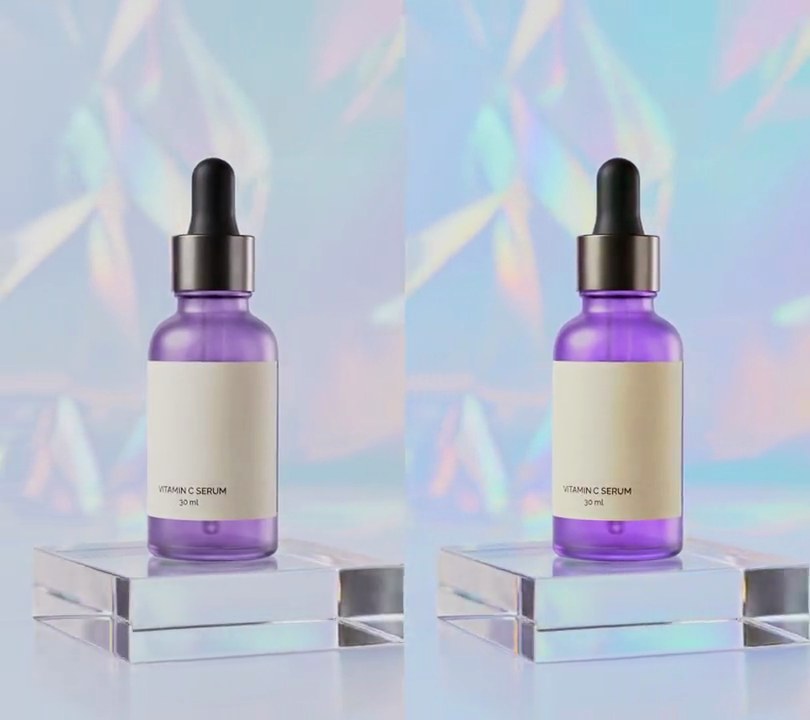
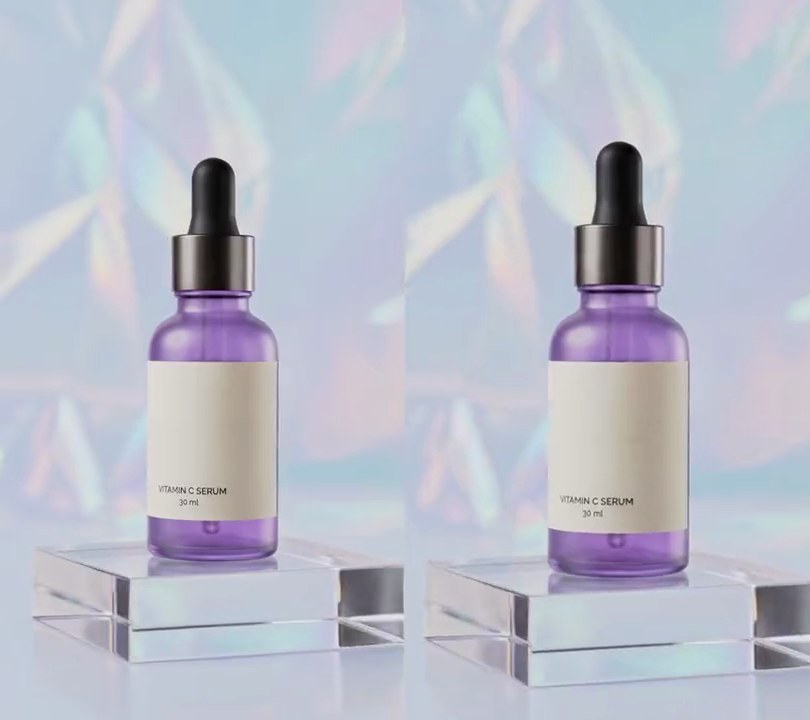
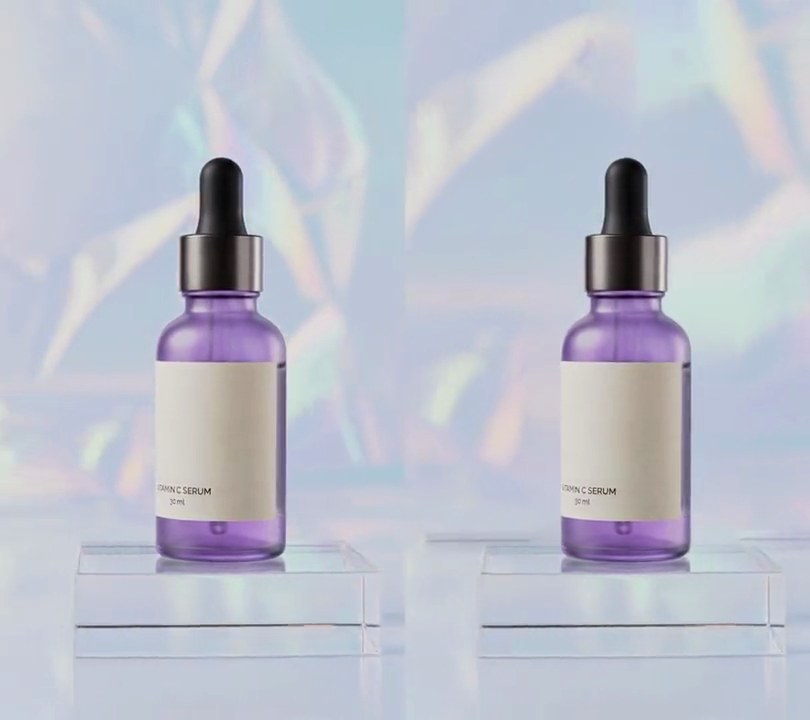
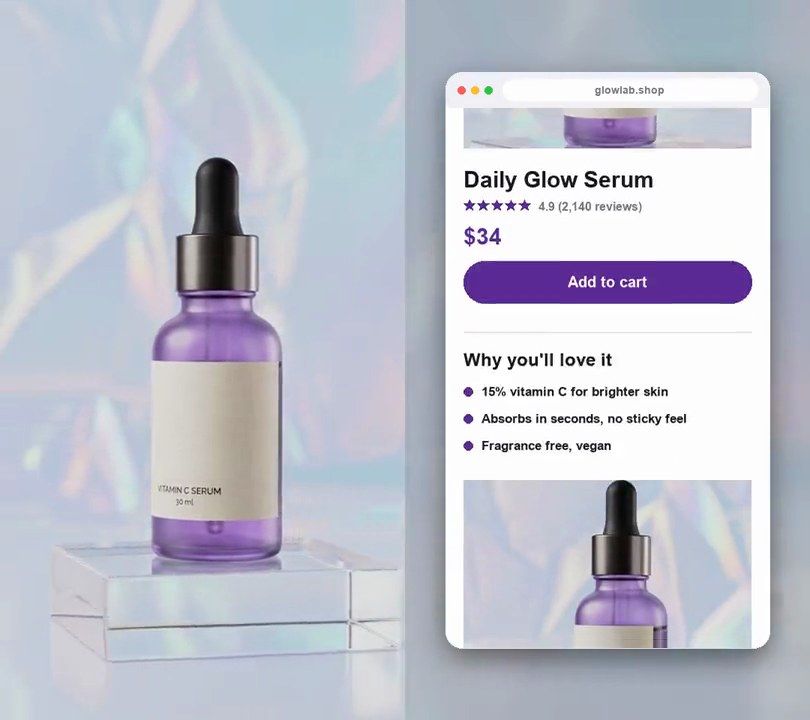
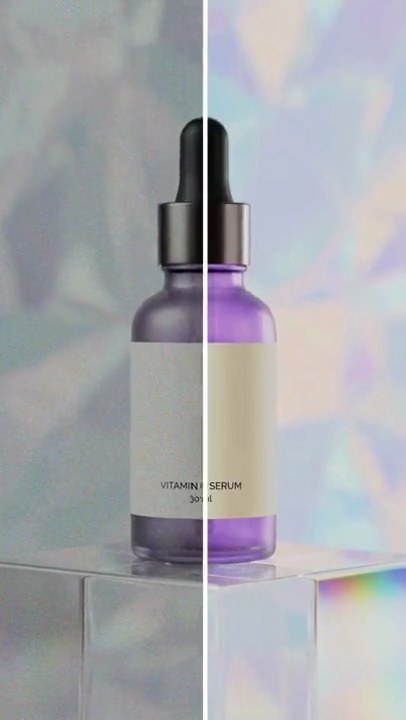
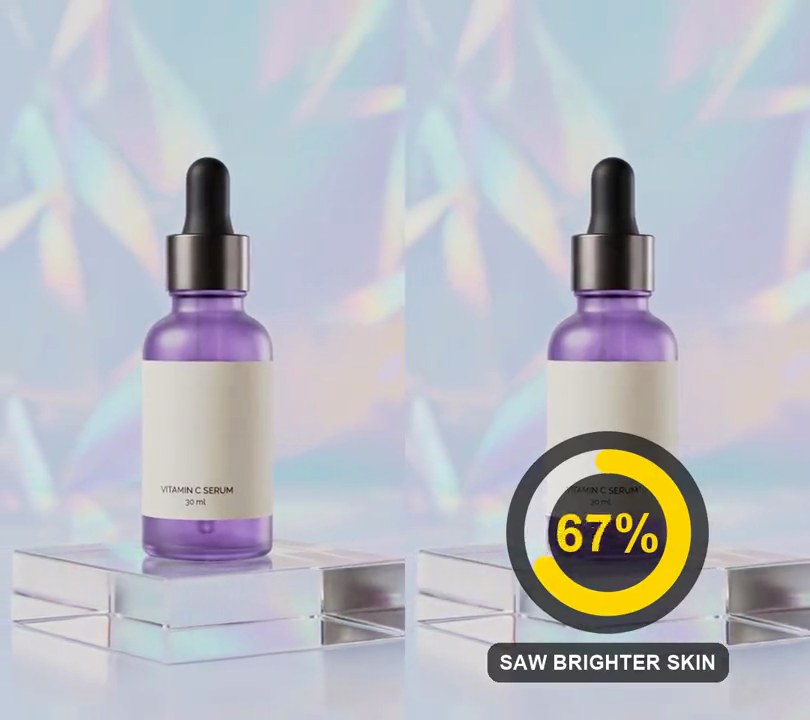
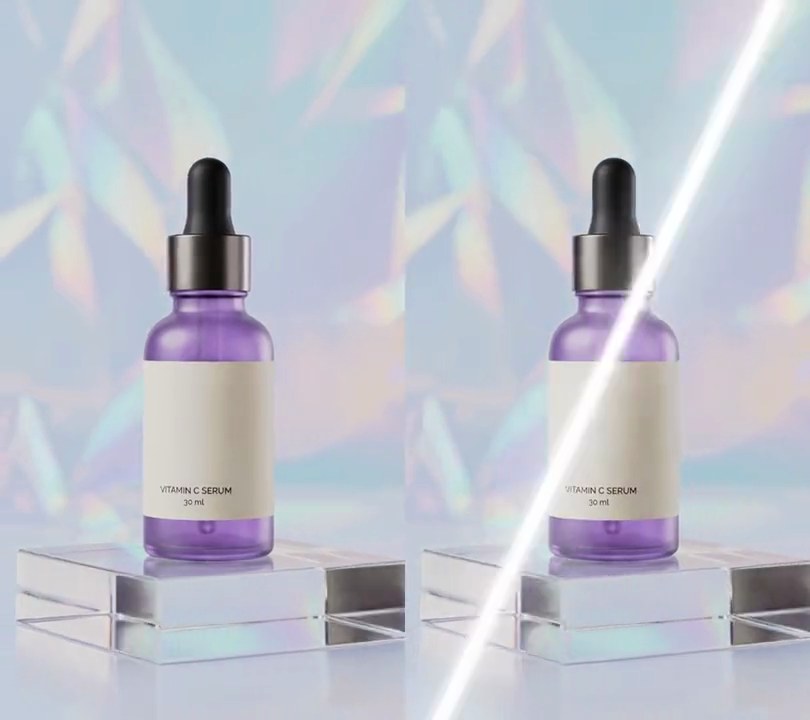
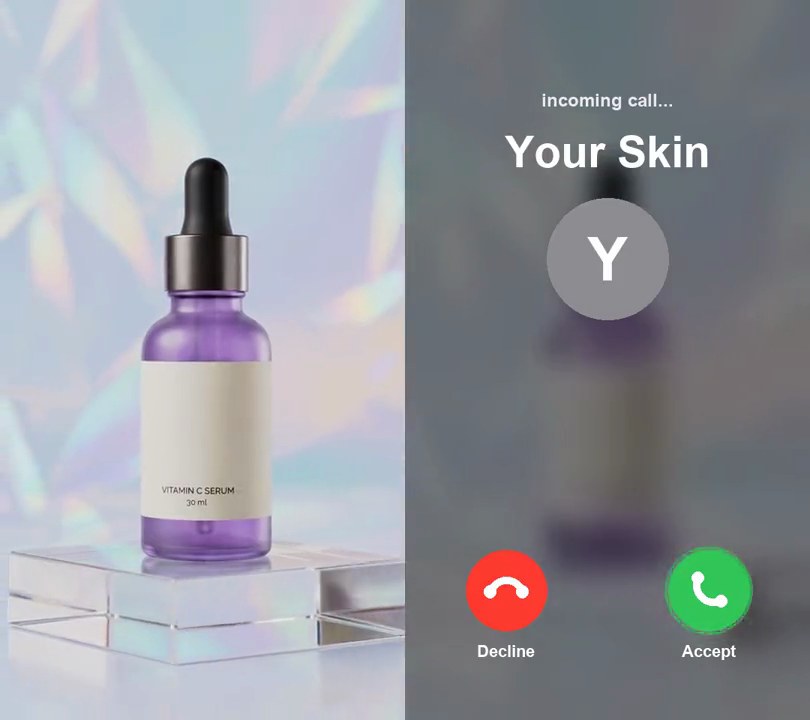
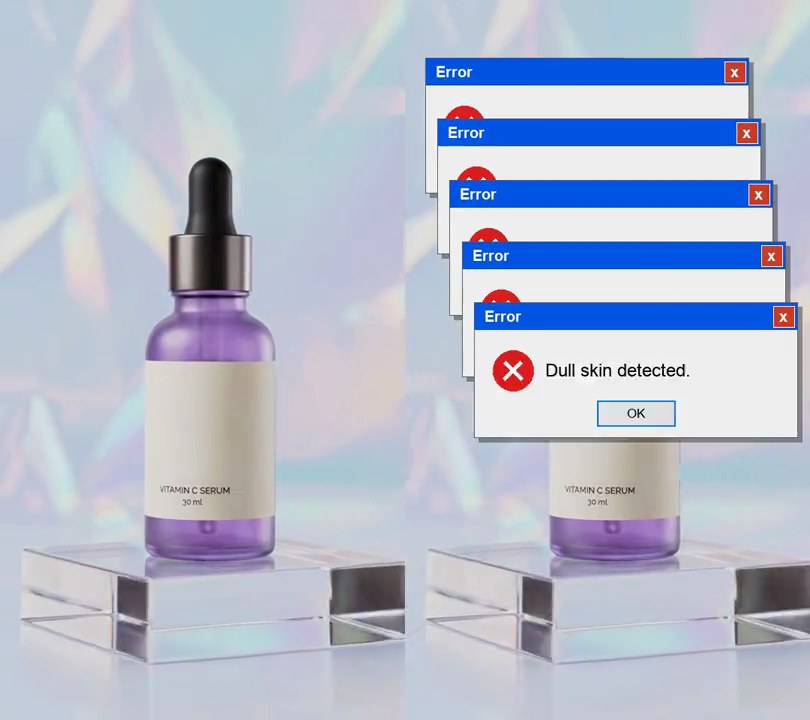
A wide 16:9 shot is cropped down to the tall slice through its middle, so the product fills a full-screen 9:16 frame with no bars or blur.
Show the prompt
Turn the 16:9 clip input.mp4 into a 1080x1920 vertical video by cropping, not padding: take a full-height slice of the frame that is 9:16 wide (302 pixels wide for a 960x540 clip), centered horizontally so the same amount comes off the left and right, and scale it up to 1080x1920. No black bars and no blurred background. Keep the length, 30fps and the audio. Use ffmpeg and save it as output.mp4.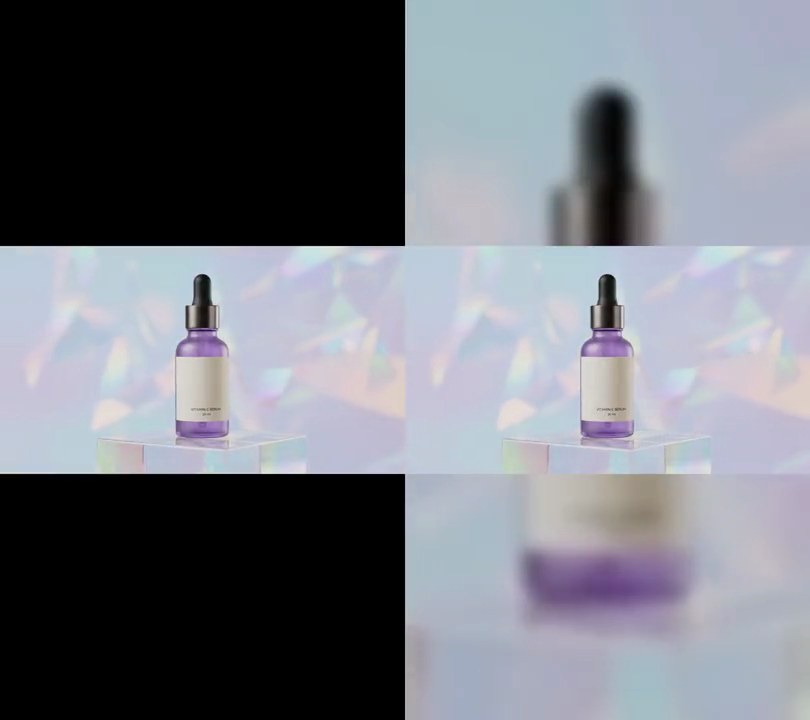
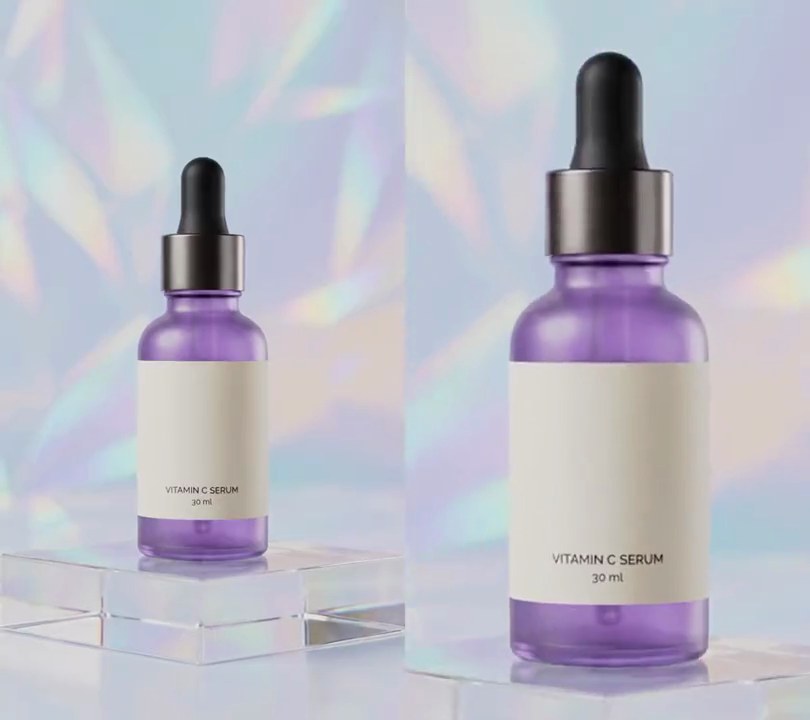
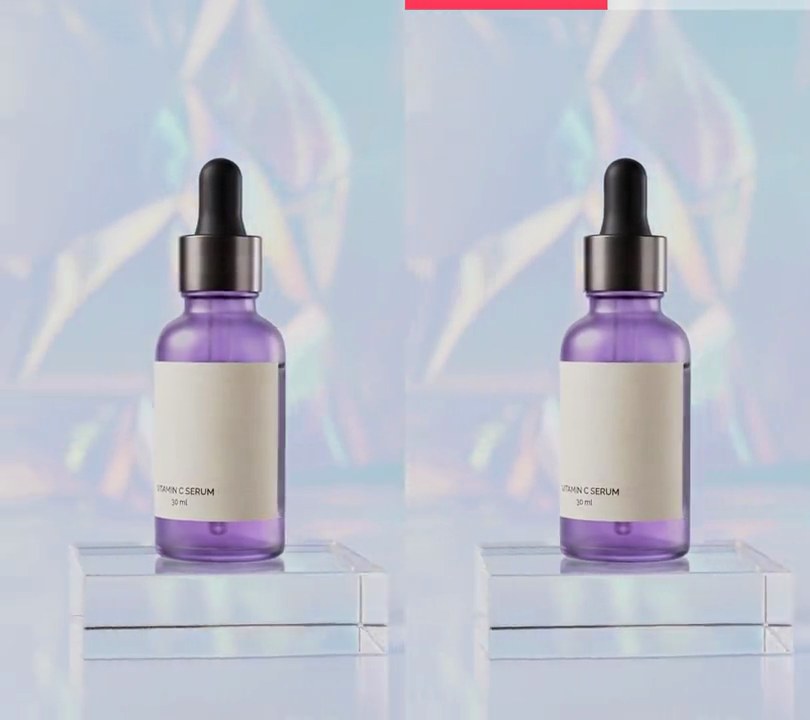
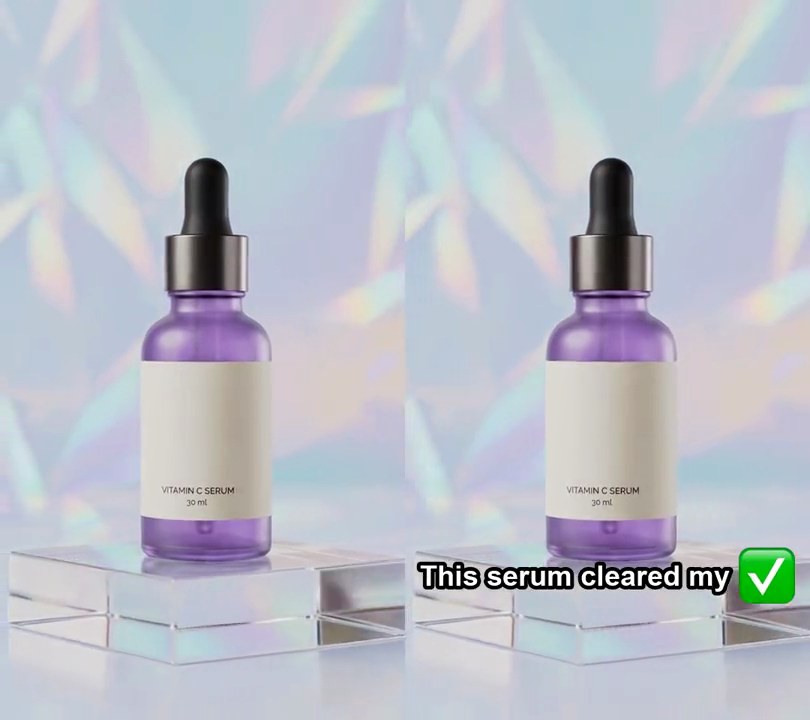
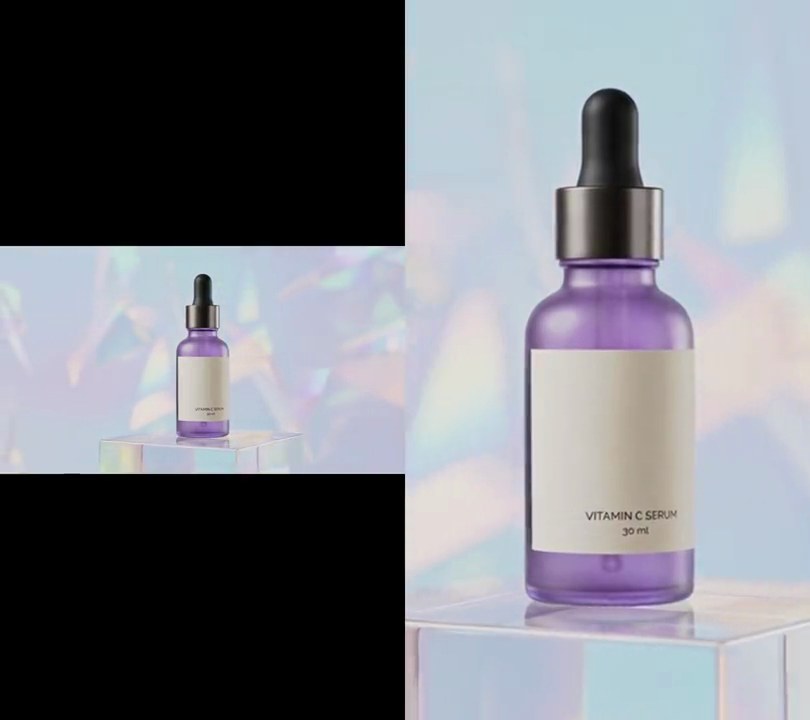
2. Vertical blur background
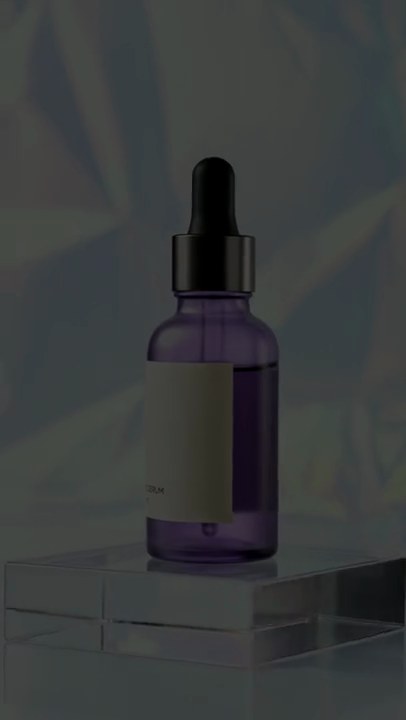
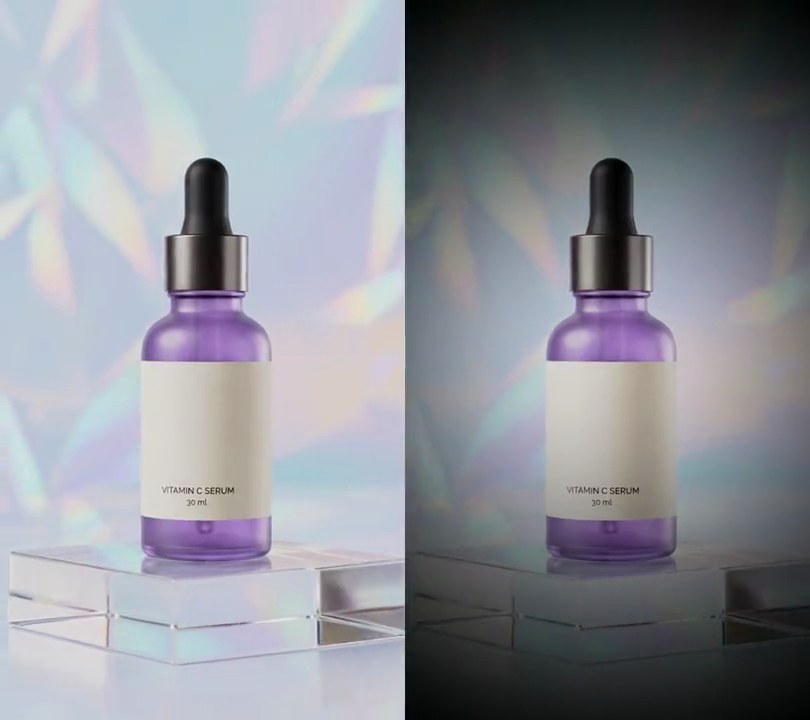
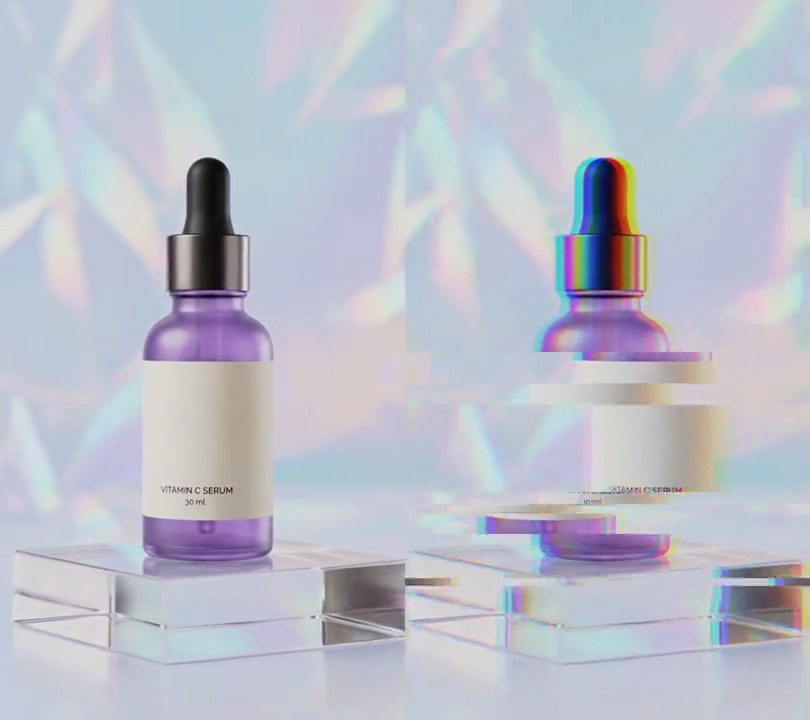
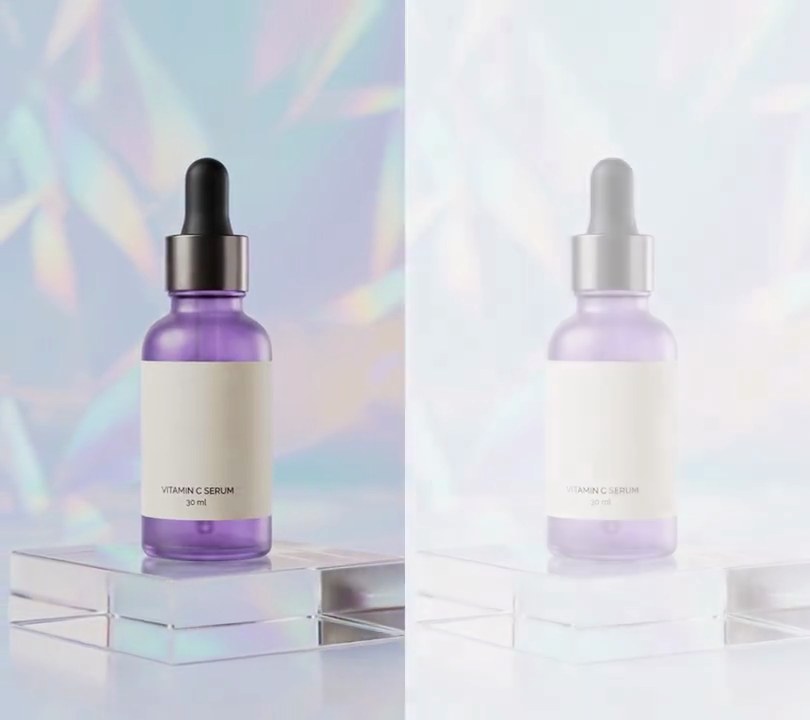
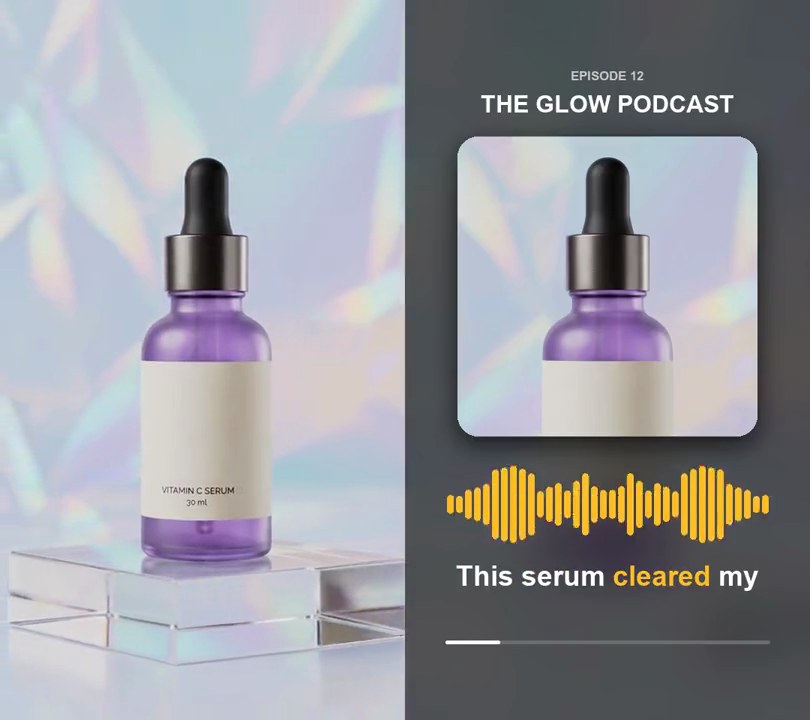
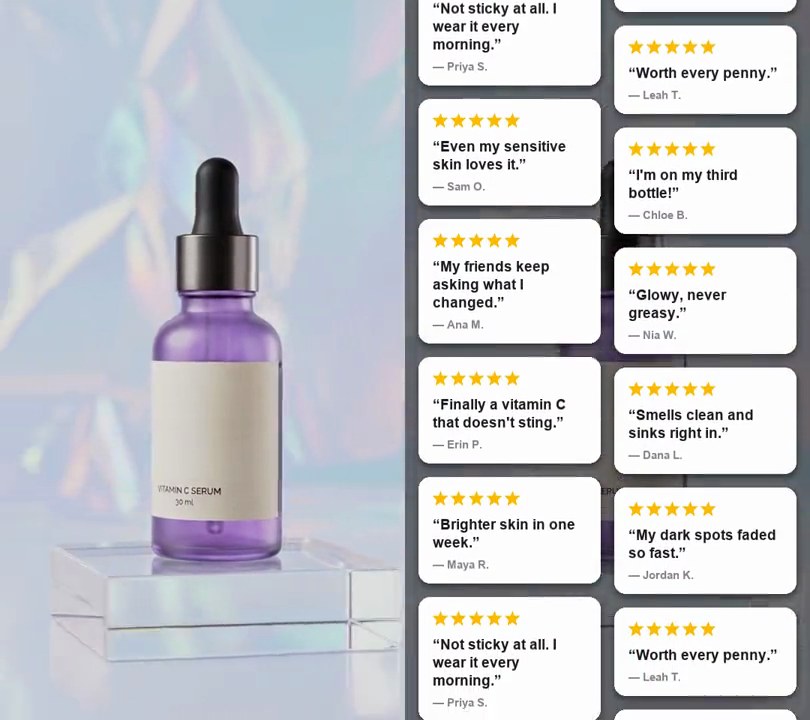
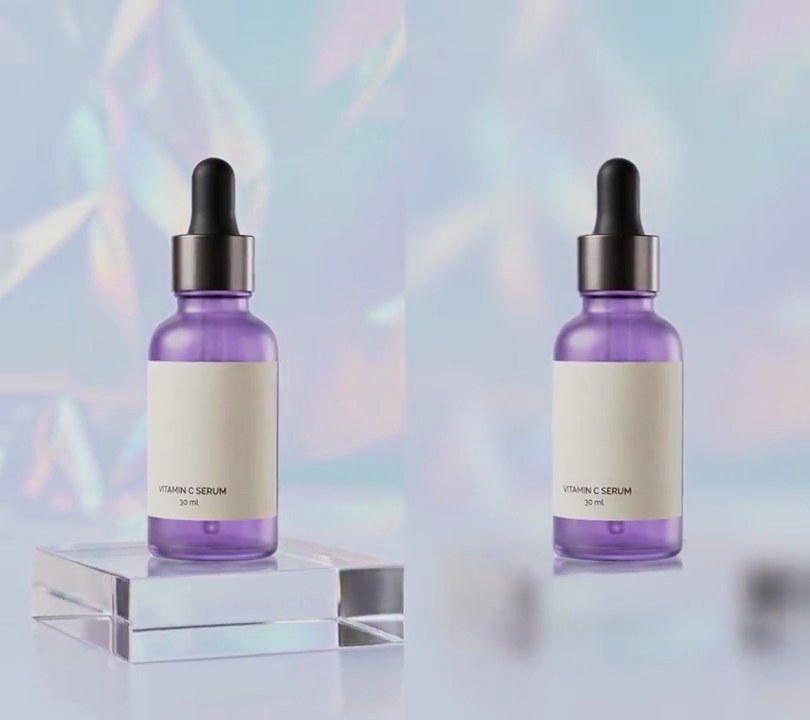
A wide 16:9 clip sits across the middle of a vertical frame, with a blurred copy of itself filling the top and bottom.
Show the prompt
Turn the 16:9 clip input.mp4 into a 1080x1920 vertical video: the original sits in the middle at full width, and the space above and below is filled with a blurred, slightly darkened, zoomed-in copy of the same clip. Keep the audio. Use ffmpeg and save it as output.mp4.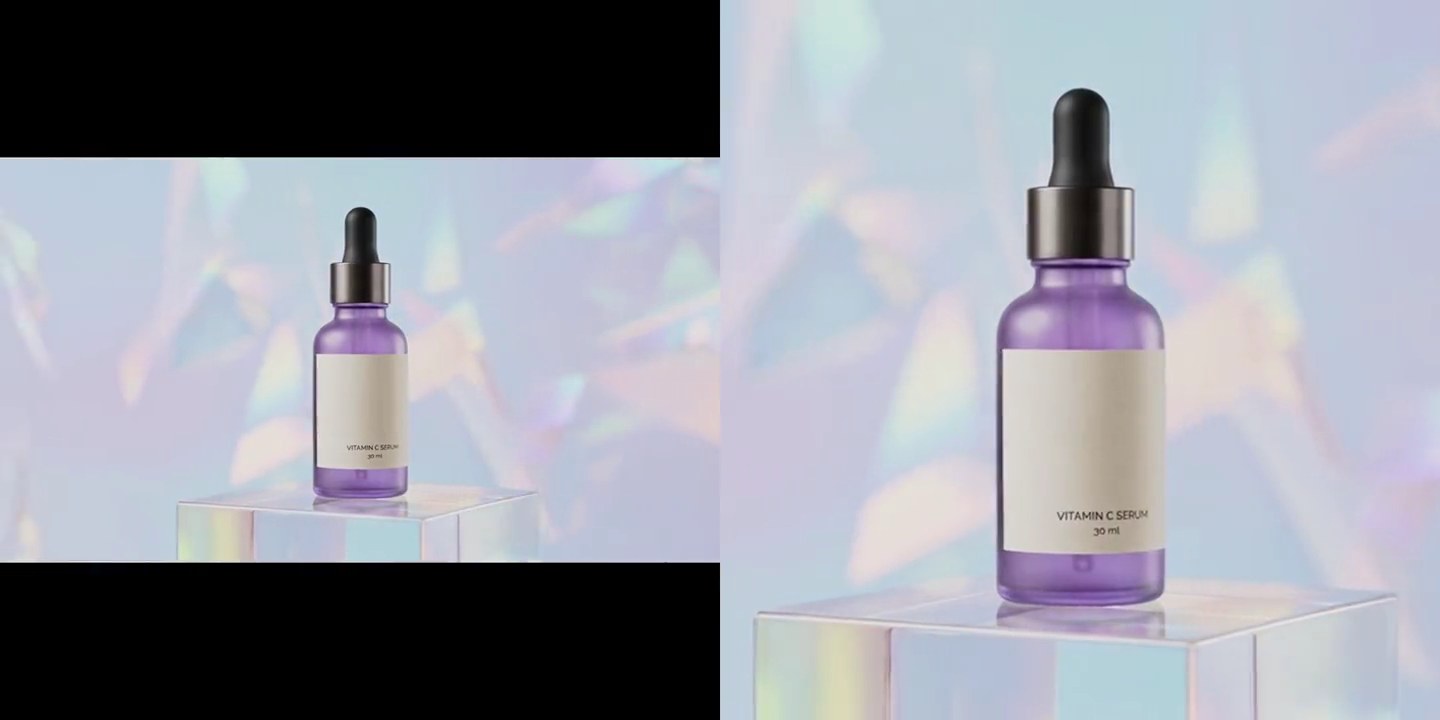
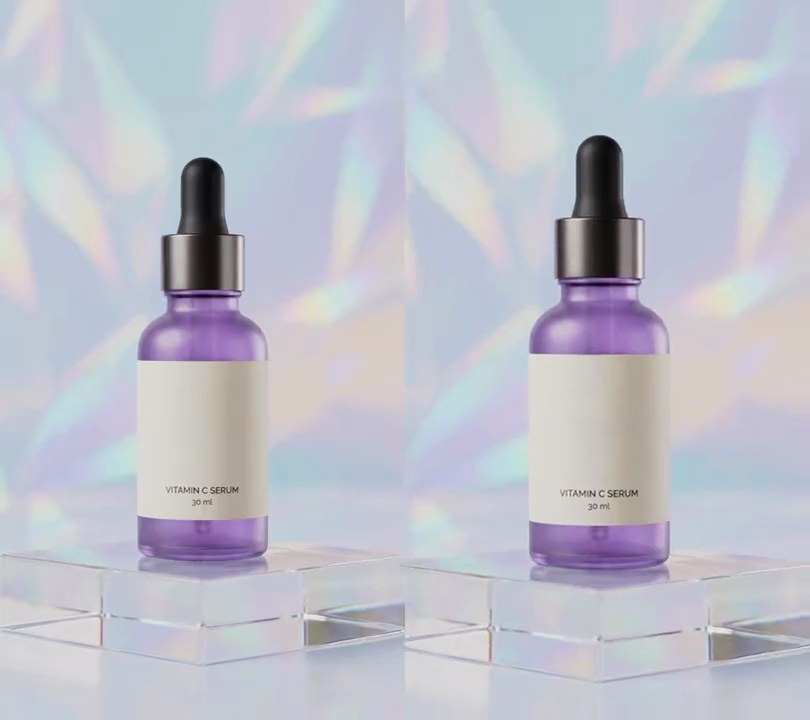
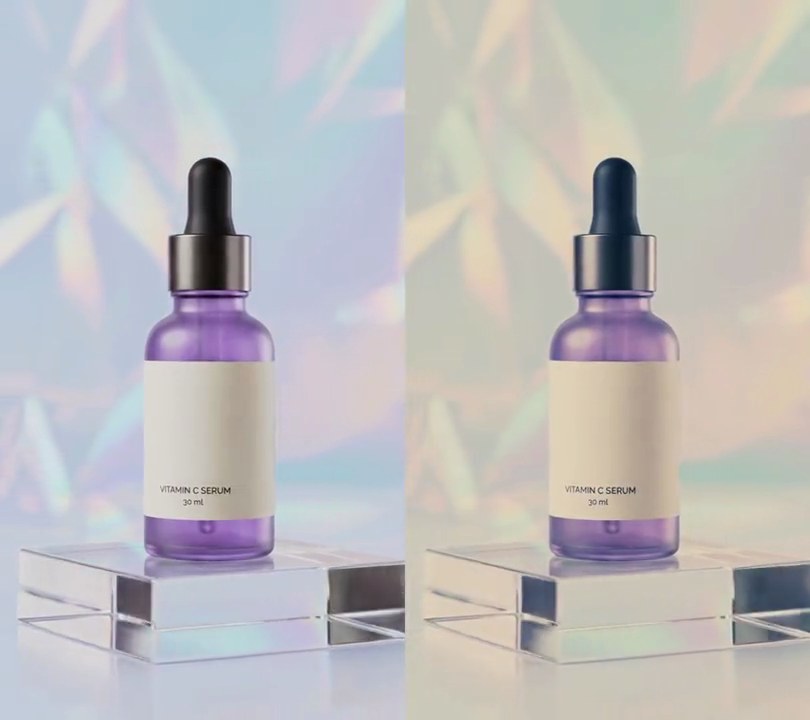
3. Square crop
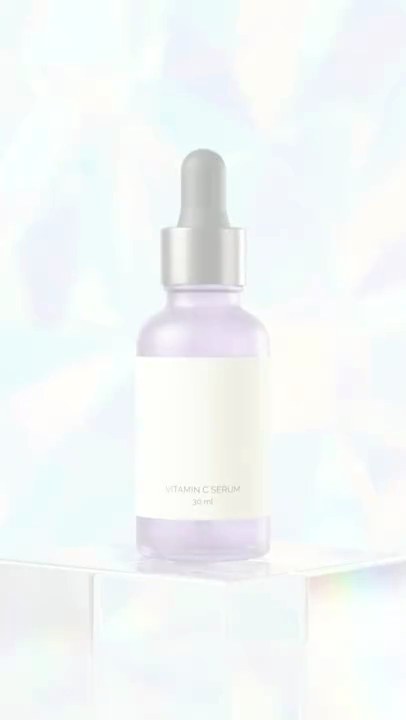
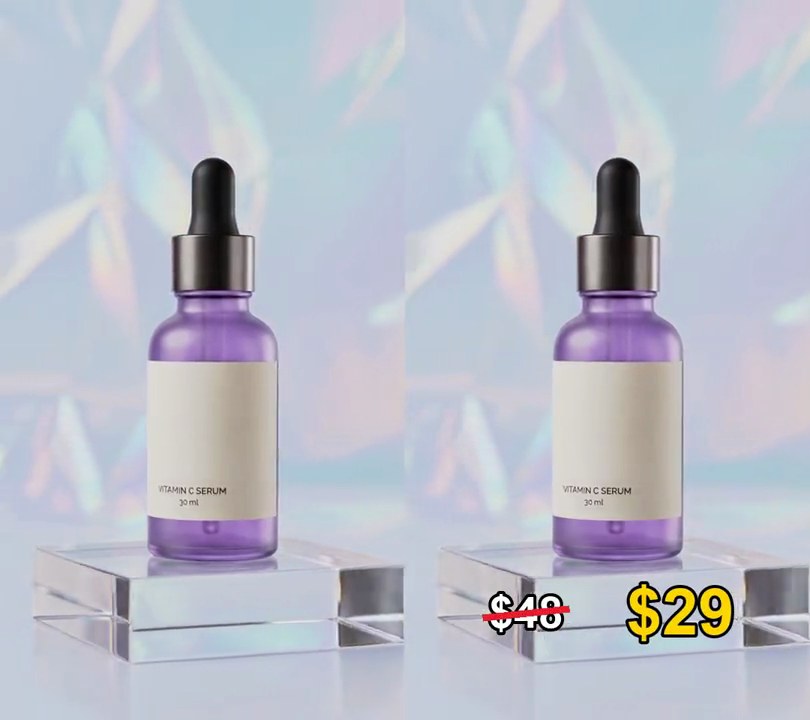
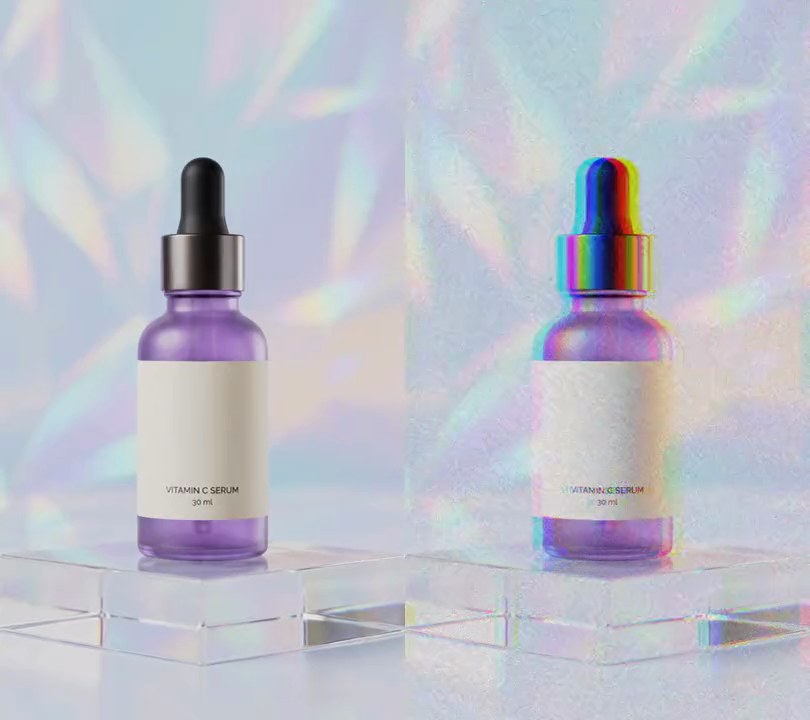
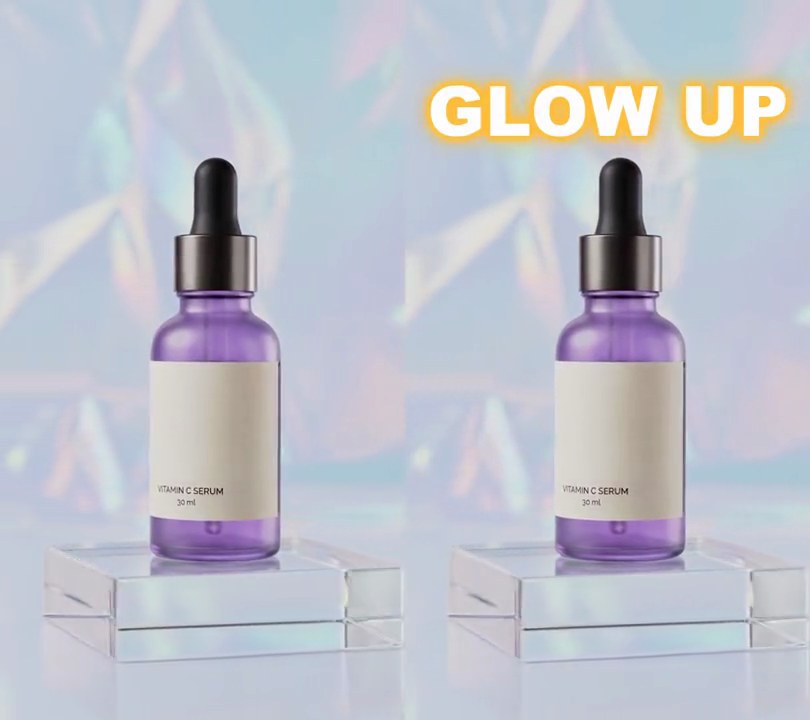
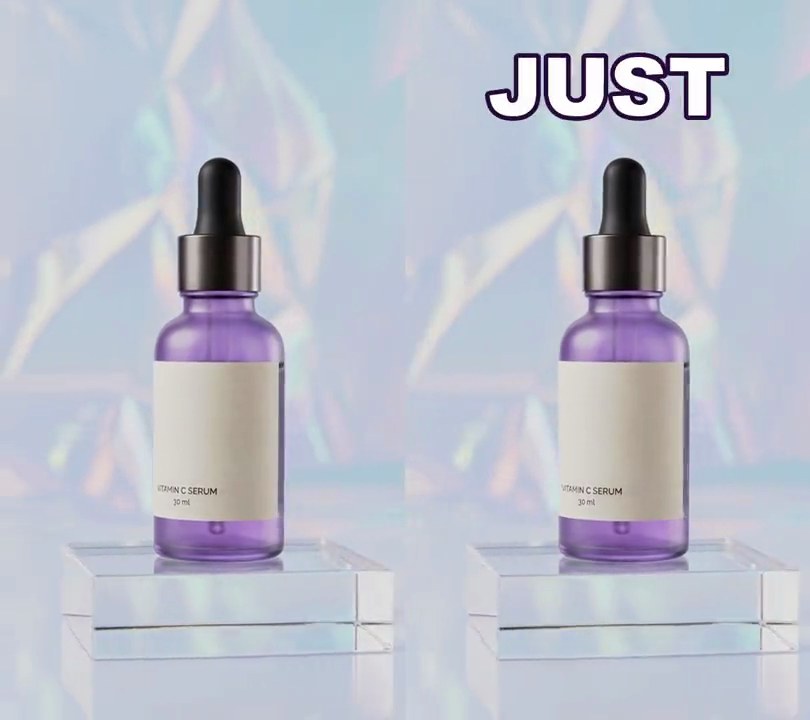
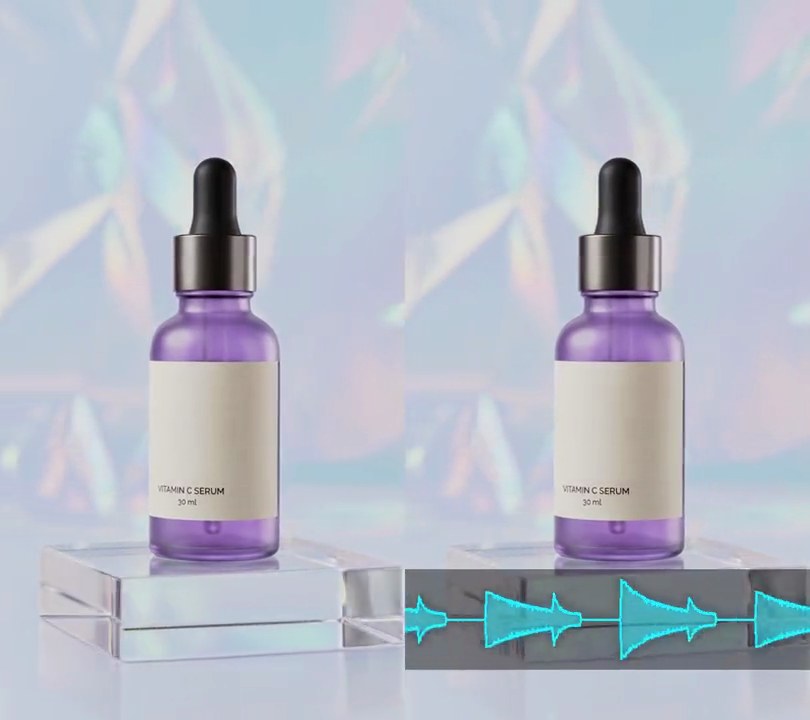
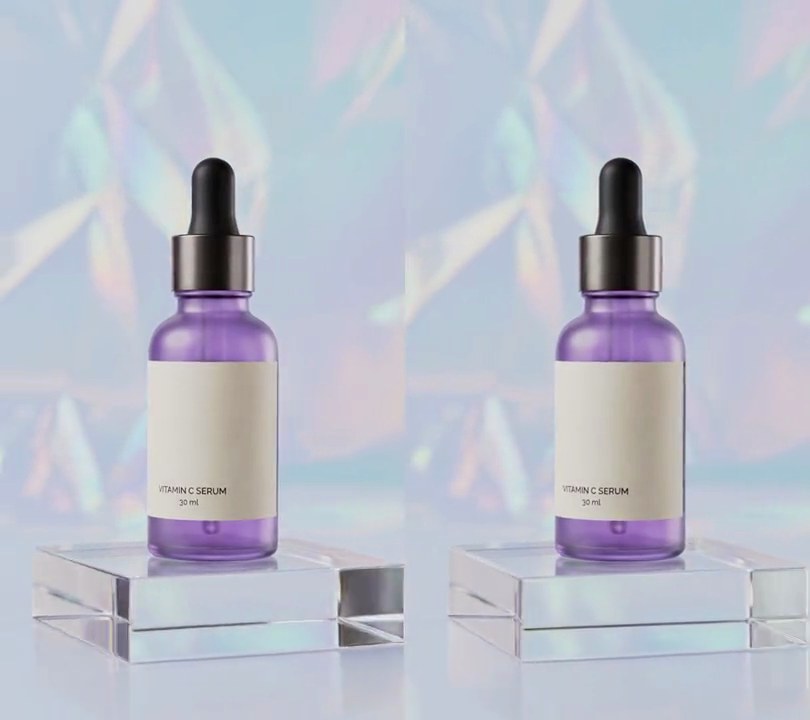
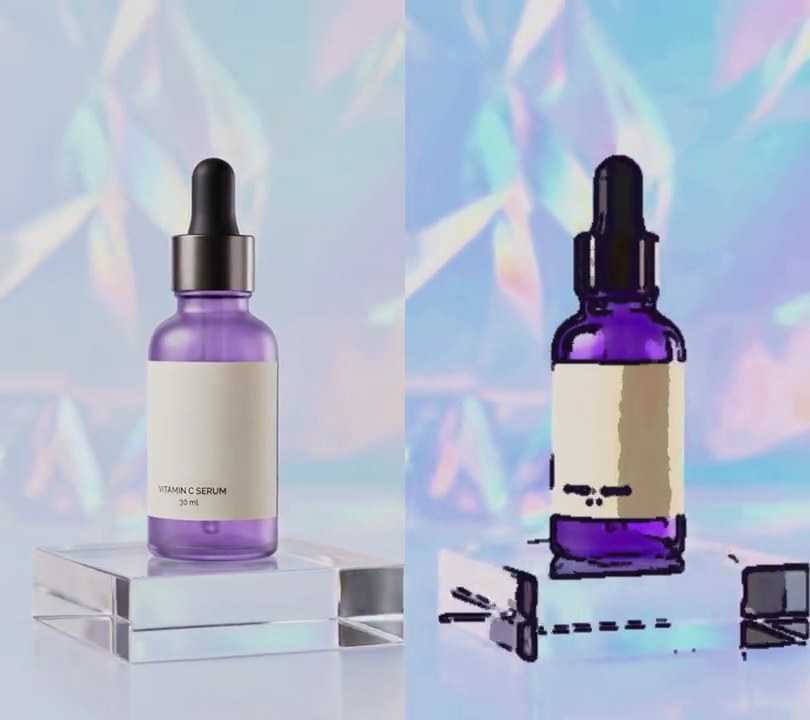
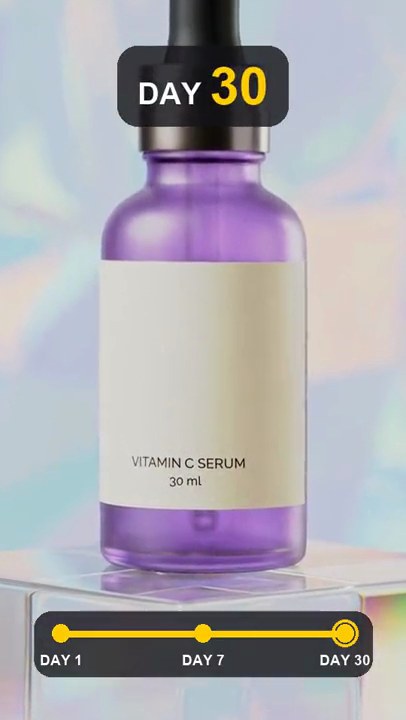
A wide 16:9 shot is trimmed to the square in its middle, cutting equal strips off the left and right so the bottle stays centered in a 1:1 frame with no bars.
Show the prompt
Turn the 16:9 clip input.mp4 into a 1080x1080 square video by cropping, not padding: take a full-height square from the middle of the frame (540x540 for a 960x540 clip, so 210 pixels come off the left and 210 off the right), and scale it up to 1080x1080. No black bars and no blurred background. Keep the 6-second length, 30fps and the audio. Use ffmpeg and save it as output.mp4.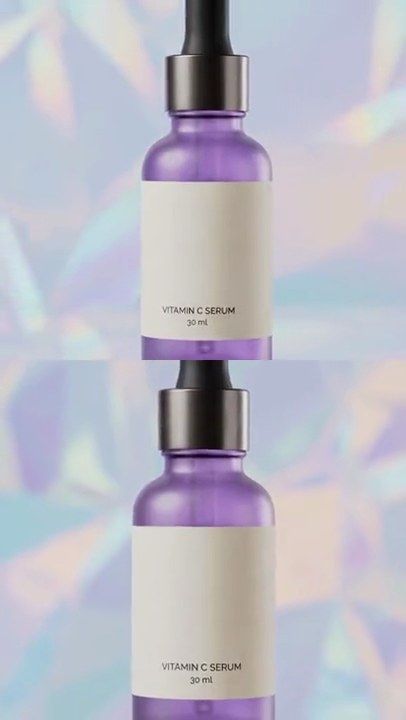
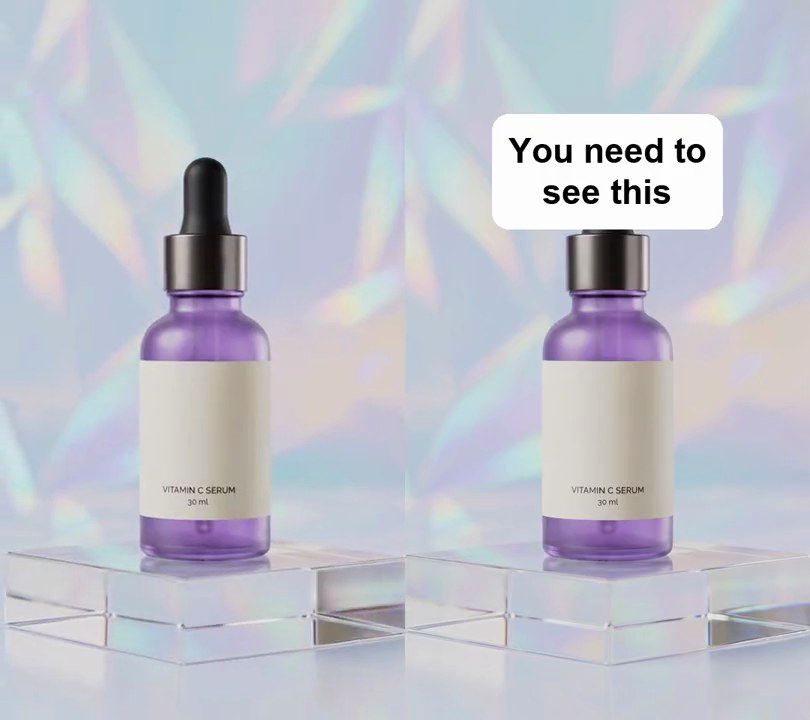
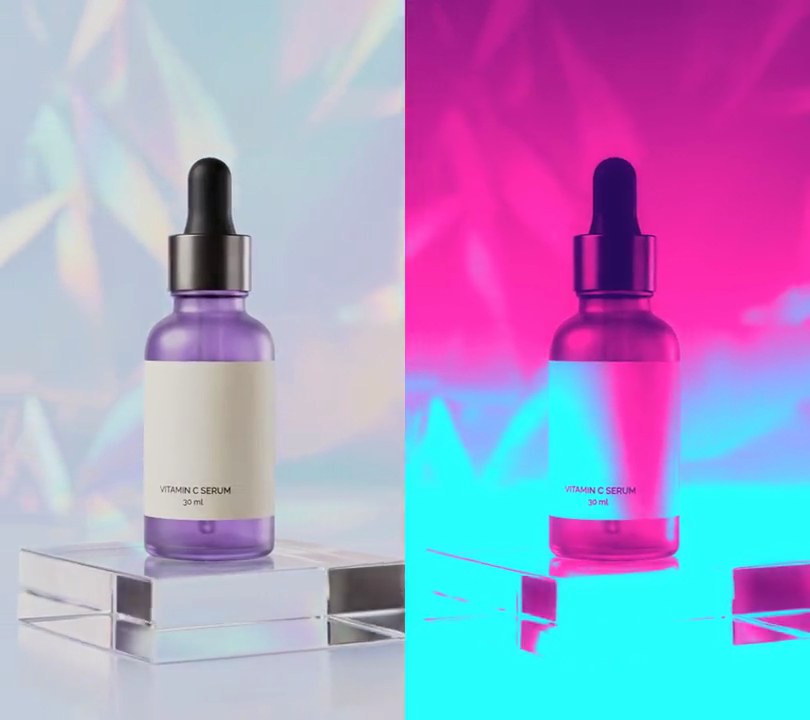
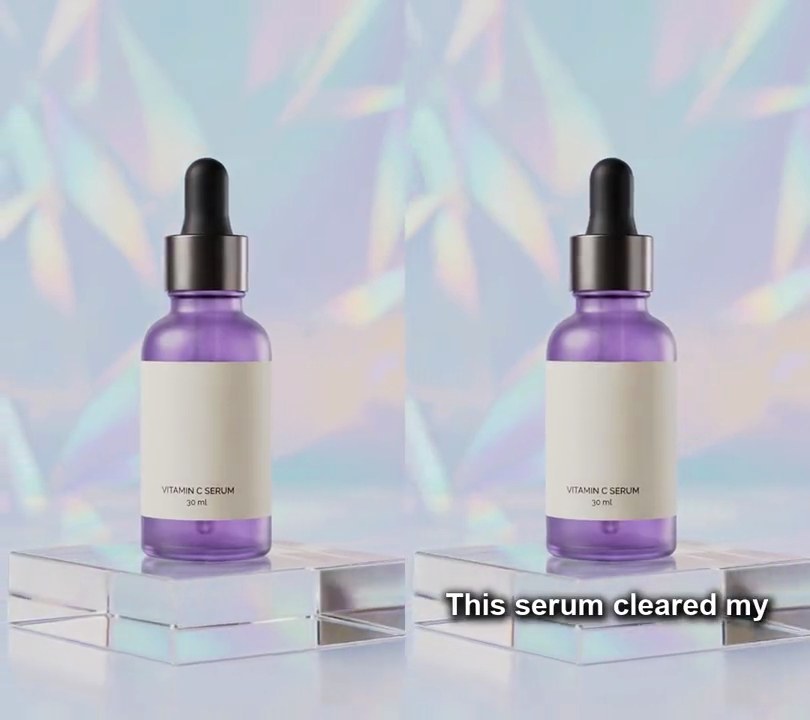
4. Split screen
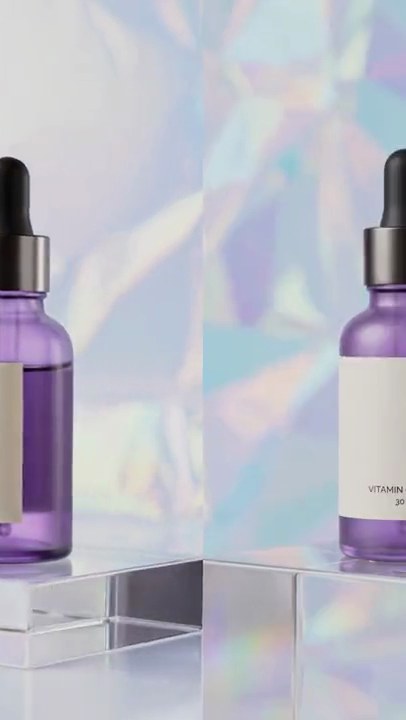
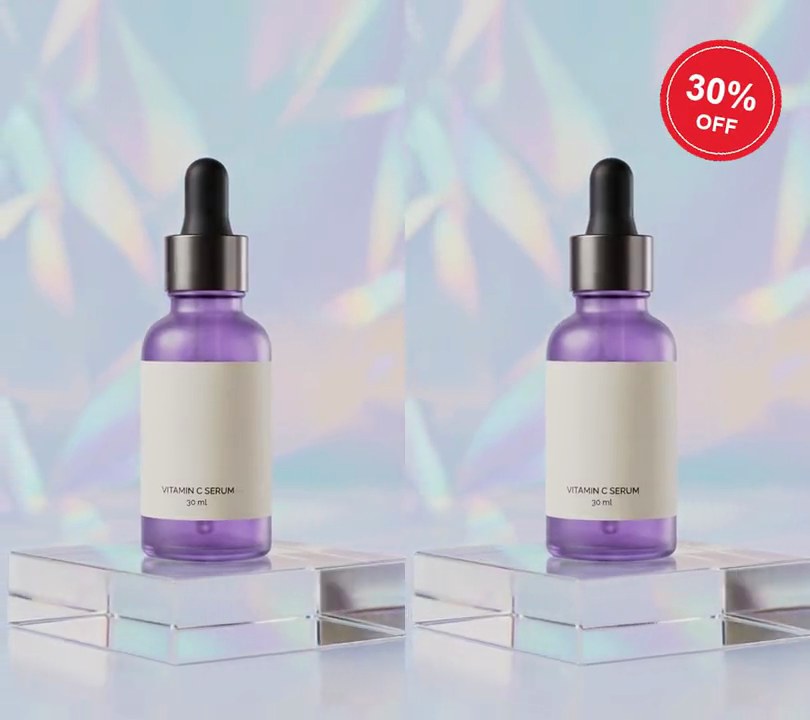
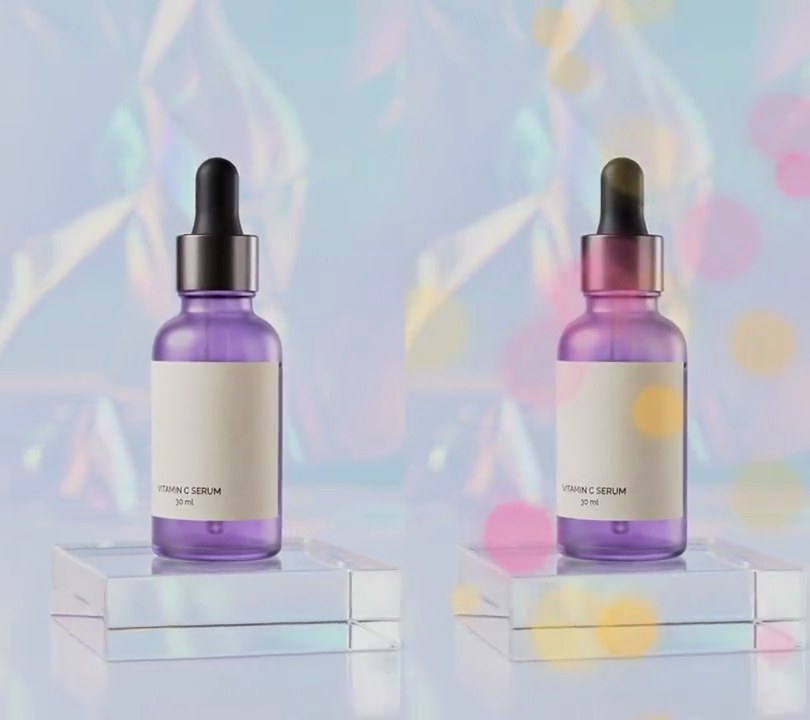
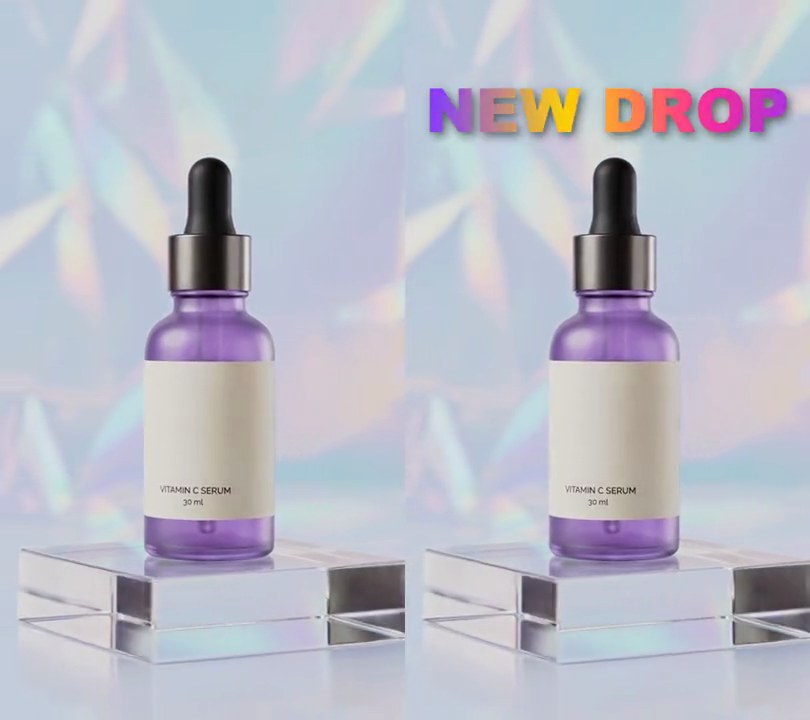
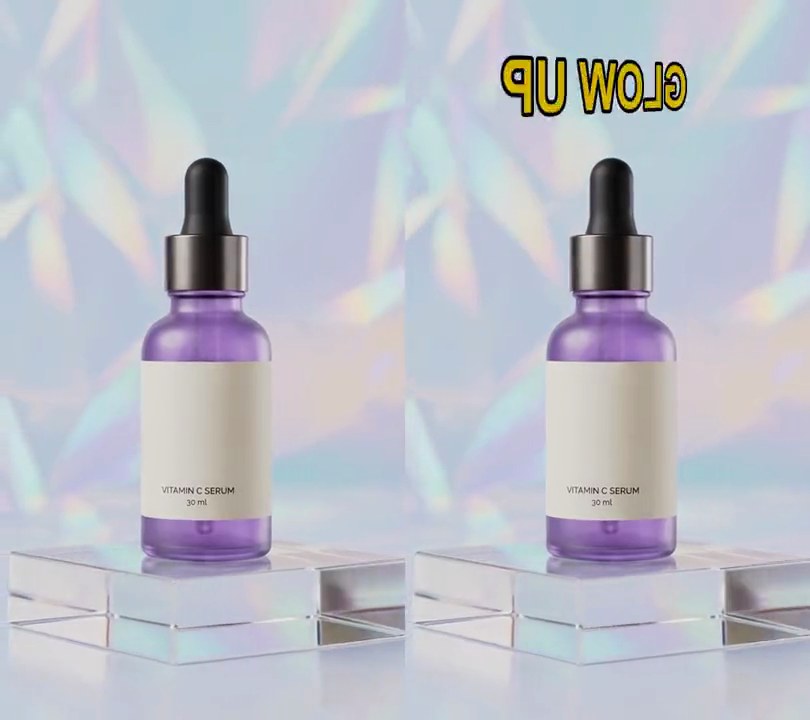
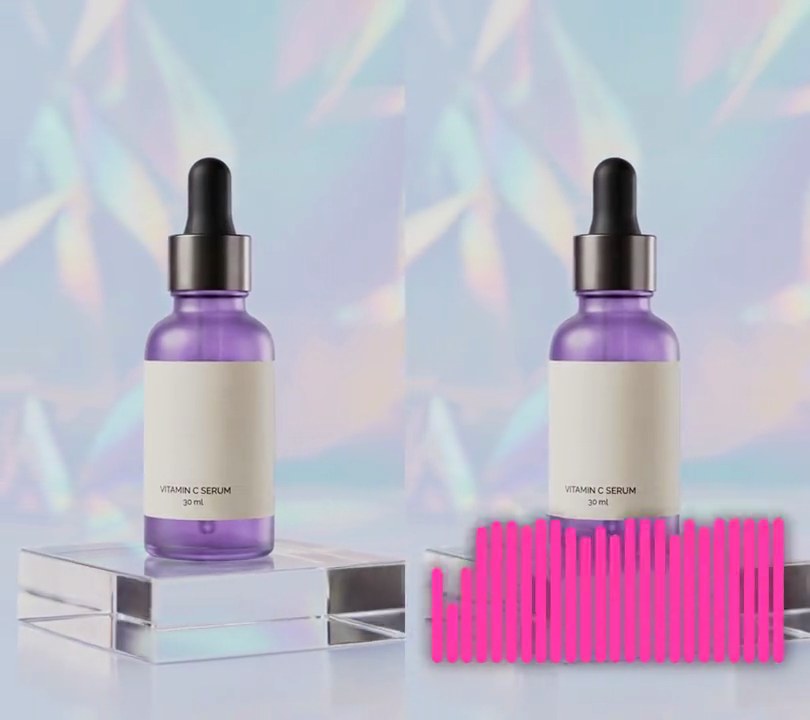
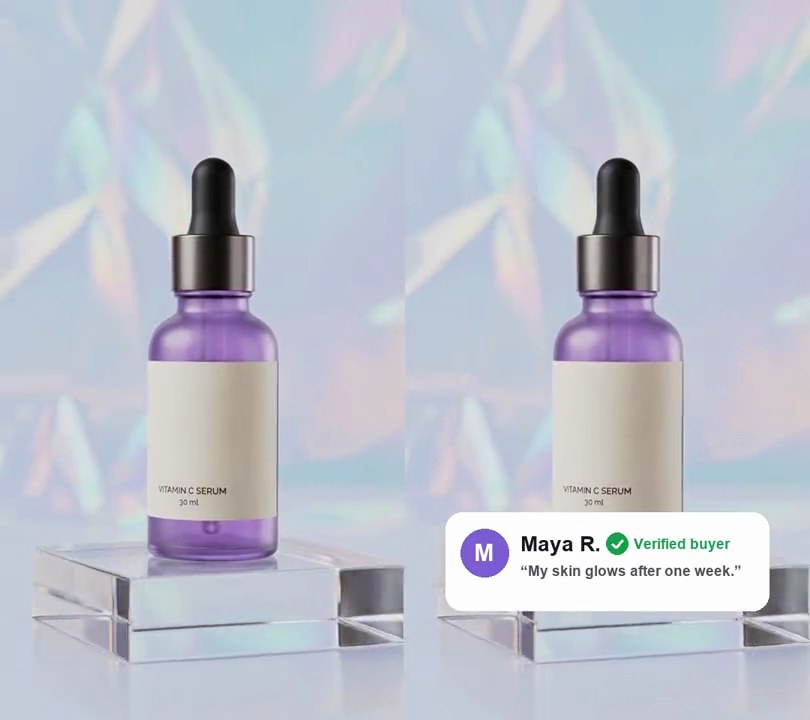
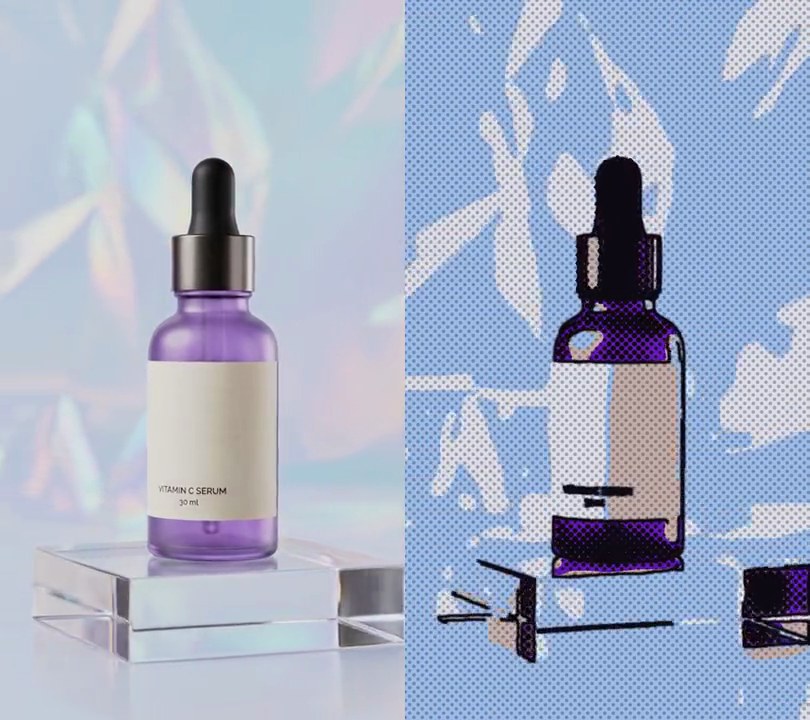
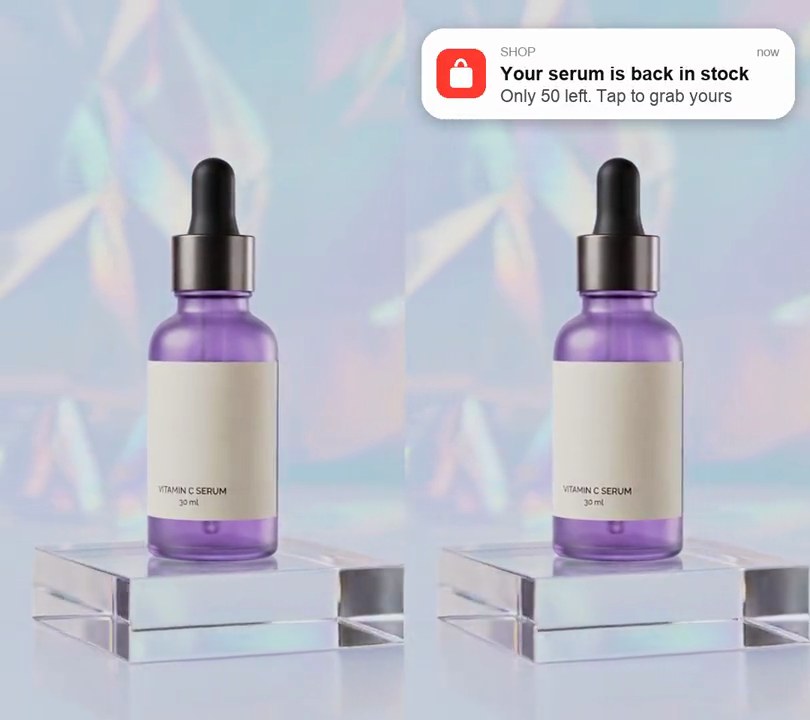
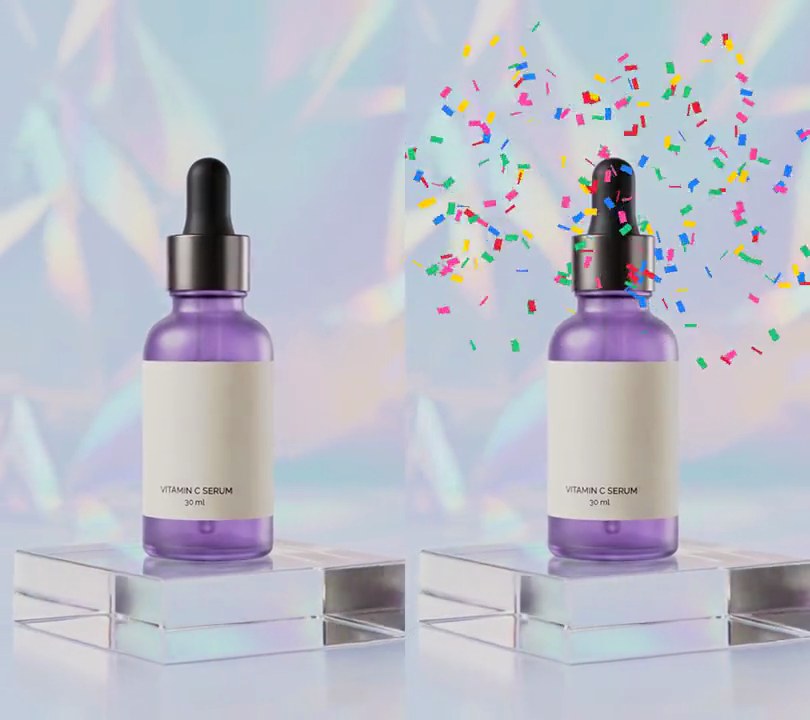
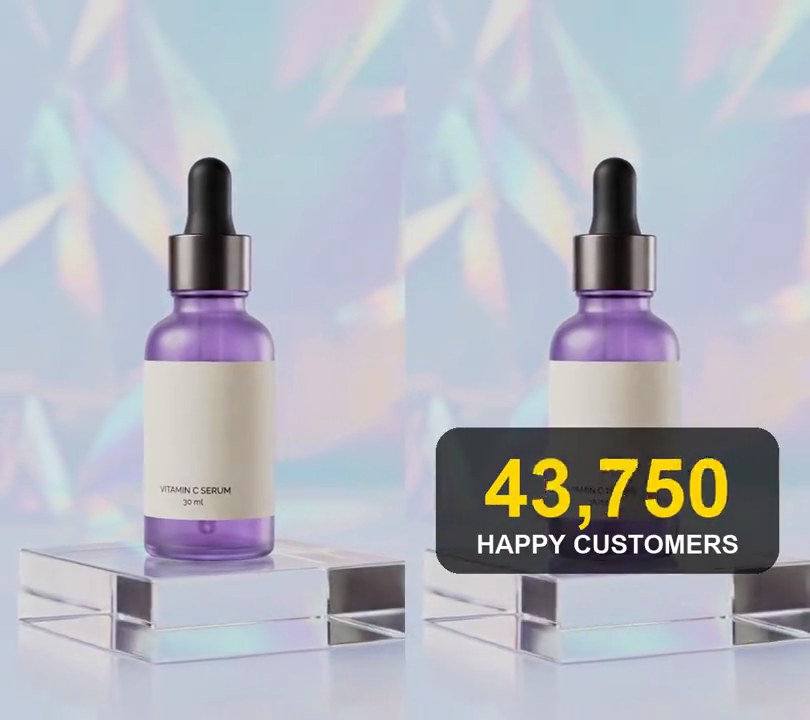
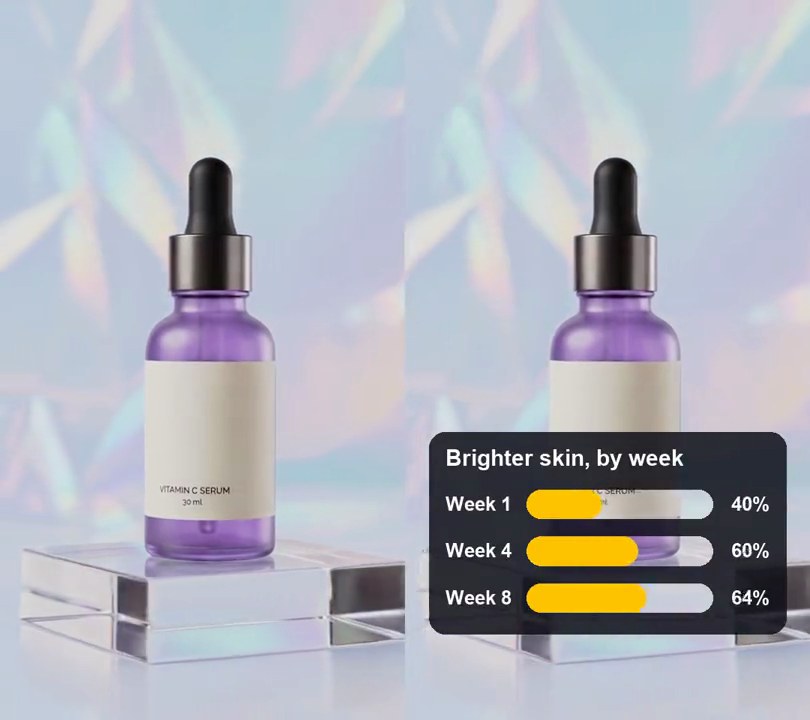
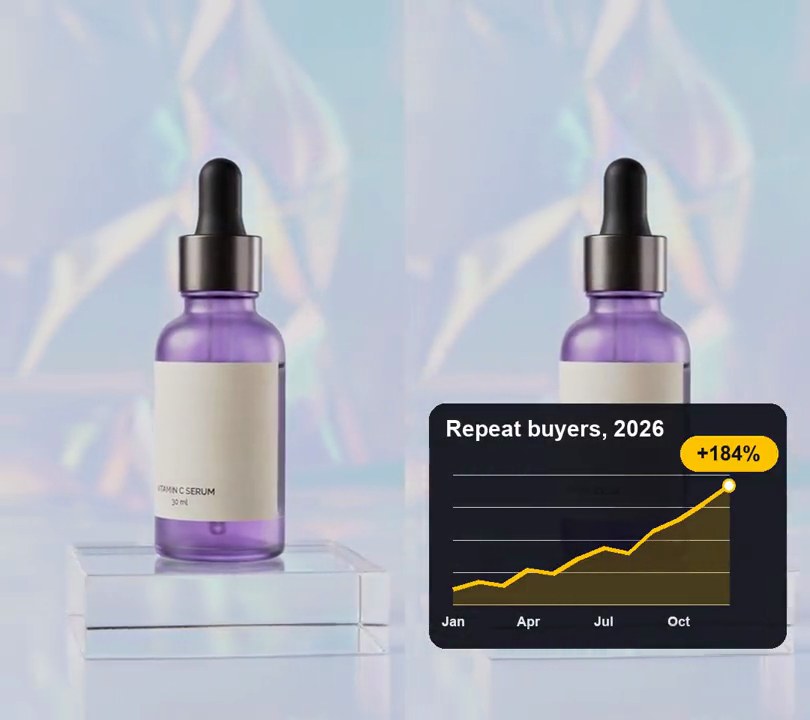
Two clips play at once, one filling the top half of the frame and one the bottom half.
Show the prompt
Stack top.mp4 above bottom.mp4 in one vertical video the same size as top.mp4. Each clip fills its half, cropped from the center. Use top.mp4's audio. Use ffmpeg and save it as output.mp4.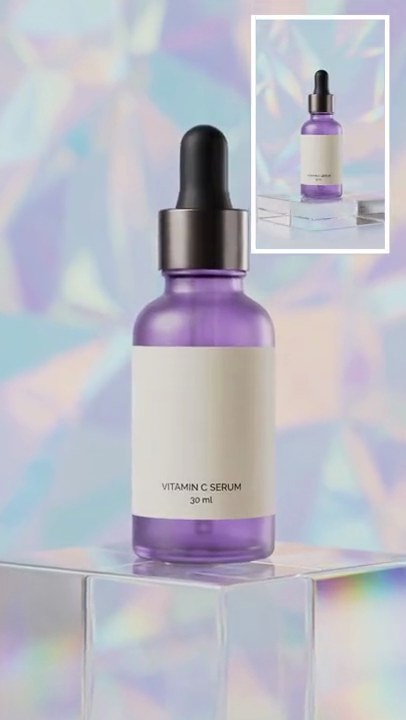
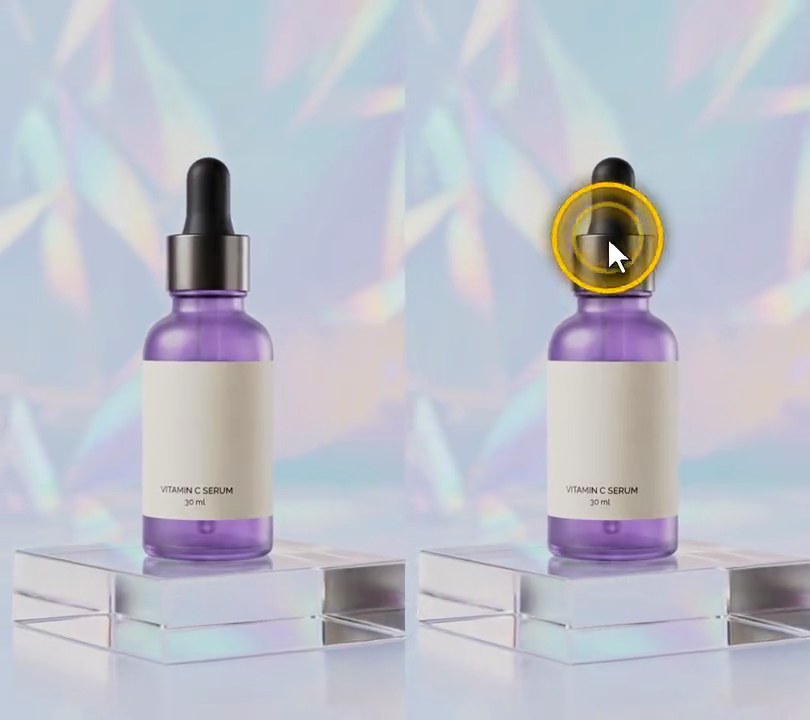
5. Picture in picture
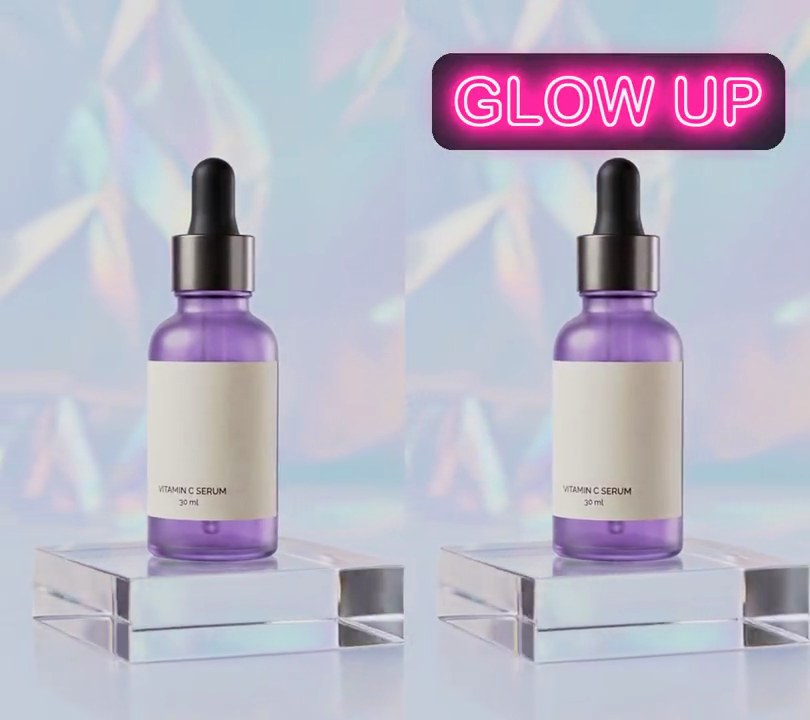
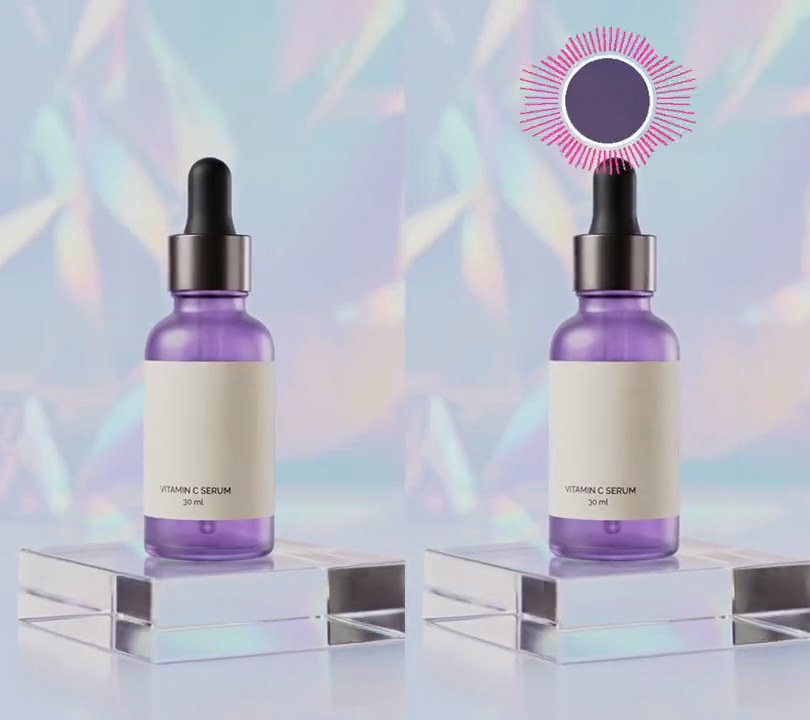
A second clip plays in a small white-framed window in the top-right corner.
Show the prompt
Put inset.mp4 as a picture-in-picture over main.mp4: scale it to 32% of main's width, give it a 6-pixel white border, and place it in the top-right corner with a gap of 4% of main's width from the top and right edges. Keep main's audio. Use ffmpeg and save it as output.mp4.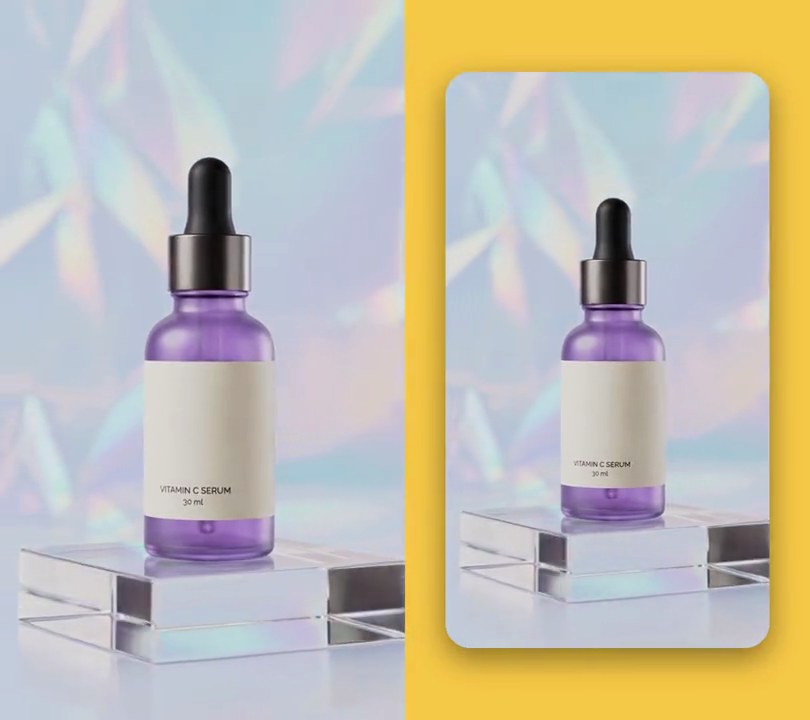
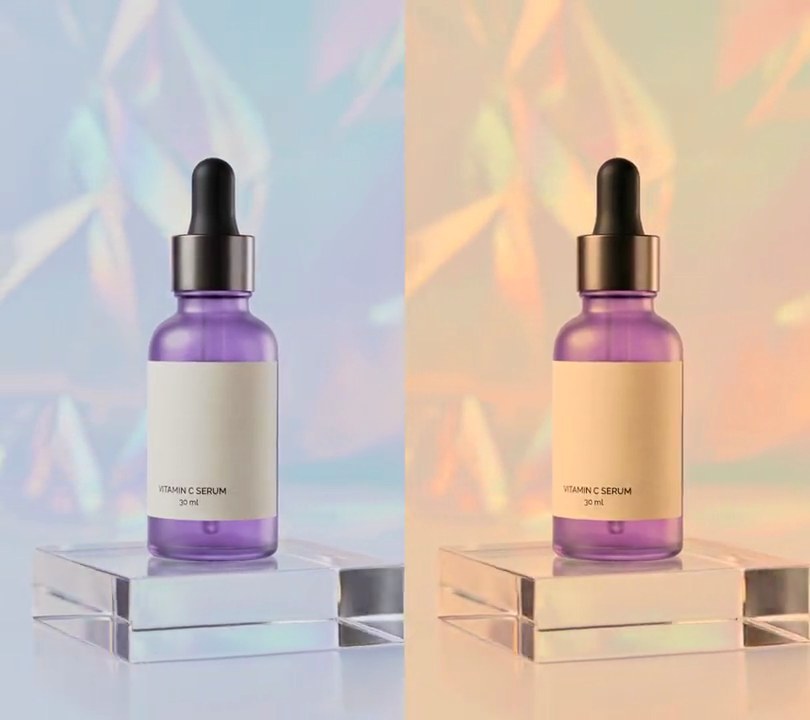
6. Framed video card
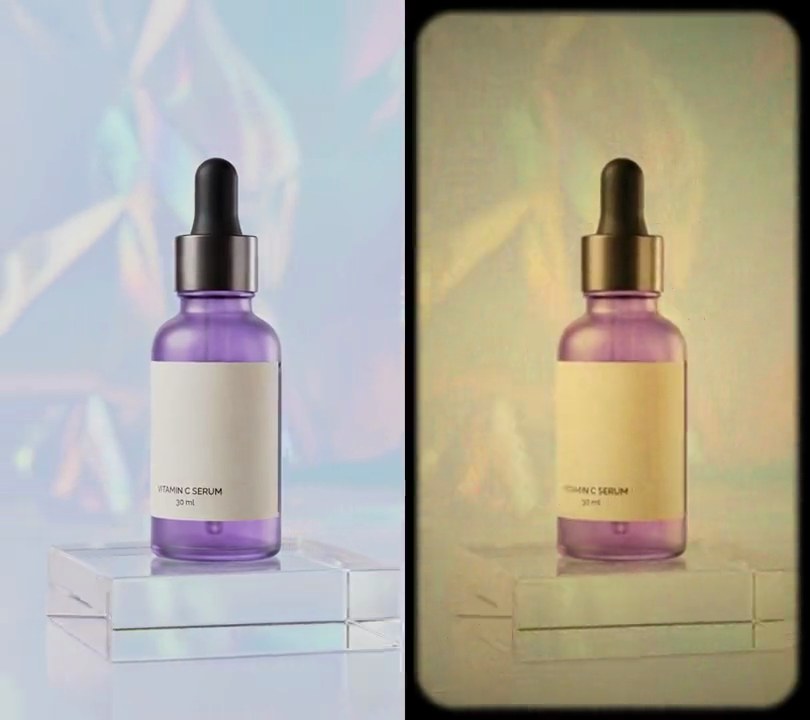
Half a second in, the full-screen video shrinks to a rounded card floating on a butter-yellow backdrop, with a soft shadow under it.
Show the prompt
Turn input.mp4 into a framed video card. Play it full screen until 0.5 seconds, then over 0.6 seconds (ease-out) shrink it to 80% of the frame's width and height, centered, with its corners rounding to a radius of 6% of the frame width, onto a solid (247, 201, 72) yellow backdrop. Give the card a soft black drop shadow at 45% opacity, blurred by 3.5% of the frame width and shifted down by 2.5% of the frame width. Hold the card to the end. Use Python with Pillow for the mask and shadow (draw anything with Pillow, not ffmpeg's drawtext) and ffmpeg to read and write the video, keep the audio and the original size, and save it as output.mp4.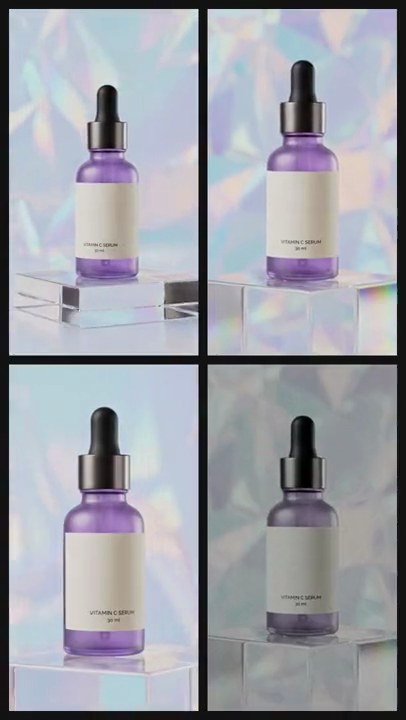
7. Video grid
Four different clips fade in one after another into a 2x2 grid of tall tiles with thin dark borders, then all play at once.
Show the prompt
Make a 2x2 video grid from four clips: a.mp4 top-left, b.mp4 top-right, c.mp4 bottom-left, d.mp4 bottom-right. The output is 540x960, 30fps and 6 seconds long, on a #141414 near-black background. Each tile is 252x462 pixels, with a 12-pixel border around the outside and 12 pixels between tiles: tiles at x=12 and x=276, y=12 and y=486. Scale each clip to fill its tile and crop the overflow equally from both sides (centered), never stretch it. Each tile fades in from the background over 0.2 seconds: top-left starting at 0s, top-right at 0.25s, bottom-left at 0.5s, bottom-right at 0.75s; until its fade starts a slot shows only the background. All four clips play from their own start at the same time and keep playing to the end. Keep a.mp4's audio. Use ffmpeg and save it as output.mp4.
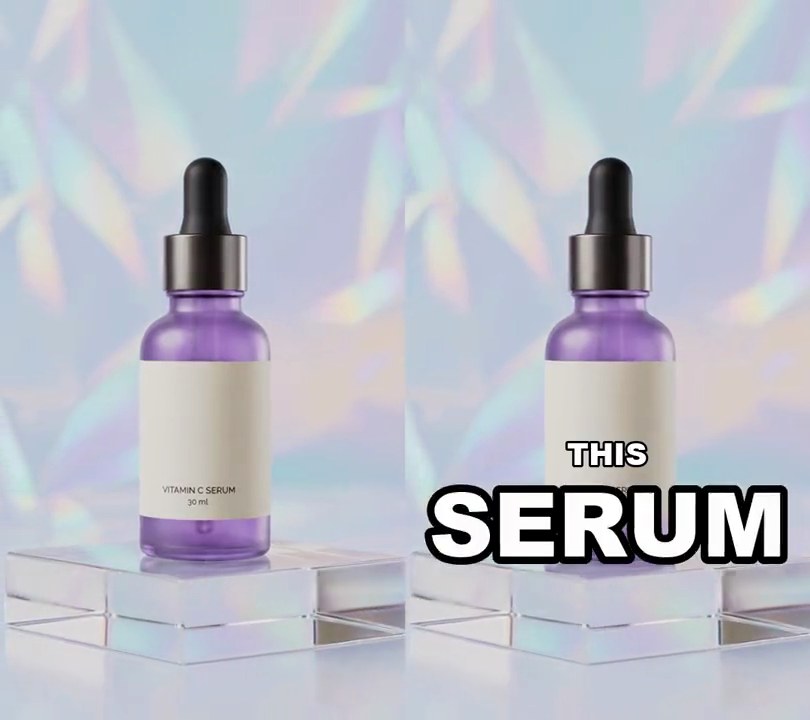
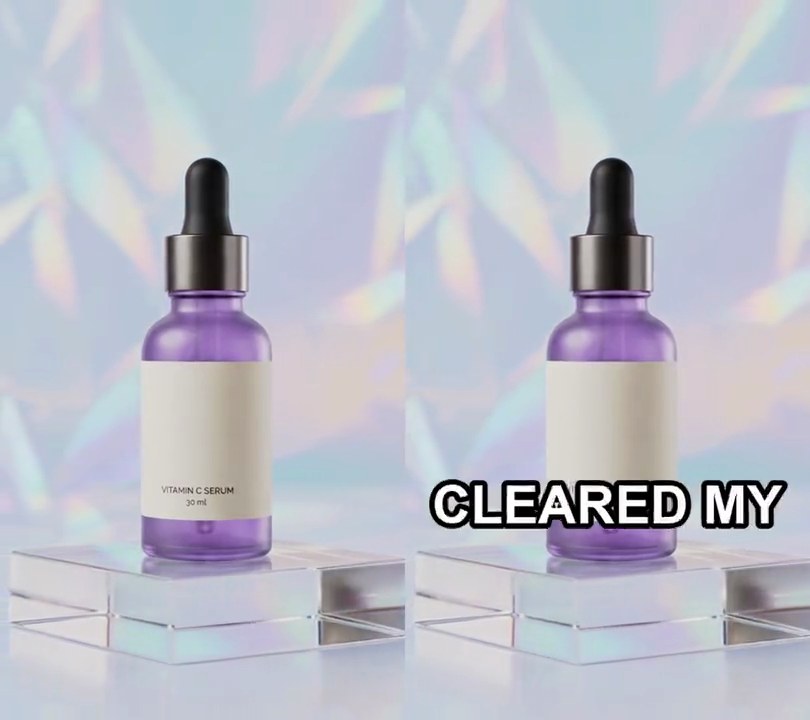
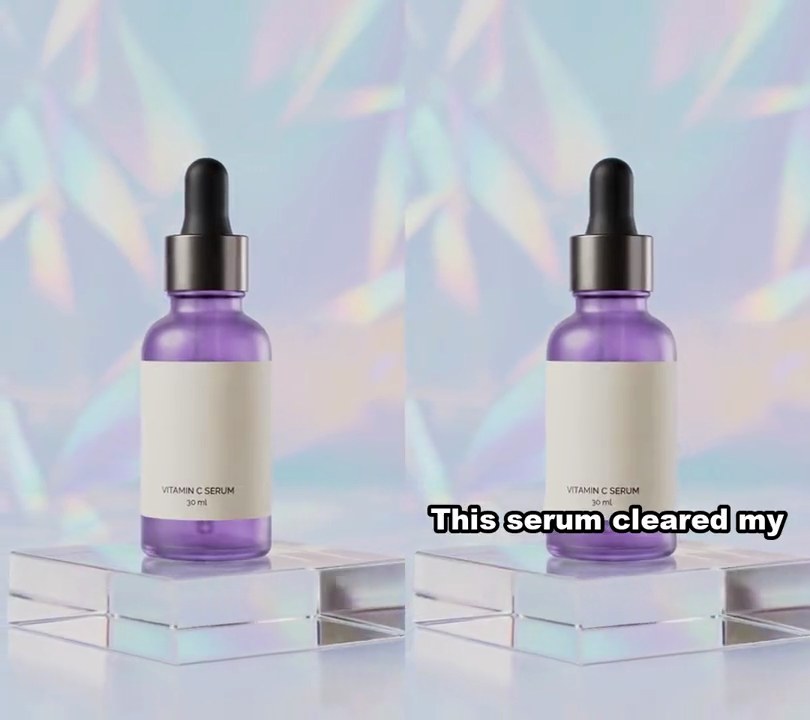
8. Meme caption bar
The clip drops below a white strip across the top quarter of the frame, where a bold black caption reads like a meme setup line.
Show the prompt
Turn input.mp4 (540x960) into a meme-format video: a pure white (255, 255, 255) bar across the top 240 pixels holds the caption "Me after one week of using this serum" in black Arial Bold at 43 px, centered and wrapped to fit within 32 px of each side, with lines 1.2x the text size apart and the block centered in the bar. Below the bar, show the middle 540x720 of the video (crop 120 pixels off its top and bottom) so nothing is hidden behind the bar. Keep it at 540x960, 30fps, on screen the whole 6 seconds. Use Python with Pillow to draw the bar and ffmpeg to stack it on the video (don't rely on ffmpeg's drawtext filter), keep the audio, and save it as output.mp4.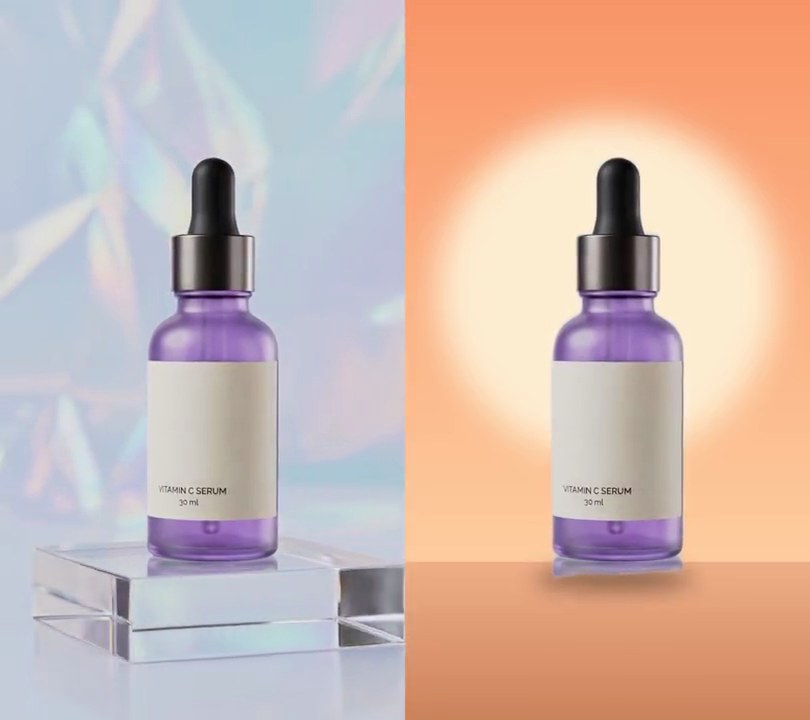
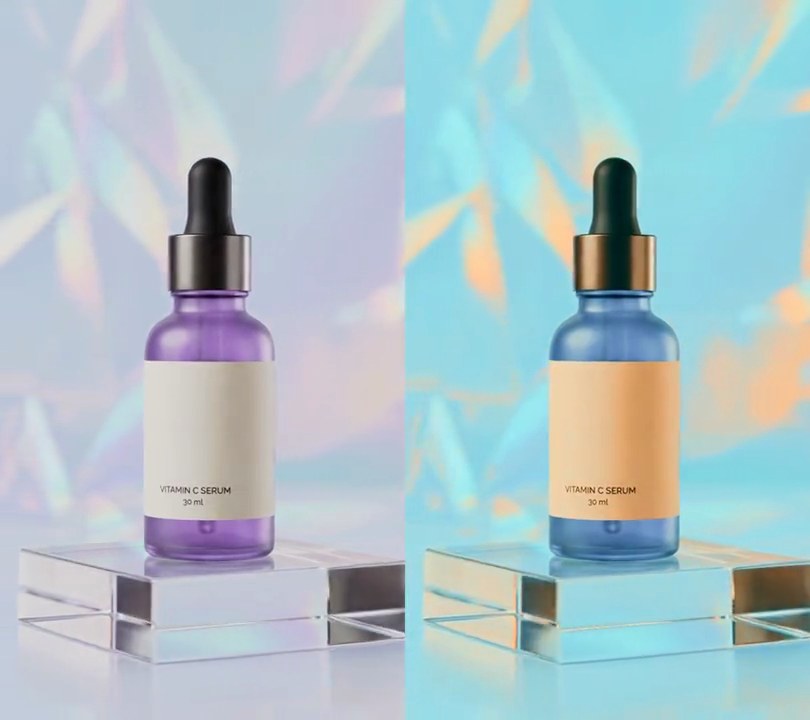
9. Background replacement
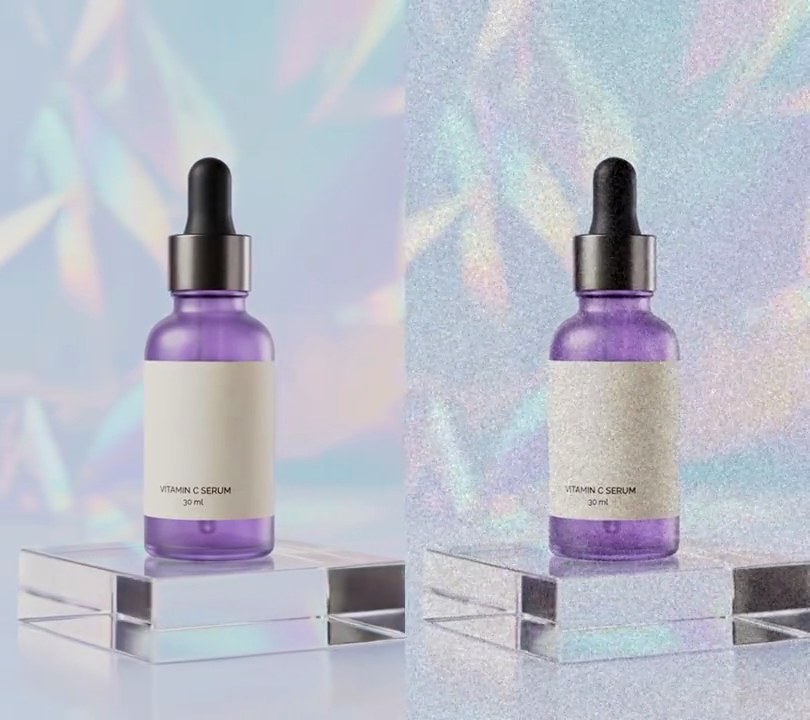
At one second the holographic backdrop and acrylic stand dissolve away, leaving the purple serum bottle standing on a coral studio floor in front of a glowing cream sun.
Show the prompt
Replace the background of input.mp4 (540x960, the camera circles a serum bottle whose base sits about 79% down the frame). Build the new background once with Python, Pillow and numpy: a wall that is a vertical gradient from (250, 150, 105) at the top to (255, 205, 160) at 78% down the frame, then a floor from 78% down to the bottom that goes from (240, 175, 135) to (205, 130, 95), plus a soft cream (255, 238, 210) disc on the wall centered horizontally and 40% down, with a radius of 42% of the frame width and edges blurred by 4% of the width (keep it off the floor). Leave the video untouched before 1.0 second. From 1.0 second, on every frame cut the bottle out with rembg (u2net model), dissolve the old background into the new one over 0.5 seconds with a smoothstep ease, add a soft dark contact shadow (45% darkness, a blurred ellipse as wide as 1.2 times the bottle) under the bottle's base that follows it, and put the cut-out bottle back on top unchanged. Use ffmpeg to read and write the frames (no text is drawn; if you add any, draw it with Pillow, not ffmpeg's drawtext), keep the size, 30fps and the audio, and save it as output.mp4.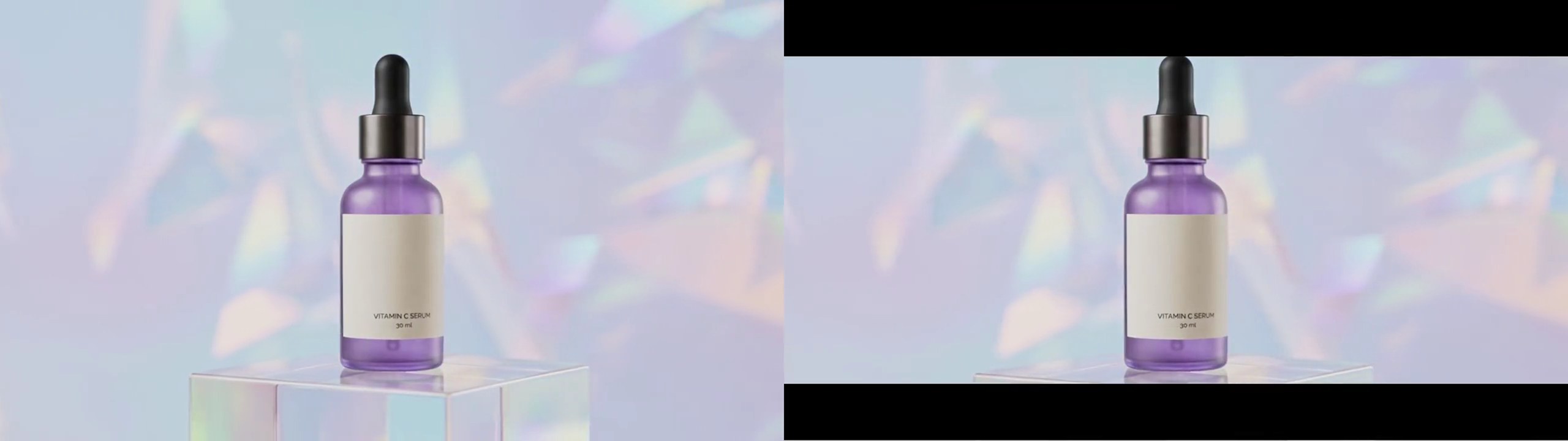
10. Cinematic bars
Black bars slide down from the top and up from the bottom, trimming the wide shot to a thin 2.39:1 movie-screen strip.
Show the prompt
Add cinematic letterbox bars to input.mp4 (960x540). Two solid black (#000000) bars, each the full width and 69 pixels tall, slide in over the picture: the top one down from the top edge and the bottom one up from the bottom edge, both moving linearly from 0.5 to 1.0 seconds, then staying put to the end so the picture between them is 960x402 (2.39:1), centered vertically. Before 0.5 seconds the frame is untouched. Don't scale or move the picture itself; the bars just cover the top and bottom 69 pixels. Keep the size, 30fps, 6 second length and audio. Use ffmpeg and save it as output.mp4.