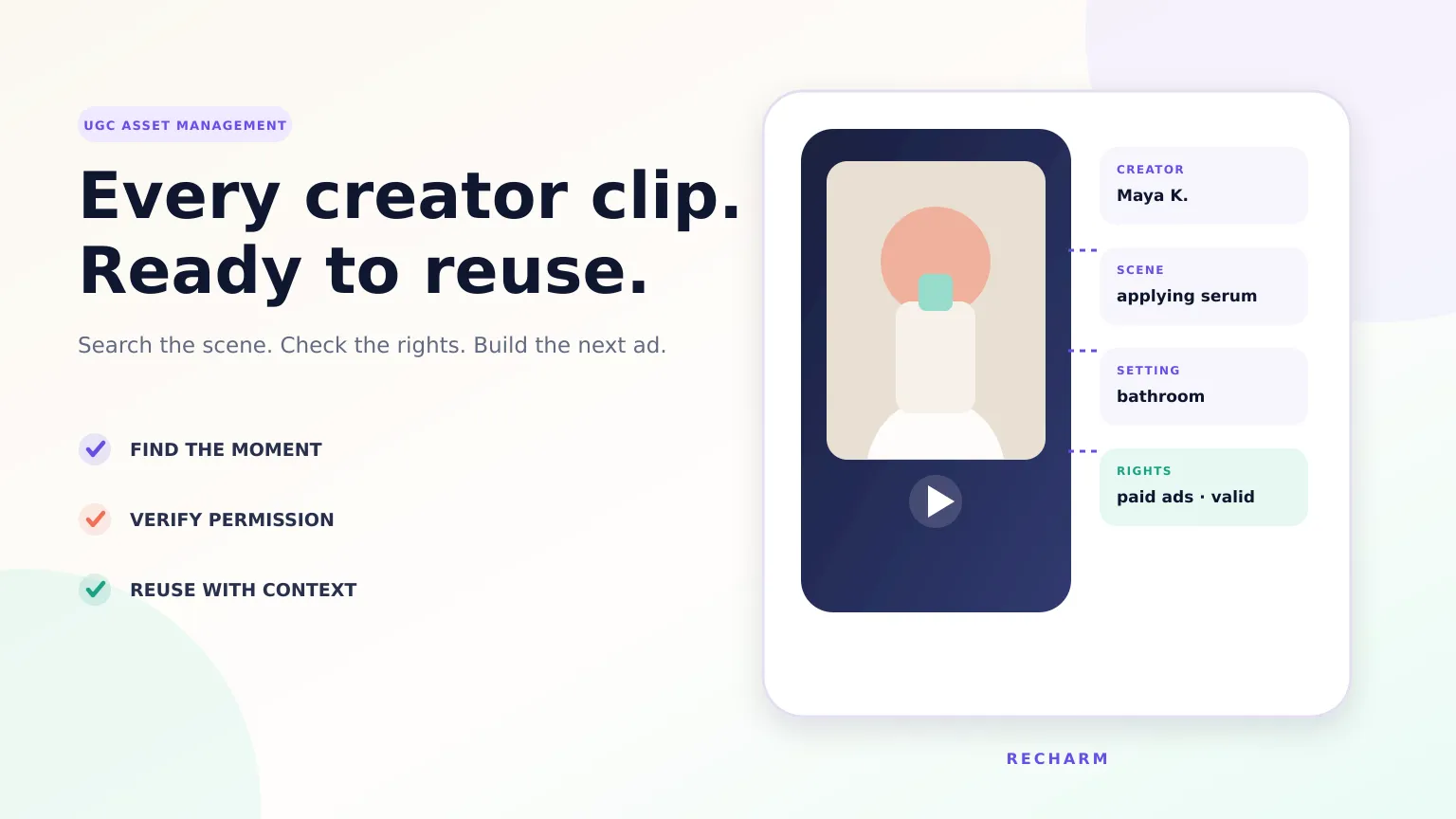
You've just wrapped up a major influencer shoot, and dozens of raw videos have landed in your drive with names like IMG_4412.MOV and clip_final.mp4. Now tomorrow's brief needs "the creator applying serum in her bathroom."
Two problems arise: finding that exact moment in hours of footage and knowing whether you have permission to use it.
These are two of the biggest challenges of UGC asset management at scale. Once brands start working with multiple creators, simply storing files isn't enough. Teams need to make footage searchable, keep track of usage rights, and find the right clips when they're needed.
In this guide, you'll learn how to organize raw creator footage into a searchable, rights-aware UGC library. We'll also cover how to track usage rights, reuse existing clips for new creatives, and identify footage gaps before your next shoot.
TL;DR
- The problem: As UGC libraries grow, footage becomes harder to organize and search. Different creator permissions also increase the risk of using clips without the necessary rights.
- Capture details at upload: Record creator identity, creative context, usage rights, and the original source file. AI tagging and scene detection can then help make footage searchable.
- Search by scene: Combine structured filters, transcript search, and visual search to find clips by what's happening in the video or what's being said, rather than relying on file names.
- Track usage rights: Keep license dates, permitted channels, and relevant restrictions connected to each clip. This helps teams spot expired or expiring footage before reuse.
- Reuse and plan: Combine existing footage into new creative variations and check for missing shots before planning another creator shoot.
Why UGC Becomes an Asset Management Problem at Scale
When a campaign goes live, brands may have content from dozens of creators, each delivering multiple takes, angles, and edits. Every file adds more footage to organize, while each creator may have different usage permissions. At this stage, the challenge shifts from simply storing files to finding the right moments and confirming they can be reused.
A three-minute UGC video might contain a strong hook, a testimonial, a product demonstration, and a CTA. But a traditional folder system treats it as one file, making individual moments harder to find.
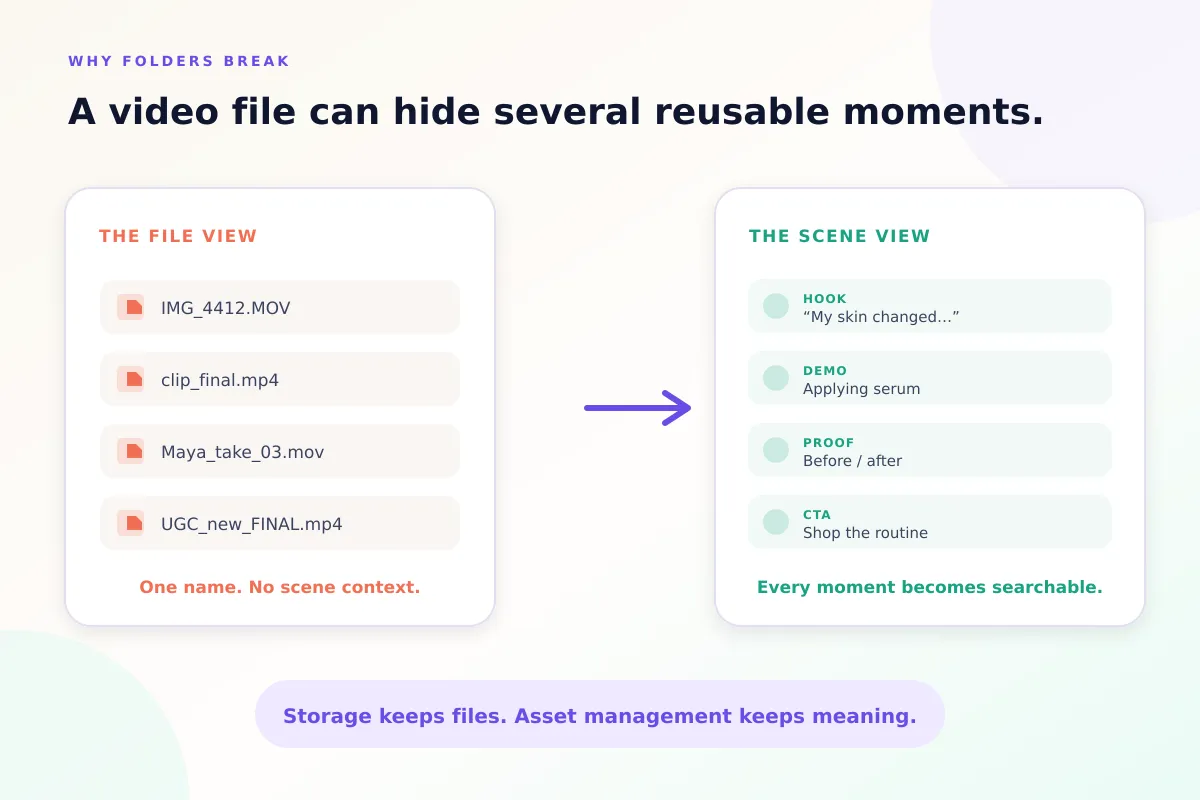
Without scene-level organization and search, teams spend more time reviewing footage manually. They may also overlook usage restrictions when reusing clips for new campaigns.
What Every UGC Asset Record Should Keep
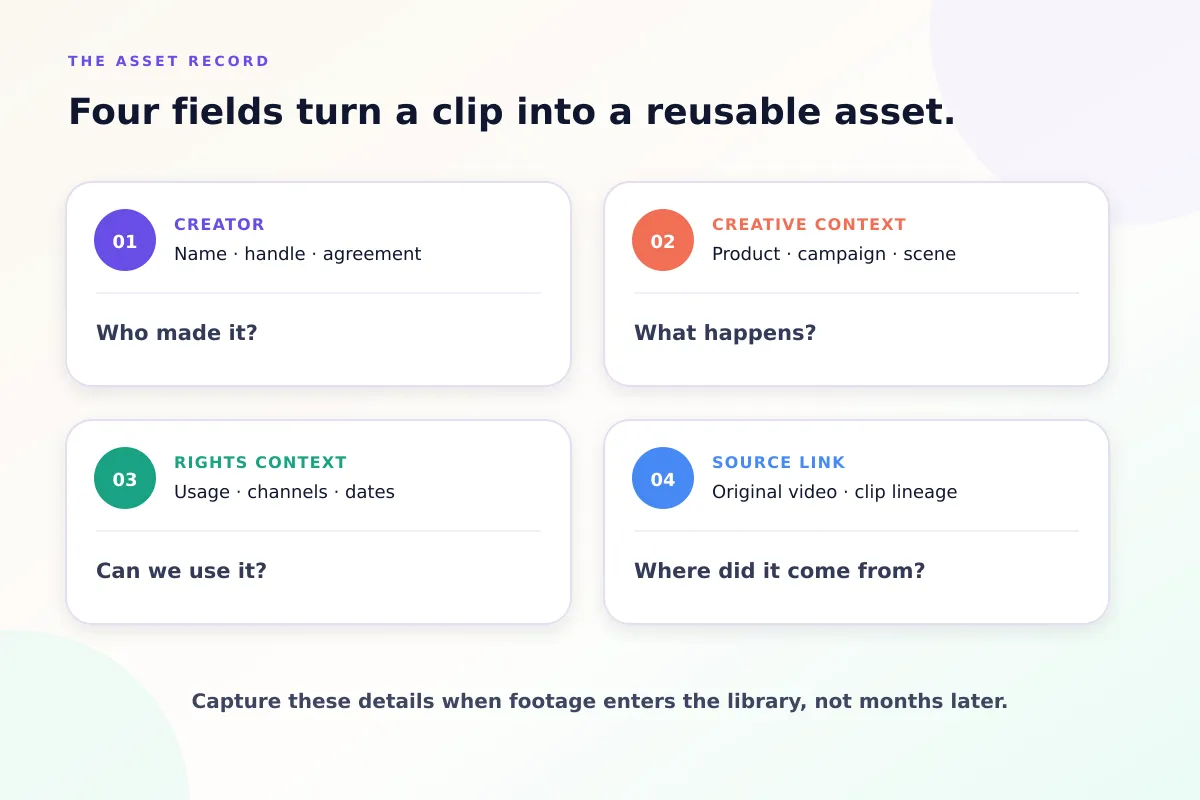
Every asset in your UGC library should have enough information to make it easy to find, review, and reuse. At minimum, each video or clip should include four types of information:
- Creator identity: Record the creator's name, handle, or ID so teams know who produced the footage. In a digital asset management (DAM) system like Recharm, creator tagging helps teams organize and find footage by creator. Keep the relevant creator agreement accessible so usage permissions can be verified when needed.
- Creative context: Record the product featured, campaign or brief, and the type of content in the video. For example, identify whether a clip contains an unboxing, product demonstration, testimonial, or hook. Include the shoot date and setting where relevant. Consistent metadata helps teams find specific types of footage without searching through folders.
- Rights context: Record the permitted usage, such as organic posts, paid advertising, or allowlisting, along with license start and end dates, approved channels, territories, and any restrictions on editing or exclusivity. Keep these details consistent with the creator agreement. Having this information connected to the footage helps teams identify potential licensing issues before reusing a clip.
- Source-to-clip relationship: When a raw video is divided into smaller clips, each clip should remain connected to its original source. This allows editors to trace a scene back to the full video when they need additional context or want to create another edit. Recharm maintains the connection between source footage and its clips, making it easier to organize and reuse individual scenes.
Build a Repeatable UGC Ingestion Workflow
A good UGC asset management process starts when content enters the library. Capturing creator information, usage rights, and creative context at this stage makes footage easier to find and reuse later.
Here's a six-step workflow teams can follow:
- Collect the source file and agreement. When a creator submits footage, upload the original video to your DAM and keep the signed usage rights agreement accessible. Treat the footage and its licensing information as connected records.
- Tag the creator and source. Add the creator's name, campaign, product, and other relevant details. This makes it easier to identify who produced the footage and where it belongs.
- Enter usage rights information. Record whether the footage can be used for organic posts, paid advertising, or other purposes. Include license dates and any restrictions on platforms, territories, or editing. Verify these details against the original agreement rather than assuming that uploading the file means it is cleared for use.
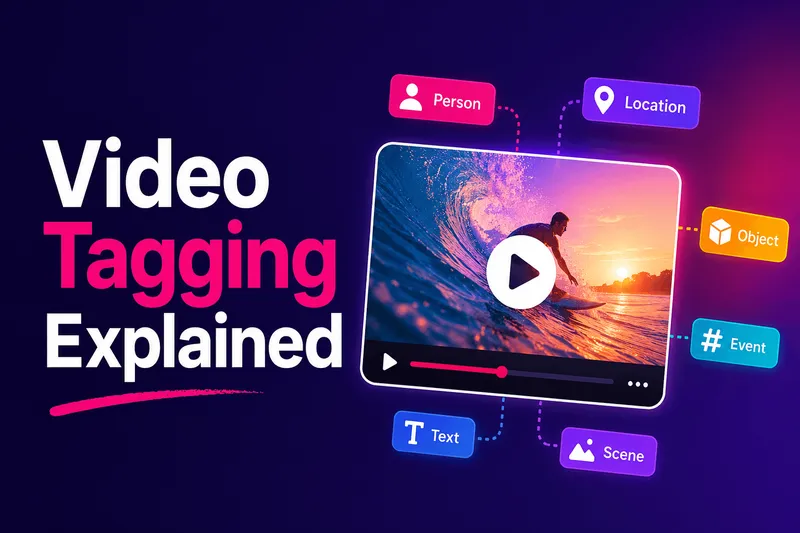
- Process the video with AI. Use AI video tagging and scene detection to identify relevant objects, actions, and scenes within the footage. Transcript search can also help teams locate specific spoken lines. These capabilities make individual moments easier to find without manually reviewing every video.
- Run a human quality check. Review the generated tags, scene boundaries, creator information, and usage rights details. Correct any inaccurate information before making the footage available for reuse.
- Make the footage available in the library. Once the content has been processed and reviewed, organize it so the team can search, access, and reuse suitable clips for future campaigns.
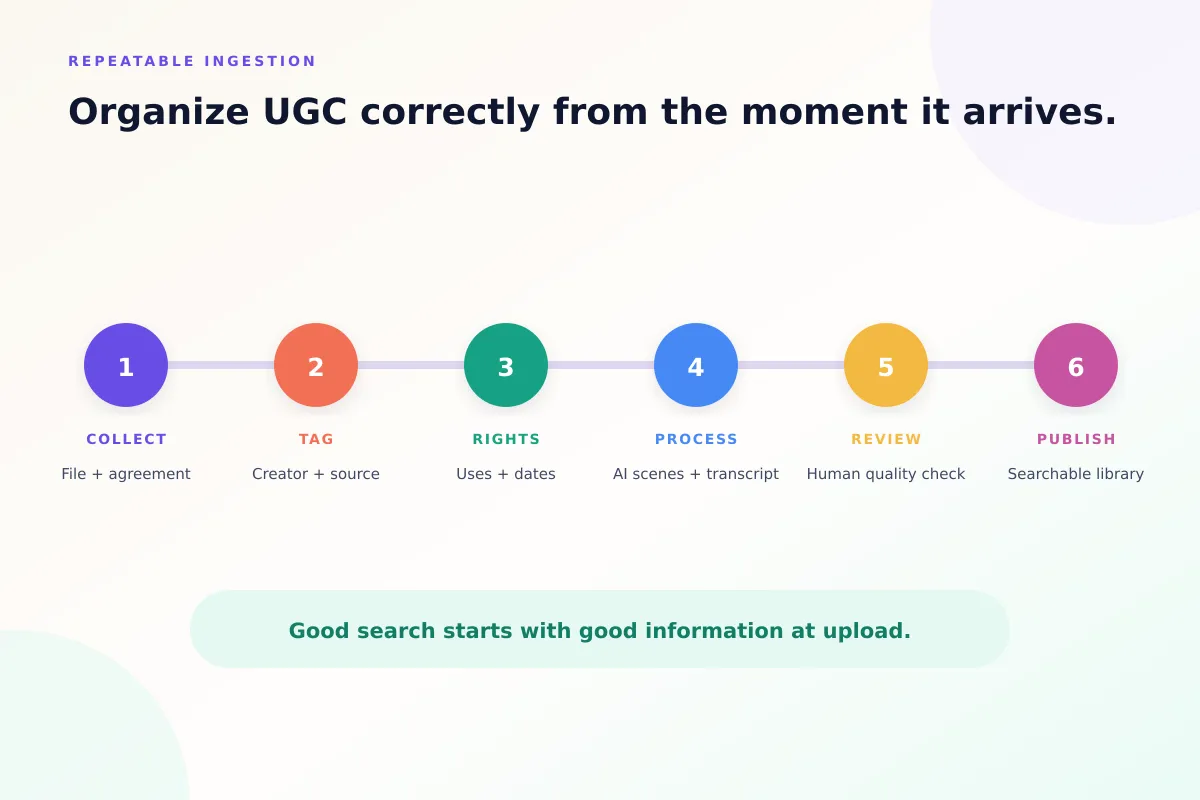
The key is to capture important information early rather than adding it months later. Following consistent DAM best practices helps teams maintain accurate metadata, track permissions, and keep footage organized as their libraries grow.
Organize UGC by Creative Signals, Not Just Folders
Organizing footage into folders by creator, month, or campaign works for basic file management. But it becomes less useful when a strategist needs a specific shot, such as a product testimonial or an unboxing.
Instead, organize footage by creative signals, such as the purpose, action, or content type of each scene.
For example, clips can be categorized as "Problem Statement," "Product Demo," "Before/After," or "Hook Type: Question." Teams can also use visual descriptions, such as "creator opening a box" or "person applying serum."
This makes it easier to find footage based on what happens in the video, rather than remembering who filmed it or where the file was saved.
Structured Filters vs. AI-Generated Tags
| Method | Examples | How It Helps |
|---|---|---|
| Structured filters | Creator name, campaign, date, product, usage type | Narrow searches using recorded asset information |
| AI-generated tags | Objects (pillows, bottles), actions (pouring, applying), scenes (bathroom, kitchen) | Identify visual details that help teams locate relevant footage |
Both approaches work together. Structured filters help narrow results by campaign, creator, or product, while AI-generated tags and transcript search help identify specific moments within videos.
For example, a strategist might filter for testimonial videos from a particular campaign and then search for clips where someone mentions "long-lasting results."
A consistent DAM taxonomy, combined with AI-powered search, makes footage easier to organize and reuse across campaigns.
Make Creator Footage Searchable at the Scene Level
Once your UGC footage is organized and indexed, teams should be able to find specific moments without watching entire videos or remembering file names.
Here are four ways to search a UGC library:
- Structured filters: Use metadata such as product, creator, format, date, or campaign to narrow results. For example, filter for mascara testimonials from a particular campaign.
- Transcript search: Search for words or phrases spoken in a video. A strategist might remember a creator saying "it lasts all day" without knowing which file contains that line. Recharm's transcript search helps locate matching footage across the library.
- Visual and semantic search: Describe the footage you need in natural language, such as "person applying eye cream in a mirror" or "product on a bathroom counter." Recharm's visual search helps find relevant scenes based on what's happening in the video.
- Creator filter: Search by creator name or handle when you need footage from a particular influencer. This helps teams find content from specific creators without browsing individual folders.
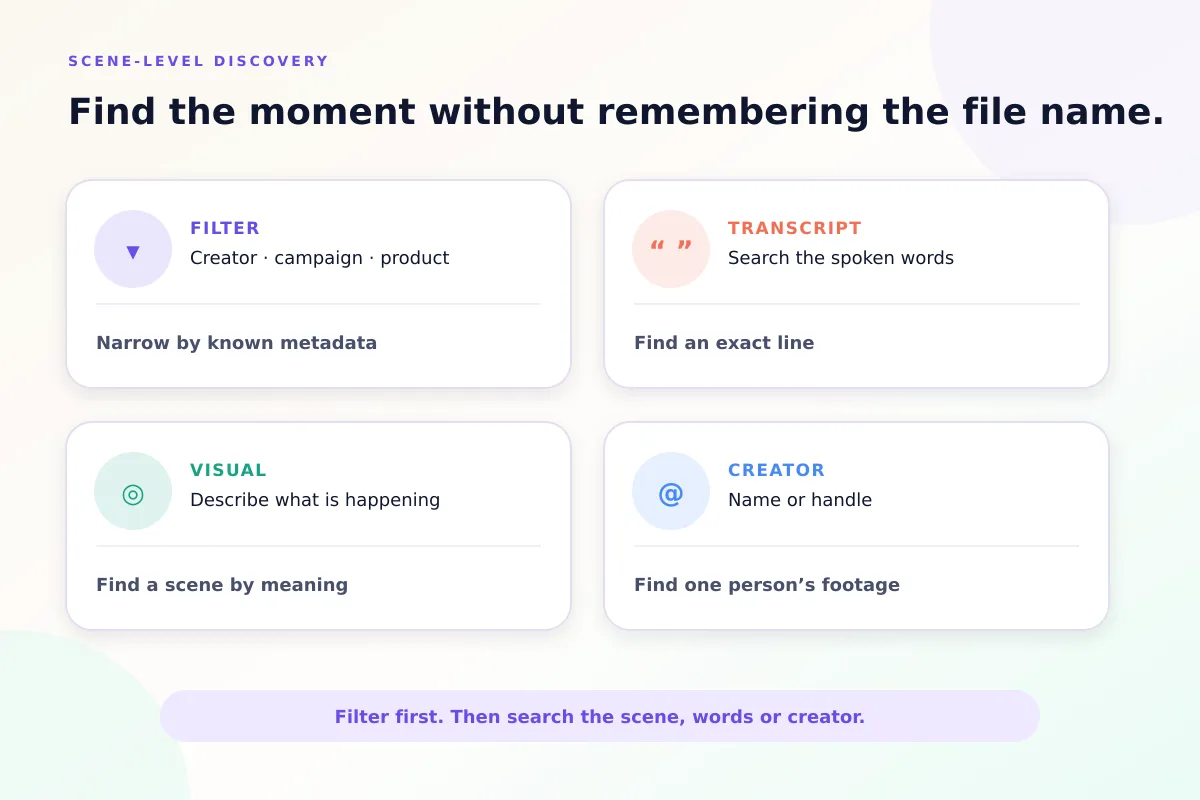
These search methods are particularly useful when teams know what a shot looks like but cannot remember where it was saved.
For example, cookware brand HexClad uses Recharm to search its footage library. According to the HexClad case study, finding a specific shot went from approximately 30 minutes to five minutes.
The goal is to make individual scenes searchable, even when they belong to longer source videos.
Keep Usage Rights Attached to the Footage
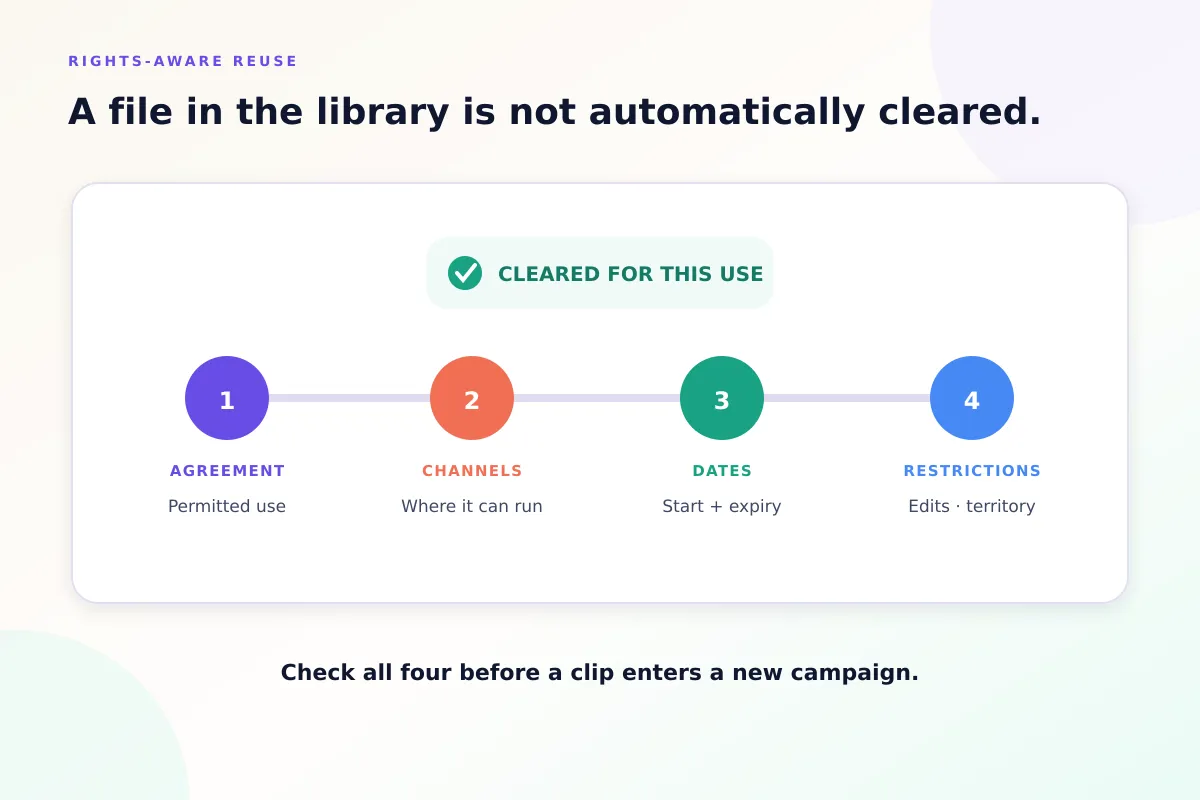
Owning a video file doesn't automatically give a brand permission to use it in advertising.
In the US, creators generally own the copyright to their original content unless those rights have been transferred or a written agreement says otherwise.
Before using creator footage, confirm that you have the necessary license or permission. Check whether the agreement covers organic posts, paid advertising, specific platforms, and the intended campaign period.
These details should remain connected to the footage so teams can verify usage rights before reusing a clip.
Brands should also consider FTC endorsement and disclosure guidelines. When creators endorse products and have material connections to a brand, such as payment or free products, those connections must be clearly disclosed when they are not otherwise apparent to the audience. The appropriate disclosure depends on the content and how it is presented.
Keep relevant disclosure requirements alongside the asset's licensing information so they can be reviewed when preparing future campaigns.
Recharm's usage rights management keeps license information and expiration dates connected to your footage, with a color badge that shows when rights are approaching or have expired. That makes it easier to spot problem clips before they are reused.
Reuse UGC Without Making Endless Near-Duplicates
One advantage of an organized UGC library is the ability to combine existing footage into different creative variations.
Instead of repeatedly publishing the same video with minor changes, such as a new caption or shorter duration, teams can experiment with different hooks, product demonstrations, testimonials, and storylines.
For example, take an existing product demonstration and test it with a different opening hook. Or combine footage from multiple approved creators to build a new ad concept, provided the usage rights allow it.
The goal is to create meaningful variations using footage you already have, rather than relying on the same familiar clips.
HexClad's experience shows how easier footage discovery can support this process. Its team now makes 3x more ad edits with Recharm, helped by finding usable footage faster.
Before planning another shoot, ask whether a different storyline, hook, or creator perspective could be built using existing footage.
For more ideas, see our guide to scaling ads with UGC.
Use Your Library to Decide What to Shoot Next
Before creating your next brief for UGC creators, review the footage already available in your library.
A footage gap analysis helps teams compare what a campaign needs against what they already have. For example, if an upcoming campaign requires three product demonstrations and two lifestyle testimonials, check whether suitable footage already exists before commissioning new content.
With Recharm's creative brief workflow, teams can use existing footage to support campaign planning. Recharm's Footage Gap Finder, a Claude skill, takes an ad concept, lists the shots it needs, checks your library for each one, and returns a prioritized shoot list of what's missing.
Look for gaps in creator perspectives, product actions, settings, and shot types.
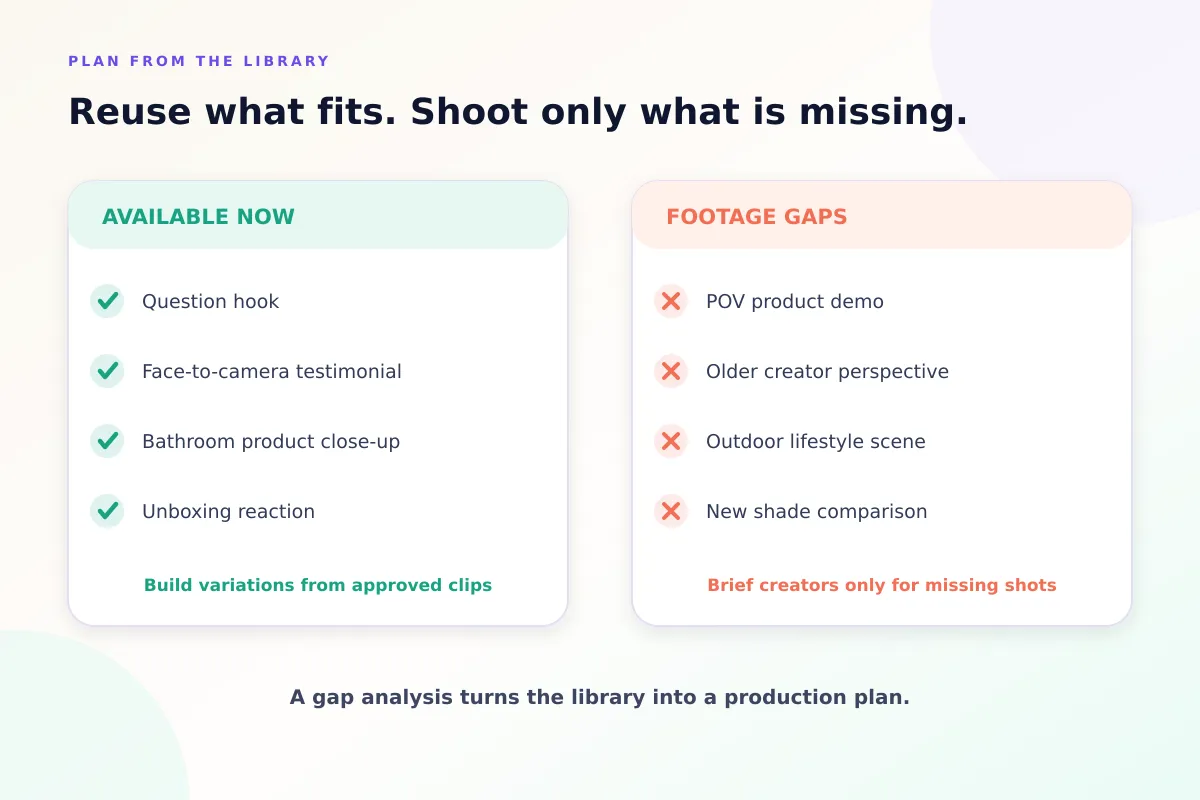
For example, your library might contain several face-to-camera testimonials but no point-of-view product demonstrations. Or you might have footage featuring one audience segment but lack content for another.
Identifying these gaps helps teams plan more focused creator briefs and avoid commissioning footage they already have.
Audit Your Current UGC Library
Not sure whether your current UGC library supports efficient asset management? Start with these seven questions:
- Can you find footage by creator name or handle? Your team shouldn't have to rely on file names or folders to identify creator content.
- Can you search for specific spoken lines? Transcript search should help locate relevant dialogue without watching every video.
- Can you find scenes by visual description? For example, can you search for "person applying lotion" without knowing the file name?
- Can you check the usage rights of each clip? Teams should be able to review permitted uses and restrictions before publishing.
- Can you identify expired or expiring licenses? Rights information should be easy to access so teams can avoid reusing expired footage.
- Can you trace a clip back to its original video? Maintaining the source-to-clip relationship makes it easier to review context and create new edits.
- Can you share individual clips with editors? Teams should be able to access relevant footage without transferring entire folders.
If your answer to several of these questions is "No," your current asset management process may need improvement.
A DAM with visual search, transcript search, creator tagging, and rights management can help address these gaps as your UGC library grows.
Make Your UGC Library Easier to Search and Reuse With Recharm
Your UGC library should help your team create more content, not slow them down with endless searching.
When creator details, usage rights, and searchable scenes are organized in one place, editors can find relevant footage faster and spend less time reviewing files manually. Teams can also check what footage is available before planning another creator shoot.
Recharm brings creator tagging, visual and transcript search, and usage rights management into one searchable footage library. Instead of searching through folders or reusing the same familiar clips, your team can find the footage it needs and put existing assets to better use.
Start a 14-day free trial and see how Recharm works with your own creator footage.
FAQs
What Is the Best Way to Organize UGC From Multiple Creators?
Use a centralized DAM or content library and apply consistent metadata to every file. Tag footage by creator name, campaign, product, and content type, such as testimonial, unboxing, or product demonstration.
This makes it easier to search across multiple creators without digging through separate folders. For a step-by-step approach, see our guide to organizing video files.
What Metadata Should a UGC Library Track?
At minimum, track creator identity, campaign or product context, and usage rights information, including permitted uses, license dates, channels, and territories.
You can also record the shoot date, setting, content type, and relevant transcript keywords. These details help teams find specific footage and check whether it can be reused for a particular campaign.
How Do Brands Track UGC Usage Rights?
Brands can use a DAM to keep licensing information connected to creator footage. Record whether a clip is approved for organic posts, paid advertising, or other uses, along with the license duration and any restrictions.
Keep the original agreement accessible and review the permissions before reusing footage. Rights management features can also help teams spot expired or expiring licenses.
Can AI Search Raw Creator Videos Without File Names?
Yes. AI-powered video search can analyze visual content and spoken dialogue, allowing teams to find footage without knowing the original file name.
For example, instead of searching for "clip1.mp4," you can describe a scene such as "creator applying serum" or search for a spoken phrase. The system can then surface relevant footage from the library.
When Does a Brand Need a DAM Instead of Google Drive for UGC?
Google Drive can work when you're managing a small collection of videos. But as your library grows across multiple creators, campaigns, and usage agreements, finding and managing footage becomes more complicated.
A DAM provides more specialized capabilities, such as rich metadata, visual and transcript search, creator tagging, and usage rights management.
See how Recharm compares with Google Drive.