A strategist writes a creative brief. An editor turns it into a first cut, but it doesn't quite match the original idea. A few rounds of feedback later, the video is finally ready.
The problem isn't always the editing itself. It's the time spent turning a creative idea into something the team can actually watch and review.
Claude, connected to a digital asset management system like Recharm, can help shorten that process. With the Make Video skill, teams can use existing creator footage, product shots, and other assets to build a reviewable video ad prototype.
Instead of generating synthetic actors or starting every edit from scratch, the workflow focuses on finding and assembling footage already available in your library.
This guide covers the setup, five-step workflow, and eight example prompts for creating different video ad formats.
TL;DR
Create video ad prototypes: Use Claude's Make Video skill to assemble existing footage into a reviewable first cut.
Work with your own assets: Connect Claude to a tagged Recharm library to find relevant product shots, creator videos, and other footage.
Follow a five-step workflow: Move from brand and asset discovery to creative planning, review, and rendering.
Explore eight examples: Use practical prompts for formats including YouTube bumpers, testimonials, creator mashups, and video sales letters.
Review before publishing: Check the final output for accuracy, timing, captions, branding, and usage rights before running it as an ad.
Real Footage or AI-Generated Video: Which Should You Use?

AI-generated video and existing brand footage serve different purposes. Generated video can help explore new concepts, while footage from your DAM is useful when you need real products, creators, and customer experiences.
Use generated video when | Use footage from your DAM when |
You have no footage yet | Creator trust and real reviews matter to the ad |
You're exploring a new creative concept. | You need to show actual product demonstrations or customer experiences. |
You want to visualize an idea before production. | You want to reuse footage with approved usage rights. |
For performance marketing teams, existing footage can provide real testimonials, product demonstrations, and unboxing clips without requiring another shoot.
Recharm's Make Video skill is designed to work with these existing assets, helping teams assemble footage into new ad prototypes. Motion graphics and animated elements can also support the final cut when needed.
What You Need Before You Start
To create video ads with Claude using existing footage, you'll need a connected Recharm library and the tools required to assemble and render your video.
Component | Status | What it’s for |
Recharm | Required | Your tagged footage library, connected to the plugin |
ffmpeg + Node 18 | Required | The actual renderer |
ElevenLabs | Optional | Generated voiceover and music; bring your own VO instead if you’d rather |
Remotion | Optional | Motion graphics and animated fillers, pulled on demand |
Before starting, follow the Recharm Claude plugin installation guide to check the current setup requirements.
If you haven't connected your footage library yet, see our guide to connecting Claude to Recharm. You can also review Recharm's pricing to check which plan supports your workflow.
How to Make a Video Ad with Claude in 5 Steps
Recharm's Make Video skill is designed to turn existing footage into a video ad prototype. The workflow covers brand identification, footage discovery, creative planning, and rendering.

Here's how the five-step process works:
Identify the brand: Specify the brand you're creating the ad for. Claude uses this information to identify the relevant Recharm library and creative assets.
Explore the footage library: The skill uses metadata from your AI-tagged library to identify products, creators, and available scenes. Brand guidelines and approved product information can provide additional context.
Set production requirements: Provide the aspect ratio, duration, ad format, product, preferred creator, music, voiceover, and branding requirements.
Plan the video: Claude develops the script and searches for suitable footage using available visual search capabilities. Review the proposed scenes and asset selections before rendering.
Render and review: The workflow assembles the selected footage into a video prototype. Optional tools can support voiceovers and motion graphics. Review the output for timing, captions, branding, and accuracy.
If the library doesn't contain suitable footage for a particular scene, identify the missing shot before rendering. Depending on the creative requirements, an approved product image or animated graphic may be an alternative.
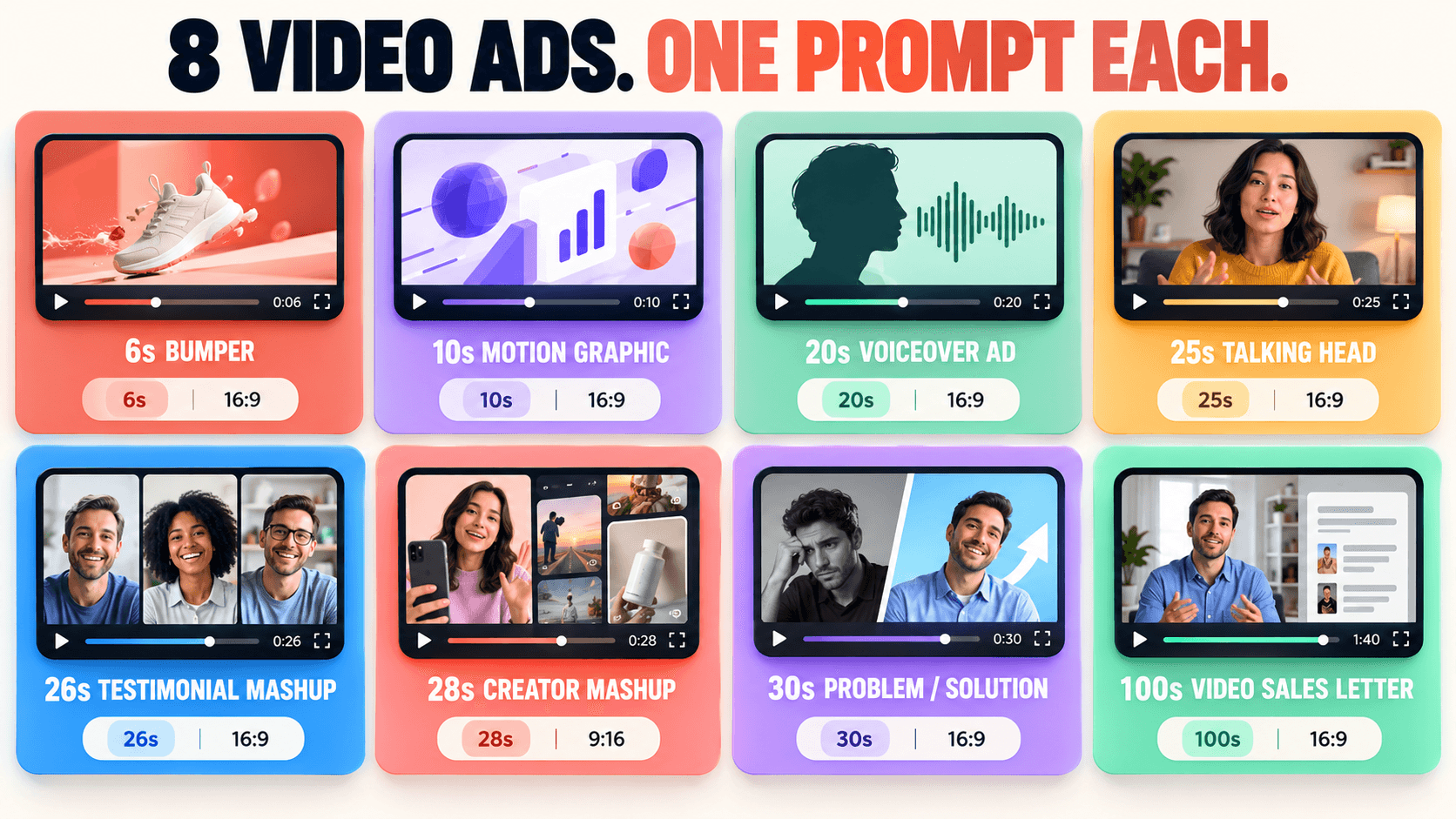
8 Video Ad Formats You Can Make with One Prompt
Different advertising formats require different creative structures. A short YouTube bumper might need one clear message, while a testimonial ad depends on finding the right creator clips.
The following eight prompts demonstrate how to specify the format, footage, message, and ending when creating video ads with Claude.
1. 6-Second YouTube Bumper
Length: 0:06 | Format: 16:9 | Brand: Magic Spoon
A short bumper focused on a single product claim, supported by product footage and a branded closing shot. No voiceover is needed.
Prompt:
/make-video Make a 6-second YouTube bumper for Magic Spoon Protein cereal, 16:9. Use one approved product claim, show the cereal box, and end with a branded packshot. No voiceover. Add upbeat music.
Change this for your brand: Replace the product claim and closing shot with approved information and footage from your library.
2. 10-Second Motion Graphic
Length: 0:10 | Format: 9:16 | Brand: ILIA
This format combines animated text, brand styling, and product visuals. Motion graphics can communicate a simple product benefit without requiring a creator-led video.
Prompt:
/make-video Create a 10-second 9:16 motion graphic for ILIA Liquid Light. Use the brand's approved typography and colors, feature one verified product benefit, include available swatch or product visuals, and end with the product. Music only.
Change this for your brand: Replace the product benefit, visual assets, and styling with your own approved brand materials.
3. Voiceover Ad
Length: 0:20 | Format: 9:16 | Brand: Magic Spoon
A voiceover-led ad combines product footage with narration. Captions help communicate the message even when viewers watch without sound.
Prompt:
/make-video Make a 20-second 9:16 voiceover ad for Magic Spoon. Angle: a protein-focused breakfast. Show available cereal flavors, someone eating after a workout, and the nutrition panel. Use approved product claims. Generate a confident female voiceover and add synchronized captions.
Change this for your brand: Replace the creative angle, product footage, and voiceover direction with your campaign requirements.
4. Talking Head With Animated Fillers
Length: 0:25 | Format: 9:16 | Brand: Boll & Branch
A creator introduces a common problem, followed by relevant product footage. If suitable b-roll is missing, an approved product image or animated card can help communicate the message.
Prompt:
/make-video Create a 25-second 9:16 problem/solution ad for Boll & Branch. Start with an available creator clip about sleeping uncomfortably, followed by relevant bedding footage. If a required shot is missing, flag the gap and suggest an animated card using approved product images. Add captions.
Change this for your brand: Replace the opening problem and product footage. Keep the missing-footage instruction to avoid unrelated clip selections.
5. Testimonial Mashup
Length: 0:26 | Format: 9:16 | Brand: HexClad
A testimonial mashup brings together multiple creators discussing a shared product experience. Supporting footage helps connect their statements into one story.
Prompt:
/make-video Create a 26-second 9:16 testimonial mashup for the HexClad Damascus knife set. Select two approved creator testimonials that support a shared product story. Use available cooking footage and knife close-ups between statements. End with a product demonstration shot. Add serif-style captions.
Change this for your brand: Choose a shared message supported by actual creator testimonials and select a relevant closing shot.
6. Creator Mashup
Length: 0:28 | Format: 9:16 | Brand: Magic Spoon
A creator mashup combines several perspectives around one message. It can be useful when a brand has multiple creator videos covering similar product experiences.
Prompt:
/make-video Build a 28-second 9:16 creator mashup for Magic Spoon Cocoa, aimed at adults who enjoy cereal. Open with the text hook "Who said grown-ups have to quit cereal?" Combine relevant lines from three or four approved creators and end with the product box and a verified review claim, if available.
Change this for your brand: Replace the hook, creator clips, and closing message. Only include review counts supported by current brand data.
7. Problem/Solution With Motion and Footage
Length: 0:30 | Format: 9:16 | Brand: AG1
This format uses an animated opening to introduce a problem, followed by real product footage and a branded closing message.
Prompt:
/make-video Create a 30-second 9:16 problem/solution ad for AG1 Pro. Open with an animated graphic showing a complicated supplement routine, followed by available unboxing footage, verified product information, and a gym-bag lifestyle shot. End with an approved branded CTA.
Change this for your brand: Replace the opening concept, product information, and CTA with approved campaign materials.
8. 100-Second Video Sales Letter
Length: 1:40 | Format: 9:16 | Brand: MaryRuth's
A video sales letter uses a longer narrative to introduce a problem, explain the product, and present an offer.
This example uses one lead creator to maintain consistency, with supporting footage and product visuals throughout the video.
Prompt:
/make-video Create a 100-second 9:16 video sales letter for MaryRuth's skin supplement. Structure: introduce the skincare concern, acknowledge the customer's experience, show the existing routine, explain approved product benefits, and close with the offer. Use Itzel as the lead creator where approved footage is available. Add relevant product visuals and captions.
Change this for your brand: Adapt the narrative structure, choose an approved lead creator, and use only substantiated product claims.
These examples cover different creative structures, from short bumpers to longer sales videos. The quality of each prototype depends on the footage available, the instructions provided, and the review process.
For additional examples, see Recharm's Make Video skill.
How to Write a Prompt That Renders a Usable First Cut
A useful video prompt should explain what the ad needs to communicate and which footage should support it.

Instead of asking Claude to make a general promotional video, provide clear production instructions.
Specify duration and format: Write "25-second 9:16 video" instead of "short vertical ad."
Choose one creative angle: Focus on a specific problem, benefit, or customer experience.
Use verified claims: Include product information approved for advertising.
Describe the scene order: Explain what should appear in the opening, middle, and ending.
Identify the creator: Name the preferred creator when their footage should lead the video.
Plan for missing footage: Ask Claude to flag unavailable shots rather than selecting unrelated content.
Specify the closing shot: Identify the product image, offer, or CTA you want viewers to remember.
Weak prompt:
"Make a video for our new serum that shows how good it is."
Better prompt:
"Make a 20-second 9:16 voiceover ad for [Brand] Serum. Focus on its approved hydration benefits. Show the applicator, a person applying the serum, and a product close-up. Use a calm female voiceover, add captions, and end with the product packshot."
The second prompt provides a clear duration, format, message, scene structure, and audio direction. This makes it easier to identify suitable footage and build a first cut that matches the brief.
How to Test Several Angles at Once
Testing different creative angles helps performance teams understand which messages connect with their audience.
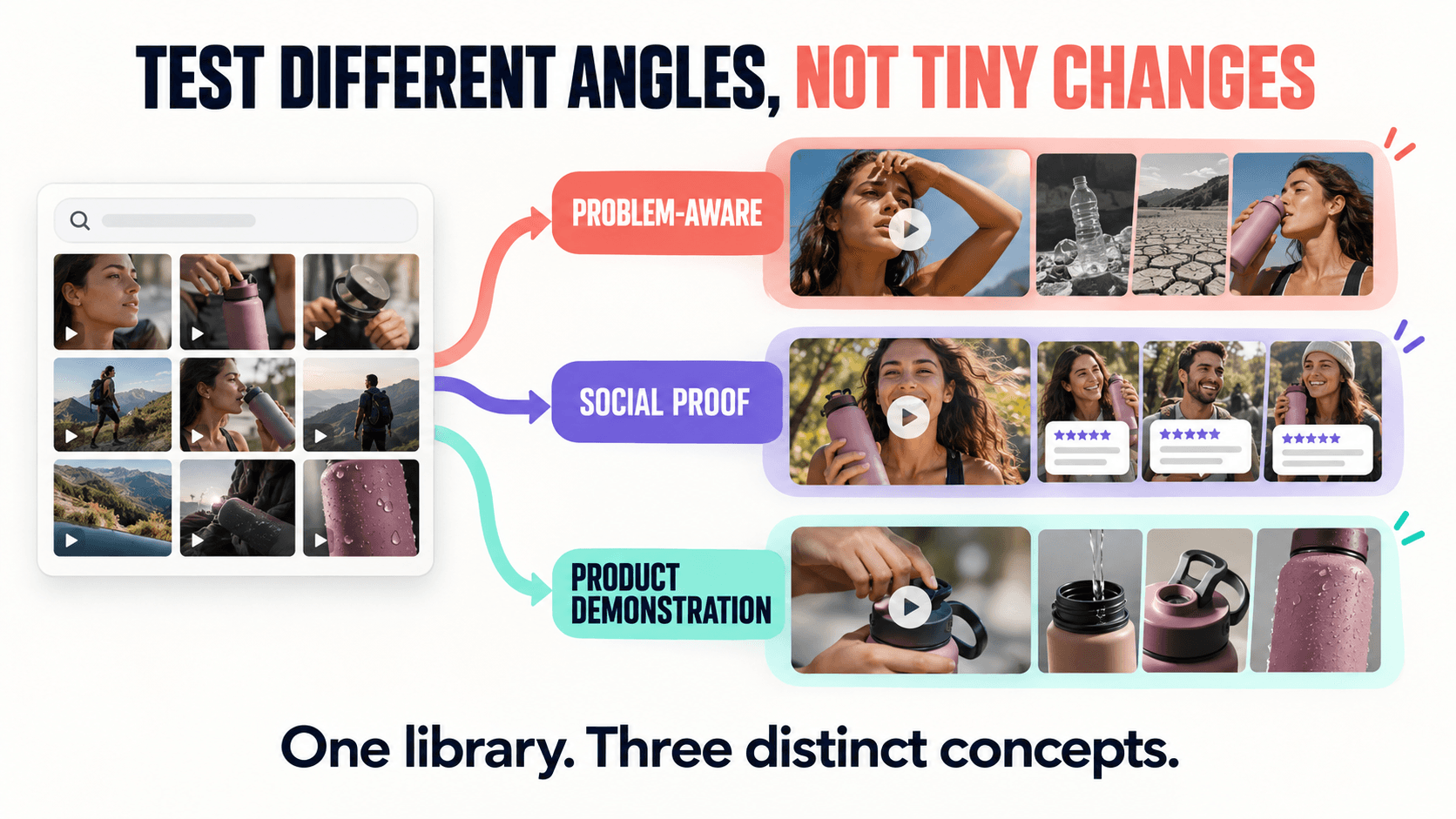
Instead of producing several ads with minor visual changes, teams can create separate concepts using different hooks, creators, or product benefits.
For example, you could develop:
Problem-aware ad: Focus on a customer problem and how the product addresses it.
Social proof ad: Use approved testimonials and customer experiences.
Product demonstration: Show how the product works through real footage.
Each concept can become a separate /make-video prompt, using relevant footage from the same library.
This approach supports more meaningful creative testing and can help teams avoid producing ads that are too similar. For more context, read how Meta Andromeda evaluates creative similarity.
Claude Skills to Use Alongside Make Video
Make Video focuses on assembling creative into a reviewable video prototype. Other Recharm Claude skills can support the planning and footage discovery stages.

Here are a few useful combinations:
Footage Gap Finder: Identify missing footage before planning a new ad.
Creator Finder: Find creators whose available footage fits the campaign.
Problem-Aware Ad Brief: Develop a creative brief around a specific customer problem.
Social Proof Ad Brief: Build a concept around approved testimonials and customer experiences.
Brief Creator: Turn creative requirements into a more structured production brief.
Using these skills together can help teams move from identifying an idea to selecting footage and preparing a first cut.
Turn Existing Footage Into New Creative Tests
Making more video ads doesn't always require more filming. Existing product shots, creator footage, and testimonials can support new creative concepts when teams can find and organize them efficiently.
Claude-assisted workflows can help turn those assets into reviewable prototypes, giving strategists and editors a clearer starting point.
The important part is still the creative decision: choosing a useful message, selecting the right footage, and reviewing the result before launch.
To explore the workflow further, see Recharm's Make Video examples or the Claude plugin installation guide.
FAQs
Does Claude Make Video Ads From AI-Generated Footage?
The Recharm Make Video workflow focuses on using existing creator videos, product shots, and other footage from a connected library. Motion graphics or animated elements can supplement the footage when appropriate.
Is the Rendered Video Ready to Publish?
Not necessarily. Treat the output as a reviewable first cut. Check clip selection, timing, captions, audio, branding, product claims, and usage rights before publishing or running it as a paid ad.
What Happens If My Footage Library Doesn't Have a Required Shot?
Identify the missing footage during planning. Depending on the creative brief, you can select another suitable clip, use approved product imagery, add a motion graphic, or arrange additional footage.
The Footage Gap Finder skill can help identify missing assets before production.
How Long Does It Take to Render a Video Ad With Claude?
Render time depends on the video's duration, resolution, effects, and available computing resources. Shorter videos may require less processing, but there is no fixed rendering time for every project.
Can I Test Multiple Creative Angles?
Yes. You can develop separate prompts for different messages, creators, or visual approaches. Review each output individually to make sure the variations are meaningfully different and suitable for testing.
Do I Need ElevenLabs or Remotion to Use Make Video?
ElevenLabs and Remotion are described as optional components in this workflow. ElevenLabs can support generated voiceovers and music, while Remotion can support animated elements. Check the current plugin installation guide for the complete technical requirements.